
Fail Over Service - Version 12010 and below
Availability of service desk application will be an important factor for the smooth running of service desk service. Unexpected hardware/software failure can make service desk application unavailable, which could have a big impact on business. ServiceDesk Plus (SDP) provides 'Fail Over Service' (FOS) feature to ensure availability of service desk application even during a software/hardware failure.
Topics Covered:
- How does Fail Over Service work?
- Prerequisites for using the FOS Feature
- Setup Process
- Upgrade Process
- Restore Process
- Prerequisites for DC Add-on (If DC plugin installed)
- Disabling FOS
How does Fail Over Service work?
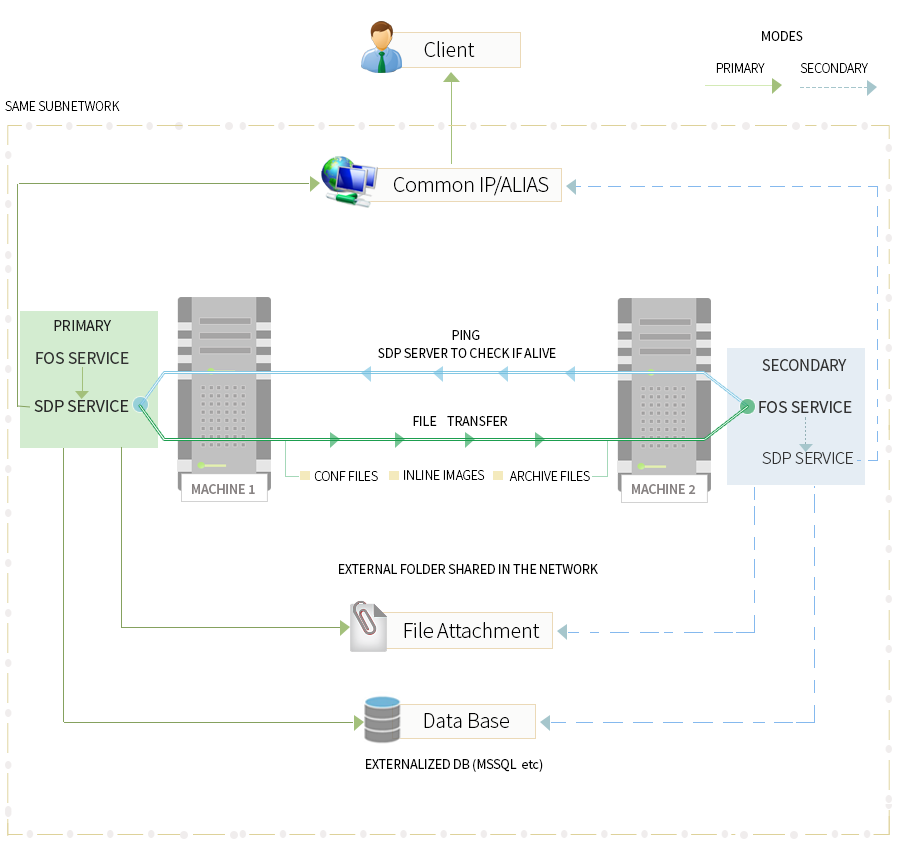
- There will be two installations of SDP in two different machines (M1 & M2).
- One installation will be a primary one and other a secondary.
- Both installations contain 'ManageEngine ServiceDesk FOS', a windows service which is used to manage and monitor the availability of 'ManageEngine ServiceDesk Plus' service.
- A common IP address needs to be configured through which users will connect to the service desk application.
- In an environment without FOS, SDP URL will point to the primary machine by default. To configure FOS, the application URL has to be bound to the common IP address instead of the primary machine’s. This has to be done in the DNS of your local network.
- FOS service in the secondary installation will monitor the availability of SDP service in the primary.
- Upon non-availability of SDP service in primary, FOS service will automatically start the SDP service in secondary installation after acquiring a common IP address.
- Since users connect to SDP application through a common IP address, there will be no interruption to the service.
- Ideally, it would take about 3 to 4 minutes to start the FOS in machine 2 after an unexpected hardware/software failure.
-
After the primary server issue is resolved, please follow these steps to restore the FoS setup:
1. Shut down the current secondary server, which is acting as the primary server. That is, invoke <SERVICEDESK HOME>\fos\stopFOSService.bat in machine 2
2. Configure the rectified server as the primary server and start it. Invoke <SERVICEDESK HOME>\fos\startFOSService.bat in machine 1.
3. Wait for the application to start the primary server fully. Then start the secondary server. (StartFOSService.bat from machine 2).
PREREQUISITES FOR USING THE FOS FEATURE:
Server Requirements
- Two 64 bit Server machines with high network connectivity.
- The servers used for the FOS setup must have two-way read-write access for the ManageEngine folder(Where ServiceDesk is installed).
- It is supported ONLY in ServiceDesk 64 bit exe installations.
- Robocopy windows utility must be present in both the machines.
-
Common IP Address must be available in the same network for allowing the primary and secondary installations of ServiceDesk service to bind the same i.e : the server machine's IP and the common IP Address must belong to the same IP range.
|
Note |
Common IP address is basically a virtual IP address in the local network, that is not bound to any specific machine. A simple way to check if an IP address can be used as a common one is to ping the IP address. If it's not reachable then it can be used as a common IP address. |
ServiceDesk Configuration Requirements
- Currently, only MSSQL is supported.
- DB must be externalized i.e The database server must be externalized from machine 1 and machine 2 but accessible to both. Preferably use Mssql setup
- File Attachment path must be externalized i.e Set as a network path (Must belong to the same network domain and externalized from both machines, Make sure it is accessible to both machines)
- HTTPS certificate must be obtained for the Alias URL of common IP.
- HTTPS mode for FOS will NOT work for self-signed certificates and certificates from the internal CA. Signed Certificates from a known authority will only be supported.
- The common URL (for which the certificate is obtained) needs to be bound to the common IP configured, in the DNS of the network.
- Configure FileAttachment and database in machine 3.
Make sure to do the following if the folder is shared from an external machine:
-
Set the folder permission to "Everyone" with read/write access.
-
Check if the folder is accessible from the application (ServiceDesk Plus) server.
-
If you want to restrict the folder access to one particular user account, set the folder access to that account and open Run command (Win+R) 'services.msc'.
-
Search for 'ManageEngine Servicedesk Plus' and go to Properties.
-
Select the 'Log on' tab and choose 'This account' option.
-
Fill the login credentials of the domain user to whom the access is given and save it.
- Start the service.
|
Note |
|
SETUP PROCESS :
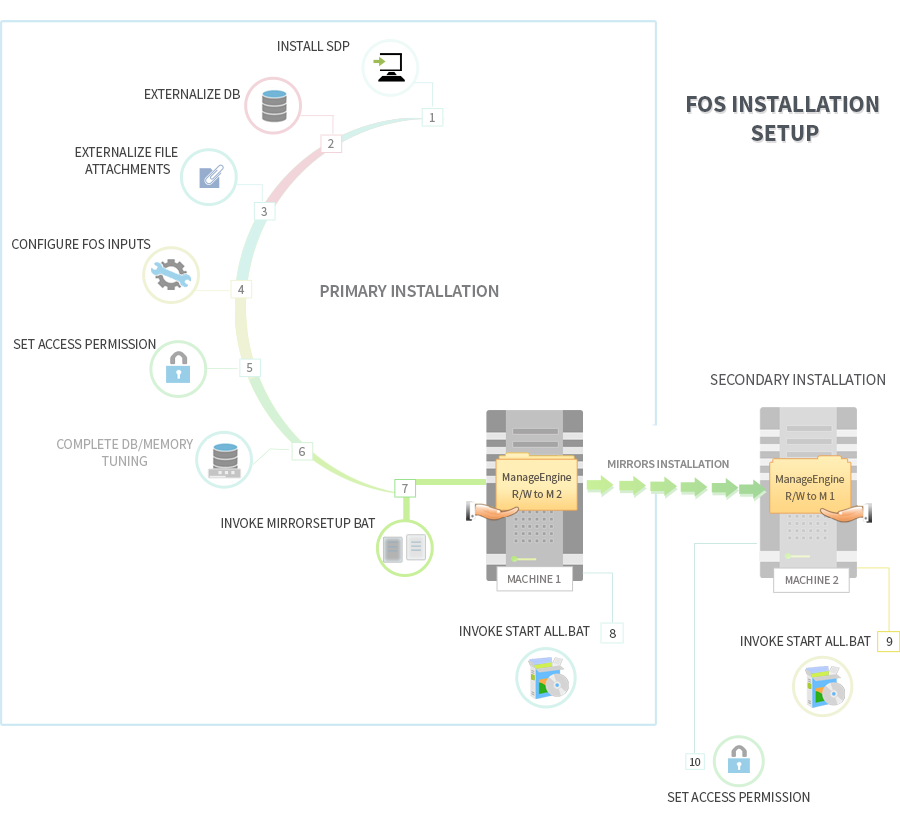
All the configurations must be done only in the primary installation and replicated to the secondary installation using mirrorSetup.bat
- Installation :
- Install the build in machine 1
- The installation for the second machine will be copied during mirror operation.
Note |
|
- Set Access Permission :
- Share the machine 1's ManageEngine folder to machine 2 (with full read/write permission).
- Create a folder called ManageEngine in machine 2 and share this folder with machine 1 (with full read/write permission).
- Access machine 2's shared folders from machine 1 and vice versa, By accessing start menu->run-> \\<machineIP>\ManageEngine e.g: \\192.168.3.11\ManageEngine\ and provide the user name and password (if needed) to make sure an IPC connection is established between the machines.
- Configure FOS inputs:
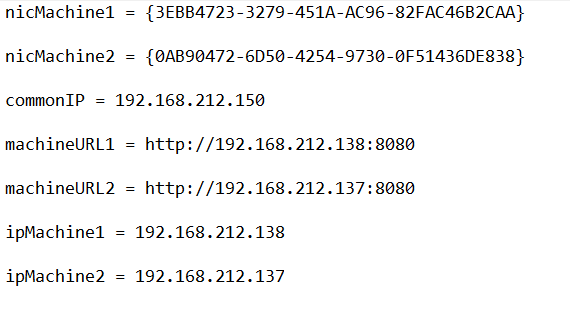
- Supply the values for the given fields in the <SERVICEDESK HOME>\fos\fosInputs.conf file using the following file format.
The sample file for fos inputs is as follows:
Please note,
- nicMachine1 refers to the nic card address for machine 1.
- nicMachine2 refers to the nic card address for machine 2.
- commonIP refers to the virtual IP address used to bind the active machine.
- machineURL1 refers to the URL for accessing servicedesk in machine 1.
- machineURL2 refers to the URL for accessing servicedesk in machine 2.
To set up a common alias URL for the above-mentioned commonIP, modify the following line in the fosInputs.conf file:
The HTTP/HTTPS protocol should not be included in the fosInputs.conf file. However, if HTTPS protocol is used, then it is recommended to configure a value in fos/conf/wrapper-fos.conf file. Uncomment the following entry and configure the primary server IP address.
For example, if the entry reads as follows:
Remove the hashtag (#) to uncomment the entry and configure your primary IP address in the place of "192.168.240.45".
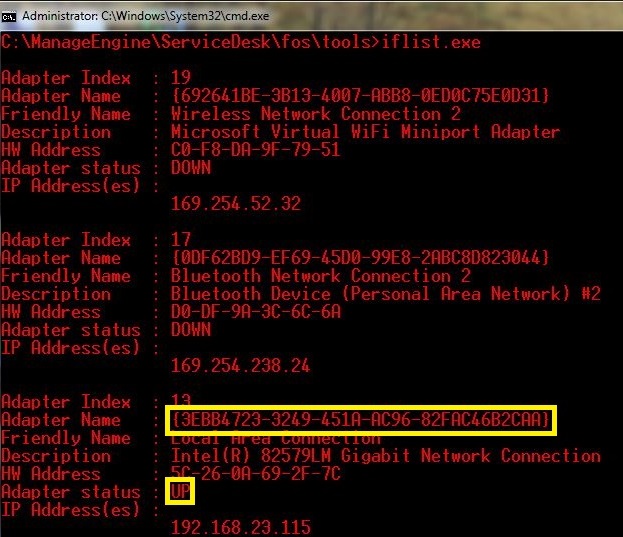
Tool for identifying the nic card address:
- Use the iflist.exe tool inside the <SERVICEDESK HOME>\fos\tools folder to obtain the nic card that is actively configured for the machine.
- Choose the nic card id of the network that is UP. (To be specific choose the NIC address for the IP to which the ServiceDesk application is bound)
- Copy the iflist.exe to the remote machine and run it to obtain the nic card id for that machine.
Subnet Mask Change
By default, the subnet mask address is 255.255.255.0. If you have a different subnet mask address, configure the fos.conf file > SDP_HOME/fos/conf
Open the fos.conf file, find the following value and remove the "#" to configure the subnet value.
clustering.fos.publicIPNetMask= <your ip range value>
Use <SERVICEDESK HOME>\bin\changeDBserver.bat and externalize the DB
Complete the DB, JAVA, Memory tuning in the required files (If needed).
- Mirror Installation :
Invoke <SERVICEDESK HOME>\fos\mirrorSetup.bat <machine2-name/ip> - pass the machine 2 name or IP as parameter
Start Application :
Invoke <SERVICEDESK HOME>\fos\startFOSService.bat in machine 1. This will also start SDP service in machine 1.
Invoke <SERVICEDESK HOME>\fos\startFOSService.bat in machine 2. This will also start SDP service in machine 2.
Configure Credentials for FOS Replication (For build 10509 and higher only)
Users with build 11136 and above are required to perform the following changes to ensure smooth FOS file replication:
1. The fos >> filelog folder must be renamed or deleted in their primary and secondary servers.
2. The next.pos file under fos >> repl-slave must be deleted in their primary and secondary servers.
FOS replication schedule will make use of these credentials to replicate files from the master machine to the slave machine when the application is running.
To make sure the data is replicated in both the machines, do the following:
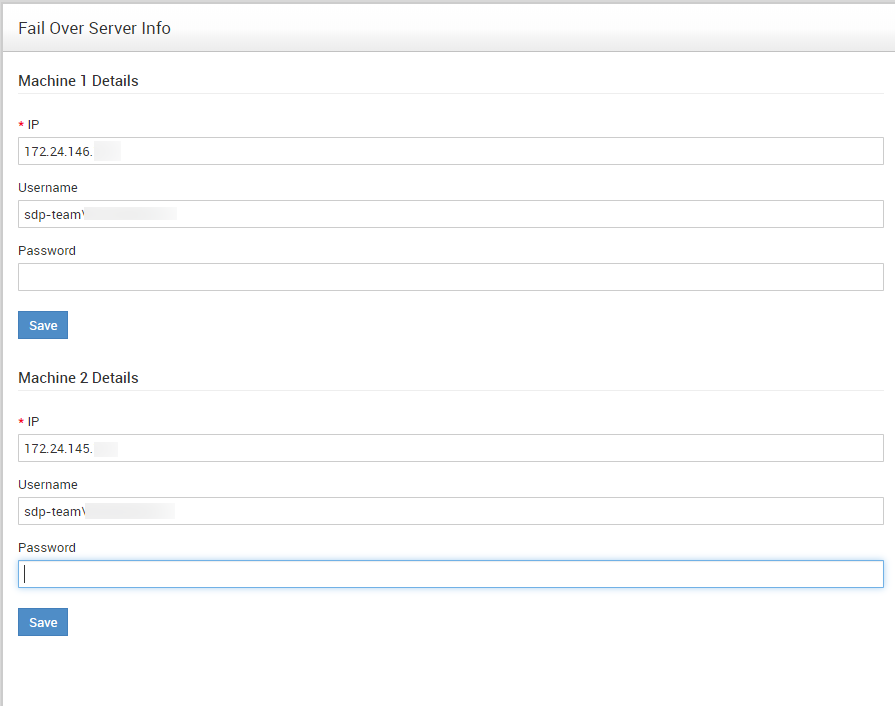
- Invoke http(s)://<commonipaddress>:<port>/setup/FosInputs.jsp.
- In the pop-up that appears, enter the IP address of the machine 1 (master), username(<domainname\username>), and password.
- Click Save.
Similarly,
- Enter the IP address of the machine 2 (Slave), username (<domainname\username>), and password.
- Click Save.
Failure Notifications
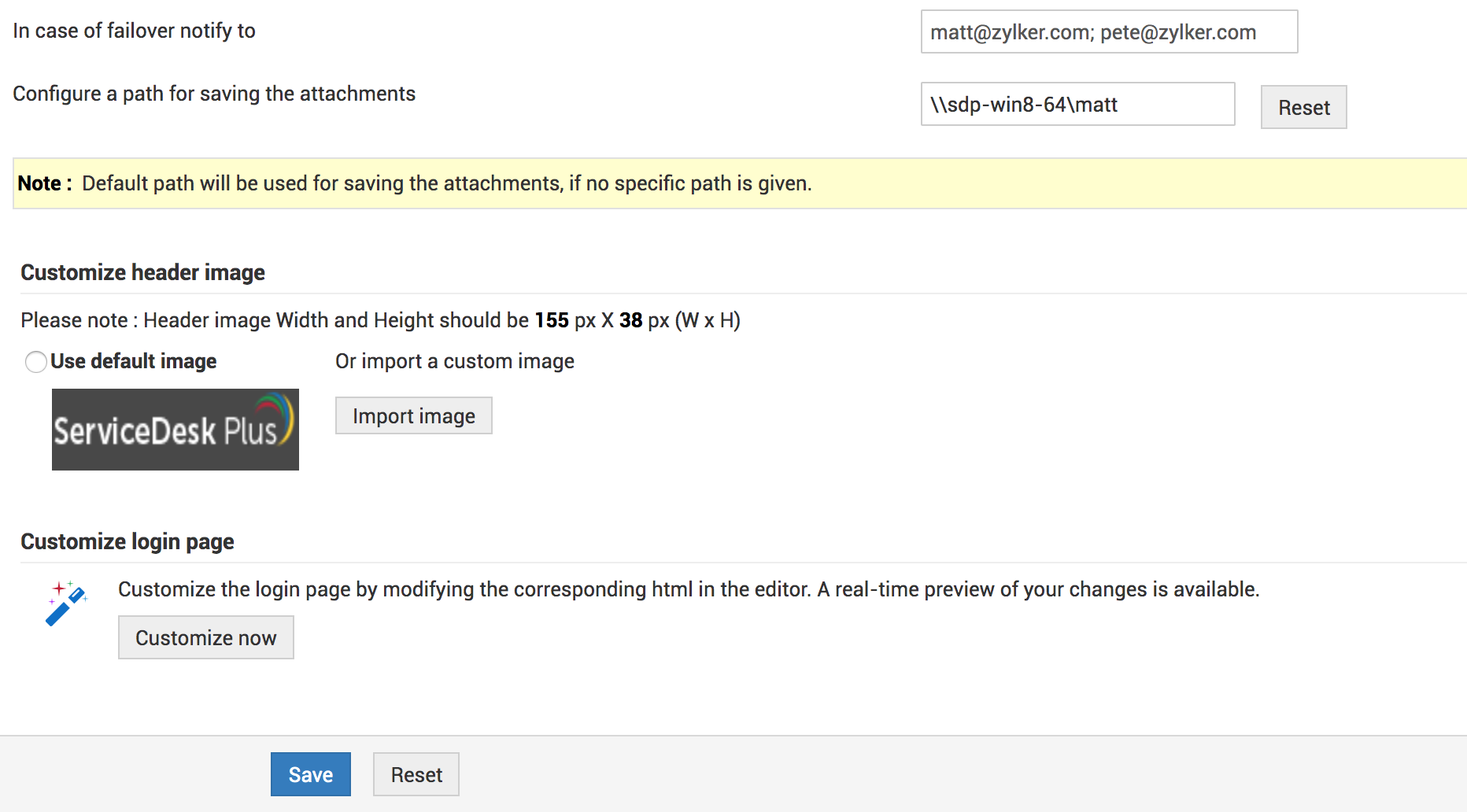
In case of critical failures like 'master_node_down,' specific technicians will be notified by email.
To configure the notification:
Go to admin>>self service portal settings, find "In case of failover notify to," add the email addresses as comma separated values, and click Save.
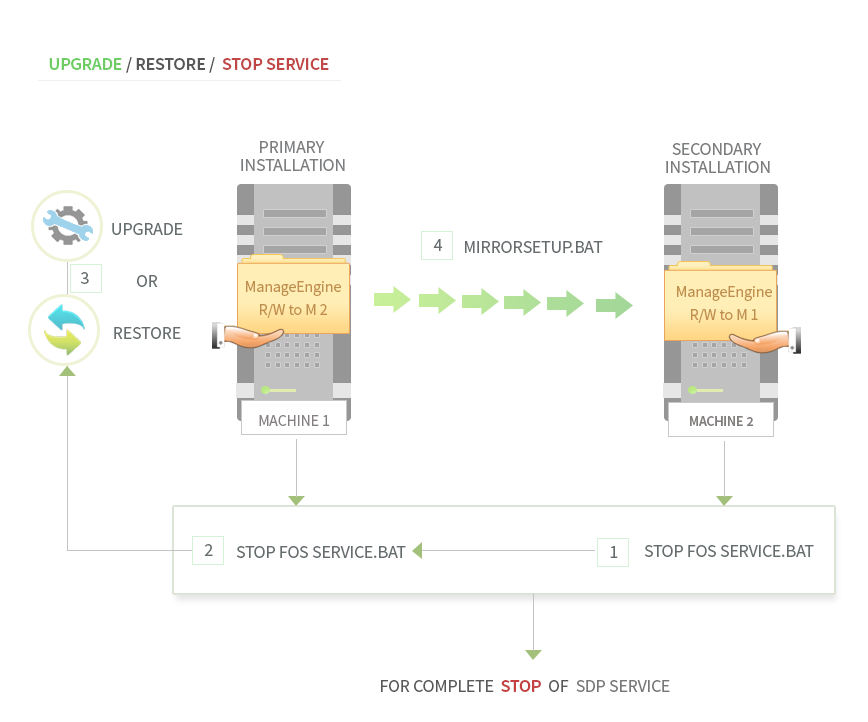
Follow these steps while upgrading the FOS.
- Invoke <SERVICEDESK HOME>\fos\stopFOSService.bat in machine 2. This will also stop FOS and SDP service in machine 2.
- Invoke <SERVICEDESK HOME>\fos\stopFOSService.bat in machine 1. This will also stop FOS and SDP service in machine 1.
- Upgrade Build in Machine 1 using the PPM. For more details click.
- Invoke <SERVICEDESK HOME>\fos\mirrorSetup.bat <machine2-name/ip> - pass the machine 2 name or ip as parameter.
- If you are using a secure server (https), go to <SERVICEDESK HOME>\fos\conf\wrapper-fos.conf in machine 2, find "wrapper.java.additional.4=-Dverifyhost=<ip of master machine>", remove the hash preceding the configuration, and replace <ip of master machine> with the IP of machine 1.
- Invoke <SERVICEDESK HOME>\fos\startFOSService.bat in machine 1. This will also start FOS and SDP service in machine 1.
- Invoke <SERVICEDESK HOME>\fos\startFOSService.bat in machine 2. This will also start FOS and SDP service in machine 2.
Follow these steps while restoring the FOS.
- Invoke <SERVICEDESK HOME>\fos\stopFOSService.bat in machine 2. This will also stop FOS and SDP service in machine 2.
- Invoke <SERVICEDESK HOME>\fos\stopFOSService.bat in machine 1. This will also stop FOS and SDP service in machine 1.
- Restore the data in machine 1 setup. For more details click.
- Invoke <SERVICEDESK HOME>\fos\mirrorSetup.bat <machine2-name/ip> - pass the machine 2 name or ip as parameter.
- If you are using a secure server (https), go to <SERVICEDESK HOME>\fos\conf\wrapper-fos.conf in machine 2, find "wrapper.java.additional.4=-Dverifyhost=<ip of master machine>", remove the hash preceding the configuration, and replace <ip of master machine> with the IP of machine 1.
- Invoke <SERVICEDESK HOME>\fos\startFOSService.bat in machine 1. This will also start FOS and SDP service in machine 1.
- Invoke <SERVICEDESK HOME>\fos\startFOSService.bat in machine 2. This will also start FOS and SDP service in machine 2.
| Note |
|
Prerequisites for DC Add-on (If DC plugin installed):
-
Prerequisites for DC installed within SDP for inventory, remote control, and tools:
Note :
1.DesktopCentral can be installed only on a Windows server.
2.For customers who have purchased DC separately along with FOS license, please refer to Steps to follow if you do not have a Failover Server setup under this DC documentation for steps to configure FOS in DC.
-
The location path of the servers on both installations(machine 1 & machine 2) should be the same
(\\primary installation\ManageEngine\ServiceDesk and \\secondary installation\ManageEngine\ServiceDesk and so on)
File location path has to be changed to a network share that is accessible by both the installations(machine 1 & machine 2) for the following
DesktopCentral - Admin - Tools - Database Backup - Backup Directory
DesktopCentral - Admin - Software Repository - HTTP Repository - New Location
DesktopCentral - Patch Mgmt - Downloaded Patches - Settings - Patch Repository Location
- Invoke <SERVICEDESK HOME>\fos\stopFOSService.bat in both the machines. This will also stop the FOS and SDP service in both machines.
- Remove these two files from the folder <SERVICEDESK HOME>\fos,
<SERVICEDESK HOME>\fos\configSuccess.txt.
<SERVICEDESK HOME>\fos\SDPFosStart.txt.
FOS will be disabled.
| Note |
|