
Configure the database
- Non-GUI Users
- Connect to Postgres SQL Database
- Connecting SQL Server with Windows Authentication
- MS SQL Connection Resolution
- MS SQL AlwaysOn Availability Groups
Configure the Database
ServiceDesk Plus (SDP) uses Endpoint Central agents from BUILD NO 11300 for scanning Windows, Linux, and Mac machines. If you are using Endpoint Central in your environment, then Endpoint Central gets installed with bundled PGSQL database by default.
Configuring Postgres SQL database
-
Execute the changeDBServer.bat [changeDBServer.sh for Linux] file present under <ServiceDesk Home>\bin directory. This opens the Database Setup Wizard. Fill in the respective server details:
- Server Type: Select the server type from the combo box. (Postgres SQL).
- Host Name: Enter the IP Address/ Host Name in which the database is available. The default hostname is 'localhost'.
- Port: Specify the Port. The default port is 65432.
- Database: By default, the database name will be servicedesk (can be changed as per your requirement).
Database User credential (Applicable for version 10500 and higher only)
- User Name: Specify the User Name to login to the server. (Default User Name: sdpadmin)
- Password: Specify the Password. (Default Password: sdp@123)
Note: This credential will give read and write access to users for the application's database alone.
-
To check the availability of the connection, click the Test button. A window pops up showing 'Connection Established' message.
-
Click OK to proceed.
-
Click the Save button to save the SQL server settings.
Notice for users in ServiceDesk Plus Build 14610 and above:
Auto-generation of default PostgreSQL database password for sdpadmin
For users in ServiceDesk Plus build 14610 and above, the default PostgreSQL database password will now be auto-generated for sdpadmin.
Why auto-generation of PostgreSQL database password?
For security reasons, the default PostgreSQL database password will now be auto-generated for sdpadmin. Refer to the following to understand when and how the password will be auto-generated for specific setups.
When and how will the password be auto-generated?
-
For existing setups, the password will be auto-generated during migration only if the default password was not updated previously.
-
For fresh setups, the default password will be auto-generated when the server is started for the first time.
-
For setups that switch to PostgreSQL database after migrating to 14610 or later, the database password will be auto-generated while executing changeDBServer.bat/.sh script.
Recommendation for Connecting to ServiceDesk Plus Database through external tools.
To connect to ServiceDesk Plus database through external servers, we highly recommend users to use rouser. For the bundled Postgres database, the default password is "EdgarFCodd". For External Postgres/MSSQL database, click here.
The user who installs ServiceDesk Plus can view the auto-generated password by invoking the following script:
- Windows: decryptPostgresPassword.bat
- Linux: decryptPostgresPassword.sh
Configuring MS SQL database
Execute the changeDBServer.bat [changeDBServer.sh for Linux] file present under <ServiceDesk Home>\bin directory. This opens the Database Setup Wizard. Fill in the respective server details:
-
Server Type: Select the server type from the combo box. (MS SQL)
-
Host Name: Enter the IP Address/ host name in which the database is available. The default hostname is 'localhost'.
-
Port: Specify the Port. The default port is 1433.
-
Database: By default, the database name will be servicedesk (can be changed to your requirement).
-
User Name: Specify the User Name to login to the server.
-
Password: Specify the Password.
-
Master Key: Enter a Master Key password to encrypt the SCHAR columns in the database. Master Key password will be asked only during the creation of a database.
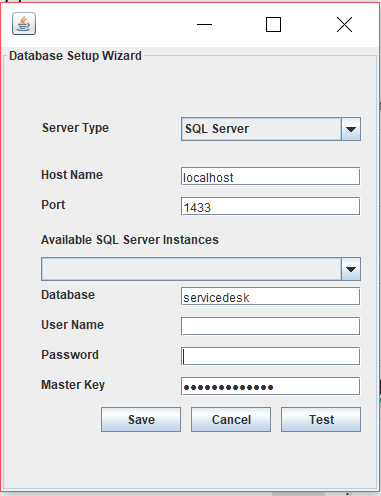
To create or alter the Master Key password manually, use the following queries.
- To create a Master Key password, use "create master key encryption by password='' ; . For altering a Master Key password use this query: "alter master key encryption by password='' ;
- Internally, customer-config.xml will be saved with the encrypted Master Key password.
-
To check the availability of the connection, click Test. A window pops up showing 'Connection Established' message.
-
Click OK to proceed.
-
Click Save to save the SQL server settings.
Role Required for MSSQL User in ServiceDesk Plus
The following roles are required for an MSSQL user to use the application.
-
Public
-
DBCreator or DBOwner
-
View Server State and View Any Definition (optional)
Purpose of Roles
-
DBCreator: If the database is created via changeDBServer.
-
DBOwner: If the database is created manually and only configuration is made via changeDBServer.
-
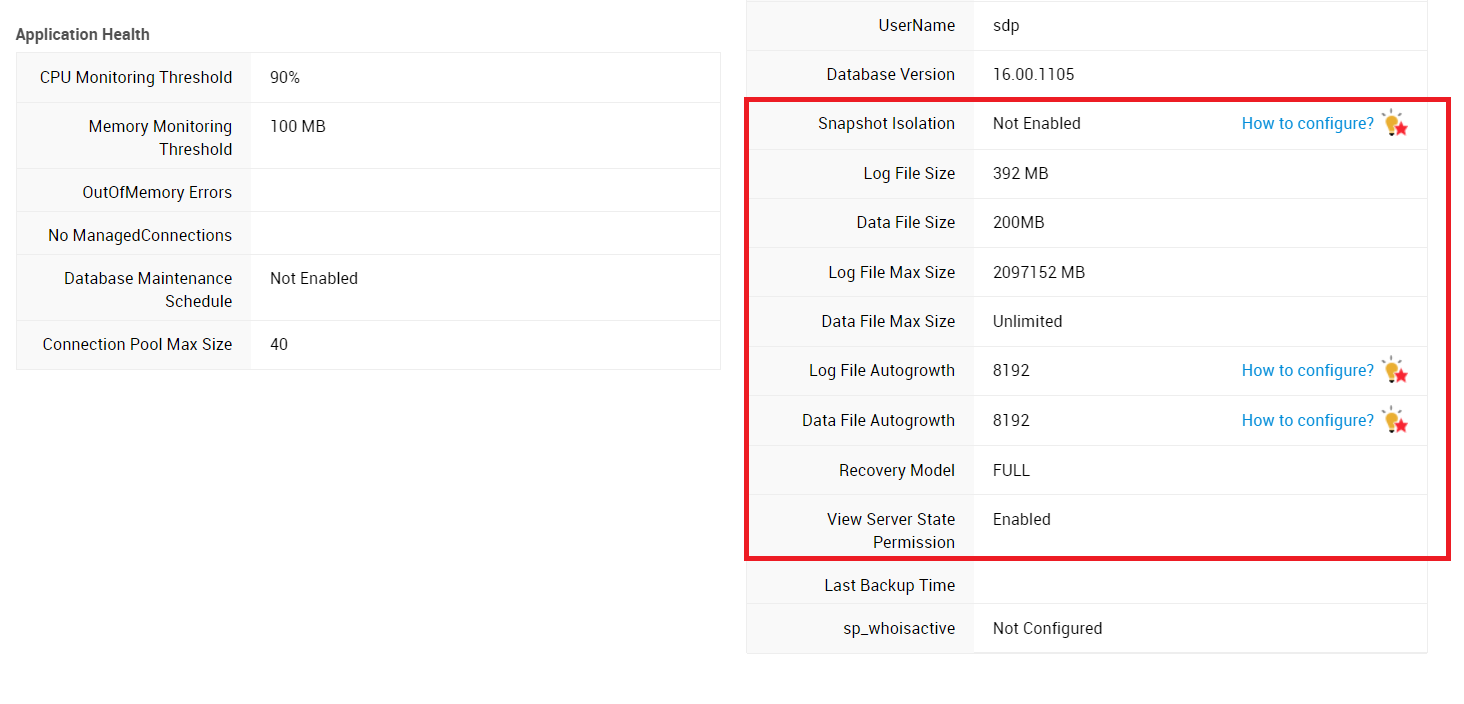
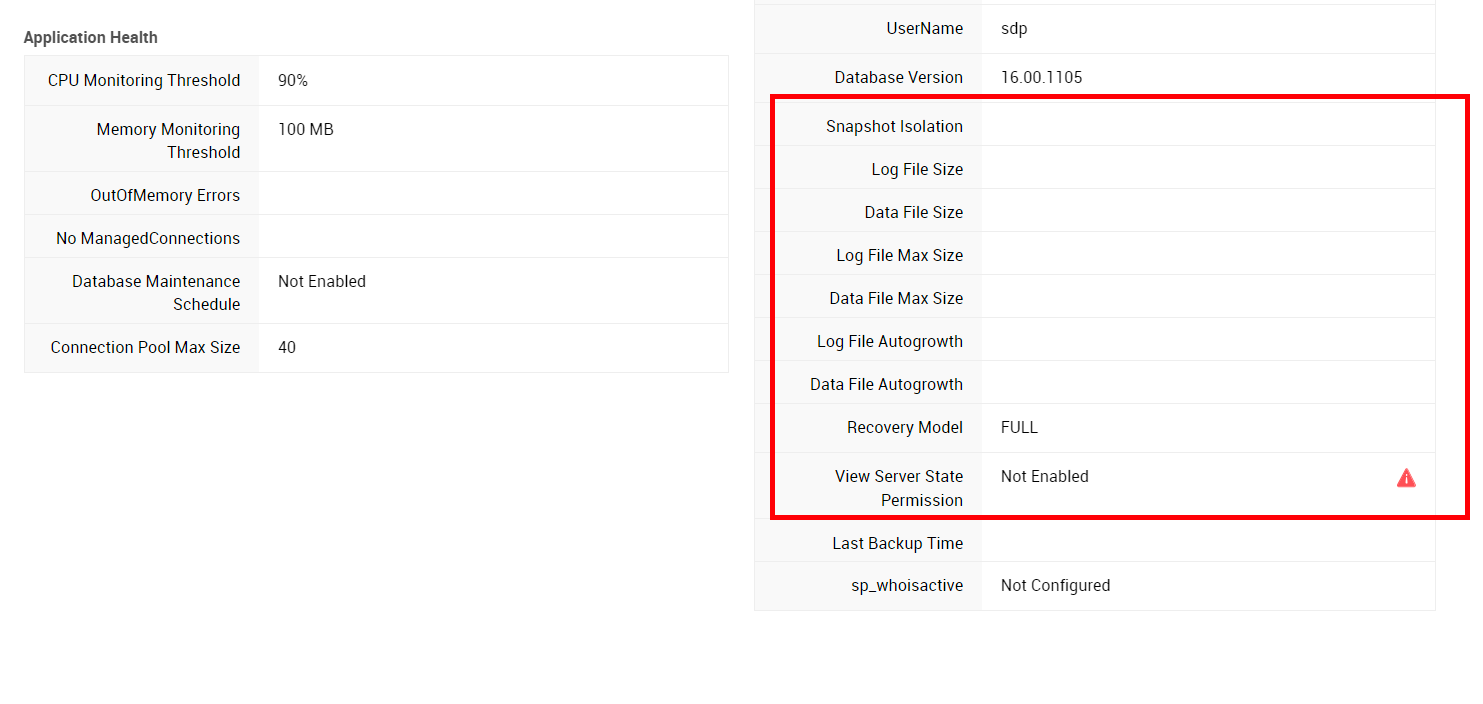
View Server State and View Any Definition: To view the properties of MSSQL server in the health meter. Users without this permission will not be able to view the properties of the MSSQL server.
With View Server State and View Any Definition permission:
Without View Server State and View Any Definition permission:
How to retrieve the MSSQL master key password?
The master key password can be viewed by invoking the following script from the bin directory:
Windows: decryptMasterKey.bat
Linux: decryptMasterKey.sh
Who can run this script?
Windows: The user who installed the product or any user with administrator privileges can decrypt and view the master key password.
Linux: Only the user who installed the product can decrypt and view the master key password.
Configuring Azure SQL database
For Azure SQL Manage Instance Database,
- Make sure that the machine in which the application is to be installed is connected to the same network that hosts the Manage Instance Server.
- If the application is to be installed in a Virtual Machine hosted in a different network, use V-Net peering to connect to the network that hosts Manage Instance Server.
- Follow the steps given to configure MS SQL Database to complete the configuration.
Backup functionality for Azure databases is not supported in ServiceDesk Plus. For more information on performing backups of Azure databases, click here.
If required, the database can be moved to a local SQL Server using the built-in database migration tool.
Non-GUI Users
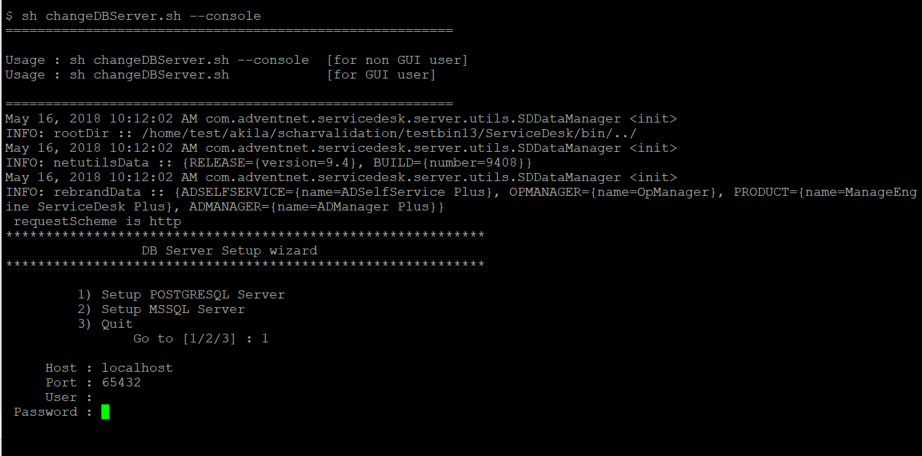
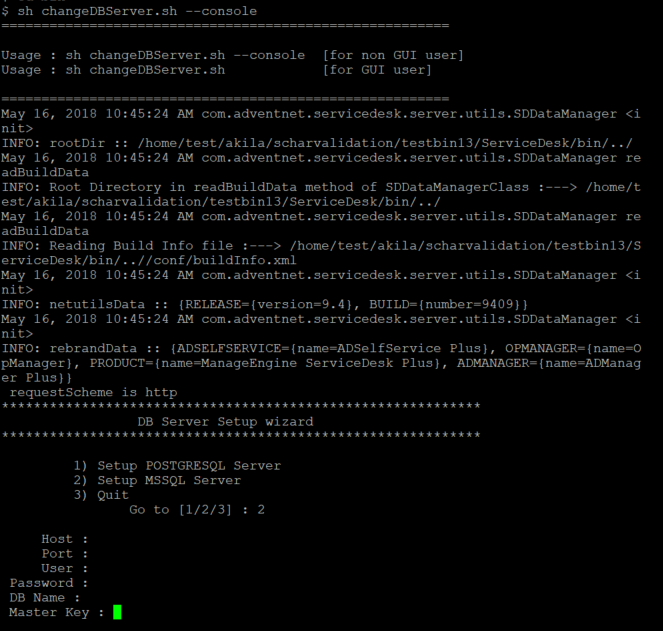
Run the command changeDBServer.bat [changeDBServer.sh for Linux] in the command prompt by passing parameters as given below:
C:\[ServiceDesk Plus Home]\bin>changeDBServer.bat --console
It will get the DB Server necessary information from the console.
For PGSQL it will read as follows:
For MS SQL, it will read as follows.
ServiceDesk Plus (SDP) uses Endpoint Central agents from BUILD NO for scanning Windows, Linux, and Mac machines. If you are using Endpoint Central in your environment, then it gets installed with bundled PGSQL database by default.
Connect to Postgres SQL Database in Windows
1. Go to [ServiceDesk Plus Home] \ pgsql \ bin in the command prompt.
cd ManageEngine\ServiceDesk\pgsql\bin
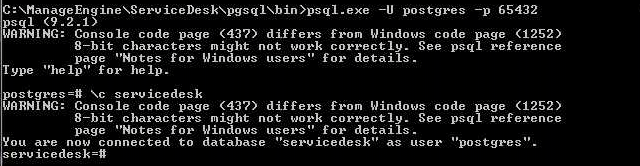
2. Enter the command: psql.exe -U postgres -p 65432 servicedesk
C:\> cd ManageEngine\ServiceDesk\pgsql\bin> psql.exe -U postgres -p 65432 servicedesk
For version higher 10000,
C:\> cd ManageEngine\ServiceDesk\pgsql\bin> psql.exe -U sdpadmin -d servicedesk -p 65432 -h 127.0.0.1and enter the password as sdp@123
The prompt changes to:servicedesk=#.
Connecting SQL Server with Windows Authentication
To connect ServiceDesk Plus with Microsoft SQL server in Windows Authentication mode,
-
Add an NTLM user to the SQL Server
-
Configure the database with Windows Authentication in ServiceDesk Plus
-
Start ServiceDesk Plus from the added NTLM user login
Step 1: Add an NTLM user to the SQL Server
-
Open SQL Server Management Studio.
-
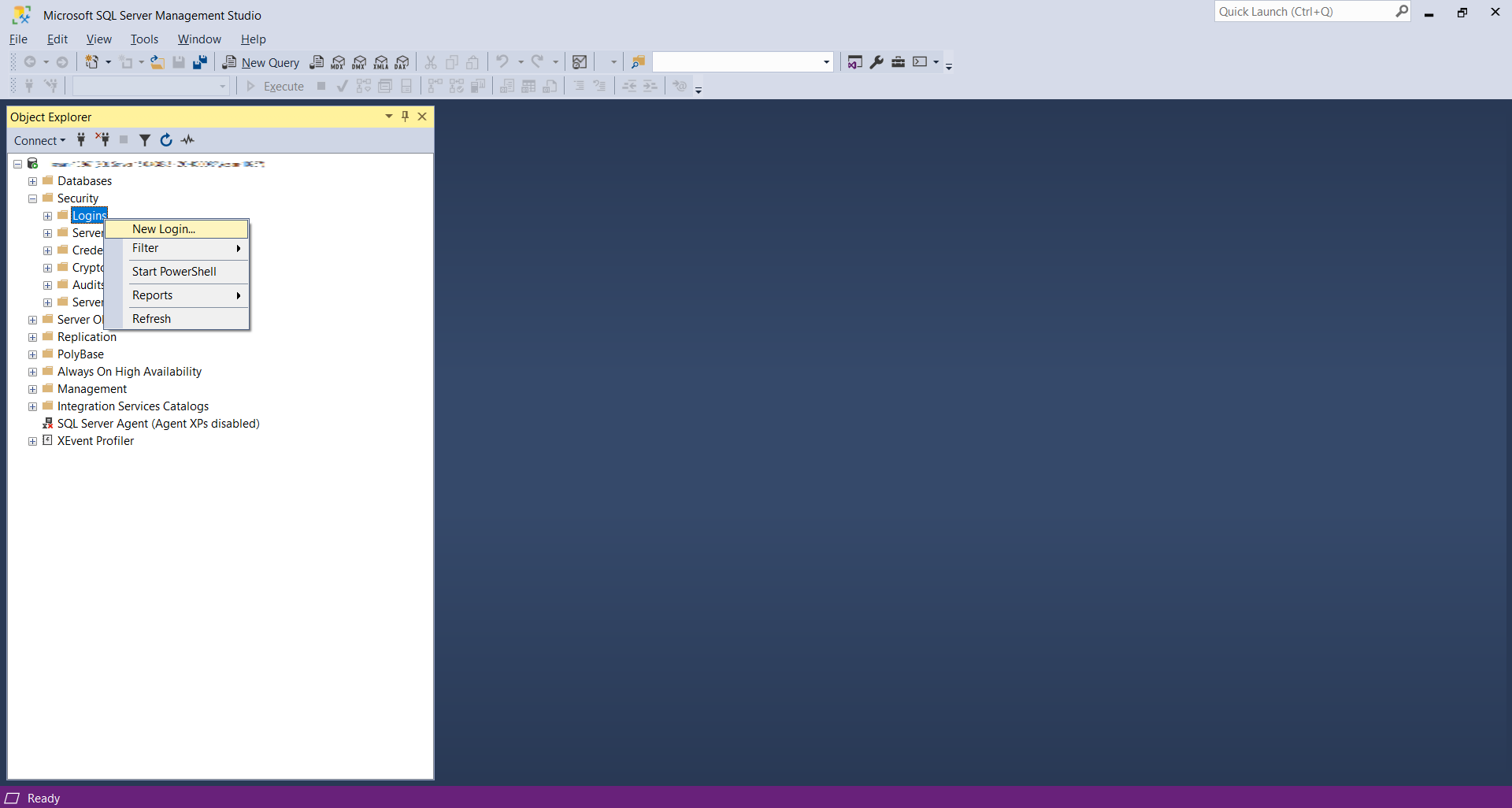
Under Object Explorer, right click Login and select New Login.
-
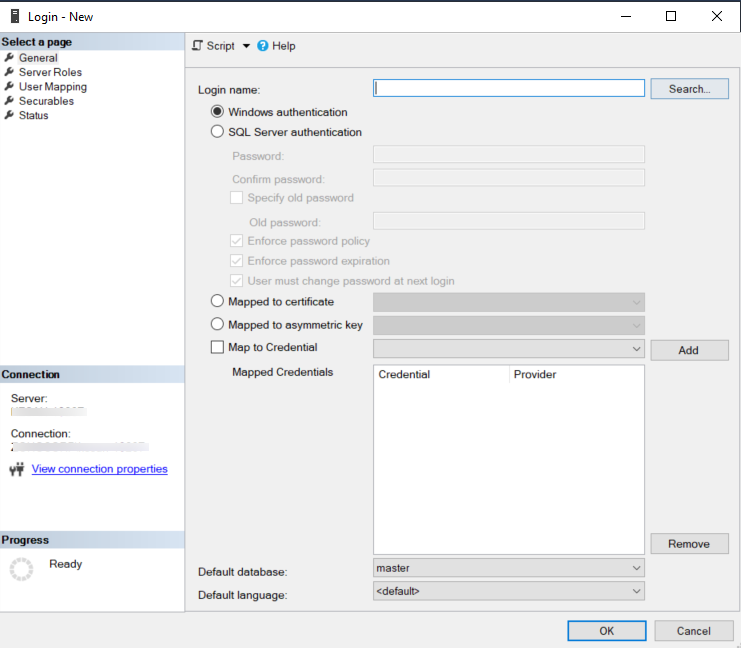
In the displayed window, select Windows Authentication.
-
Click Search beside the Login Name field.
-
Search and add the user.
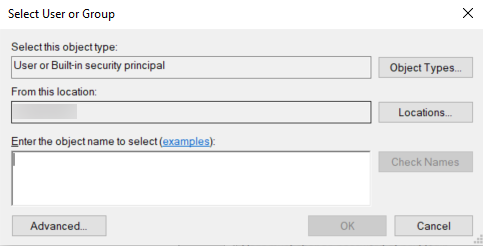
-
Click OK.
Step 2: Configure Windows Authentication in ServiceDesk Plus
If you have already logged in as the configured NTLM user go to Step 4.
-
Press Shift + Right Click on <SDP-HOME>\bin\changeDBServer.bat.
-
From the displayed drop-down, select Run as different User.
-
Enter the credentials of the NTLM user configured in Step 1.
-
In Database Setup Wizard, choose SQL Server as the Server Type and select Windows Authentication.
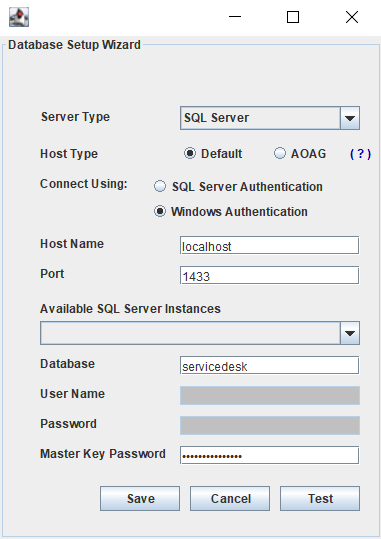
-
Click Test. A pop up displays on establishing successful connection.
-
Click OK.
-
And finally, click Save.
Step 3: Start ServiceDesk Plus service (as a different user):
-
Go to Start > Services.
-
In the displayed page, right click ManageEngine ServiceDesk Plus > Properties.
-
Under Log On tab, select This account.
-
Provide the login credentials of the user configured in Step 1.
-
Click OK.
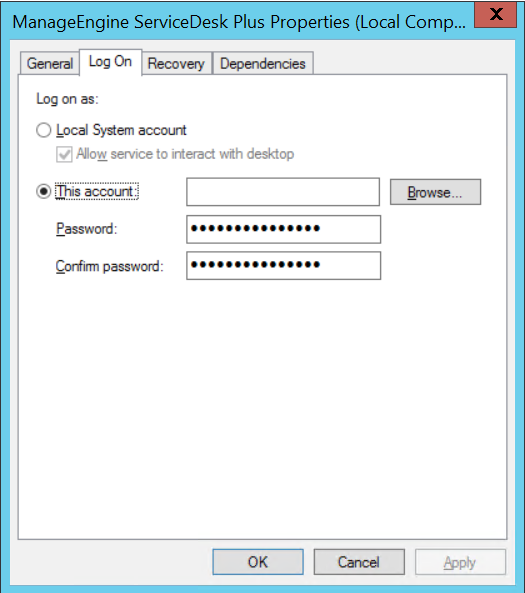
You can now start ServiceDesk Plus as a configured NTLM user.
MS SQL Connection Resolution:
If a connection is refused and an exception is thrown by SQL Server as 'unable to connect the server', then there could be following reasons why this could happen such as:
- The server name is misspelled or the port number is incorrect.
- The SQL server may not be configured to use TCP/IP. In this case, enable TCP/IP from SQL server's network utility application.
- If there is a firewall blocking port 1433 on the server then you will not be able to connect to the server.
- To confirm the firewall block connect to TCP/IP use \"telnet<server_host>1433\"\n to confirm the block.
- SQL Server Instance is not currently supported by ServiceDesk and will be available in the feature release. You can also connect to SQL Server named instance once if you know the machine name and port of the named instance.
- Create a new user with full privileges as shown below:
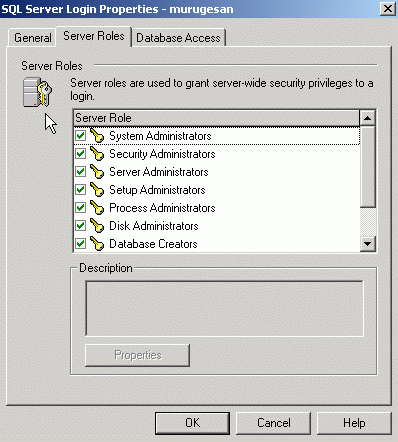
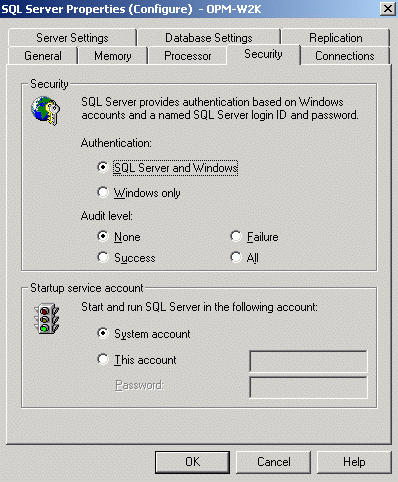
- While configuring SQL server properties select the authentication type as SQL server as shown below. Windows authentication is not supported by ServiceDesk Plus currently.
FAQ
Question 1: What are the things we need to do after the following scenarios?
- After upgrading the MS SQL DB Server version
- Movement of MS SQL data folder
- After restoring an already backed-up instance of an MS SQL database in the same/different MS SQL DB Server.
Database Master Key will be decrypted by Service Master Key internally. But in the above scenarios, Database Master Key gets disassociated with the service master key, thus the service master key must be re-associated with the database master key.
The customers should follow the following steps to open the Database Master Key and to enable the automatic decryption.
OPEN MASTER KEY DECRYPTION BY PASSWORD = 'password'; -- master key password provided during database creation(If the database created using ServiceDesk changeDBServer.bat tool, then the password will be the default 'SChar@123Mas!er')
ALTER MASTER KEY DROP ENCRYPTION BY SERVICE MASTER KEY
ALTER MASTER KEY ADD ENCRYPTION BY SERVICE MASTER KEY
Question 2: Upgrading to versions 13000 or above displays the following error message:
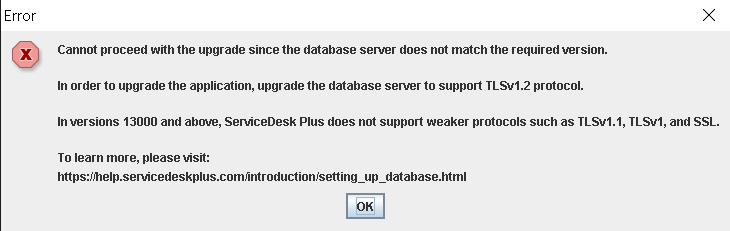
Answer: ServiceDesk Plus does not support weaker protocols such as TLSv1, TLSv1.1, and SSL in versions above 13000. Upgrade the SQL server to support TLSv1.2. Click here to find the required version of SQL server.