
The Zia Bot workflow helps you define the various actions that must occur in response to specific user input or choices.
Using the Zia Bot workflow, you can easily define a directional workflow for the various actions that must be performed in response to user queries.
Role Required: SDAdmin
Quick Links
Define the Zia Bot Workflow
The Zia Bot workflow can be defined easily through a few drag and drop actions on a graphical user interface.
Go to Admin > Zia Bot > Configure Zia Workflow
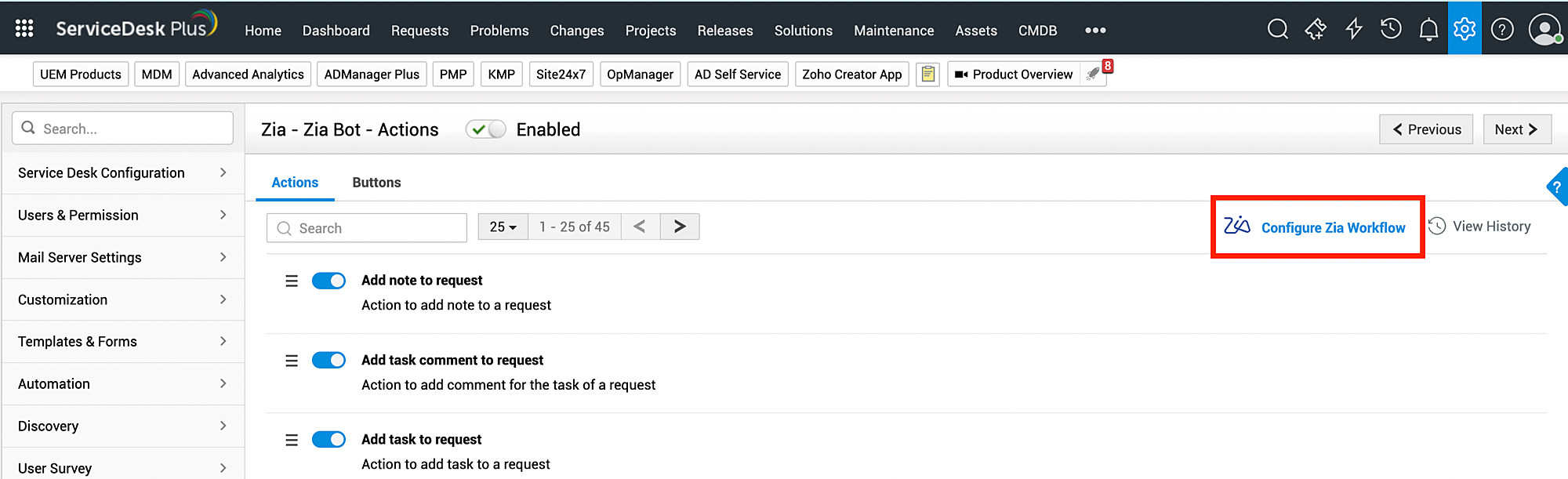
The Zia Workflow configuration page opens a canvas for you to create the graphical workflow.
You can either edit the nodes in the canvas according to your requirement or delete all nodes and create the workflow from scratch.
Two nodes are used to create the workflow: Options Menu and Actions.
Options Menu is the list of various options or choices that you can provide the customer. Each of these options or choices is called a button. When the user chooses a button, they will be taken to the next step: Action or another Options Menu.
Both Options Menu and Actions are available in the stencil panel.
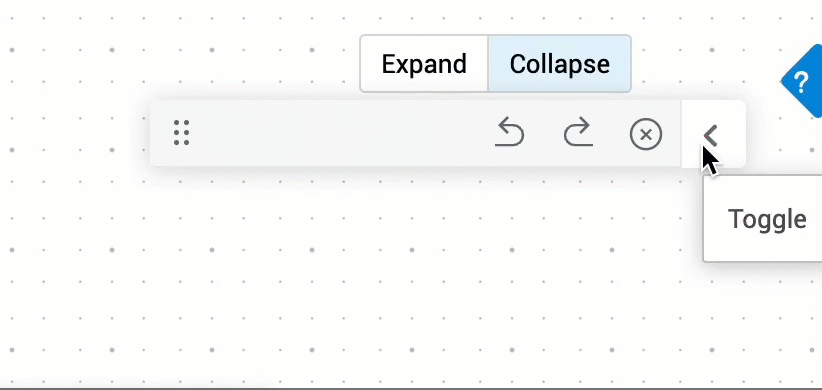
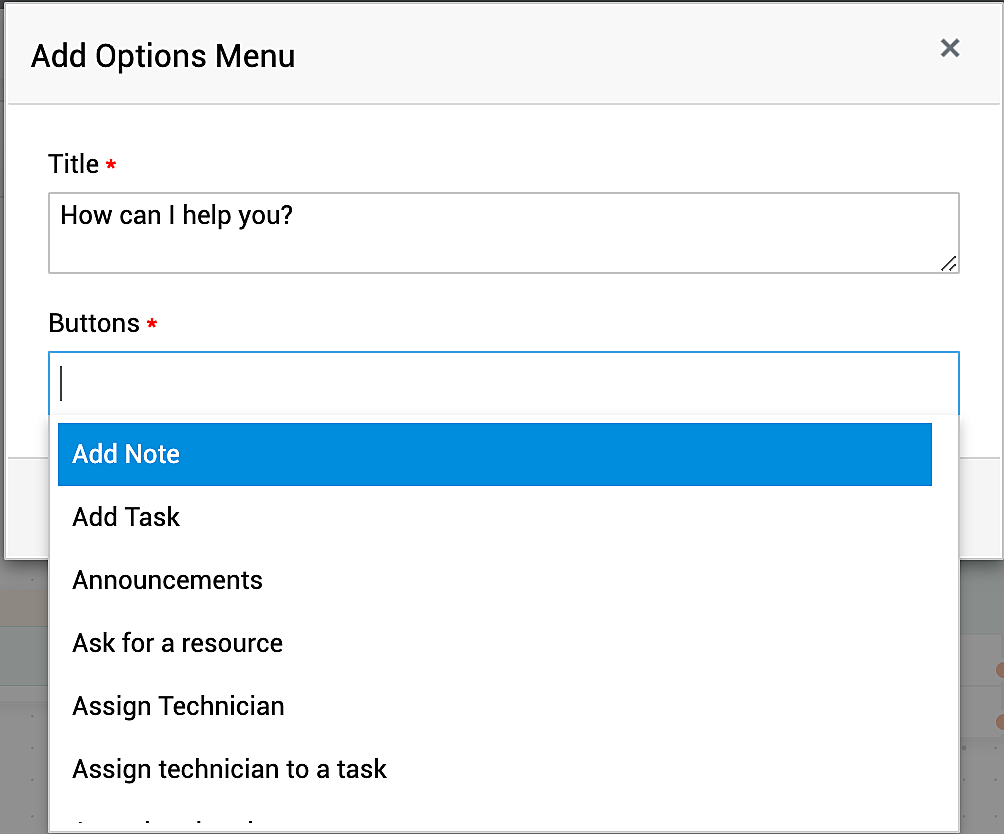
To add an Options Menu, drag it to the canvas, provide it a name and select from the list of buttons or add the required buttons.
To add a new button, type the button name and press Enter.
Then, add the required Action by dragging it from the stencil panel to the canvas.
Now, connect the specific button from the Options Menu to the Action.
You can either choose from the 20 default actions already defined and available or create a new custom action from scratch.
After the two nodes are clearly defined, connect the buttons to the corresponding actions.
Any option from the Options Menu, will definitely lead to a button that's mapped in the workflow:
Button > Action > User Input > Output Node > Further Assistance
Now, each of these nodes can be renamed depending on your requirement. But for a button with action to be valid within the workflow, it must follow this sequence.
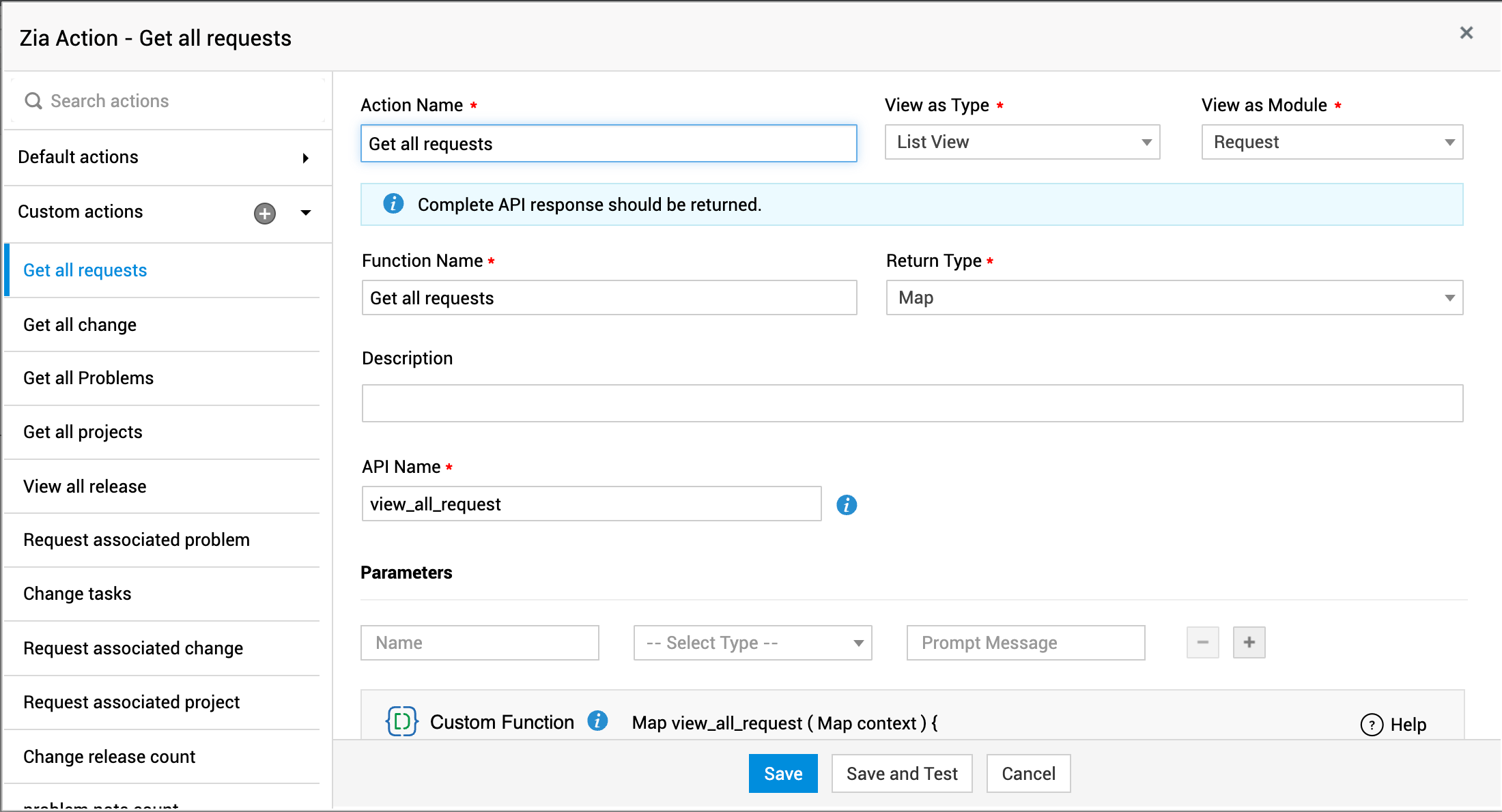
Creating a new custom action
Click + next to Custom actions and fill out the displayed page using the following pointers
Use the following pointers to create the custom function.
|
Fields |
Explanation |
|
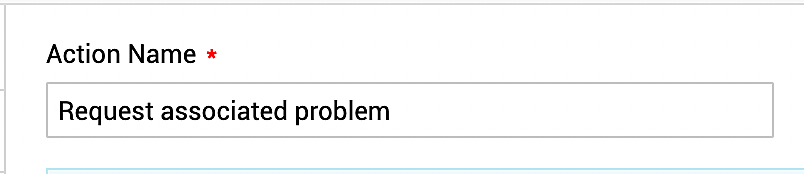
Action Name
|
Provide an appropriate name for the action so that it is easily identifiable. |
|
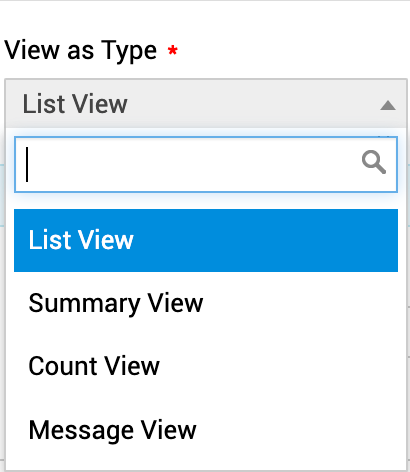
View as Type
|
Under View as Type, select from List, Count, Summary, or Message As the names indicate, these are the various ways to display the message to the user.
|
|
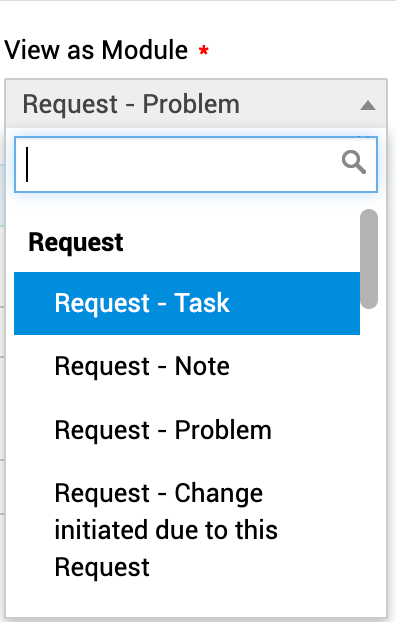
View as Module
|
Select the required module from the drop-down. |
|
Function Name and Return Type
|
Provide the function name and select the return type from the drop-down. |
|
Description
|
Provide a description that captures the need for this custom function. |
|
API Name
|
Make sure you provide the complete API name of the function that is called and make sure it is unique and not used in any other custom functions. |
|
Parameters
|
Before you proceed to define the custom function, add the required parameters. Use the + icon to add more parameters. |




After defining the parameters, define the custom function using Deluge Script Editor as shown below:
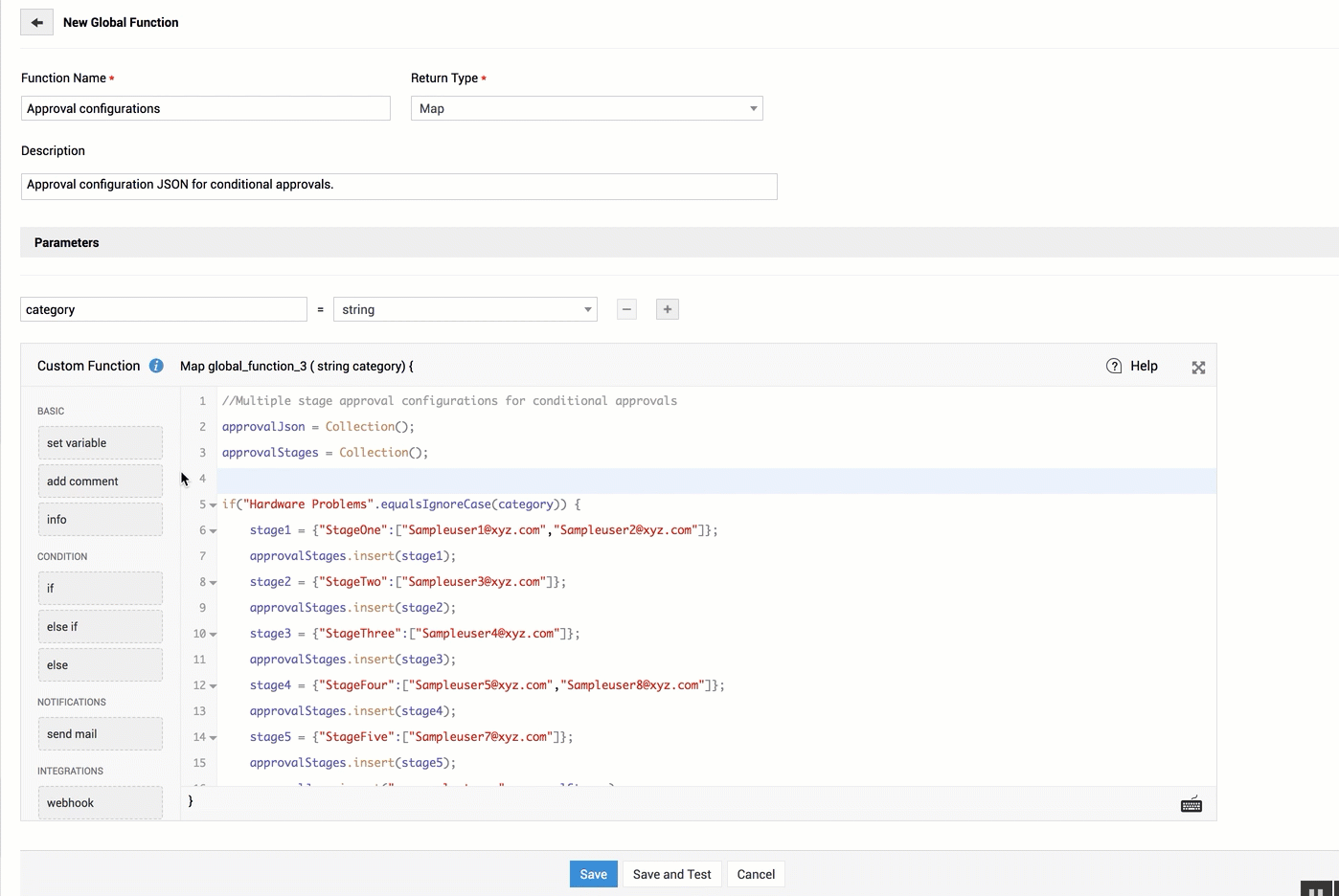
Then, click Save or Save and Test to complete creating the custom function.
Finally, complete the workflow and click Save.
- Invalid or unconnected Action or Options Menu nodes
- Invalid or incomplete connections for the buttons
- Invalid connectors
- Connector from a button's output, which is already connected to another node
- Connecting to an already connected node
List View
When you select List View, the details are displayed as a list in the Zia Bot as follows:
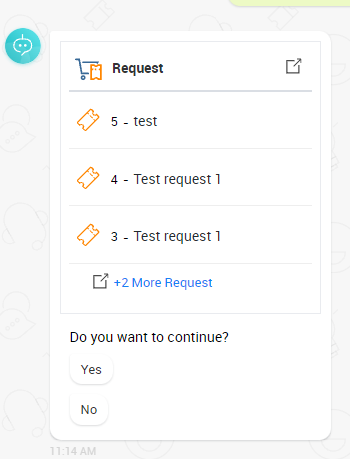
The code that you can use within the custom function for the List View is as follows:
response = invokeurl
[
url: "http://sdp-cart-w10:8080/api/v3/requests"
type: GET
parameters: {"TECHNICIAN_KEY":"EF55D735-98CC-46BD-BACE-498C4513553B"}
];
return response;
Make note of the following while writing the code for the List View:
-
Ensure that the API is used in the deluge script
-
Make sure the complete API response is returned.
-
If a hard coded user's TECHNICIAN_KEY is used in the custom function, the API response will be based on that user's scope. Because the response will be shown to all the users via Zia Bot, this may violate the security rule of user scope.
To avoid this scenario use the parameter context to get the TECHNICIAN KEY of the respective user by using context.get("TECHNICIAN_KEY")
Count View
When you select Count View, the details are displayed as the number or the count in the Zia Bot as follows:
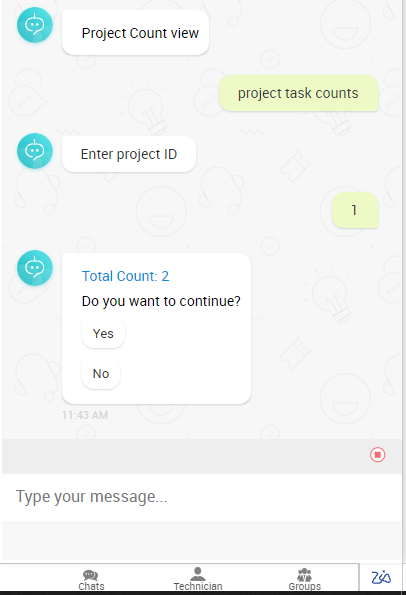
A sample code to display the count or the number of project tasks is as follows:
input_data = {"list_info":{"get_total_count":true}};
response = invokeurl
[
url: "http://sdp-cart-w10:8080/api/v3/projects/" + projectID + "/tasks"
type: GET
parameters: {"input_data":input_data,"TECHNICIAN_KEY":"EF55D735-98CC-46BD-BACE-498C4513553B"}
];
return response;
Summary View
When you select Summary View, the details are displayed as a summary in the Zia Bot as follows:
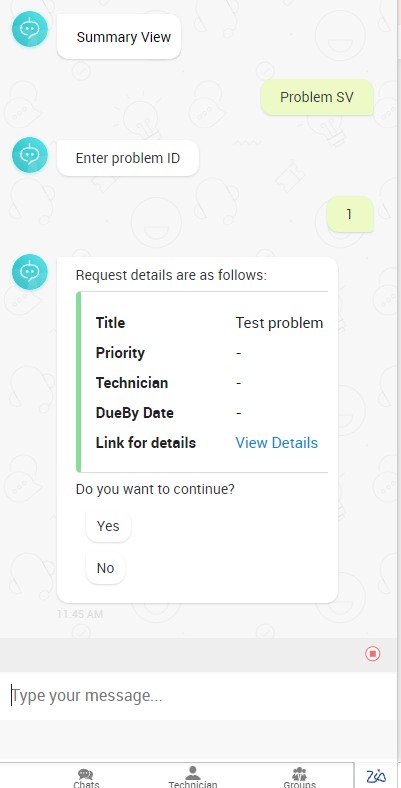
The code that you can use within the custom function for the Summary View is as follows:
response = invokeurl
[
url: "http://sdp-cart-w10:8080/api/v3/problems/" + problemID
type: GET
parameters: {"TECHNICIAN_KEY":"EF55D735-98CC-46BD-BACE-498C4513553B"}
];
return response;
Message View
In this view, customized reponses are displayed as messages. To provide customized reponses, configure actions and buttons in the Zia bot workflow and add the necessary information using custom functions to Zia.
The actions and buttons in the Zia bot workflow will collect accurate user requirements, while the custom functions configured in Zia will provide personalized user responses.
Use Cases
-
To provide any contact details, say AC maintenance, you can save the extension number as the response to the user query in the custom function.
Sample code
Insert the following custom function code with your desired response.
return {"display_message": 4537889};
Response from Zia Bot
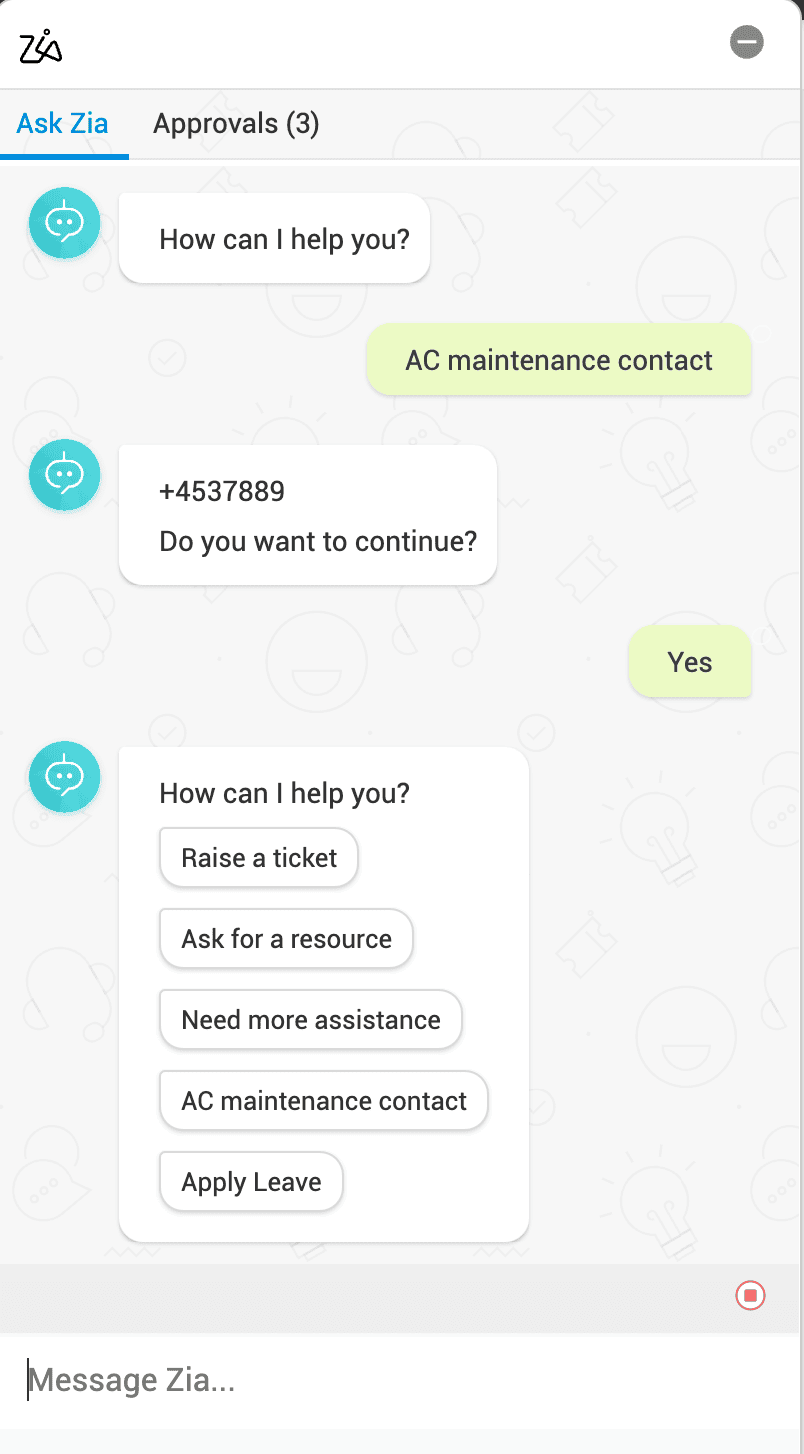
Some additional use cases:
-
Book a conference room - Save the website link as the response
-
Apply leave - Save the website link as the response
-
Holidays of the year - Save and display the holidays in a table
Apart from direct questions, you can also perform certain other operations through Zia. Here is a sample code to update the request subject.
input_data = {"request":{"subject": newsubject}};
response = invokeurl
[
url: "http://sdp-cart-w10:8080/api/v3/requests/" + requestid
type: PUT
parameters: {"input_data":input_data,"TECHNICIAN_KEY":"EF55D735-98CC-46BD-BACE-498C4513553B"}
];
displayMessage = "Problem while updating the request's subject" ;
if(response.get("response_status").get("status") == "success") {
displayMessage = "Successfully updated the request subject";
}
info response;
return {"display_message": displayMessage};
Set the "display_message" key with the information you want to show in the bot window.
If the output string is not set, the entire JSON response will show up in the bot.