
Adding task
- Click Requests tab in the header pane.
- Click the Subject link of the request to which you would like to add tasks.
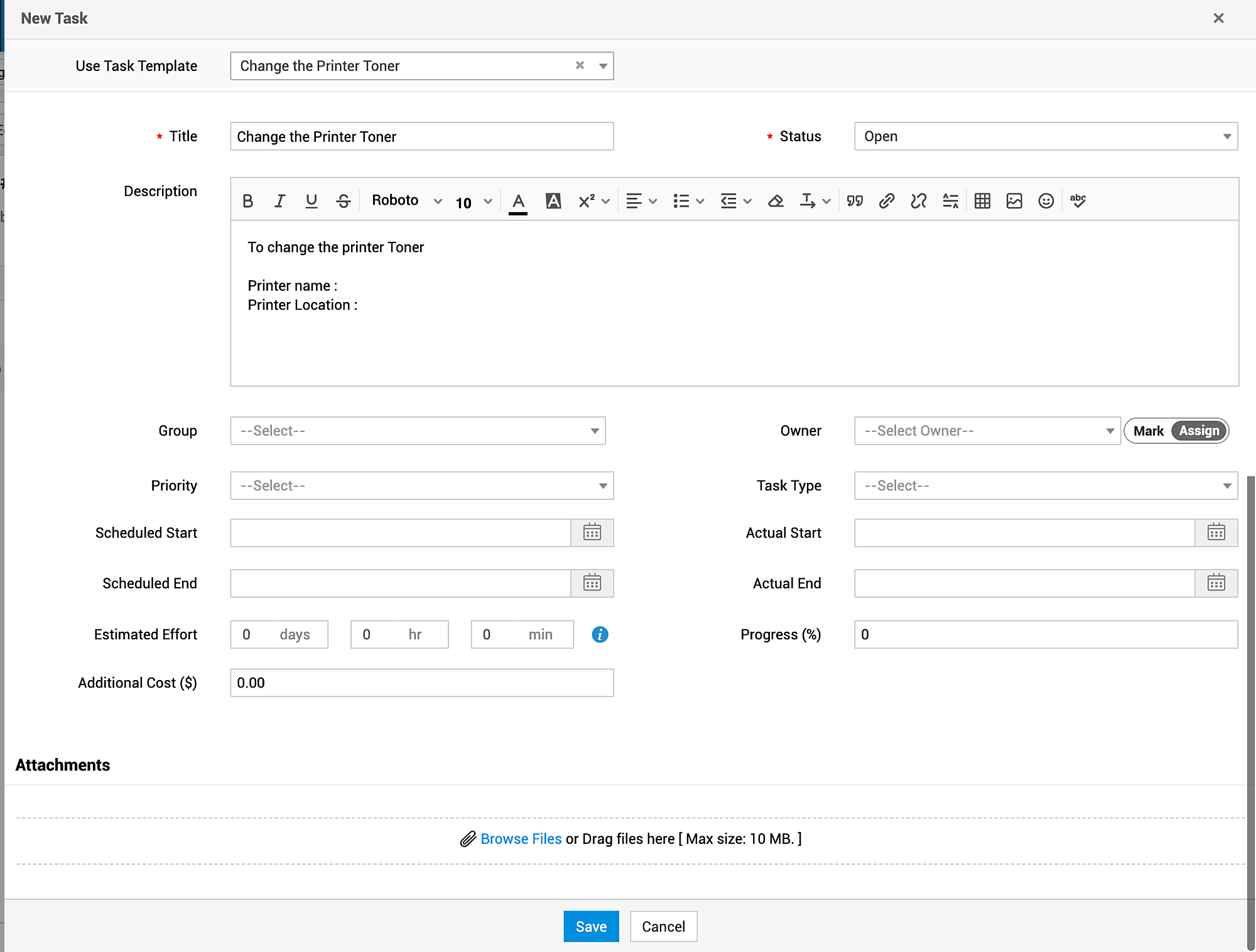
- Click the Actions drop-down menu -> select Add Task option. The Tasks form opens in a pop up window.
- To add routine tasks instantly, choose a Template from Use Task Template drop-down menu. The details added in the Template are populated in the Task form. Refer Task Template to know - how to configure Task Template.
- If you are manually adding a task in the Task form, specify the Title of the task in the given text field. This is a mandatory field.
- Specify relevant information about the tasks in the Description field.
- Specify Task Status (Open by default).
- Provide Estimated Technician Effort expected to be involved while technician is working on the task (will be useful in calculating Scheduled End Time of the Task)
- Specify Task Priority
- Choose Group/Technician for assigning/marking task.
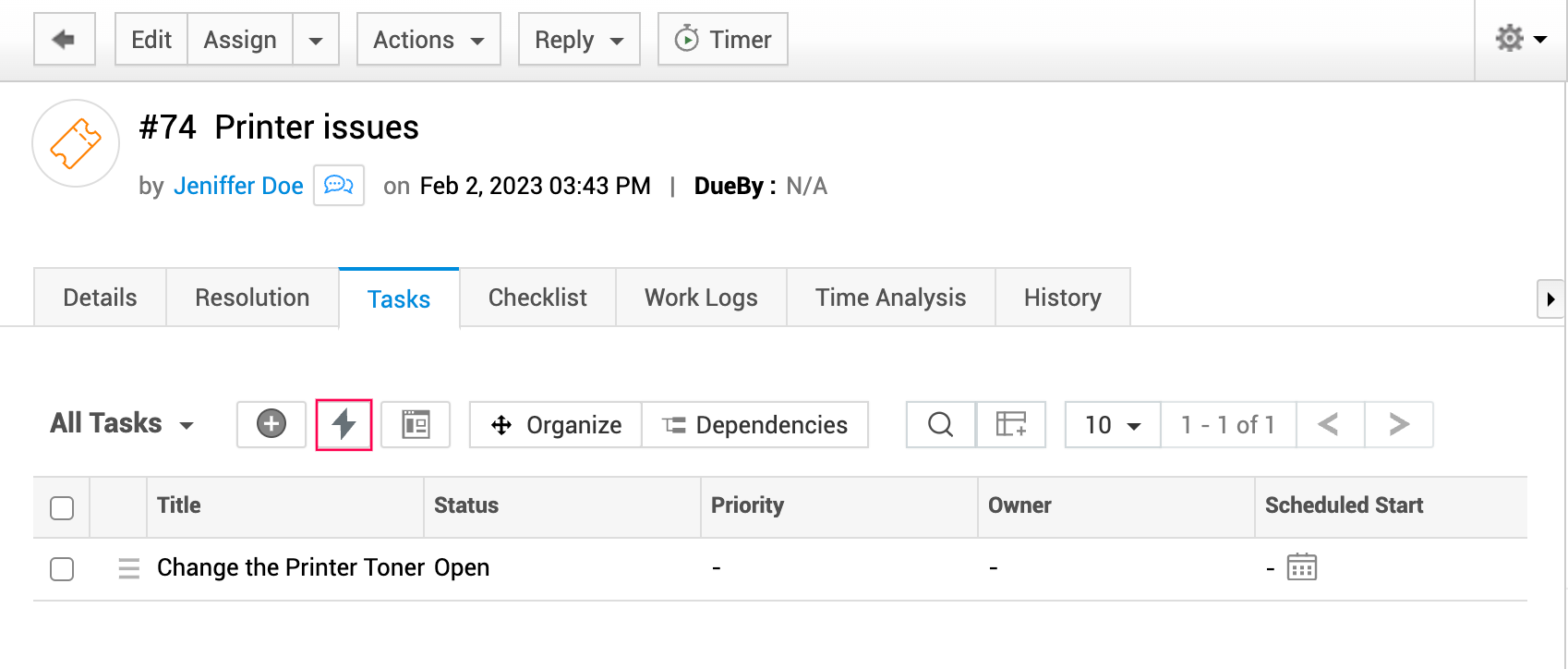
Quick Add Tasks
To add tasks instantly,
-
Click Quick Add on the top of the page.
-
Provide the task title and assign the task owner. Or you can simply add the task title and hit Enter.
Tasks can be assigned/marked:
- to a Group alone,
- to a Group and a specific Technician in the group,
- to a Technician alone without selecting the group,
- to no Group and no Technician.
- Optional: Specify Scheduled Start time for Task (the same will be done automatically, in case you choose to trigger tasks)
-
Select Task Type from the list
-
Optional: More Fields button
Specify the following by clicking More Fields.
- Actual Start-End Dates: To be filled upon task completion
- % of Completion: To specify the extent to which task has been completed (eg: 30%, 70% etc.,)
- Additional Costs (if any)
- Specify relevant comments about the task in the Comments field.
- If task being configured is dependent on another task, use Mark parent task(s)
 dropdown and select the parent task.
 - Click Save (or) Save and Add New.
Individual tasks (not associated with request, problem, change, project and milestone) will not have Mark Parent Task(s) option.
option.