
Request workflow is a sequence of steps that automates how a request is handled from submission to closure. Create workflows specific to your organization and associate them with incident and service templates.
Define the directional path of requests in the workflow editor by using the built-in graphical tool.
This page discusses request workflows under the following topics:
- Create Workflows
- Configure Workflows
- Configure Nodes
- Link Nodes
- Manage Nodes and Connectors
- Workflow Editor Actions
- Associate/Dissociate/Resume Workflow
- Sample Use Case
- FAQs
A detailed walkthrough video on request workflows is available here.
Create Workflows
-
Go to Admin > Automation > Workflows > Request.
-
Click New Workflow.
-
Provide a name for the workflow.
-
Briefly describe the workflow.
-
Associate the required templates.
-
Click Next.

You will be directed to the workflow editor.
Configure Workflows
The workflow editor provides an expandable, scrollable editor to create workflow diagrams and a stencil panel to add workflow nodes.

Default view of a new workflow editor
The stencil panel comprises two tabs: Drag & Drop Nodes and Details. You can add nodes to the editor from the Drag & Drop Nodes tab by using a simple drag-and-drop action. The Details tab displays the basic information about the workflow. You can click  next to each field to modify its details.

Configure Nodes
Nodes are workflow elements that define how request workflows should be processed. The stencil panel contains the following nodes under the Drag & drop Nodes tab.
- State Node
- Condition Nodes
- Action Nodes
- Branch Nodes
You can add nodes into the editor by using a simple drag-and-drop action. When a node is added, a pop-up window appears, allowing you to specify its properties.
Refer to the following sections to understand the purpose of each node and how to configure them.
State Node
Add statuses to your workflow.
- Drag the State node into the editor.
- Select the status from the drop-down.
- Click Save.

After adding a status, you can control how it transitions by configuring a link type. The link type can be set on connectors from the Start node to a State node, or from a State node to condition, action, or branch nodes.
Click  on the connector to set the link type. The available link types are:
- Auto - The link triggers automatically when the status is reached. Each state node can have only one auto link.
- Transition - Requires manual intervention to move to the next node. Transition appears as actionable buttons on the request details page.
You can use transitions to define user scope, mandate fields, and trigger actions at defined times. The following section explains how to create transitions in detail.

Configure Transitions
-
On the link type, click Transition.
-
Provide a name and description for the transition.
-
Enter a help text for the transition. This appears as a tooltip when you hover over the Workflow button on the request details page.
-
Click Save. You will be directed to the configuration pop-up to define the transition.
-
Name, Description, Help Text for details page - Click
 across each field to add or modify details.
-
Common Transition (optional) - Enable this option to make the transition accessible from other state nodes in the workflow.
-
This allows all state nodes to directly progress to the state node that comes after this transition.
-
After enabling, select the states to connect to this transition.
-
-
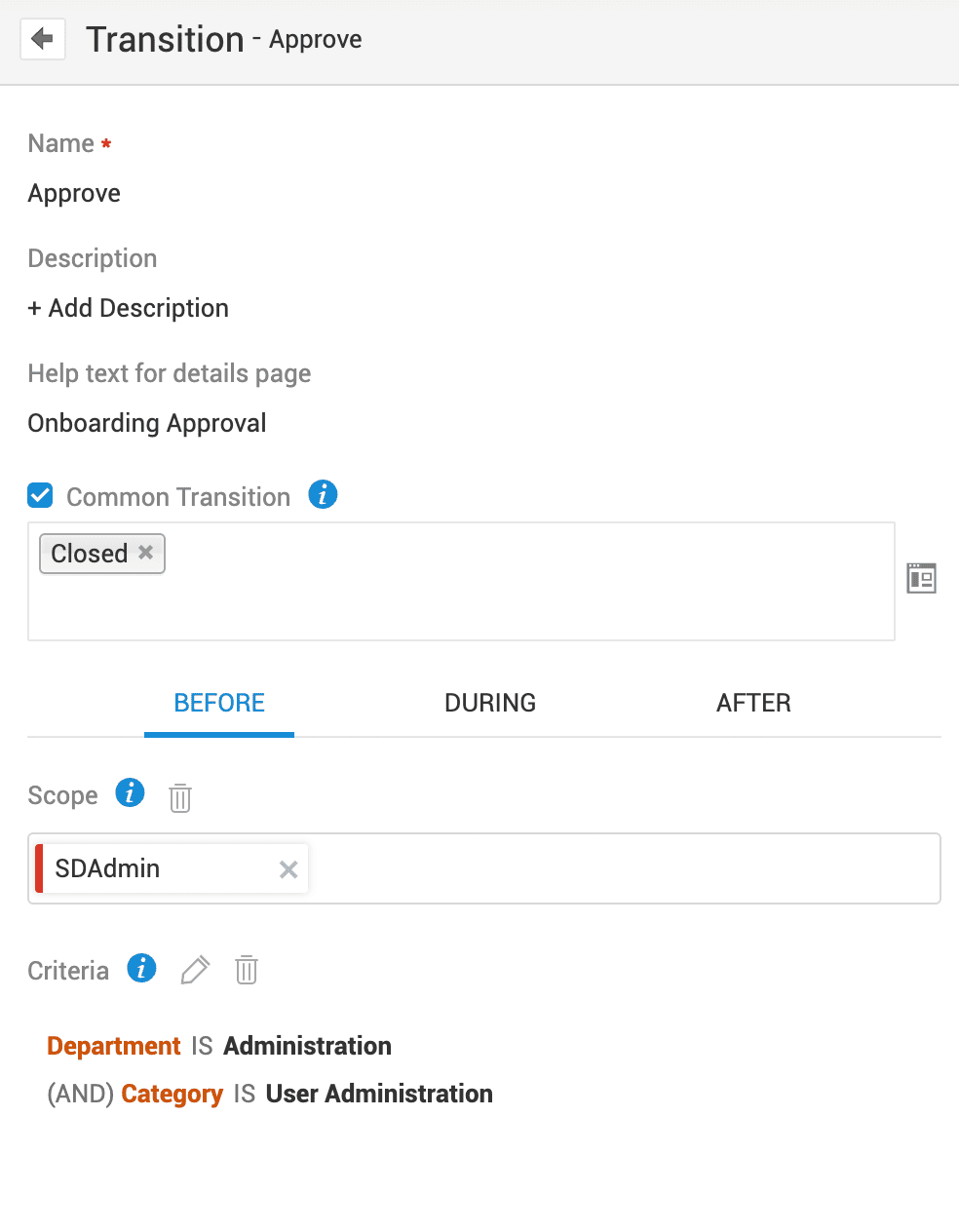
Define Rules - Define conditions for the transition and provide access to the required roles. You can define actions in three phases: Before, During, and After.
Before - This phase occurs before the transition begins.
-
Scope - Add user roles that can perform the transition.
-
Criteria - Define conditions for displaying the transition button on the request details page.
During - This phase occurs as the request transitions to the next state. The configured actions are executed when the transition occurs.
-
Mandate - Specify fields that must be filled for the transition to proceed.
-
Optional - Select fields to capture additional information (not mandatory). When the transition is executed, users are prompted to fill these fields.
-
During Rules - Click
 to associate or create rules to define actions during the transition.
-
These rules are executed during the transition and on every subsequent edit of the request until an auto or transition link from the next state node is executed.
-
If multiple during rules are associated, you can reorder them and enable cascade execution.

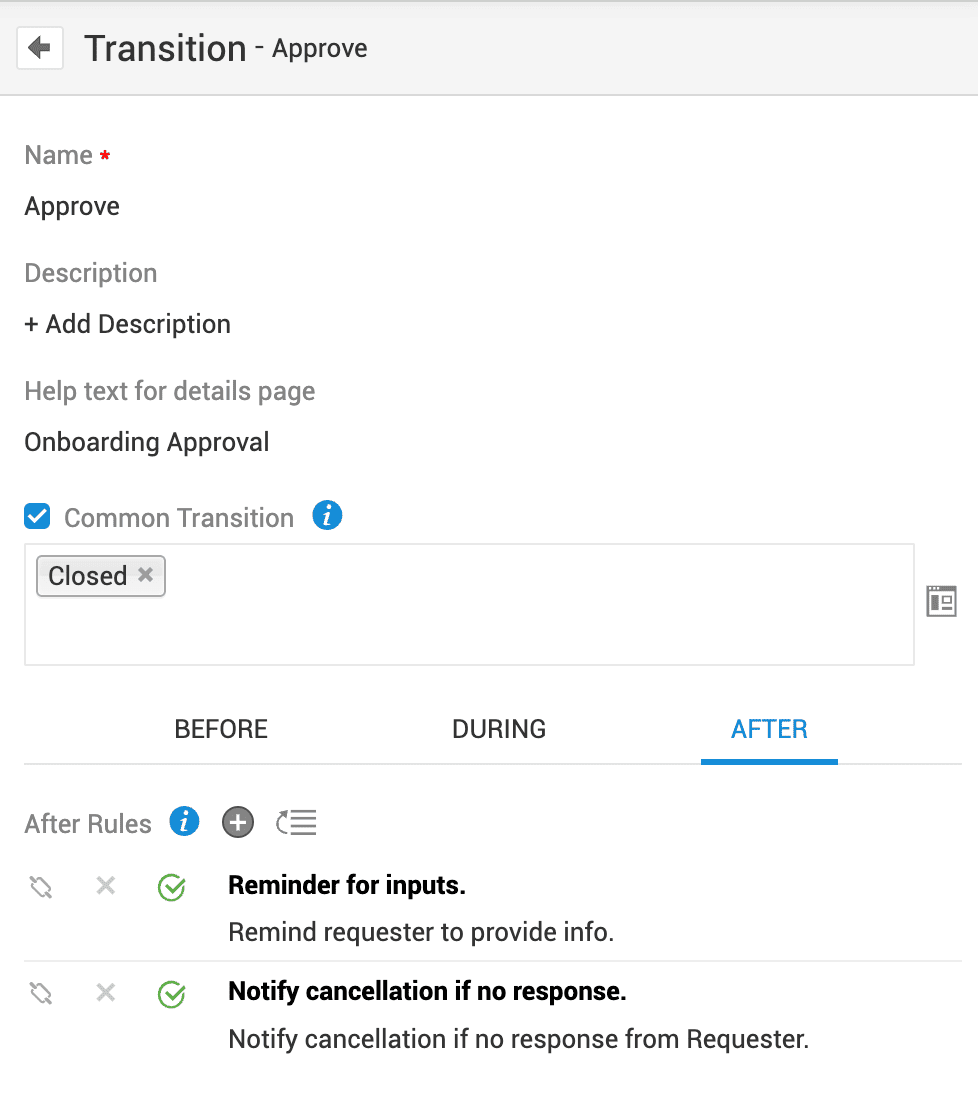
After - This phase occurs after the transition.
-
Click
to associate or create after rules. These rules are executed only once. -
If multiple after rules are associated, you can reorder them and enable cascade execution.
Condition Nodes
Checks whether the configured conditions are met and moves the request to the next node. Following are the different types of condition nodes:
If
Checks if the specified conditions are met before the request proceeds to the next node.
-
Drag the If node to the editor.
-
Provide a name and description for the node.
-
Define conditions based on request details or condition custom functions.
-
Based on criteria - Specify the condition by selecting the column and criteria values. Click + to add multiple criteria and select AND/OR operators. Use the nested option to add subcriteria. You can add up to 100 subcriteria.
-
Condition Custom Function - Specify conditions using custom functions. Select an existing custom function or click New to create one. Learn more.
-
-
Click Save.
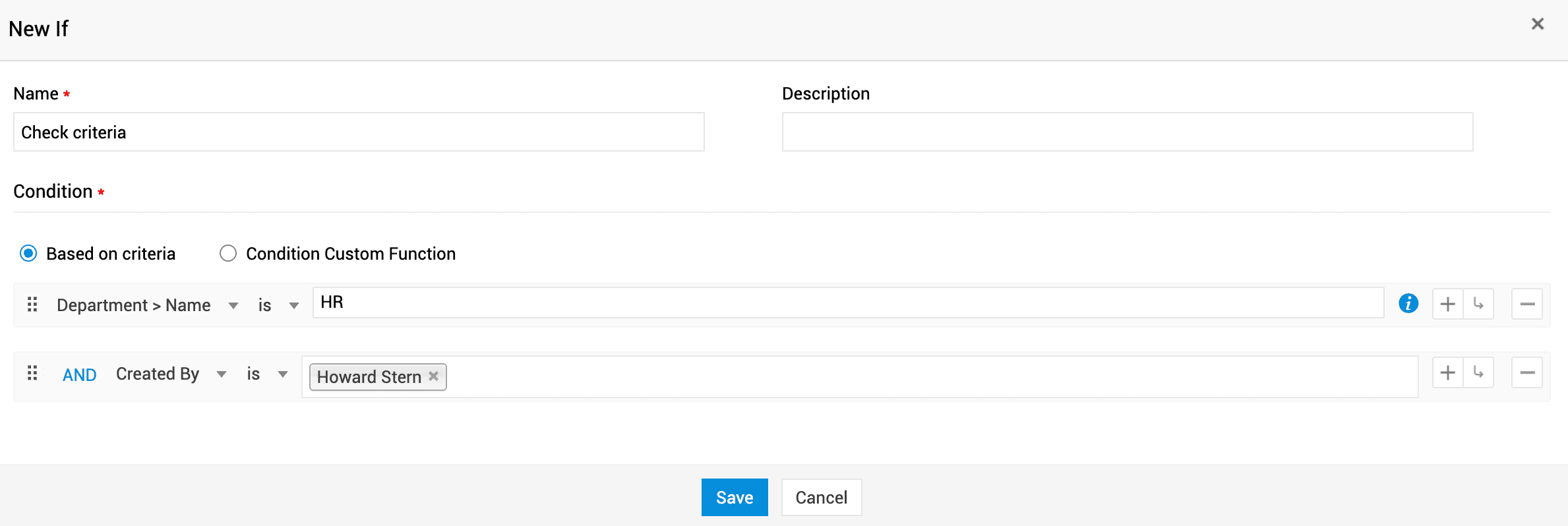
The If node has a single input port and two output ports (Yes/No).

Wait For
Pauses the request workflow until the specified conditions are met.
-
Drag the Wait For node to the editor.
-
Provide a name and a brief description for the node.
-
Enter help text for the node.
-
Define the condition using one of the following methods:
-
Based on criteria - Specify the condition by selecting the column and criteria values. Click + to add multiple criteria and select AND/OR operators. Use the nested option to add subcriteria. You can add up to 100 subcriteria.
-
Condition Custom Function - Decide the workflow path based on the custom function. Associate an existing custom function or click New to create one. More information on creating the custom function is available here.
-
Callback Custom Function - Pause the workflow and wait for a response from an externally integrated application.
-
Select an existing custom function or click New to create one.
-
The return response from the callback custom function should be in this format:
{ "sdp_workflow_signals" : [ { "entity_name" : "request" , "entity_id" : <entity_id> , "wait_for_node_name" : <name> } ] } - When the external application invokes the callback custom function, it processes the necessary data and returns a response in the specified Map format. After the response is received, the workflow resumes execution.
-
-
-
Click Save.
Sample Script for Custom Callback Function
};

The Wait For node has a single input port and a single output port.

Switch
A multi-way branch node that checks the value of a specified field and applies a workflow path based on that value.
-
Drag the Switch node to the editor.
-
Select the field to apply the switch condition.
-
Select the required field values. You can configure different workflow paths for each option.
-
Select Include Default Option to configure a workflow path when the field values do not match any of the selected values. You can rename the default option as needed.
-
Click Save.

The Switch node has a single input port and N number of output ports based on the added field options.

Action Nodes
Automates the following actions during workflow execution:
Notifications
Automatically sends emails or messages to users or groups when the node is reached.
-
Drag the Notification node to the editor.
-
Select an existing notification template from the Template drop-down.
-
To create a new template, click New from the Template drop-down.
-
Provide a name for the template.
-
Set the notification mode: Email or SMS
-
Enter the subject and the message to be sent.
-
Click Save.
-
-
After creating or selecting a template, select recipients by organization roles, request users, placeholders, or user-referred additional fields. Type the user name and select the user from the drop-down.
-
Click
 beside the Template field to modify the template details. Note that the mode cannot be modified.
 -
Click Save Template.

The Notification node has a single input port and a single output port.

Field Update
Updates specific field values in a request when predefined conditions are met.
-
Drag the Field Update node to the editor.
-
Select an existing field update from the available options.
-
To create a field update action, click New from the drop-down.
-
Provide a name and description for the field update action.
-
Select the fields and values that must be applied during the node execution. Use
 to add multiple fields and values.
 -
Click Save.
-
-
Click
across the Field Update Name field to modify the details. -
(Optional) Enable the Override field values with rule values option to replace existing field values in the request with the values defined in the workflow.
-
Click Save.

The Field Update node has a single input port and a single output port.

Approval Level
Adds multiple approval levels to requests when the node is executed. You can trigger multiple approval level nodes simultaneously by using Fork and Join nodes. You can add up to 20 approval levels.
What Happens When the Workflow Controls Approvals
Approval settings are enabled by default in workflows. In this case,
-
Requests follow only the approval levels configured within the workflow.
-
Approval levels cannot be added through request templates, custom triggers, or manually in the UI.
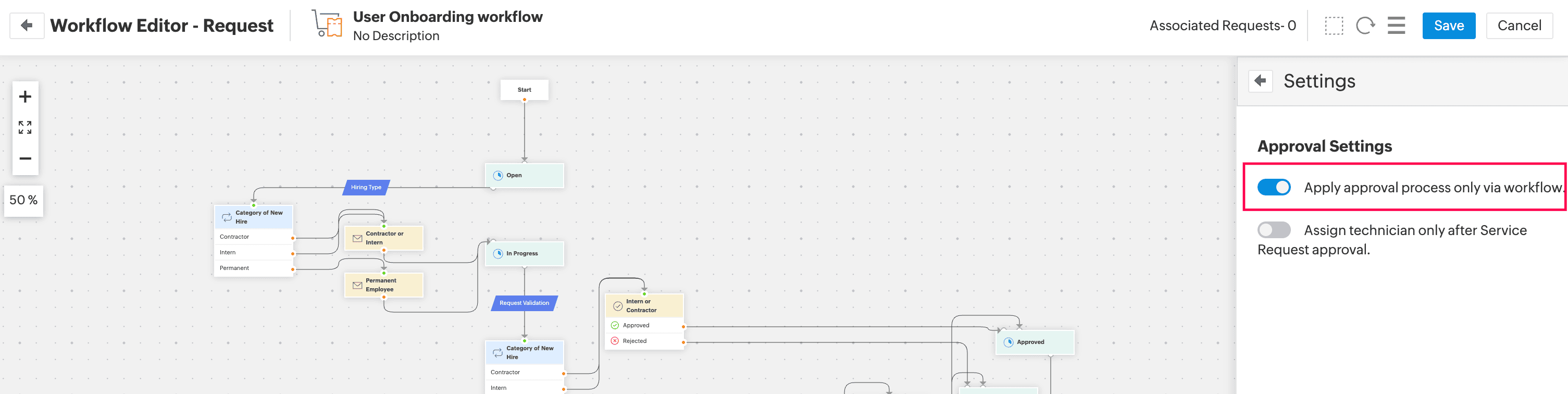
If you prefer to manage approvals through request templates, custom triggers, or manual additions instead of the workflow, you can disable workflow-based approvals. To do this,
-
Go to the workflow editor.
-
Click Actions
 > Settings.
 -
Disable Apply approval process only via workflow.
Requests are approved automatically by the system if the following options are enabled under Admin > Advanced Portal Settings > Approval.
Auto-approve requests if already approved by the same approver in previous levels.

Configure Approval Levels
-
Drag the approval level node to the editor and configure the following details.
-
Select an existing approval level action from the drop-down. Click
 beside the Approval Level Action field to edit the selected approval level.

-
To create an approval level, click New from the drop-down.
-
Fill out the form by using the pointers given below:
|
Fields |
Description |
|
Name* |
Provide a name for the approval. |
|
Description |
Briefly describe the approval. |
|
Level Name* |
Provide a name for the approval level. |
|
Wait For* |
Choose the approval condition:
|
|
Approvers* |
Select approvers by organization roles, request users, or user-referred additional fields. Type the user name and select the user from the drop-down. |
|
Notification Template |
Select the global template or custom template to send the approval notification. |
|
Subject* |
Global template: The subject and message are populated automatically. You cannot edit the message directly from the workflow. To modify the message, go to Admin > Automation > Notification Rules > Request. Under the Email Templates for section, click Approval (Level 1) > Customize Template and make the necessary changes. Custom template: Provide subject and message for the approval notification. You can include variables, if needed. |
|
Message |
* mandatory fields
-
Click Save.

The Approval Level node has a single input port and two output ports (Approved/Rejected).


Approval Level Behavior
When approval levels are added through workflows, approval rules configured in General Settings and Request Templates no longer apply. However, you can replicate the same behavior by configuring the appropriate nodes and settings within the workflow.
|
Requirement |
Existing Configuration |
Equivalent Workflow Configuration |
|
While a request is waiting for approval, stop the timer and set request status to... |
General Settings > Advanced Portal Settings > Approval |
Add the State node with the Onhold status before the Approval Level node. |
|
Close requests automatically if approval is denied |
Admin > Automation > Closure Rules > Request |
Add the Field Update node to update the Approval Status field to Rejected and connect it to the Cancelled status. |
|
Assign technician only after Service Request approval |
Configured in service templates |
In the workflow editor, click |
|
Wait for Editor to 'Edit the Request' before sending the approval |
- |
Use the Wait For node to ensure the required fields are filled before proceeding. |
|
Select Approver Field |
- |
Use user-referred additional fields in requests to define approvers.
|
|
- |
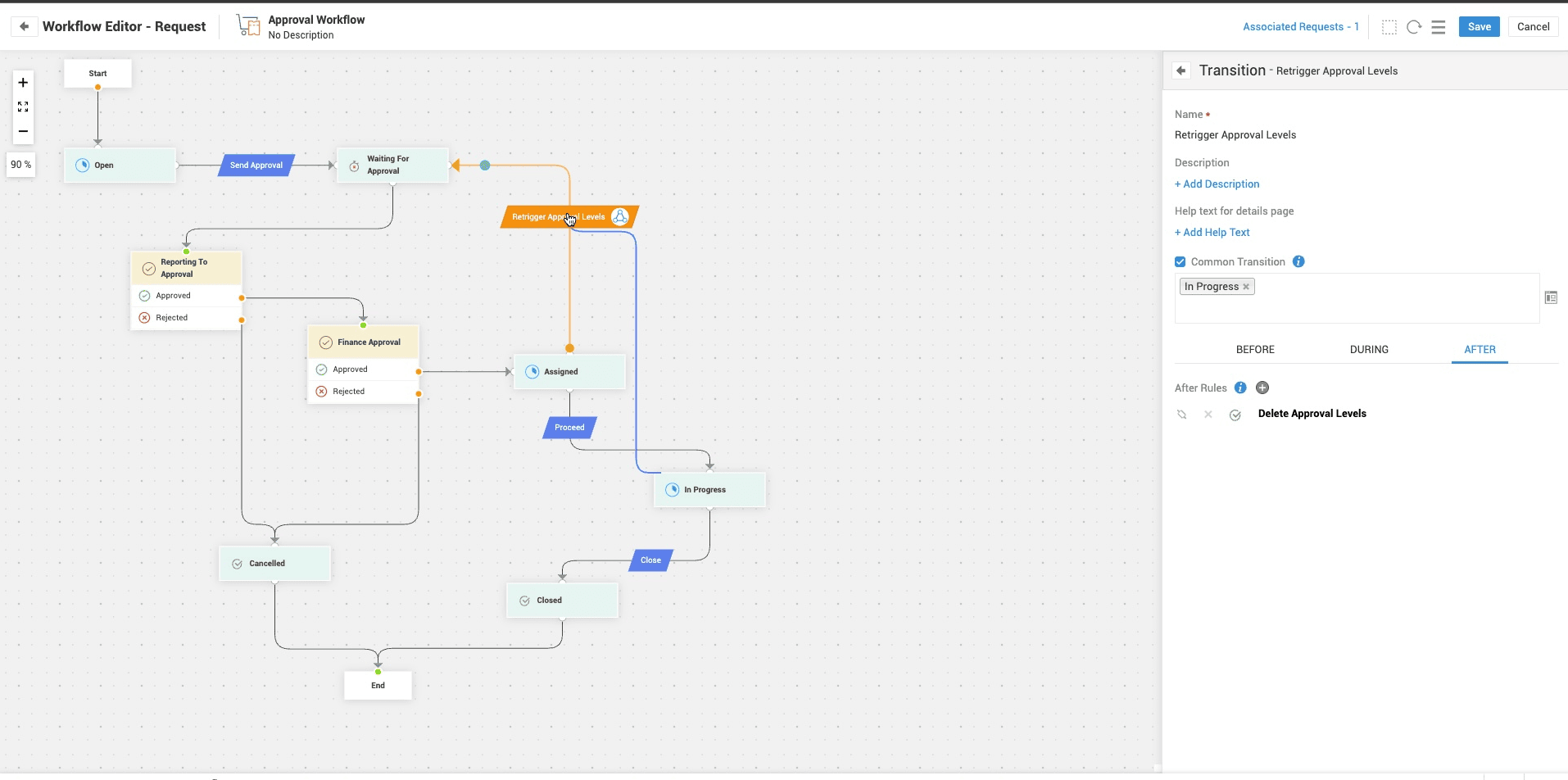
To retrigger approval levels when the resource is updated, move the request from the In Progress status to Open using a transition. If approvals for that level are already completed, they will not be triggered again automatically. To retrigger them:
To automate this process:
/requests/<request_id>/approval_levels/<level_id>
This ensures that the existing approval record is deleted and the approval levels are retriggered automatically whenever the resource is updated.
An illustration of retriggering approval levels
|
|
|
Adding approvers using Script return JSON |
- |
Use the Approval Add API to add approvers to existing workflow approval levels. Adding new approval levels via API is not supported. |
 > Settings and select Assign technician only after Service Request approval.
Custom Function
Executes custom operations by using custom functions.
-
Drag the Custom Function node to the editor.
-
Select an existing custom function from the drop-down.
-
To create a custom function, click New. More information on compiling custom functions is available here.
-
After creating the custom function, click Save or Save and Test.

-
Click
across the Custom Function field to modify the custom function. -
Finally, click Save.

-
The Custom Function node has a single input port and two output ports (Success and Failure). The failure port executes an alternate path if the custom function encounters an error.

Webhook
Sends data from the service desk to third-party applications or external services.
-
Drag the Webhook node to the editor.
-
Select an existing webhook from the available options.
-
To create a webhook, click New on the Webhook drop-down.
-
Fill out the required fields. Click here to learn how to create webhooks.
-
Click Save or Save and Select.
-
Click
across the Webhook field to modify the webhook. -
Click Save.

The Webhook node has a single input port and a single output port.

User Defined Action
Automates actions across instances when the node is reached. The supported actions depend on the instance selected.
When User Defined Action is executed within the same instance as the workflow - You can create Requests, Child requests, Announcements, Custom module records, and request subentities such as Tasks, Notes, and Checklists.
When User Defined Action is executed in a different instance - You can create Requests, Custom module records, and Announcements.
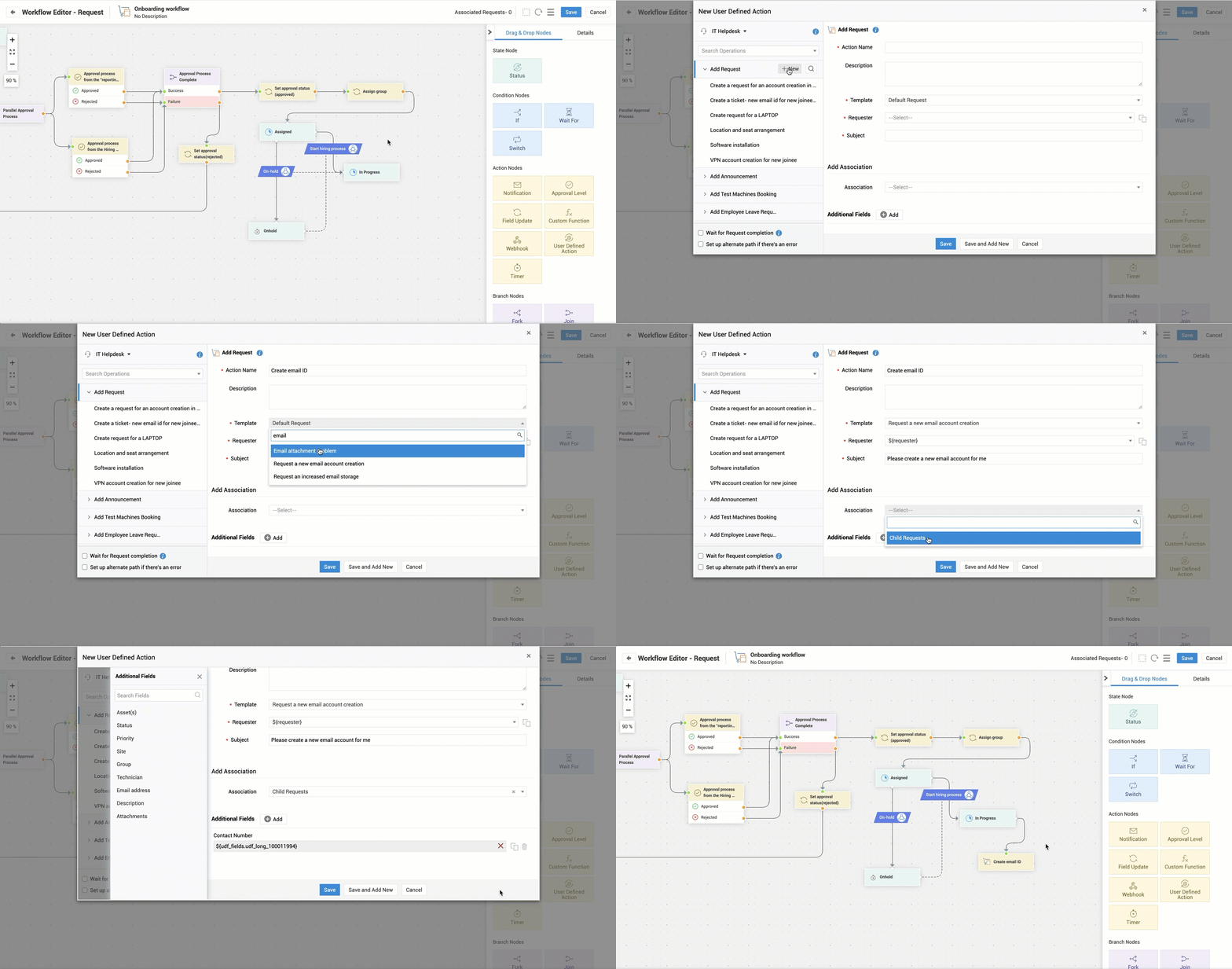
Configure User Defined Action
-
Drag the User Defined Action node to the editor.
-
Select the required instance from the drop-down. Instances are listed based on the logged-in user’s permission.
-
To create an action:
-
Hover over the required operation and click New.
-
Fill out the required fields.
-
To copy or map a value from the parent request or custom module, click the Properties
 icon beside the field and select the source field. (Applicable only for specific fields)
 -
You can add up to 100 actions for an operation in an instance.
-
-
To create a child request, select Add Request and choose Child Request in the Association field. The created child request appears under the Associations tab in the parent request’s details page.
-
To select the existing action:
-
Click the operation and select the required action.
-
You can edit or delete the action, if required.
-
-
Use the options in the form footer to control node execution.
-
Wait for Request/Task/Checklist completion - Pauses workflow execution at this node until the selected entity’s status changes to Closed. Applicable to requests, child requests, tasks, and checklists.
-
Setup alternate path if there's an error - Executes the defined path if the action fails.
-
Wait for <_field> to reach any completed state (for custom module records) - Pause the workflow execution at this node until the added record is completed.
-
Click here for more information on user-defined action.
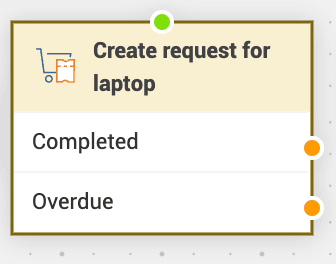
The User Defined Action node has a single input port. The number of output ports depends on whether an action completion or an alternate path is configured.
|
UDA with single input and output port |
|
|
UDA configured with action completion and alternate path |
|
|
UDA configured with action completion |
|
|
UDA configured with alternate path |
|



Timer
Executes time-delayed actions on requests. You can pause the request for a specific time duration and execute actions when the timer is active or after it ends. Timer starts when this node is executed.
-
Drag the Timer node to the editor.
-
In the Timer drop-down, select an existing timer and click Save.
-
To create a timer, click New.
-
Provide a name and description for the timer.
-
In Stage 1, set the delay time and repeat frequency.
-
Choose whether to consider the delay time only during business hours or SLA hours.
-
If you choose SLA hours, you can pause the timer when the request moves to Onhold or Completed status.
-
If the delay time is not configured, the timer runs 24x7.
-
-
Under Actions, configure the required action.
-
Supported actions are Field Update, Notification Action, Custom Function, Execute Script, Webhook, If-If, and If-Else.
-
You can add up to five actions in each stage.
-
-
Click New Stage to add another stage.
-
Under Abort Timer, set conditions to stop the timer midway or allow it to run to completion without interruption.
-
Click Save or Save and Select.

-
Click
across the Timer drop-down to modify the selected timer. -
Click Save.

The timer node has one input port and one output port. When an abort criteria is configured, it includes two output ports (Aborted & Ended).


When the Timer node is reached, the configured actions are executed based on the defined schedule or duration.
-
If the abort criteria is met during the initial delay or repeat schedule, the timer is aborted, and the workflow proceeds through the Aborted port.
-
If the abort criteria is not met, the timer continues execution and, upon completion, the workflow follows the Ended port.
Branch Nodes
Manages complex workflows by handling multiple scenarios simultaneously. There are two types of branch nodes.
Fork Node
Splits the workflow into multiple parallel paths, allowing different actions to run simultaneously.
-
Drag the Fork node to the editor.
-
Provide a name for the fork node.
-
Enter a description and help text for the fork node.
-
Click Save.

The Fork node has a single input port and a single output port.

Join Node
Merges multiple parallel paths into a single workflow path.
-
Drag the Join node to the editor.
-
Specify a name for the node.
-
Provide a brief description.
-
Choose when to complete the Join node:
-
All forked paths are complete - The node completes only when all forked pathways are completed.
-
At least one forked path is complete - The node completes when at least one of the forked pathways is completed.
-
-
Click Save.

The Join node has a single input port and two output ports (Success & Failure).

Sample Workflow

Link Nodes
To establish a connection between nodes, connect the output port of a node to the input port of another node. The link used to connect two nodes is called a connector.
-
Output nodes are marked in orange color.
-
Input nodes are marked in green color.
Manage Nodes and Connectors
Node Actions
Right-click on a node to perform the following actions:
-
Edit the node properties.
-
Delete the node from the workflow.
-
Set the transition order for statuses that have multiple transitions.
-
Modify the orientation of the input and output ports. This is applicable only to specific nodes.

Connector Actions
- Hover over a connector to view the source node, target node, and vertexes.
-
Add a vertex by clicking a connector. Double-click on the connector to remove the vertex.
-
To remove the connector, right-click on the connector and click Delete.
Reposition Nodes/Connectors - Drag any node or connector to adjust its position on the editor. The source or target node of a connector can be changed by dragging the input or output vertexes.
Workflow Editor Actions
You can perform the following actions from the workflow editor.
Collapse the Stencil - click  on top of the stencil panel to expand or collapse it.
Edit Workflow Details - Click the workflow name on the header or go to the Details tab in the stencil to edit the basic details of the workflow. You can also associate or dissociate templates.
View Associated Requests - Click Associated Requests on the header to view the requests associated with the workflow. On the associated requests list view,
-
Use the Execution Status filter at the top of the page to filter requests based on the workflow execution status.
-
Click Actions > Export to download associated requests.
Multi-select and Move Nodes - Use the Select Tool  icon on the header to select multiple nodes and reposition them in the editor.
Reset Workflow - Use the Reset  icon on the header to reset a workflow to its default state. If the workflow was previously saved, it will be restored to its last updated state.
Configure Approval Settings - Click  > Settings and enable Apply approval process only via workflow to add approval levels through the workflow. The Approval Level node is displayed only when this option is enabled.
Task Settings (Migrated builds only) - If the Move the request status to Closed/Resolved when all associated tasks are completed rule was enabled before migration, the Complete request when all associated tasks are completed option will appear under  ️ > Settings. The option is enabled by default.
Export Workflow - Click > Export as PDF on the header to export the saved workflow as a PDF document.
View Workflow History - Click > View History on the header to see all operations performed on the workflow.
View Help Card - Click > Help to view the help card.
Zoom In/Zoom Out Workflow - Use the zoom handle  on the editor's left corner to view the graph in a large/small scaled view.
Save Workflow - Click Save on the header to save the workflow.
Associate/Dissociate/Resume Workflow
Associate Workflow - To associate a workflow with a request, go to the request details page and click Actions > Associate Workflow.
Dissociate Workflow - To remove the workflow associated with the request, go to the request details page and click Actions > Dissociate Workflow.
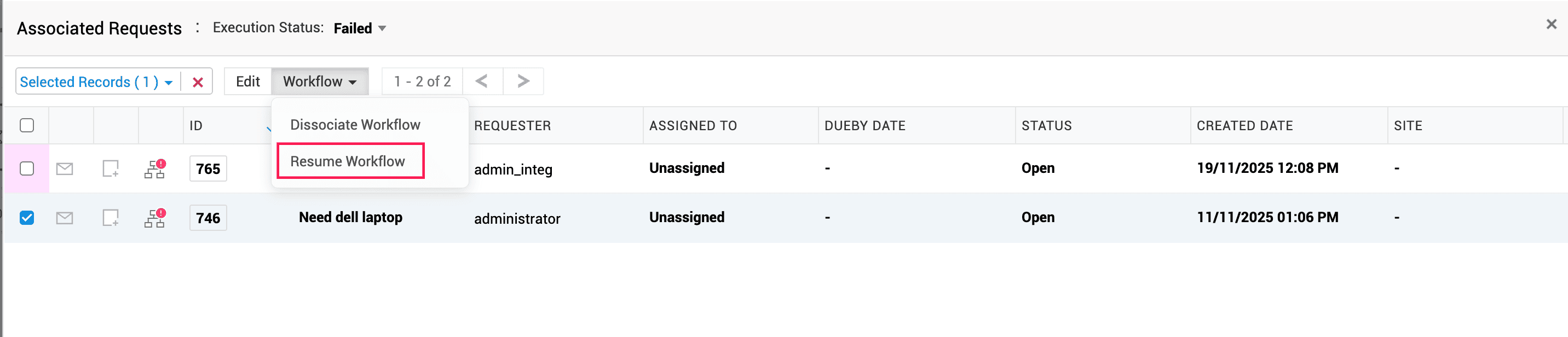
Resume Workflow - If a workflow is updated or a node fails, you can resume it from where it stopped. Go to the request details page and click Actions > Resume Workflow.
You can also associate, dissociate, and resume workflow in bulk from the request list view. To do this, select the required requests and click Workflow > Associate/Dissociate/Resume Workflow.
Sample Use Case
Use Case 1: Employee Onboarding Workflow
At Zylker, to onboard an employee, the HR team used to send multiple emails and follow up with different teams. This manual process was time-consuming, prone to delays, and often resulted in missed tasks.
Using a request workflow, the HR team has automated the onboarding process, making it quick, timely, and error-free.
When an employee onboarding request is created by using a template associated with the onboarding workflow, the workflow is triggered automatically and the onboarding steps are carried out as configured.
The following table explains how each workflow node is used to configure the onboarding process.
|
Process |
Node Configuration |
|
Initiation |
In the HR instance,
|
|
Status |
|
|
Configure Approval Level |
|
|
Update Approval Status |
|
|
Assign Request |
|
|
Initiate Hiring Process |
|
|
IT and Administrative Activities To manage IT and administrative tasks efficiently during onboarding:
|
Email and AD Account Creation
|
|
Asset, Workspace, and Payroll Setup
|
|
|
Software and VPN Setup
|
|
|
Completion and Closure |
After all onboarding activities are completed, add the Status node to update the request status to Resolved. |

Use Case 2: Laptop Request Workflow
Zylker's IT Help Desk handles laptop requests manually through emails and spreadsheets. This often leads to approval delays and inconsistencies in asset allocation.
To streamline the process, the IT team created a Laptop Request Workflow to automate the entire process. User-defined actions play a key role by automating task creation, enforcing task completion before the workflow moves forward, and generating asset-return child requests for test machines.
Below are the configuration details for each node used in the workflow.
|
Process Stage |
Nodes Used |
Details / Configuration |
|
Request Initiation |
Create Workflow |
|
|
|
State Node |
|
|
|
If Node |
|
|
Approval Process |
Approval Level Node |
|
|
Request Assignment |
Field Update Node |
|
|
|
State Node |
|
|
Acknowledge User |
Notification + State Node |
|
|
Asset Setup Process |
User Defined Action Node |
|
|
Handle escalations |
Notification Node Timer Node |
|
|
Custom Function Node |
|
|
|
Task Completion |
Notification Node |
|
|
Wait For |
|
|
|
State Node |
|
|
|
|
|
|
|
Asset Type Check |
If Node |
|
|
Asset Return Process |
Timer Node |
|
|
User Defined Action (UDA) Node |
|
|
|
State Node |
|

FAQs
1. Why is the Request Life Cycle feature no longer available?
The Request Life Cycle feature is deprecated because Workflows now manage all request processes with more advanced capabilities, including state transitions, auto transitions, action execution, and conditional waits.
All configurations previously handled through Request Life Cycles can now be fully managed by using Workflows.
2. After all approval levels are approved, why does the Approval Status field not update to Approved automatically?
This is an expected behavior.
To update the Approval Status field, add the Field Update node to the workflow and configure it to set the Approval Status to Approved (or any required value) after all approval levels are completed.

3. Why is the Submit for Approval button missing for requests linked to a workflow?
For requests associated with a workflow, approvals cannot be added manually. All approval actions must be defined within the workflow using the Approval Level action node.
If you want to add approvals manually for workflow-based requests, disable the Apply approval process only via workflow setting in the workflow.

4. What should I do when a workflow execution fails?
If the workflow execution fails due to configuration issues:
-
Go to the workflow editor.
-
Make the necessary changes.
-
Click Associated Requests at the top of the workflow.
-
In the Execution Status filter, select Failed.
-
Select the required requests and click Workflow > Resume Workflow. The workflow will resume from the failed node.
Alternatively, after updating the workflow configuration, you can open the individual request and click Actions > Resume Workflow.
5. How can a workflow be updated in the live environment without affecting existing requests?
To update a workflow without impacting requests that are already in progress, follow these steps:
-
Copy the existing workflow and make the required changes to the copied version.
-
Copy the associated template, link it to the copied workflow, and test the updated flow.
-
After testing, associate the original template with the modified workflow.
This ensures that existing requests continue to follow the old workflow, while new requests use the updated version.
If you want to apply the updated workflow to existing requests:
-
Go to the request list view.
-
Select the required requests.
-
Dissociate the existing workflow by clicking Workflow > Dissociate Workflow.
-
To associate the updated workflow, click Workflow > Associate Workflow.
6. Why do requests not resume automatically when the condition in the Wait For node is updated?
Changes made to the Wait For node do not apply to requests that have already reached that node. The updated condition applies only to requests that enter the node after the update.
Use Advanced Filter in the request list view to identify requests that are currently waiting at the modified node. Select the requests and click Workflow > Resume Workflow.
This behavior applies to all nodes in the workflow.

7. Why doesn’t the request status automatically change to Onhold after sending for approval?
This is expected behavior.
-
When the workflow reaches an Approval Level node, execution pauses and the request remains on hold until an approval action is taken.
-
For workflow-based approvals, request status updates must be managed through the workflow’s Status nodes.
-
To ensure the status changes during approval, add a State node with the Onhold (or any required status) status before the Approval Level node in the workflow.

8. My workflow migrated from request life cycle looks cluttered and messy. How can I improve it?
Workflows migrated from request life cycle may contain redundant transitions. You can simplify and optimize the workflow by consolidating common transitions.
For example, if multiple transitions lead to the On Hold status, replace them with a single common transition.
9. I need my workflow to wait until a JIRA task is completed. How can I achieve this?
This can be accomplished by using a Callback Custom Function in the Wait For node. When this node is used, the workflow pauses until it receives a signal from the callback custom function.
After the JIRA task is completed, JIRA triggers the published URL of the Callback Custom Function, which signals the workflow to resume execution.
This approach can also be used when the workflow needs to wait for input from externally integrated applications, ServiceDesk Plus modules, or ESM portal-based cases.
10. Can I associate multiple workflows to a template?
No, you cannot associate multiple workflows to a single template. However, multiple templates that follow the same process can be associated with a single workflow.
11. Why is the Reorder Transition option not visible in the right-click menu for a status?
The Reorder Transitions option appears only when multiple manual transitions are configured for the status node. If there is only one transition, the option will not be shown.

12. What happens when all approvers used in the Approval Level node are deleted? Will the level be auto-approved?
If all approvers configured in the Approval Level node are deleted, the approval will not be auto-approved. The node fails and the workflow stops.
To continue execution, update the workflow configuration with valid approvers and click Resume Workflow from the request details page.