
Projects custom view
In addition to the default project views such as Open Projects, Closed Projects, Pending Projects and My Projects, ServiceDesk Plus introduces Projects Custom View which equips the users to add filters as per their requirement. For eg, You can customize new views such as "Projects costing more than $1000", "Projects starting today", "High Priority Projects" etc. These views can be configured with filter conditions and can be used in the projects list view. Custom views can be marked as 'favourite' by tapping the  icon and the order can also be rearranged by 'drag and drop'
  icon.
icon.
To create custom views,
- Go to the Projects module.
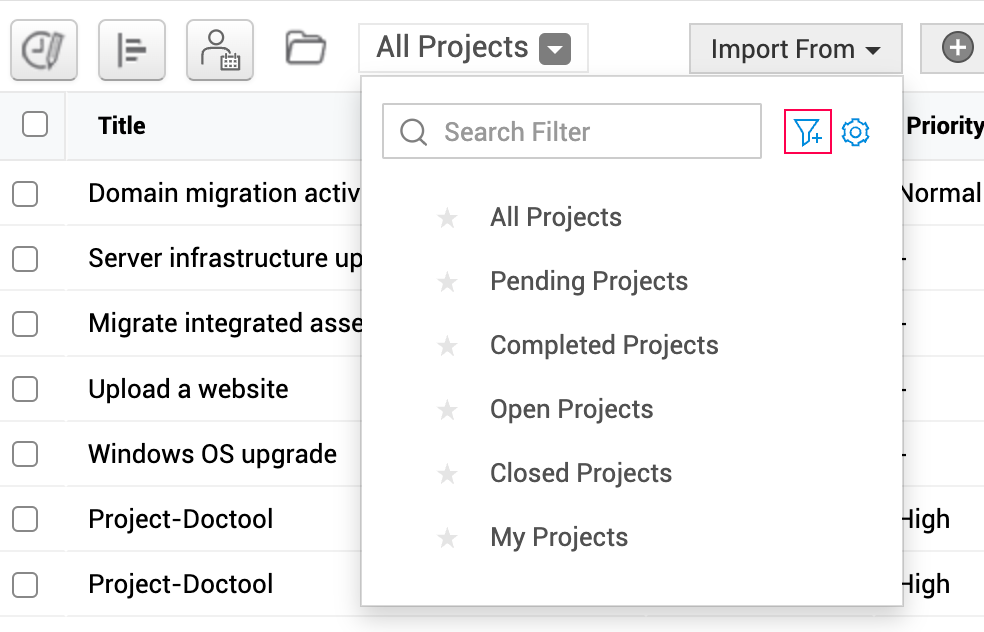
- Click on the Add View icon in the project filter menu.
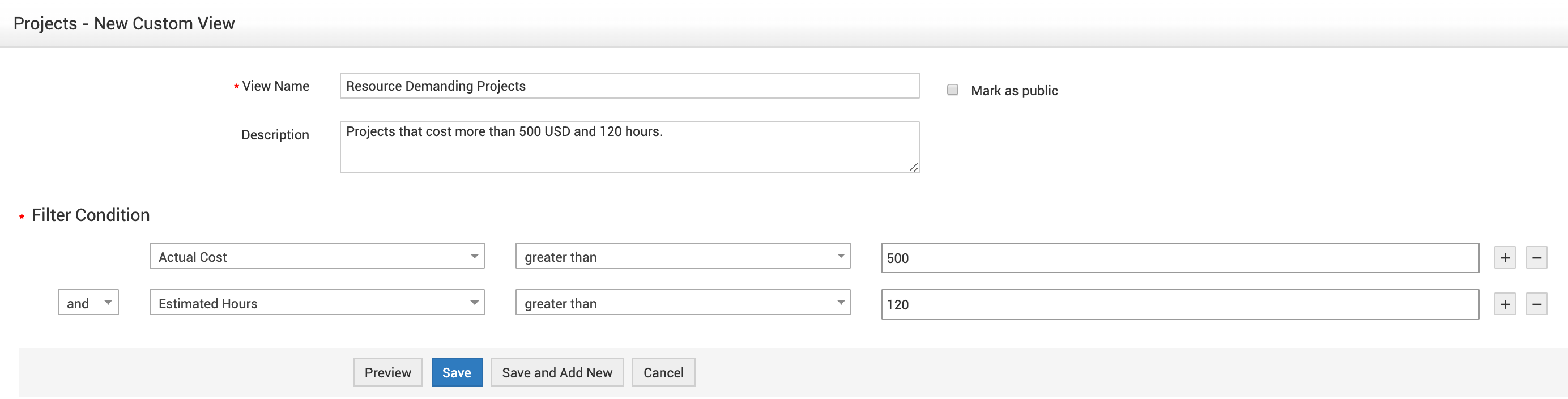
- In the New Custom View window that appears enter a name for the filter.
- Select Mark as Public checkbox if you want that filter to be public.
- Enter the Description.
- Select the matching Field and Filter Criterion.
For eg, if you select the field as "Actual Cost", the Criterion could be "lesser than" or "greater than" or "equal to". If you select field as "Description", the criterion could be "is", "is not", "starts with", "ends with" etc. You can enter numbers/words or select values in the following field according to the filter condition you have selected.
- Combined filter conditions can also be configured by clicking on the
 icon.
icon. - Click on Preview to list the projects based on the filter conditions.
- Click on Save.
Managing the Projects Custom View
The project custom views can be edited or deleted.
To manage the Projects Custom Views,
- Go to the Projects module.
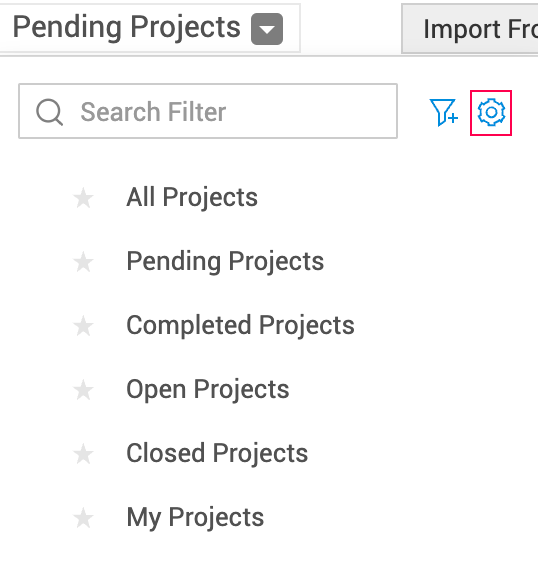
- Click on the Manage view icon to open the Manage Views page.
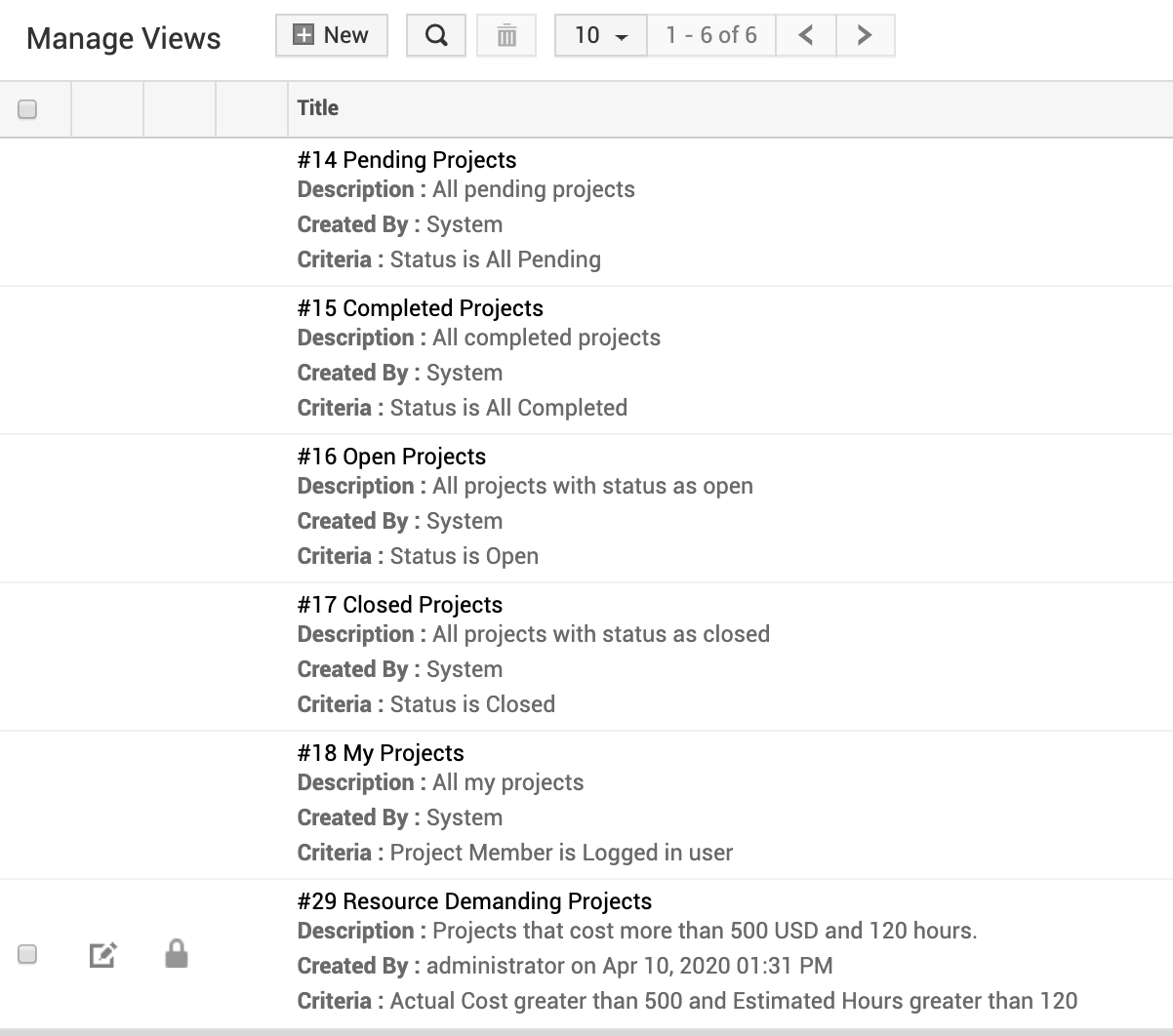
In the Manage Views page you can add, edit, delete views and change the privacy settings of the Custom View.
To add new Views,
- Click on
 icon at the top of the page to add a new Custom View.
To edit Views,
- Click on the
 icon to edit the Custom View.
To delete Views,
- Select a View by clicking on the checkbox and click
 at the top of the page.
To Change Privacy Settings,
- Click on the lock icon in the View to change the privacy settings. The closed lock
 indicates private view whereas unclosed lock
  indicates public View.
To Preview the Custom View,
Click the  icon to preview the projects under the Custom View.
Filter access based on roles.
Filters will be displayed based on the roles assigned to the users.
For a project admins,
- They can add new filters, edit their own filters and other's filters.
- In the filter drop-down menu all the filters will be shown.
For other project members,
- They can add new filters and edit their own filters.
- In the filter drop-down menu, their own filters and the "public" filters will alone be shown.