
FAQs on OAuth Authentication for Mail Servers
- Why should I move to OAuth2.0?
- What are the supported mail servers in OAuth?
- What are the supported protocols in OAuth?
- What are the application requirements to configure OAuth?
- Can I configure OAuth for an existing mail account?
- Can I use an existing App/Project configured in my Authorization Server to authenticate ServiceDesk Plus?
- What is Redirect URL and where should I configure it?
- On clicking Save, I am getting an error stating "Redirect URL or reply URL invalid/mismatch". What should I do?
- On clicking Save, a message displays stating "Redirecting to the configured server's authentication page", but nothing happens. Why?
- What will happen if user details are incorrect while signing in the user-consent window?
- After authenticating, the user-consent window becomes blank or redirects to the application login page. What should I do?
- What will happen if my access token expires?
- Do we get any notification if the access token expires?
- Do refresh tokens expire?
- How would I know if my refresh token expired?
- What should I do if my refresh token expires?
- What is my next step, if OAuth settings failed to connect to the mail server?
- How to change the hostname in the Redirect URL of AssetExplorer?
- What will happen if I use a mail address or same account in more than one portal?
- Can I configure a mailbox using OAuth without changing the application to the HTTPS protocol?
- Can I use IMAPS protocol to configure Office 365 using OAuth? I get an alert message IMAPS/SMTP/SMTPS is not supported.
Google and Microsoft will soon withdraw basic authentication support for mail servers by February 2021 and October 2020, respectively. Therefore, it is advisable for users to switch to OAuth authentication.
We have tested OAuth authentication with Microsoft Outlook (office365) and Gmail (Gsuite). Click the respective links to learn how to generate access tokens from these servers.
You can also connect to a different service provider, but ServiceDesk Plus provides support only for Microsoft Azure (for O365) and G Suite (for Gmail).
For outlook, we support EWS only.
For gmail, we support IMAPS, SMTP, and SMTPS protocols.
For Microsoft Outlook, your application must be running in the HTTPS mode.
For Gmail, your hostname must end with a public top-level-domain (TLD) such as .com, .org, etc.
Yes. You can configure OAuth for an existing account.
- Can I use an existing App/Project configured in my Authorization Server to authenticate ServiceDesk Plus?
Yes, you can use the Client Details of your existing App/Project in your authorization server to authenticate ServiceDesk Plus. Make sure that you add the Redirect URL of ServiceDesk Plus to the App/Project and save it.
Redirect URL or Reply URL is the URL to which the Authorization Server sends confidential response data. Copy-paste the Redirect URL to the application details in the Authorization Server and save it.
- On clicking Save, I am getting an error stating "Redirect URL or reply URL invalid/mismatch". What should I do?
Check if you have added the application server's redirect URL to your authorization server's list of redirect URLs. Learn how to do this here. Ensure that you have saved the settings.
- On clicking Save, a message displays stating "Redirecting to the configured server's authentication page", but nothing happens. Why?
A popup should appear, but browsers usually block popups. Make sure to look out for alerts or check the browser's URL bar if the popup is blocked. If yes, choose the option to allow pop-ups and try again. If it still fails, try using a different browser.
If the user details are incorrect, you will not be able to connect. Click Save to retry signing in.
- After authenticating, the user-consent window becomes blank or redirects to the application login page. What should I do?
Check if the hostname you are accessing is the same as in the redirect URL. For example, when the redirect URL is https://helpdesk.zylker.com but you are accessing the application using the IP address, you will be redirected to the redirect URL from where you might not have signed in.
When your access token gets expired, a new access token will be automatically generated using the refresh token.
Users will not be notified on the expiry of an access token. The application automatically generates a new access token.
Refresh Tokens may or may not expire depending on the configurations of your service provider.
When your refresh token expires, the corresponding portal's mail fetching/sending will fail as the application cannot authenticate the mail server.
If your refresh token has expired, you must generate new tokens from the authorization server by repeating the configurations given here.
Check whether the account specified in the Mail Server Settings page and the one you signed in with are the same.
The hostname is found as a parameter named "WEB_URL" in GlobalConfig table. You should connect to your database and execute the following query to change the hostname.
You will not be allowed to configure a same account for mail fetching in more than one portal. However, you may configure the same account for mail sending in different portals.
Yes, you can configure a mailbox using OAuth by modifying the Alias URL.
Configure Mailbox by Using OAuth
-
Log in to the ServiceDesk Plus application server.
-
Open the browser and access the application through http://localhost:<port_number>
-
Log in as SDAdmin.
-
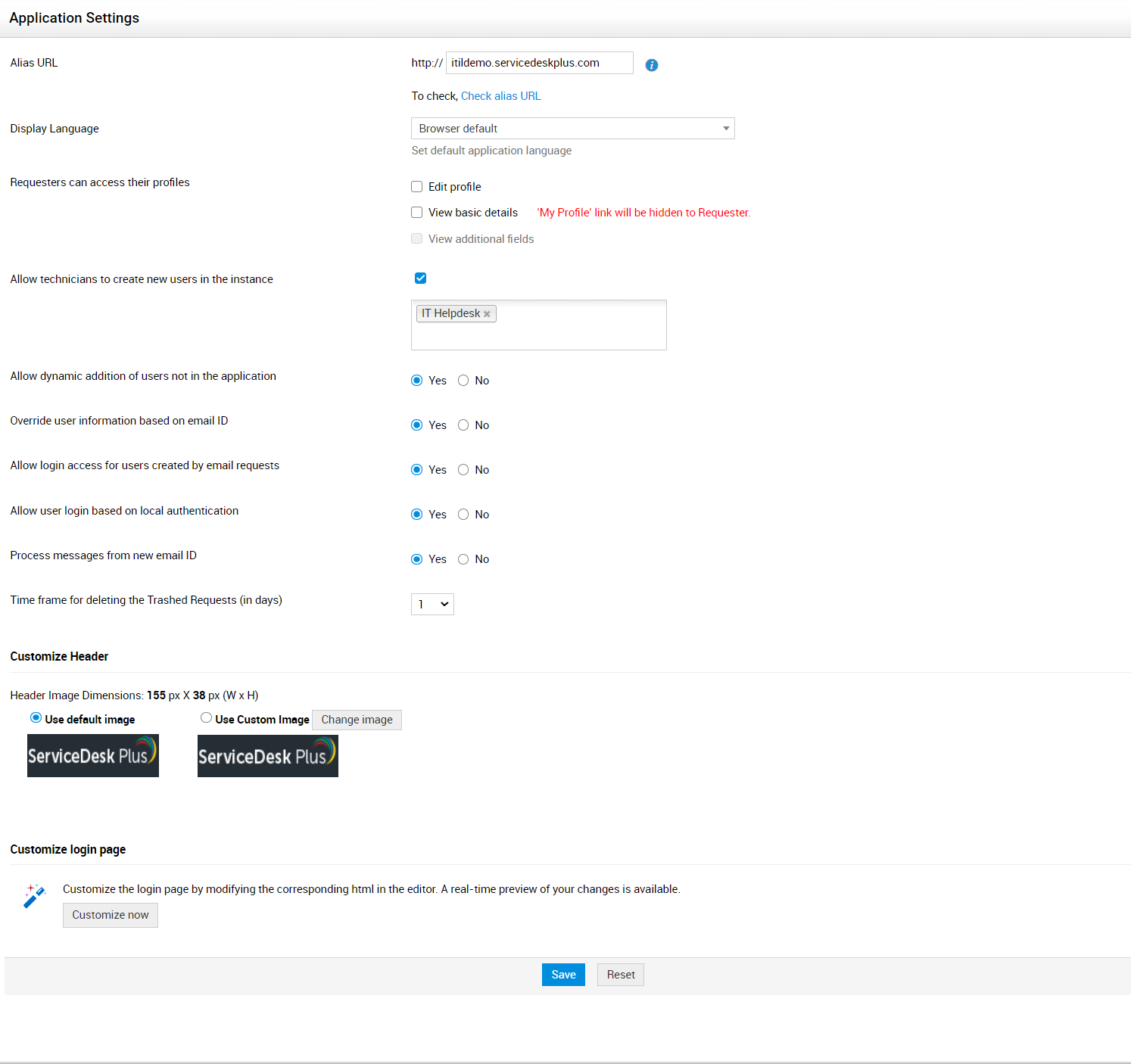
For non-ESM setup: Go to Admin > Advanced Portal Settings (Self-Service Portal Settings in old UI). Modify the alias URL's host as localhost.
-
For ESM setup: Go to ESM Directory > Application Settings. Modify the alias URL's host as localhost.
-
Click Save.
-
After modifying the alias URL, go to Mail Server Settings. Copy the redirect URL and use it in your authentication portal (Azure/Google developers console depending on your mailbox)
-
Configure mail server settings using OAuth and save the details. Enter the mailbox credentials in the OAuth pop up.
-
After configuring OAuth, revert the changes of alias URL.
- Can I use IMAPS protocol to configure Office 365 using OAuth? I get an alert message IMAPS/SMTP/SMTPS is not supported?
Users with ServiceDesk Plus version 13004 and earlier will receive the following alerts.
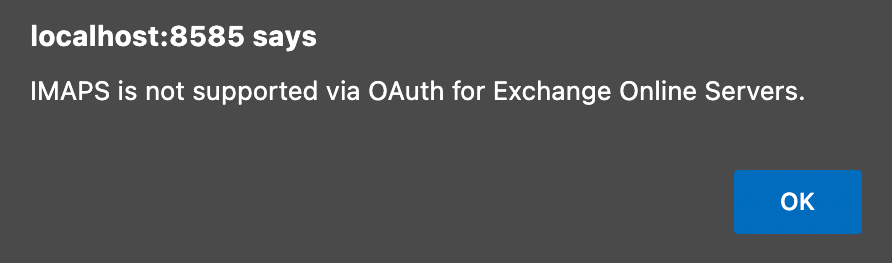
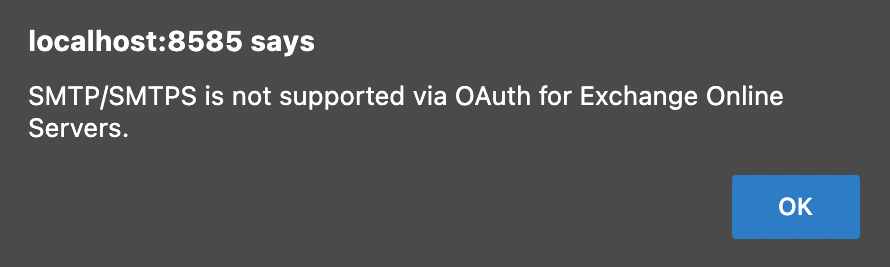
Follow the steps given below to overcome the restriction.
-
Login to ServiceDesk Plus as SDAdmin.
-
Navigate to Admin > Page scripts.
-
Click New Rule.
-
Configure a new rule using the below image as reference and click Save.
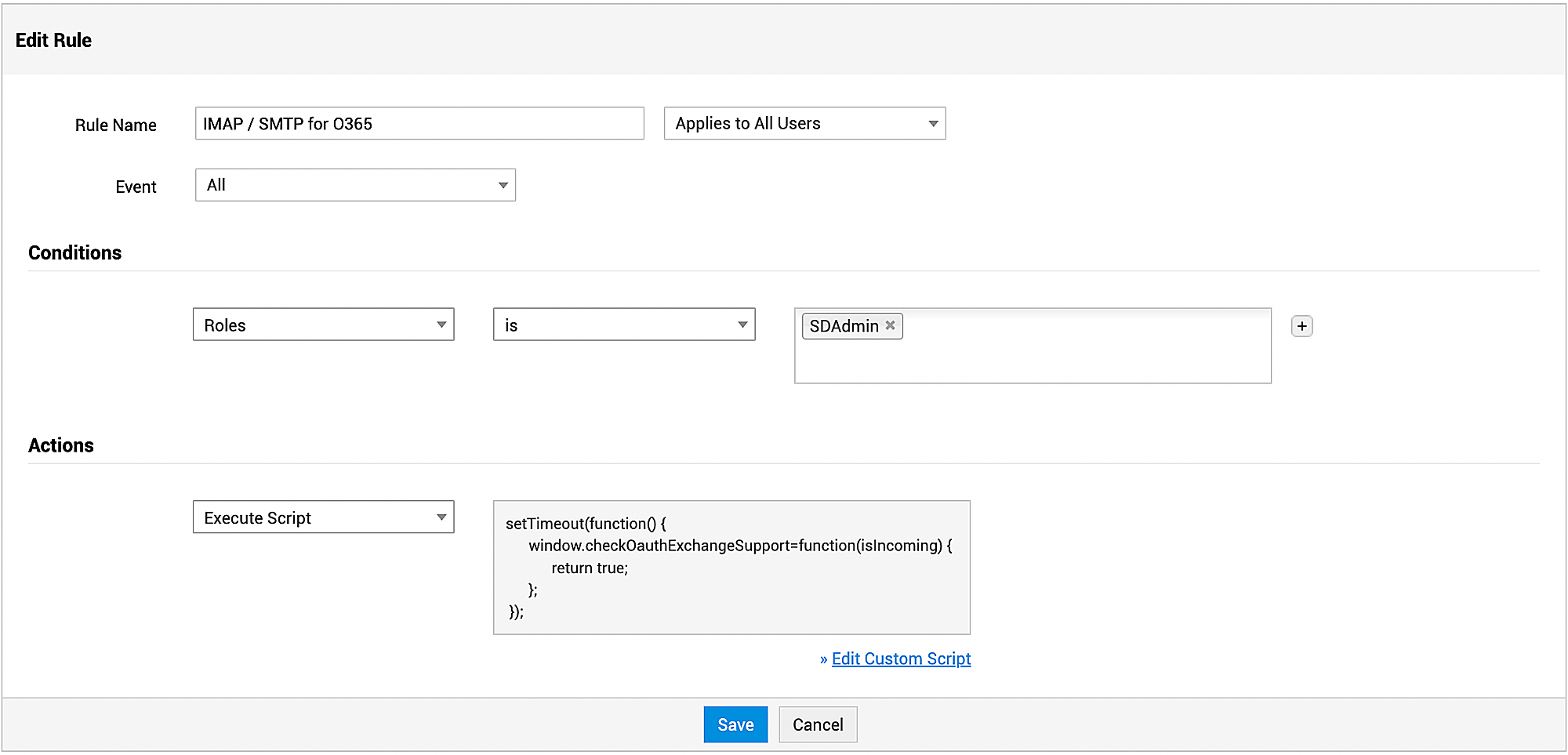
Script
setTimeout(function() {
window.checkOauthExchangeSupport=function(isIncoming) {
return true;
};
});
Now, configure Mail Server Settings for Office365 mailbox using OAuth with IMAPS/SMTP/SMTPS protocols. Refer here for default configurations.