
High Availability (HA) Troubleshooting
TOC
Unable to save HA configuration or HA file replication configuration
HA service startup failure on primary or secondary application servers (serving state)
HA service startup failure on primary or secondary application servers (listening state)
Unable to Save HA Configuration or HA File Replication Configuration
- Step 1: Check whether the application is started as a service in Windows service manager.
- If yes, proceed with Step 2 directly.
- Otherwise, start the application as a service in Windows service manager and then perform Step 2.
- Step 2: Check whether the logon account of the service is configured with a dedicated user account.
- If configured, proceed with Step 3 directly.
- Otherwise, configure a dedicated user account for the service and then perform Step 3.
Because of permission issues during HA file replication, local system account is not recommended.
The configured user account should belong to the Admin group.
- Step 3: Check whether the ManageEngine\<application_directory> folder is available on both primary and secondary application servers. For example, ManageEngine\ServiceDesk.
- If available, proceed with Step 4 directly.
- Otherwise, modify the folder structure as mentioned above and then perform Step 4.
- Step 4: Check whether the ManageEngine folder is shared and the shared network path is represented as <machine name>\ManageEngine:
- Right-click ManageEngine folder, go to the Sharing tab, and check if Network Path contains <machine name>\ManageEngine.
- If yes, proceed with Step 5 directly.
- Otherwise, share the folder by clicking Share... and then perform Step 5.
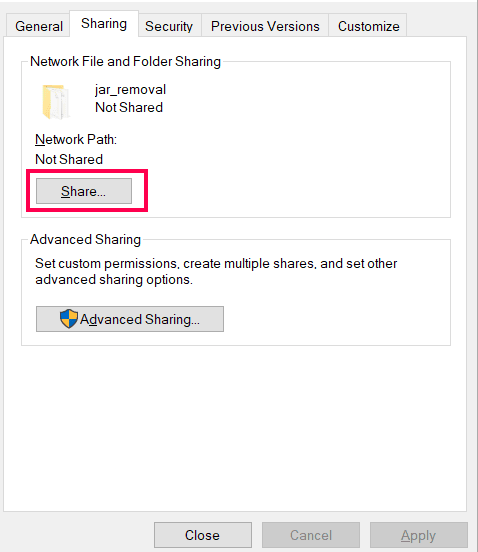
- Step 5: Check if Share name is ManageEngine:
- Right-click the ManageEngine folder, go to the Sharing tab, and select Advanced Sharing...
- Check if Share this folder is enabled and Share name is ManageEngine.
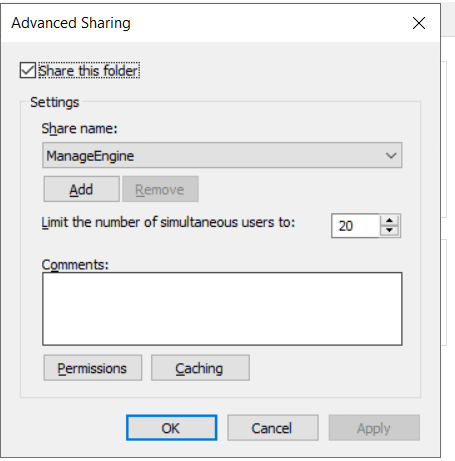
- If yes, proceed with Step 6 directly.
- Otherwise,
- Remove any other ManageEngine folder shared with ManageEngine as share name.
- Re-share the ManageEngine folder where the application is available as subdirectory and then perform Step 6.
- Step 6: Check whether the user account (in step 2) is available in the Sharing and Advanced Sharing lists within the ManageEngine folder, with read/write permissions and full control.
- If available, proceed with Step 7 directly.
- Otherwise, add the user account to the Sharing and Advanced Sharing lists, provide read/write permissions and full control, and then perform Step 7.
- Step 7: Check whether the shared ManageEngine folder is accessible from both application servers.
- Run the command \\<secondary machine IP>\ManageEngine and \\<primary machine IP>\ManageEngine on corresponding application servers.
- If accessible, proceed with Step 8 directly.
- Otherwise, fix the network issue and then perform Step 8.
- Step 8: Save the configurations in HA Configuration and HA File Replication Configuration pages.
HA Service Startup Failure on Primary/Secondary Application Server in Serving State
- Step 1: Check the configured HA mode.
- For the FOS mode, proceed from Step 2.
- For the DR mode, proceed from Step 5.
- Step 2: Check whether the virtual IP can bind to the server.
- Check the log file logs/serverout0.txt for the following trace:
ERROR: AddIPAddress failed with error code [5].Access is denied.|
- If found, add the user account configured for the service in the Admin group and then perform Step 3.
- Otherwise, proceed with Step 3 directly.
- Step 3: Check whether the NIC Card is up and running.
- Check the log file logs/serverout0.txt for the following trace:
ERROR CODE: [ 1,004 ] DESC [ ERROR_IF_DOWN ]
[1004] [ERROR_IF_DOWN]. Network Interface Card is NOT working
- If found, disable FOS and configure the proper NIC address in HA Configuration and then perform Step 4.
- Otherwise, proceed with Step 4 directly.
- Step 4: Check whether the virtual IP is already bound to an application server.
- Check the log file logs/serverout0.txt for the following trace:
ERROR: AddIPAddress failed with error code [5010].The object already exists
- If found, run the ping command to check whether the virtual IP is bound to any application server, and then perform Step 5. A Request timed out response indicates that the virtual IP is not bound to any application server.
- Otherwise, perform Step 5 directly.
- Step 5: Check whether the applied license has an FOS Add-on.
- Check the log file logs/serverout0.txt for the following trace:
Error: HA service can be started only with FOS Add-on license!!!
- If found,
- Enable high availability and then perform Step 6.
- Apply license with FOS add-on.
- Start the application as a standalone service.
- Disable FOS/DR.
- Otherwise, proceed with Step 6 directly.
- Step 6: In builds earlier than 14940, check the startupfailure.txt file for the following trace:
SERVER SHUTDOWN - FOS build configured and file attachment path is not set as a network path!
- If found,
- Disable FOS/DR.
- Externalize the attachment path
- Enable high availability (under HA Configuration) and then perform Step 7.
- Otherwise, proceed with the next step directly.
- Step 7: If the issue is still not resolved, collect the following details for analysis:
- logs folder from the primary application server
- conf/ha.conf file from the primary application server
- conf/wrapper.conf file from the primary application server
- Output of the query: select * from haconfig;
Steps to Disable FOS/DR
- Step 1: Run the following query:
update HAConfig set paramvalue='Disabled' where category='HAMODE';
- Step 2: On both primary and secondary application servers, replace the file module-startstop-processors.xml in the /conf/persistence/directory with the one from a fresh installation.
HA Service Startup Failure on Primary/Secondary Application Server in Listening State
- Step 1: Check whether the application is started as a service in Windows service manager.
- If yes, proceed with Step 2 directly.
- Otherwise, start the application as a service in Windows service manager and then perform Step 2.
- Step 2: Check whether the logon account for the service is configured with a dedicated user account.
- If configured, proceed with Step 3 directly.
- Otherwise, configure a dedicated user account for the service and then perform Step 3.
Local System account is not recommended because of permission issues that occur during HA file replication.
- Step 3: Check whether the ManageEngine\<application_directory> folder is available on both primary and secondary application servers. For example, ManageEngine\ServiceDesk.
- If available, proceed with Step 4 directly.
- Otherwise, modify the folder structure as mentioned above and then proceed with Step 4.
- Step 4: Check whether the ManageEngine folder is shared and the shared network path is represented as <machine name>\ManageEngine:
- Right-click the ManageEngine folder, go to the Sharing tab, and check whether the value of Network Path contains <machine name>\ManageEngine.
- If yes, proceed with Step 5.
- Otherwise, share the folder by using the 'Share...' button and then perform Step 5.
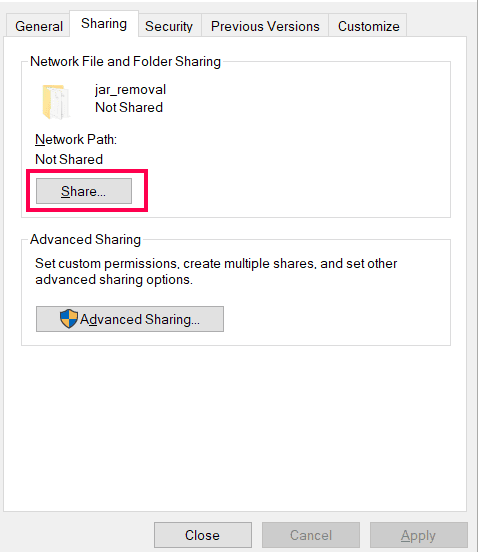
- Step 5: Check whether the share name is ManageEngine, as follows:
- Right-click the ManageEngine folder, go to the Sharing tab, select Advanced Sharing...
- Check if 'Share this folder' is enabled and Share name is ManageEngine.
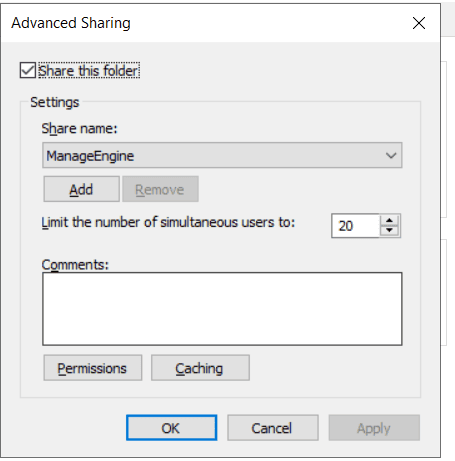
- If yes, proceed with Step 6 directly.
- Otherwise,
- Re-share the ManageEngine folder where the application is available as a subdirectory, and then perform Step 6.
- Remove any other ManageEngine folder shared with share name as ManageEngine.
- Step 6: Check whether the user account (in step 2) is available in the Sharing and Advanced Sharing lists within the ManageEngine folder, with read/write permissions and full control.
- If available, proceed with Step 7 directly.
- Otherwise, add the user account to the Sharing and Advanced Sharing list, provide read/write permissions and full control and then perform Step 7.
- Step 7: Check whether the shared ManageEngine folder is accessible from both application servers.
- Run the command \\<secondary machine IP>\ManageEngine and \\<primary machine IP>\ManageEngine on corresponding application servers.
- If accessible, proceed with Step 8 directly.
- Otherwise, fix the network issue and then perform Step 8.
- Run the command \\<secondary machine IP>\ManageEngine and \\<primary machine IP>\ManageEngine on corresponding application servers.
- Step 8: Check whether HA is enabled under HA Configuration.
- If enabled, proceed with Step 9.
- Else, enable HA under HA Configuration and then perform Step 9.
- Step 9: Check whether HA File Replication is configured successfully.
- If configured, proceed with Step 10 directly.
- Otherwise, configure the HA File Replication and then perform Step 10.
- Step 10: Check the log file for the following trace:
[UNSUPPORTED_CHARACTER_IN_PASSWORD]. exclamation is not supported in password. Please reset the password and try again
- If found, change the password (with appropriate characters) under Admin > General Settings > HA File Replication Configuration, and then perform Step 11.
- Otherwise, proceed with Step 11 directly.
- Step 11: Check the log file for the following trace:
Connection command execution failed. Message: The user name or password is incorrect
- If found, check whether the username under HA File Replication Configuration is a domain account and contains '\\' as a separator and go to step 12.
- Otherwise, proceed with Step 12 directly.
- Step 12: Check whether the CryptTag value in the conf/customer-config.xml file is same on both application servers.
- If yes, proceed with Step 13 directly.
- Otherwise, copy the conf/customer-config.xml file from primary application server to secondary application server and then perform Step 13.
- Step 13: Check for the following trace in the log file.
Replication schedule termination did not complete in [120]. Try starting the build
- If found, check whether any CPU / memory spikes appear in task manager, start the secondary application server as service in Windows service manager, and then perform Step 14.
- Otherwise, proceed with Step 14 directly.
- Step 14: Check for the following trace in the log file.
Error message: Error in connecting to remote server. The specified network password is not correct.
- If found, it indicates that the password entered in HA file replication configuration is incorrect. Therefore, update the correct password in HA file replication configuration and then perform Step 15.
- Otherwise, proceed with Step 15 directly.
- Step 15: Check for the following trace in the log file.
MapNetworkDrive.ps1 cannot be loaded because running scripts is disabled on this system
- If found, set powershell execution policy as RemoteSigned for the current user.
- Otherwise, proceed with Step 16 directly.
- Step 16: Check for the following trace in the log file:
Error type: SYNC_FATAL_ERROR, Error message: Error in connecting to remote server. & : AuthorizationManager check failed.
- If found, follow these steps on both application servers:
- Right-click the application_home/bin/MapToNetworkDrive.ps1 script file and select Properties.
- In Properties, go to the Digital Signatures tab.
- Select the Zoho certificate from the list, then click Details.
- In Certificate, go to the Details tab.
- Click Copy to File.
- In Certificate Export Wizard, click Next.
- Select DER encoded binary X.509 (.CER).
- Choose a destination path and file name, click Next, and click Finish to export the certificate.
- To open Certificate Manager, press Windows + R, type certmgr.msc, and press Enter.
- In the left pane, expand Trusted Publishers under Certificates - Current User.
- Right-click Certificates under Trusted Publishers, and select All Tasks > Import.
- In Certificate Import Wizard, click Next, then browse to select the .cer file you exported earlier.
- Click Next. Make sure that the certificate store is set to Trusted Publishers and click Finish.
- Step 17: If the issue is still not resolved, collect the following details for analysis:
- logs from the primary application server
- conf/ha.conf file from the primary application server
- conf/wrapper.conf from the primary application server
- Output of the following queries:
- select * from haconfig;
- select * from fosnodedetails;
- select * from serverstatus;