Failover Service (Version 13000 and above)
Failover Service (FOS) configuration ensures the availability of ServiceDesk Plus in case of hardware/software failure. It implements a hot-standby system by keeping a secondary server in standby mode while the primary server runs the application. In the event of primary server unavailability/scheduled downtime, the secondary server takes over the primary server functions.
Role Required: OrgAdmin
In ESM setups, OrgAdmins can launch ServiceDesk Plus in FOS mode from ESM Directory > General Settings > FOS Configuration.
This guide discusses configuring Failover Service through the following topics:
- Prerequisites
- How does Failover Service work?
- Benefits of launching ServiceDesk Plus in FOS mode
- Setup Process
- Configuring Failover Service
- Upgrade/Restore
- Disable FOS
- Prerequisites for DC Add-on
- History
Prerequisites
Server Requirements
- Two 64-bit server machines with high network connectivity.
- ServiceDeskPlus 64 bit .exe installations (preferred).
- Servers used for the FOS setup must have two way read-write access for the ManageEngine folder (where ServiceDesk Plus is installed).
- A common IP Address in the same network as primary and secondary servers.
- Two virtual or physical servers and Azure with different NIC card addresses to set up the FOS.
ServiceDesk Plus Configuration Requirements
- FOS license must be purchased as an add-on to your application edition. You cannot view FOS configurations in ESM without applying FOS license to your application.
- The database must be externalized from primary and secondary servers but remain accessible to both. You can either use an MSSQL database or migrate to version 14820 and use an external PGSQL database.
- From Builds 14940 and later, externalizing the file attachment path is not mandatory.
- HTTPS certificate must be obtained for the Alias URL of the common IP.
- The common URL (for which the SSL certificate is obtained) must be bound to the common IP address configured in the DNS of the network.
- The application must be started as a service using Java Service Wrapper.
- Polling and retry parameters should be the same in both servers.
- The applications installed in the primary and secondary servers must both run on the same port.
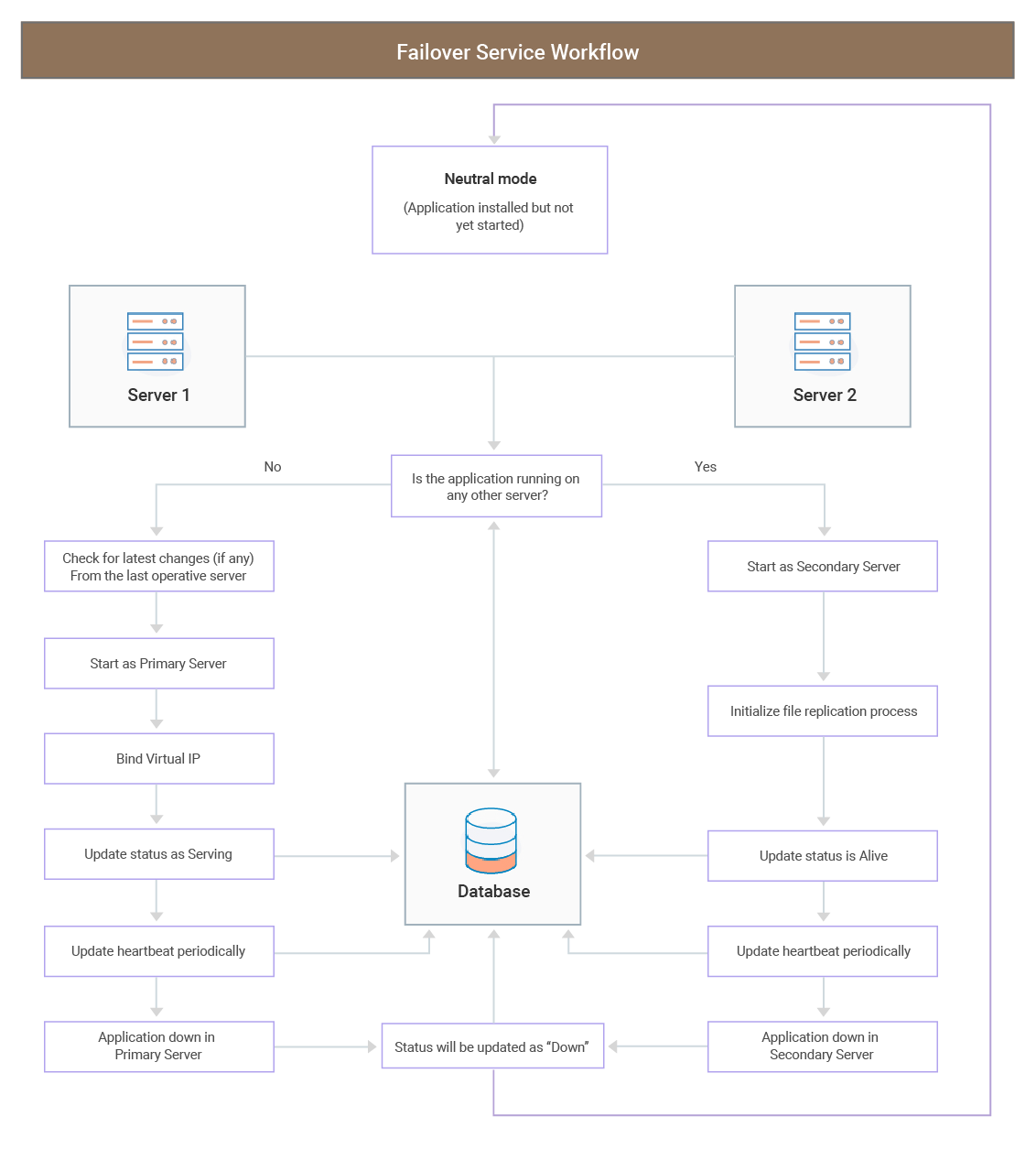
How does Failover Service work?
- The Failover Service setup involves the following components:
- Primary Server - The server where the application is currently hosted.
- Secondary Server - The backup server in standby mode that monitors the health of the primary server periodically. The secondary server also replicates files from the primary server constantly.
- Database Server - The primary and secondary servers are connected to a common database server. By default, the database server is used to monitor the primary server's health via the DB heart beat mechanism. The database server also replicates the data stored in the primary server. This ensures that no data is lost during the time between the server failure and the take-over.
-
The primary server, secondary server, and database server are connected to a common network.
- The IP address of the primary server, secondary server, and Virtual IP should be static and in the same network.
- The primary server's status can be monitored in two ways:
- DB heartbeat Mechanism - Default method for monitoring the health of a peer machine. The primary server updates its status to the database server every minute. If no status update is received, it is assumed that the primary server is unavailable and the secondary server takes over.
- Polling Mechanism - Requires SSL certificate and can be configured only in the HTTPS protocol. In case of database failure, the application automatically sets up this method.
- Standby server monitors the health of primary and replicates files from the database server periodically.
- When the primary server goes down, no status update is sent to the database server. The primary server status is updated as "Down" in database server.
- The secondary server recognises the primary server failure and instantly begins the takeover process.
- The secondary server pulls the latest files from the primary server and starts as the primary server. The time taken to complete the takeover depends on the size of replication data.
- When the primary server is restored back online, it starts as the standby server and the other server continues to act as the primary server. Thus, the cycle continues.
Benefits of launching ServiceDesk Plus in FOS mode
- Availability of ServiceDesk Plus application at all times.
- Smooth and automatic take-over of the failed server.
- Prevents loss of data stored in primary server in the event of server failure by configuring file replication.
- When the primary server goes down and gets restored, it will start in standby mode while the other server continues to act as the primary server. Therefore, it is not essential for administrators to restore FOS setup every time a hardware/software failure occurs.
Set Up Process
You can set up your servers for FOS configurations in two ways:
Approach 1: Set up each server individually
Install ServiceDesk Plus separately in both servers and configure them separately to the same database server.
Approach 2: Set up one server and mirror the configurations to the other server
An easier approach using Robocopy. Install the application in the primary server and execute the following command from <ServiceDeskPlus_home>\bin directory: mirrorSetup.bat <IP address of secondary server>.
On mirroring the application, the folders relevant to ServiceDesk Plus will be copied from primary server to the secondary server. However, the application will not be started as a service in the secondary server. To start the application as a service,
- In the command prompt, go to {SDP_Home}/bin
- Execute the following command: sd_service.bat -i
- The service will be created in the secondary server. You can now start ServiceDesk Plus as a service.
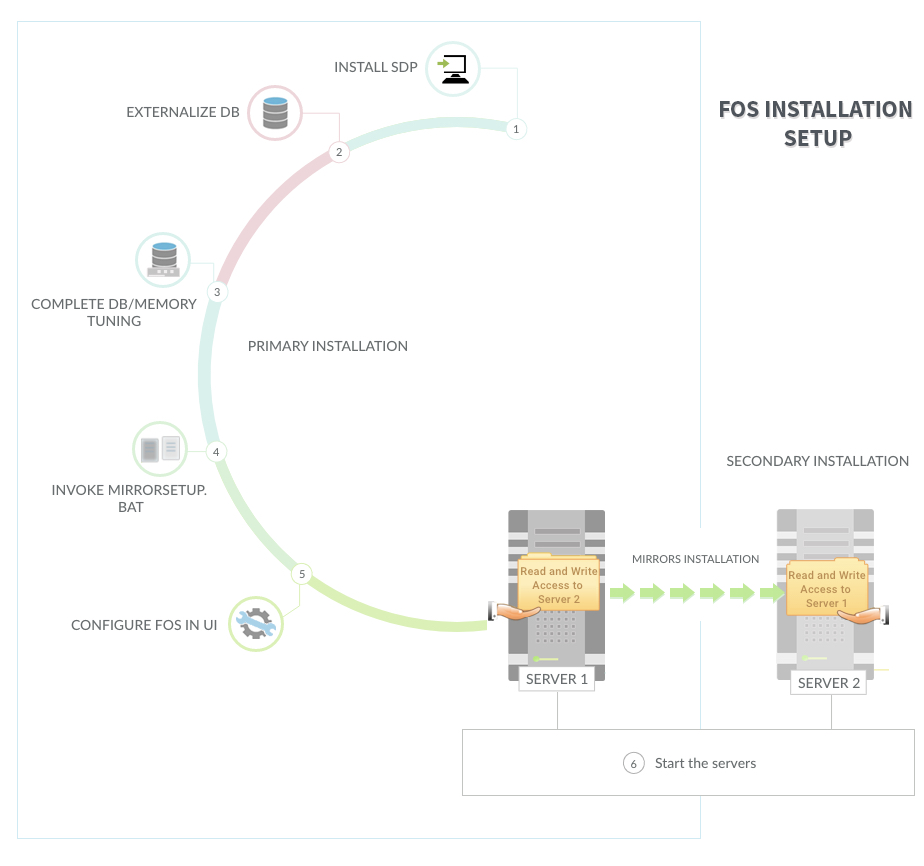
- Share the ManageEngine folder from the primary server to secondary server and vice-versa.
- Ensure that the servers have mutual full read/write permission for this folder. You can set the folder access permission to "Everyone".
- To access the shared folder on your server, go to from start menu > run > \\<machineIP>\ManageEngine. Provide the username and password (if needed) to make sure an IPC connection is established between the machines.
- If you want to restrict the folder access to one particular user account,
- Set the folder access to that account and open Run command (Win+R) 'services.msc'.
- Search for "ManageEngine ServiceDesk Plus" and go to Properties.
- Select the Log on tab and choose This account option.
- Enter the login credentials of the domain user to whom the access is given and save it.
- Start the application.
Configuring Failover Service
On the FOS Configuration page, select the Enable FOS Startup Mode check box.
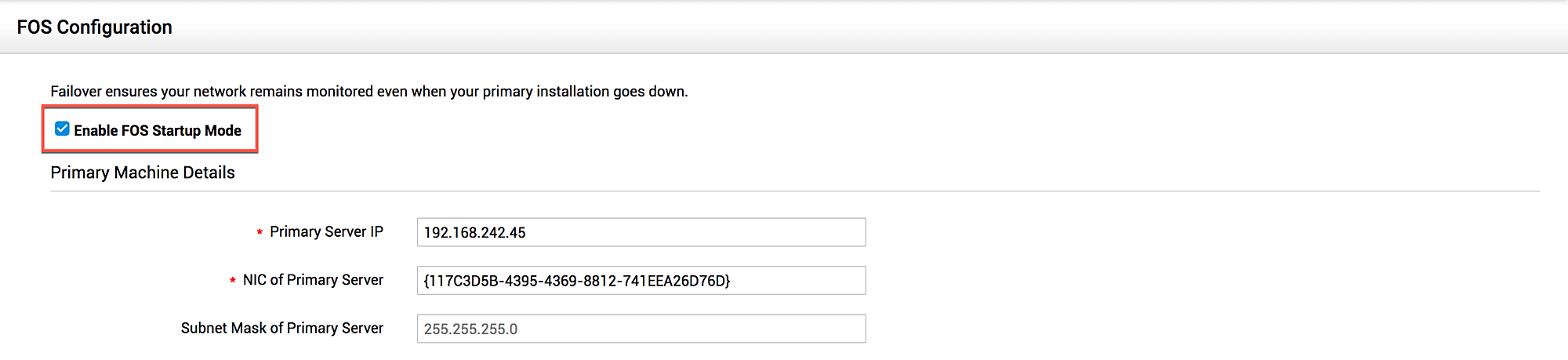
Use the pointers below to configure the application in FOS mode.
Primary Server Details:
- Primary Server IP - Enter the IP address of the server where the application is running.
- NIC of Primary Server - Enter the Network Interface Card (NIC) address (also called the physical address) of your primary server. The NIC address should be enclosed within curly braces { }. For example: {117C3D5B-4395-4369-8812-741EEA26D76D}.
Learn how to identify the NIC address of your primary server
ServiceDesk Plus contains an inbuilt provision to help you identify your NIC address.
- Go to \bin directory in your primary server.
-
Execute the iflist.exe tool.
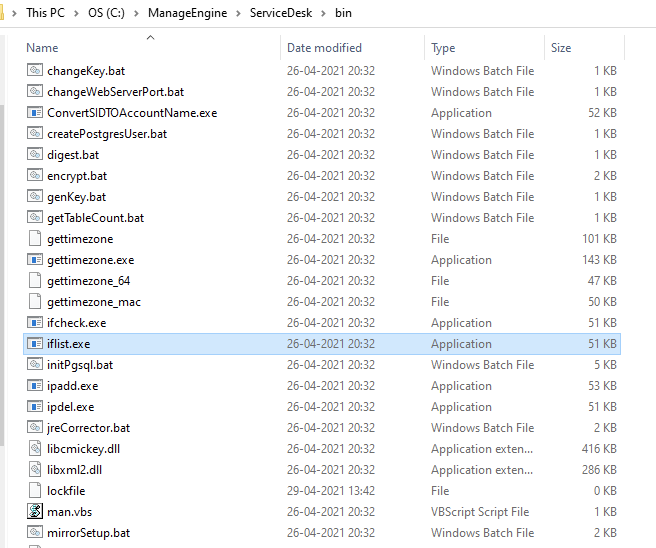
-
Locate the NIC Card whose Adapter Status is UP. The adapter name is the NIC address for the IP address to which the application is bound.
-
Copy the value in the Adapter Name field to the application.
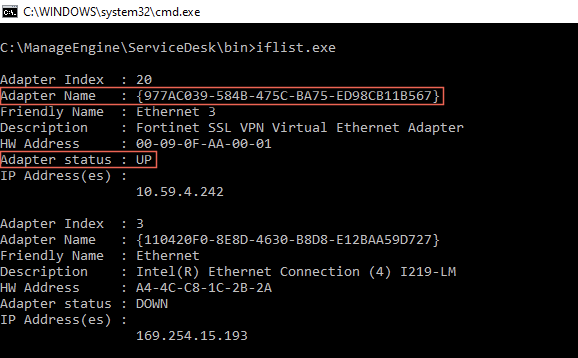
- Subnet Mask of Primary Server - Enter the subnet mask of your primary server. The default subnet mask is set at 255.255.255.0. You can also configure other valid subnet mask values.
Valid Subnet Mask values for Primary Servers Valid Subnet Mask values /30 255.255.255.252 /29 255.255.255.248 /28 255.255.255.240 /27 255.255.255.224 /26 255.255.255.192 /25 255.255.255.128 /24 255.255.255.0 /23 255.255.254.0 /22 255.255.252.0 /21 255.255.248.0 /20 255.255.240.0 /19 255.255.224.0 /18 255.255.192.0 /17 255.255.128.0 /16 255.255.0.0
Secondary Machine Details:
- Secondary Server IP - Enter the IP address of your standby server.
- NIC of Secondary Server - Enter the Network Interface Card (NIC) address (also called the physical address) of your secondary server. The NIC address should be enclosed within curly braces { }. For example: {03C0161D-737E-4E97-A6BA-F8546FD2C6DB}.
Learn how to identify the NIC address of your secondary server
ServiceDesk Plus contains an inbuilt provision to help you identify your NIC address.
- Go to \bin directory in your secondary server.
-
Execute the iflist.exe tool.
-
Locate the NIC Card whose Adapter Status is UP. The adapter name is the NIC address for the IP address to which the application is bound.
-
Copy the value in the Adapter Name field to the application.
- Subnet Mask Secondary Server - Enter the subnet mask of your secondary server. The default subnet mask is set at 255.255.255.0. You can also configure other valid subnet mask values.
Valid Subnet Mask values for Secondary Servers Valid Subnet Mask values /30 255.255.255.252 /29 255.255.255.248 /28 255.255.255.240 /27 255.255.255.224 /26 255.255.255.192 /25 255.255.255.128 /24 255.255.255.0 /23 255.255.254.0 /22 255.255.252.0 /21 255.255.248.0 /20 255.255.240.0 /19 255.255.224.0 /18 255.255.192.0 /17 255.255.128.0 /16 255.255.0.0
General Details:
- Virtual IP - Specify the IP address to which the primary and secondary server must be bound to. You can access the application by using a virtual IP address.
Ensure that the virtual IP address you configure belongs to the subnet mask and is not bound to any existing servers in the network.
Learn how to test the virtual IP address
The virtual IP address is a common IP address in the local network, that is not bound to any specific machine. A simple way to check if an IP address can be used as a common one is to ping the IP address. If the IP is not reachable, then it can be used as a common IP address.
To test the virtual IP address,
- Open your command prompt and execute the following command: ping {insert IP address}.
- If you receive a request timed out message, it means the virtual IP address is available for use.
- Common Alias Name - Specify a domain name using which you can access the application apart from the virtual IP address. You can customize the alias name as needed.
- In case of failover notify to - Specify the email address to which notifications must be sent in the event of a server failure. Notifications regarding failover self-monitoring alerts, data synchronization alerts, and secondary server takeover alerts will be sent to this email address. You can configure multiple email addresses by separating them using commas.
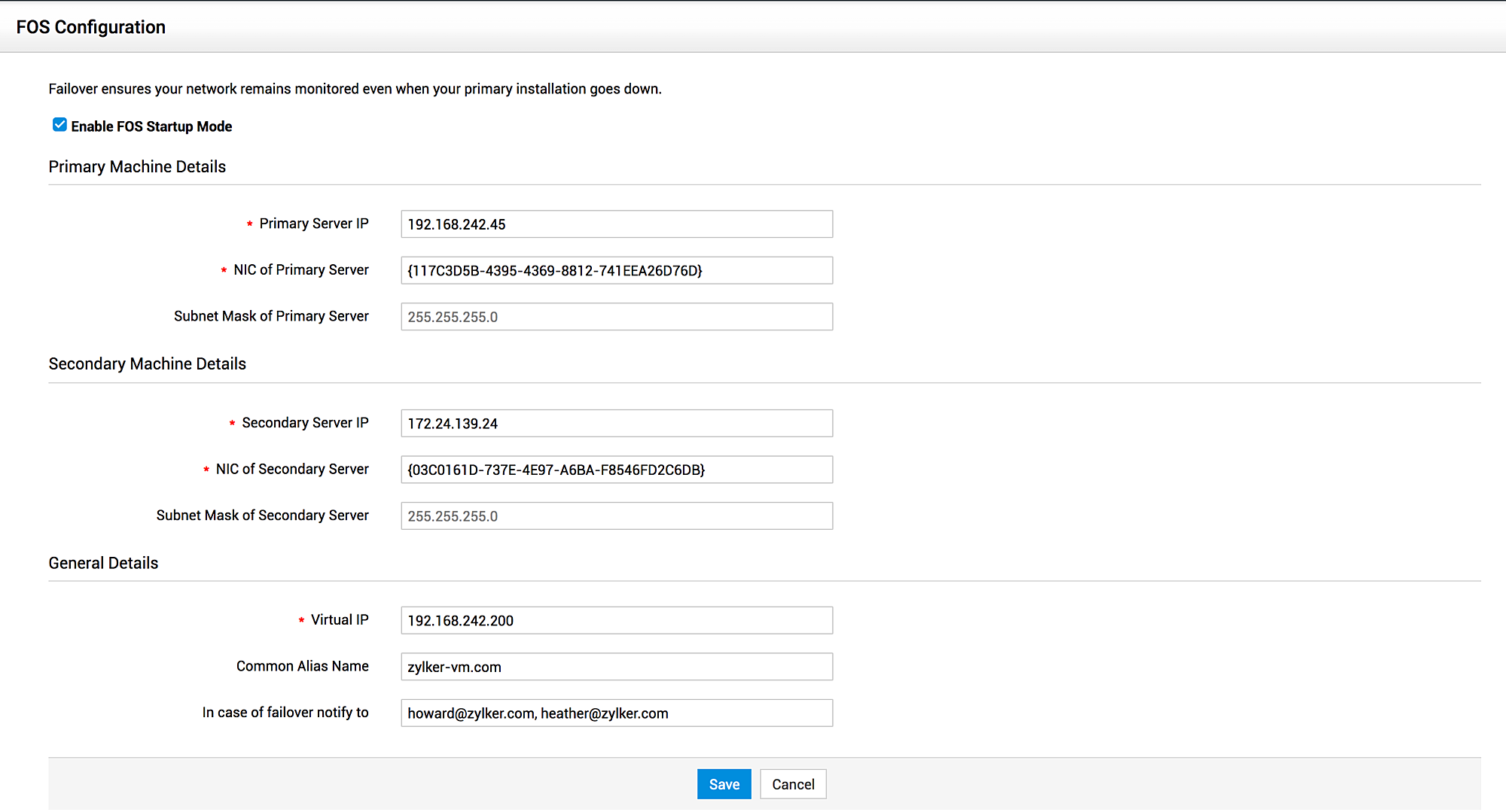
By default, the primary server monitors the secondary server's status every 5 minutes. In the event of secondary server failure, an email is triggered to the configured email address. You can modify the primary server's listening time as needed by following the steps below:
- Navigate to {SDP_home} / conf.
- Open the ha.conf file and find the entry: #peer.status.check.time.period=
- Uncomment the entry by removing the hashtag
- Specify the required time period in minutes. For example: peer.status.check.time.period=10
For the notification emails to be sent, the outgoing mail server should be configured for the application. You can customize the notification message from Translations.
Click Save and restart the application for the configurations to take effect.
Upgrade/Restore
Announcement for Users using ServiceDesk Plus version 12007 and below
The current FOS configurations will not work after the upgrade, and you will be automatically migrated to the new FOS. Enable new FOS for continued support.
Announcement for Users using ServiceDesk Plus version 13001 and above
Users upgrading to version 13001 and above are not required to mirror the updates in both the servers as the changes are automatically pushed during the upgrade.
To upgrade your application,
- Invoke <SERVICEDESKPLUS HOME>\bin\shutdown.bat in the primary and secondary server. This will stop ServiceDesk Plus.
- Upgrade the build in the primary server using PPM. Click here to learn how.
- Mirror the settings in the secondary server via Robocopy by invoking <SERVICEDESKPLUS HOME>\bin\mirrorSetup.bat <IP address of secondary server> - pass the secondary server IP as parameter. This step is applicable only to users upgrading to version 13000.
- Invoke <SERVICEDESKPLUS HOME>\bin\run.bat in both the servers to start ServiceDesk Plus.
Alternatively, you can also start ServiceDesk Plus as a service.
In the event of upgrade failure, you can restore the application to its previous version by following the steps mentioned below.
- Invoke <SERVICEDESKPLUS HOME>\bin\shutdown.bat in the primary and secondary server. This will stop ServiceDesk Plus.
- Restore the data in the primary server. Click here to learn how.
- Mirror the settings in the secondary server via Robocopy by invoking <SERVICEDESKPLUS HOME>\bin\mirrorSetup.bat <IP address of secondary server> - pass the secondary server IP as parameter.
- Invoke <SERVICEDESKPLUS HOME>\bin\run.bat in both the servers to start ServiceDesk Plus.
Alternatively, you can also start ServiceDesk Plus as a service.
After successfully restoring the application, FOS will be disabled by default. Enable FOS and restart the application again.
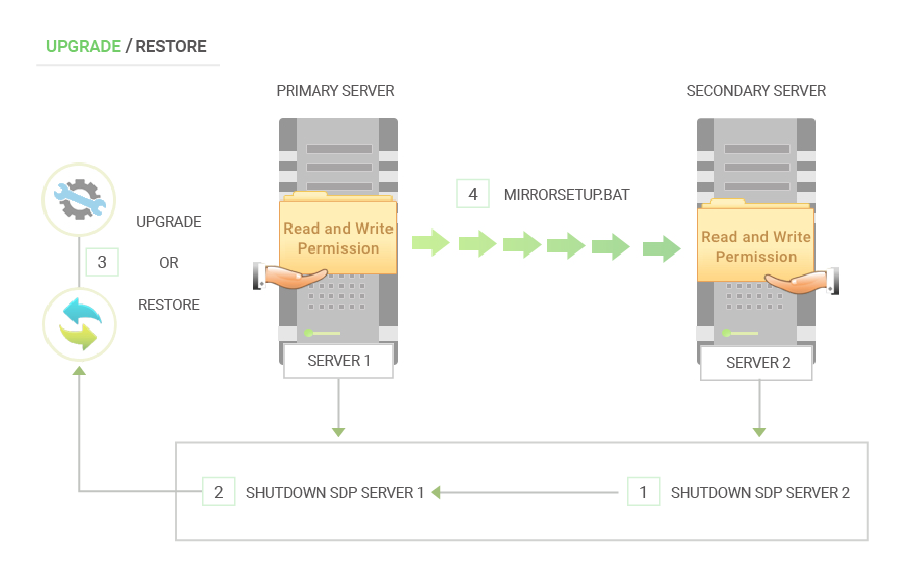
An illustration explaining the process workflow while upgrading or restoring FOS
Disable FOS
To disable FOS from the application,
- Uncheck the Enable FOS Startup Mode option under ESM Directory > General Settings > FOS Configuration.
- Invoke <SERVICEDESKPLUS HOME>\bin\shutdown.bat in both the primary and secondary servers. This will stop ServiceDesk Plus.
- You can then restart the application in the servers individually by invoking <SERVICEDESKPLUS HOME>\bin\run.bat command. On restarting, the servers will behave individually as two separate machines.
Alternatively, you can also start ServiceDesk Plus as a service in each server.
Prerequisites for DC Add-on (If DC plugin installed):
Prerequisites for DC installed within ServiceDesk Plus for inventory, remote control, and tools:
DesktopCentral can be installed only on a Windows server. So when DC is downloaded and installed within the SDP installation folder for inventory, remote control and tools functionality in a Windows server, FOS for DC would work along with SDP. But if DC is installed in a different folder other than SDP or completely in a different machine, FOS for DC would not work.
For customers who have purchased DC separately along with FOS license, please refer to Steps to follow if you do not have a Failover Server setup under this DC documentation for steps to configure FOS in DC.
The location path of the servers on both installations(machine 1 & machine 2) should be the same: (\\primary installation\ManageEngine\ServiceDesk or \\secondary installation\ManageEngine\ServiceDesk and so on)
File location path has to be changed to a network share that is accessible by both the installations(machine 1 & machine 2) for the following:
- DesktopCentral - Admin - Tools - Database Backup - Backup Directory
- DesktopCentral - Admin - Software Repository - HTTP Repository - New Location
- DesktopCentral - Patch Mgmt - Downloaded Patches - Settings - Patch Repository Location
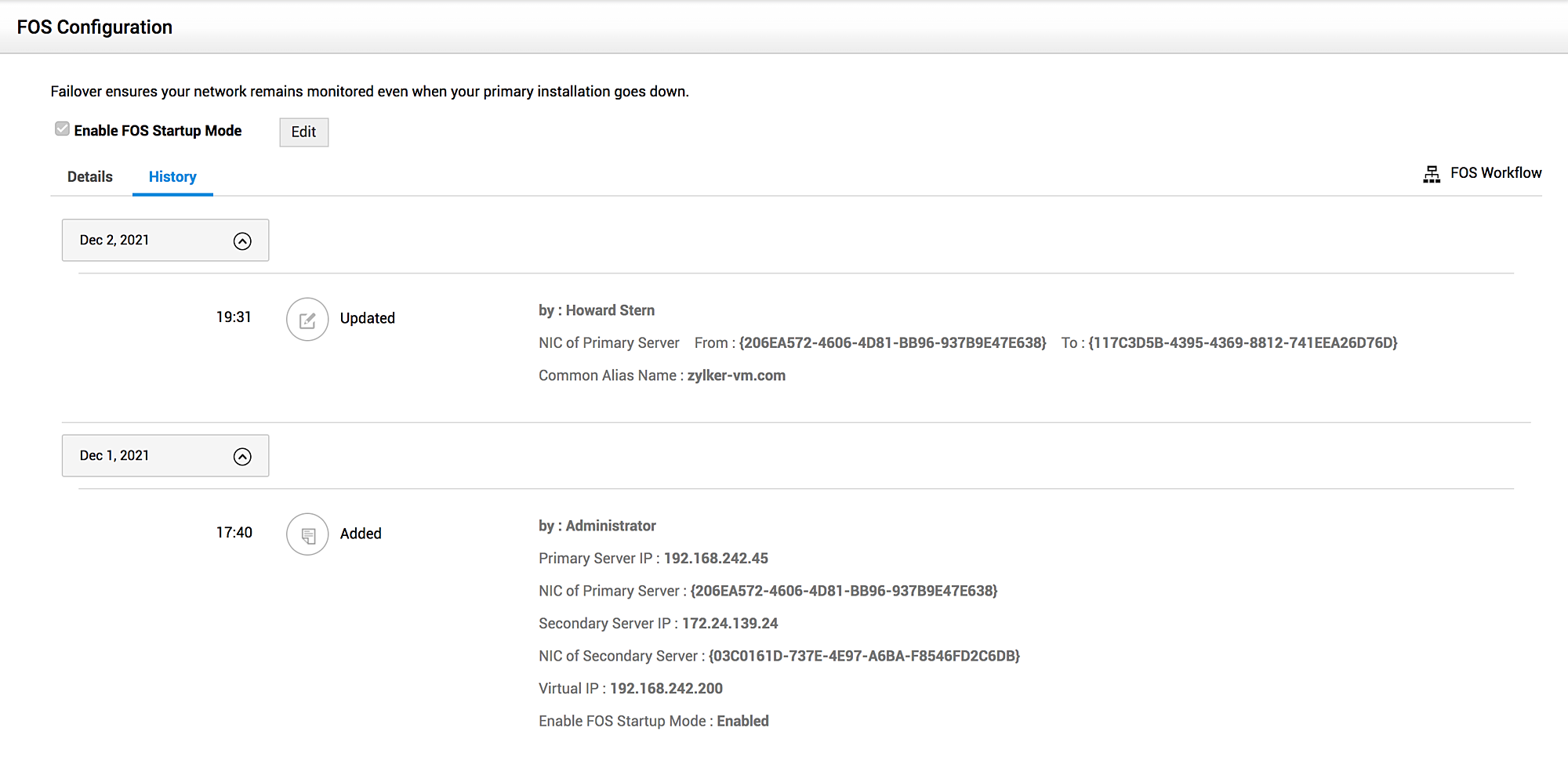
History
The history tab documents the summary of operations performed on FOS Configuration.