Custom Actions - Use Cases
Custom Actions allow you to create shortcuts for frequent operations. Instead of navigating through the full form every time, users can quickly act from the list view or record details page, with only the required fields presented.
Let’s walk through two practical use cases in the context of an Employee Onboarding custom module.
Use Case 1: Add Immediate Hire at the Base Site
Let's say a company suddenly requires additional employees to join immediately at their base site due to a new project, critical business need, or urgent replacement. The HR manager must quickly process the onboarding for these candidates.
To simplify the process for HR, a custom action called Add High Priority Hire can be defined, enabling them to create records by filling in only essential fields (such as Name, Contact, Department, and Date of Joining) while other details (such as Site and Priority) are automatically populated with default values.
Admin Configuration
- Go to Custom Actions.
- Click New.
|
Field |
Value |
|
Display Name |
Add High Priority Hire |
|
Operation |
Add |
|
Actions |
Field Update |
- By default, all mandatory fields from the onboarding form will appear in the quick-create action and cannot be removed.
- Additional fields can be included by clicking the + icon.
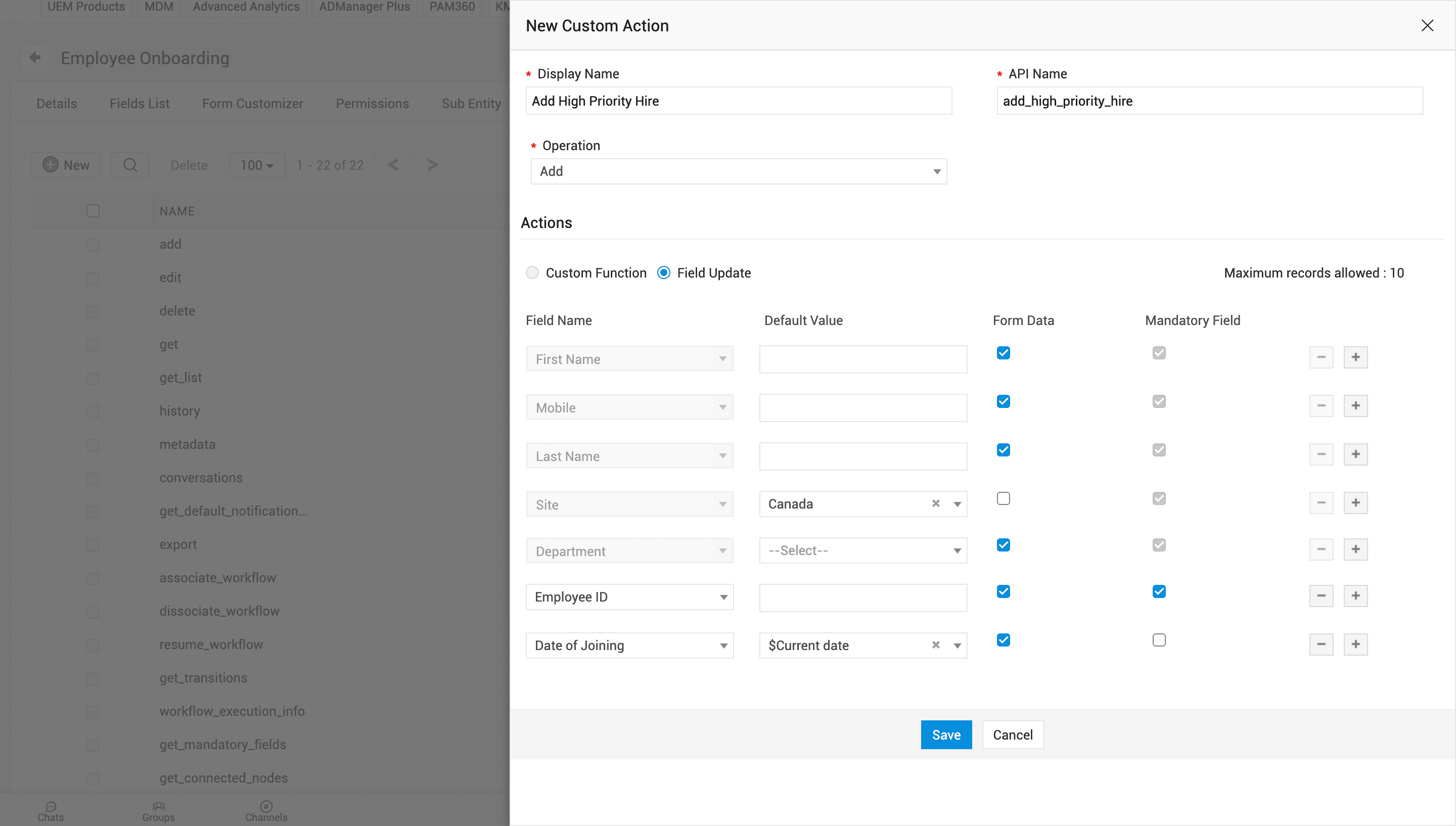
Now, let’s apply the following to our example:
- In the template form, Site is mandated, and Onboarding Priority is non-mandated.
- Since we are hiring to the base site, enable Default Value next to Site and set base site as a default value for the field. The field will not appear in the quick-create form, but it will be recorded in the database.
- Similarly, set Onboarding Priority with High and enable Default Value.
- For Date of Joining, you can set the current date as default but still allow the HR manager to edit it by enabling Form Data.
- Fields like Employee ID, though not mandatory in the main form, can be made mandatory (by enabling Mandatory Field) for this action, if needed.
Click Save and publish the configuration.
User Experience
After the configuration is published, the HR can:
- Go to the web tab.
- Click Actions in the toolbar and select Add High Priority Hire.
- Fill in the details such as First Name, Last Name, Mobile, Employee ID, and Date of Joining and click Add.
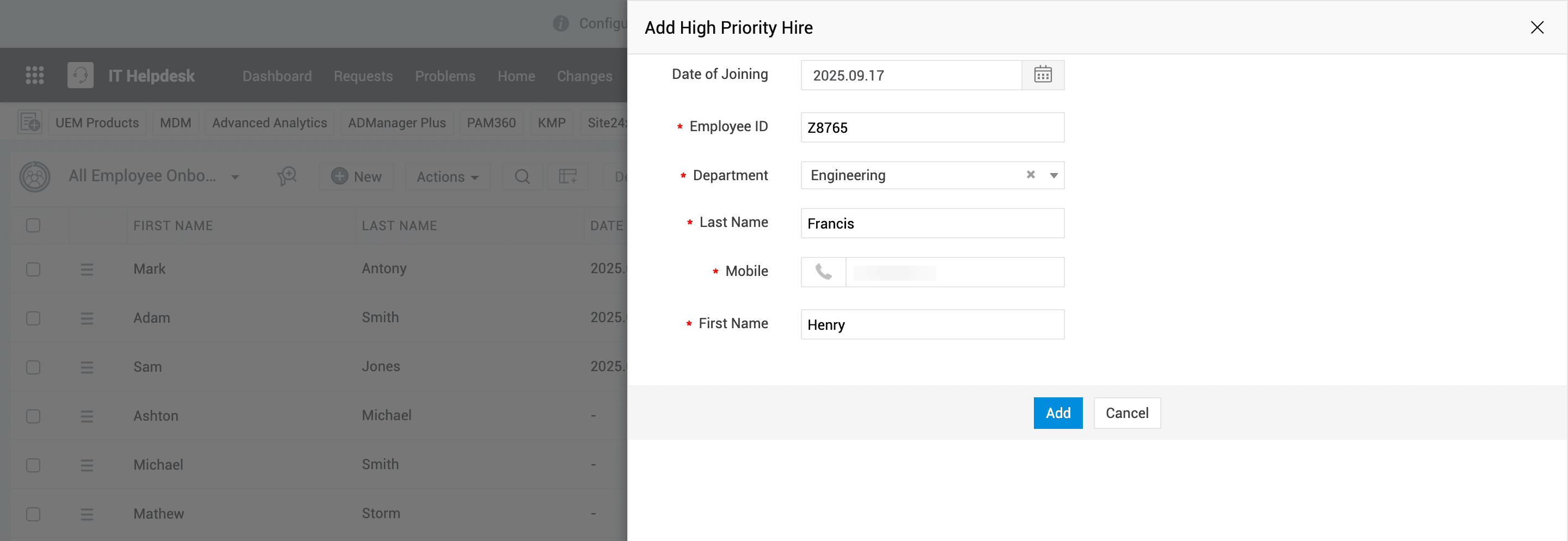
The record will be created with both the user-provided information and default values. This ensures that urgent hires are logged quickly without unnecessary steps.
Use Case 2: Bulk Update Joining Dates
Consider a scenario where the onboarding schedule changes and the HR manager needs to update the date of joining for multiple hires at once.
To simplify the process for HR, a custom action can be created that allows them to update only the joining date without opening the entire form.
Admin Configuration
- Go to Custom Actions.
- Click New.
|
Field |
Value |
|
Display Name |
Update DOJ |
|
Operation |
Edit |
|
Actions |
Field Update |
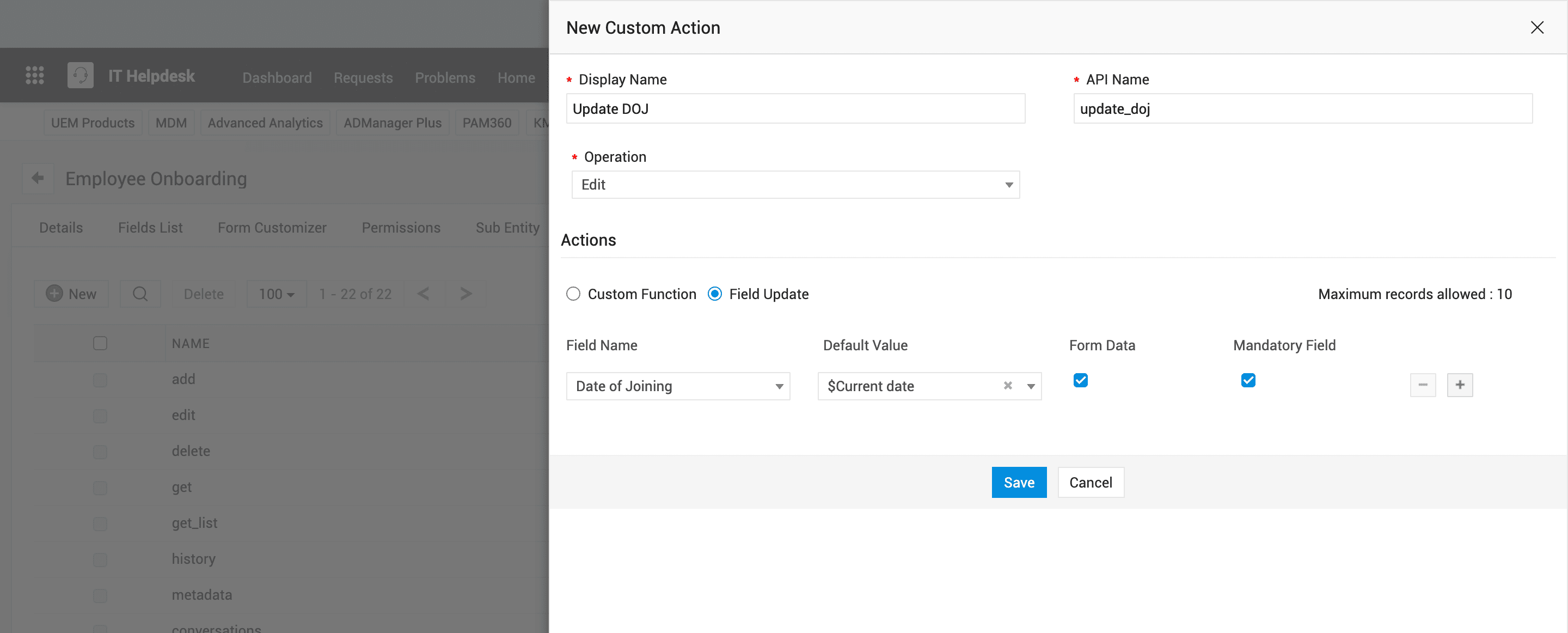
- Select Date of Joining as the field to be updated.
- Enable Form Data and Mandatory Field to make sure that the HR does not skip entering the necessary details.
- Optionally, set the current date as a default value while still allowing the user to modify it.
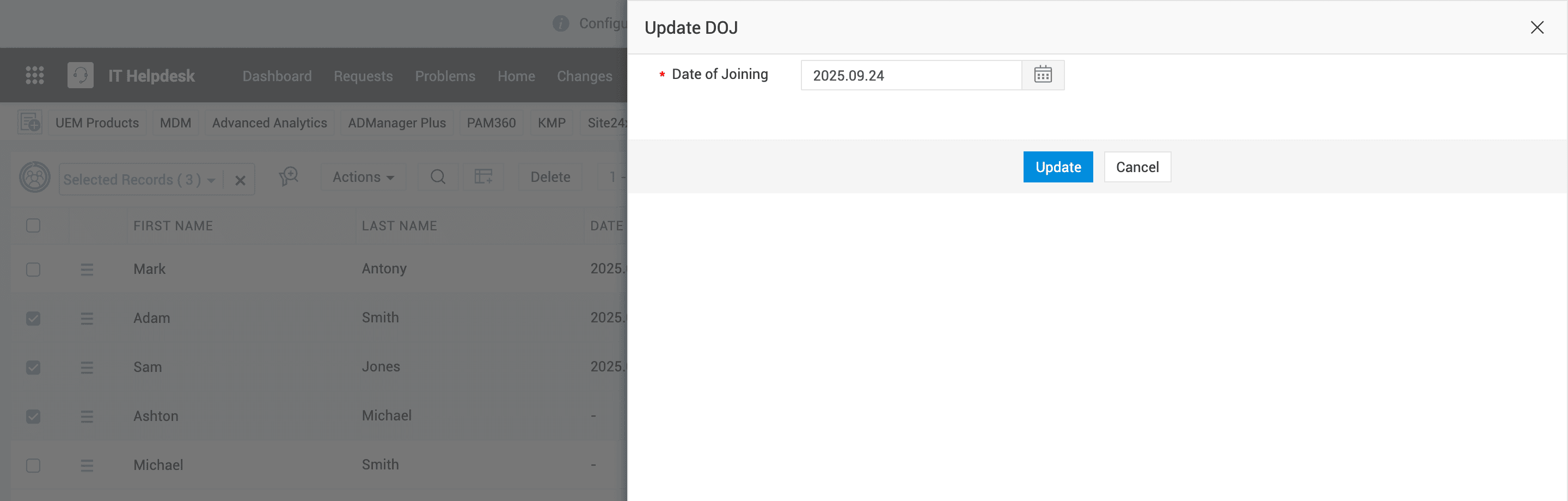
User Experience
After the configuration is published, the HR can:
- Go to the web tab.
- Click Actions in the toolbar and select Update DOJ.
- Fill in the details and click Update.
Custom Subentities - Use Case
Subentities are additional entities that are directly linked to a custom module record (parent entity) and technicians can store additional information to manage the record throughout its life cycle.
Let’s walk through a sample subentity in the context of an Employee Onboarding custom module.
Parent Module: Employee Onboarding
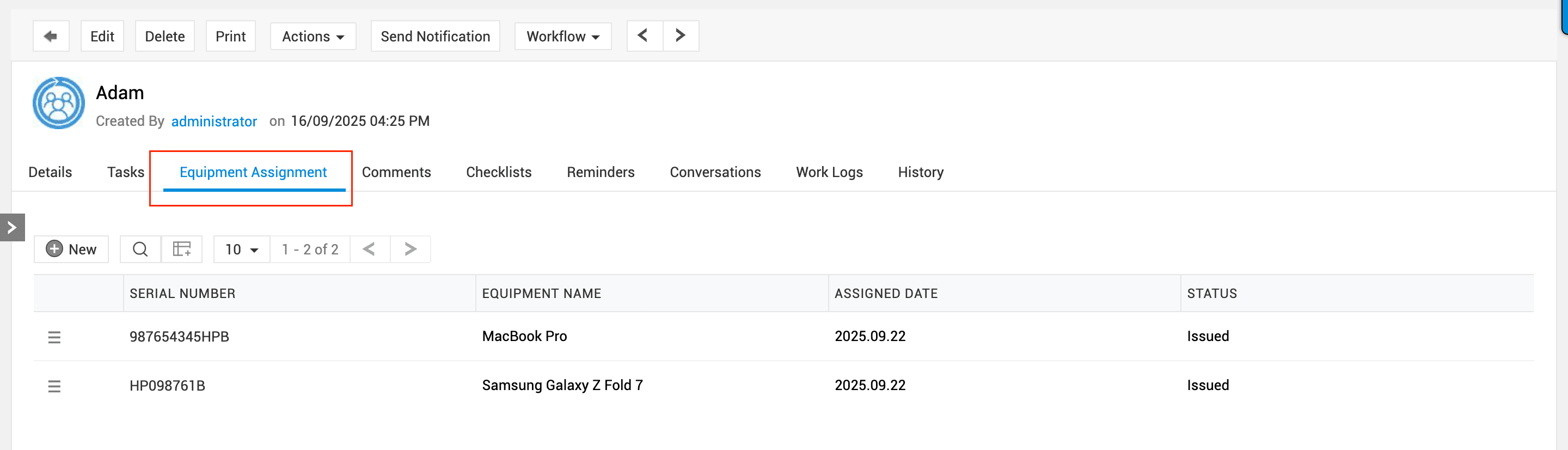
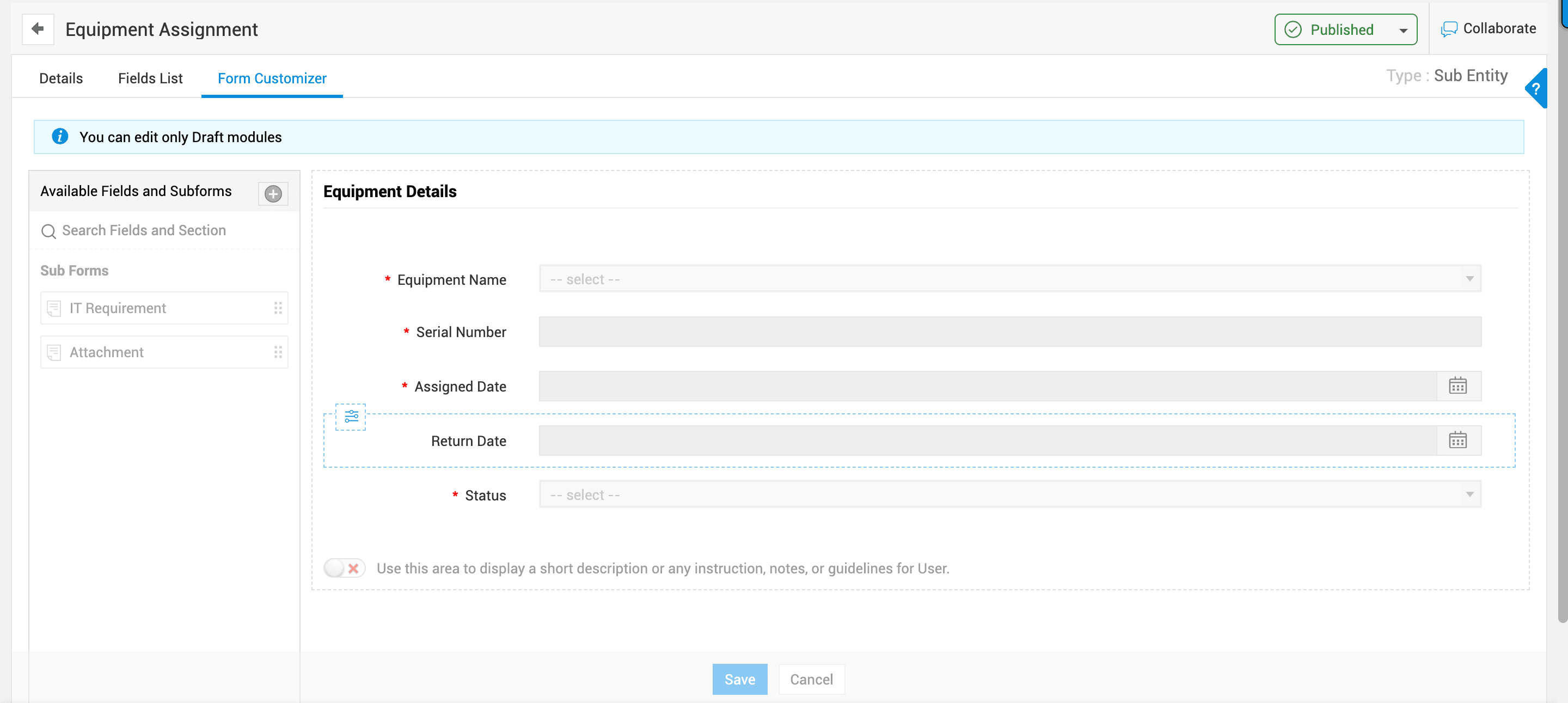
Custom Subentity: Equipment Assignment for tracking all the equipment assigned to a new employee during onboarding.
Admin Configuration
- To create a subentity, go to Admin > Developer Space > Custom Modules and click New.
- Fill in the details, choose Type as Sub Entity, and click Save.
- In Form Customizer, you can design your form with the following fields:
- Equipment Name (Laptop, Mouse, ID Card, etc.): You can refer Assets (reference entity) to this field.
- Serial Number
- Assigned Date
- Return Date
- Status (Issued / Returned)
After you design, publish the subentity.
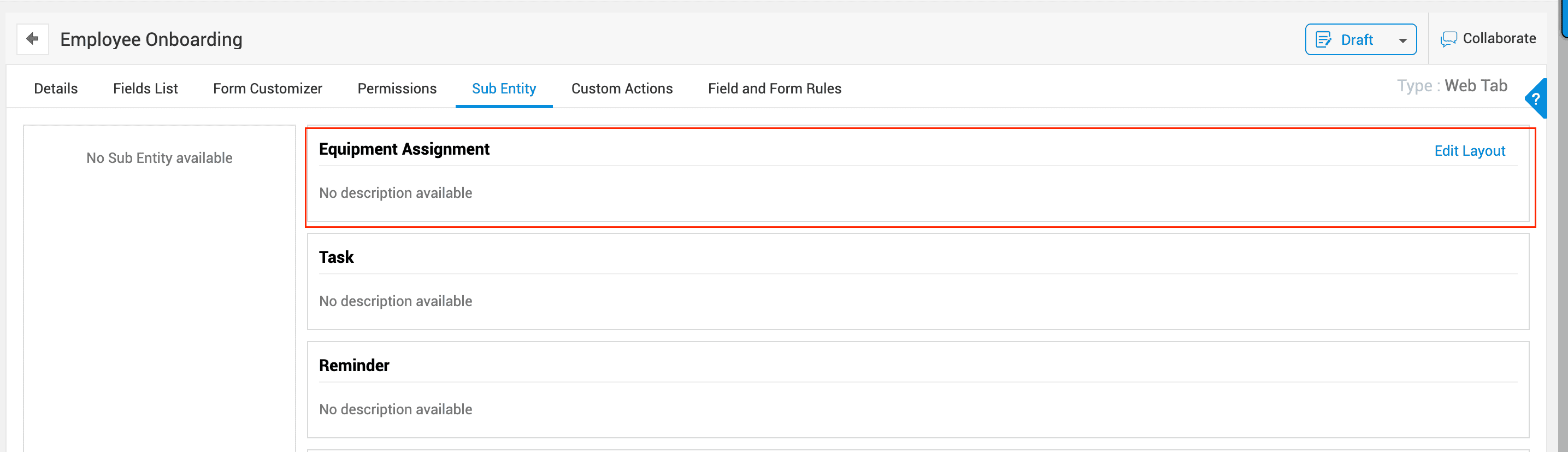
Now, add the subentity to the parent module and publish it.
User Experience
After an HR creates a new Employee Onboarding record, they can add multiple Equipment Assignment entries to track which devices or items are given to the employee and their current status.