Live chat enables requesters and technicians to collaborate in real time and resolve requests quickly.
To initiate a chat, requesters can:
-
Click Live Chat
 at the lower-right corner of the screen or
 -
Click the Zia icon and select Tech Support (if Zia is enabled).
Quick Links
Configure Chat Settings
Configure chat settings for requesters and technicians.
Role Required: SDAdmin
-
Go to Admin > Apps & Add-ons > Chat Settings (in the old UI: Incident Management > Chat Settings).
-
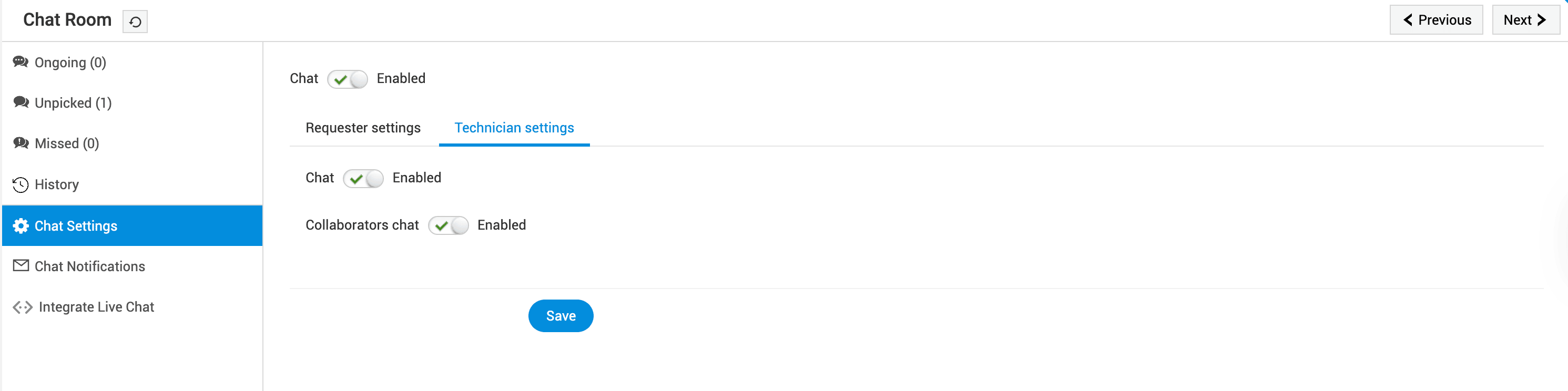
To enable chat for both technicians and requesters, toggle Chat at the top of the page.
-
To enable or disable the chat individually, go to Requester Settings or Technician Settings and toggle Chat on the corresponding page.
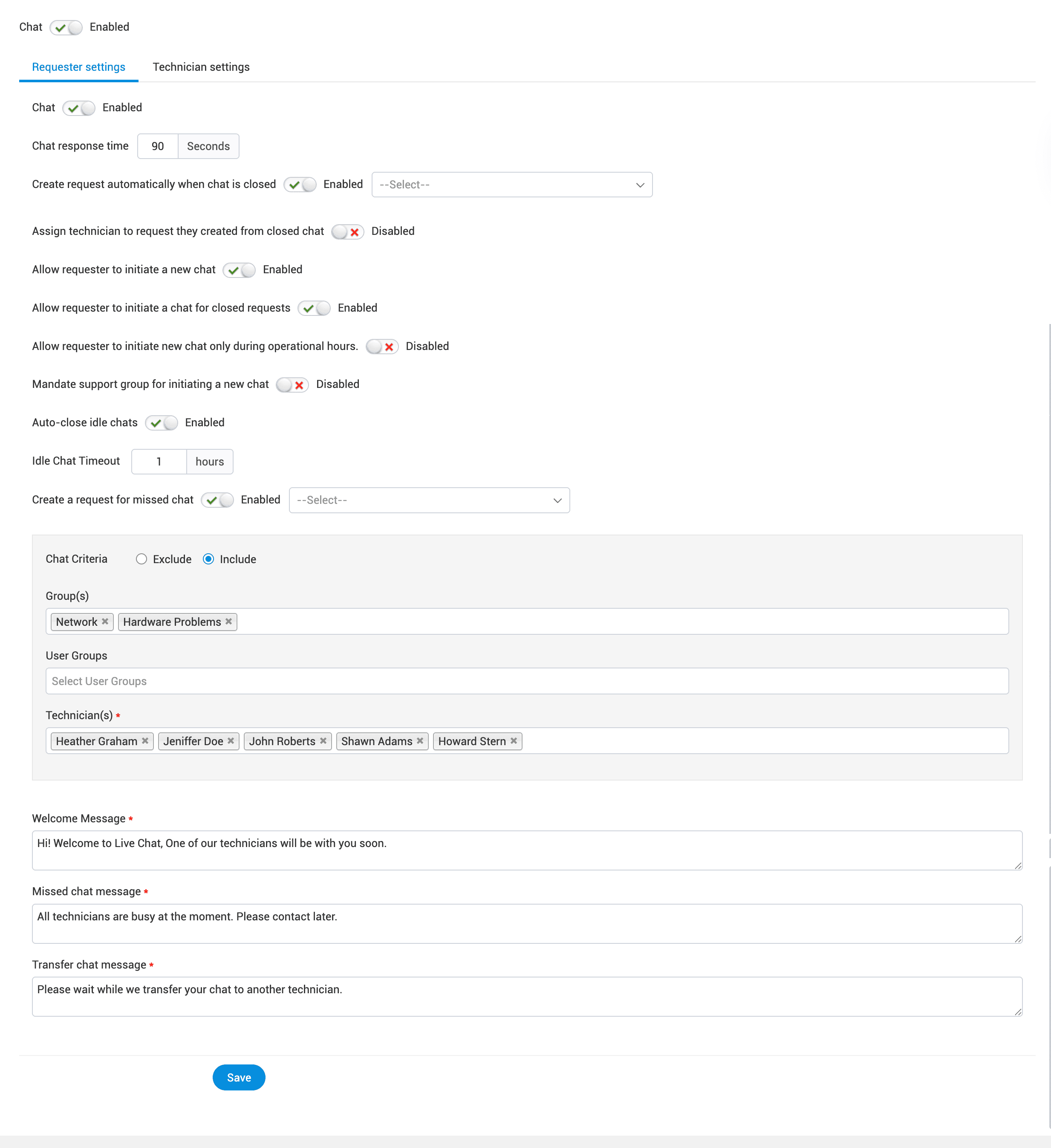
Requester Chat Settings
Use the following options to customize the chat for requesters:
-
Chat - Enable or disable Live Chat for requesters. When disabled, requesters cannot initiate chats.
-
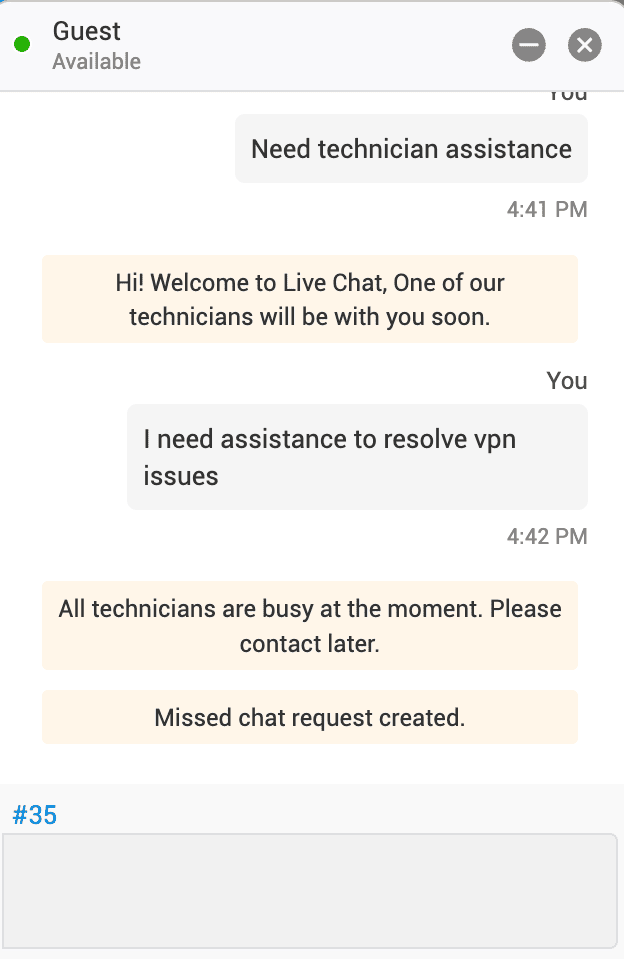
Chat response time - Set the duration (in seconds) within which a technician must accept an incoming chat request. Chats not accepted within this duration are listed under Missed Chats.
-
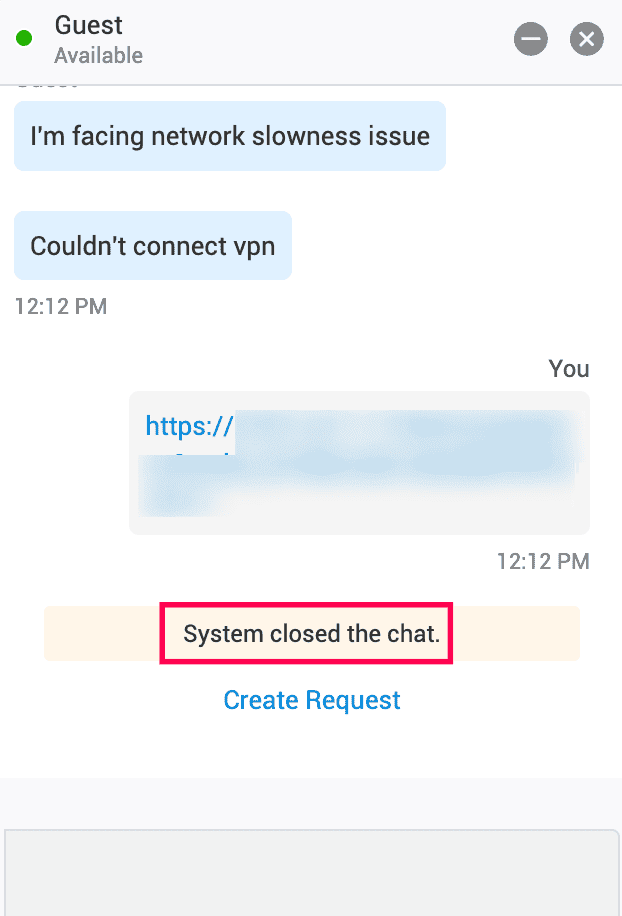
Create request automatically when chat is closed - Automatically creates a request when a requester chat is closed. The chat transcript is attached to the request for reference. After enabling this option, set a template to create requests.
-
Assign technician to request they created from closed chat - Automatically assigns the technician who handled the chat to the request created from that chat.
-
Allow requester to initiate a new chat - Allow requesters to initiate a chat to create requests. When disabled, requesters can initiate chats only for existing requests.
-
Allow requester to initiate a chat for closed requests - Allow requesters to initiate a chat for closed requests.
-
Allow requester to initiate new chat only during operational hours - Restricts requesters from initiating chats outside operational hours.
-
Mandate support group for initiating a new chat - Requires a support group to be selected when initiating a chat, ensuring notifications reach the relevant technicians.
-
Auto-close idle chats - Automatically closes inactive chats beyond the configured timeout. Enter the timeout duration in hours.
-
For a new chat, technicians can create a request after the chat is closed, if required.
-
For chats on existing requests, the transcript is appended to the request conversation upon closure.
-
-
Create a request for missed chat - Automatically creates a request for chats not accepted within the configured chat response time. Set a template (optional) for missed chat requests.
-
Chat Criteria - Define criteria to include or exclude specific sites, groups, user groups, or technicians from responding to chat requests. For example, you can exclude senior technicians and include only level 1 support technicians for incoming chat requests.
-
Enter Message - Configure messages displayed to requesters when:
-
A chat is initiated.
-
A chat is not accepted within the configured response time.
-
A chat is transferred to another technician.
-
After customizing the requester chat settings, click Save.
Technician Chat Settings
Use the following option to customize the chat for technicians:
-
Chat - Enable or disable Live Chat for technicians. When disabled, technicians cannot initiate or receive chats.
-
Collaborators chat - Allow technicians viewing the same request to communicate with each other. Upon enabling, the chat icon appears on the request details page.
-
Click Save.
Chat Features
Live Chat for Requesters
Requesters can initiate a chat with a technician from the requester portal. The steps to initiate a chat depend on whether Zia is enabled.
If Zia is Disabled
-
Click Live Chat at the lower-right corner of the screen.
-
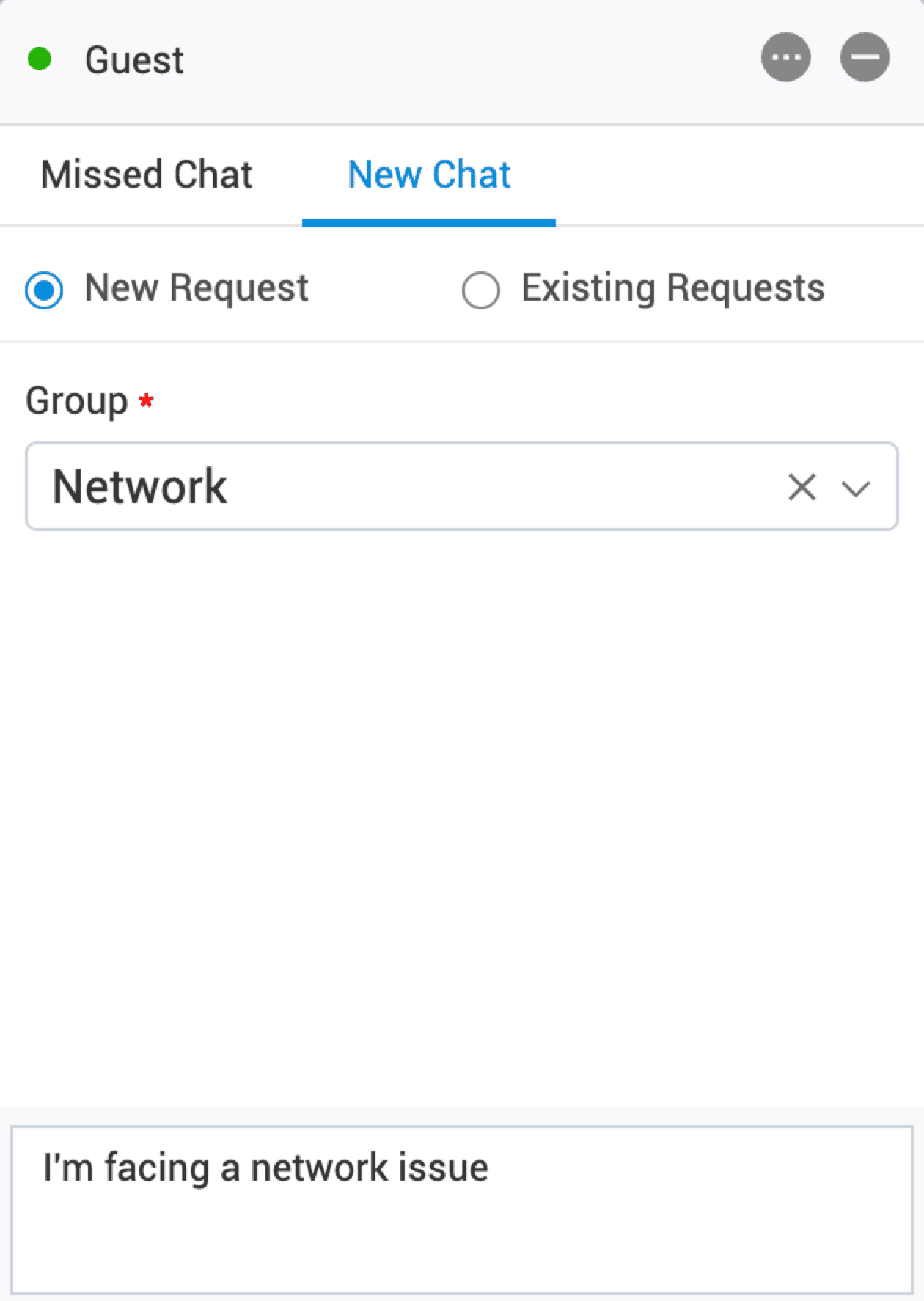
In the chat window, go to the New Chat tab.
-
Select New Request to raise a request, or select Existing Requests to chat about an existing request.
-
Select a group relevant to your request.
-
Type your message and press Enter. An available technician will accept the chat.
-
If the chat is not accepted within the configured response time, a missed chat message is displayed, and the chat is moved under Missed Chats.
-
Click
 at the top-right of the chat window to view chat history and channels.
If Zia is enabled
-
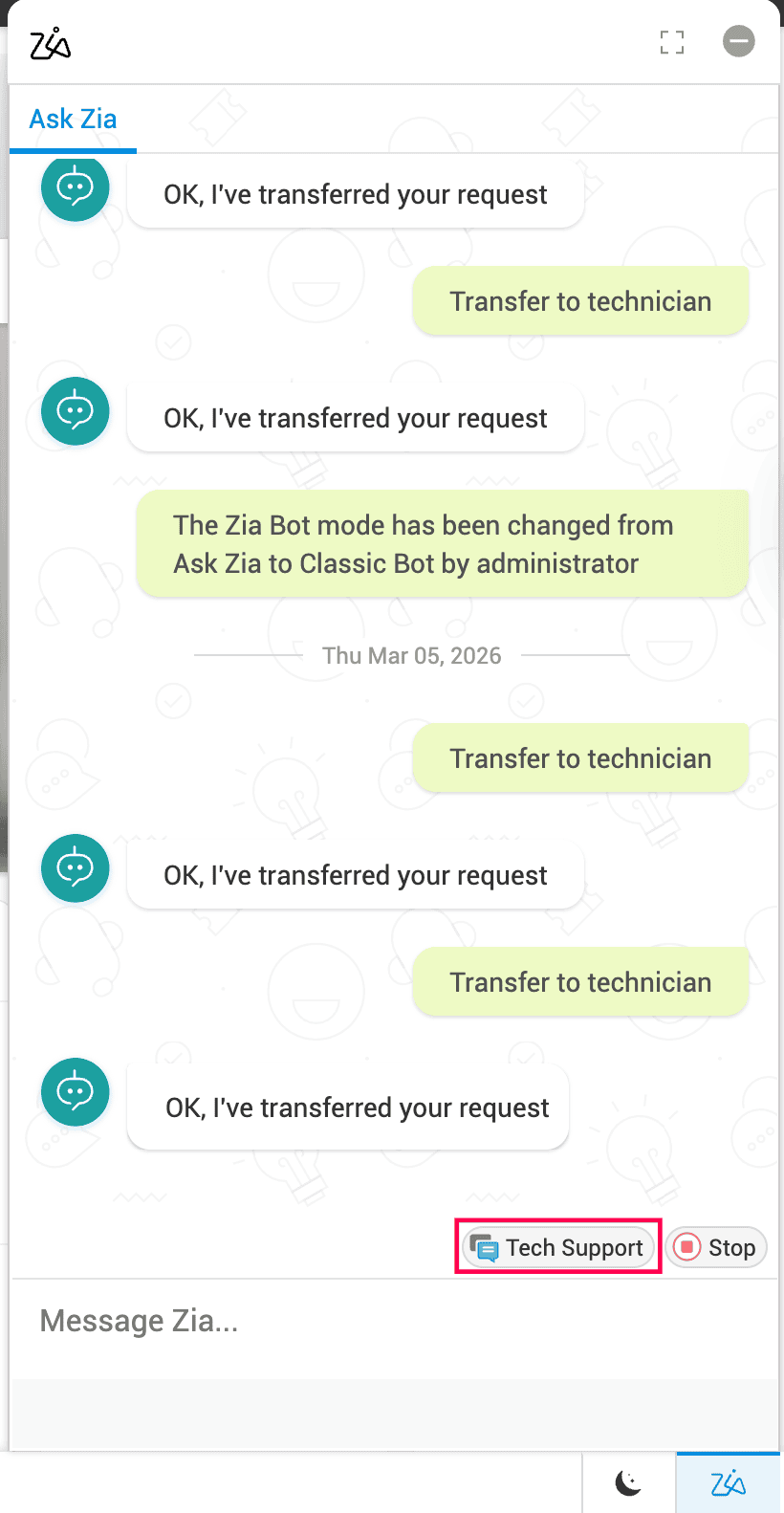
Click Zia at the bottom-right corner of the application.
-
Select Tech Support. An available technician will accept the chat.
-
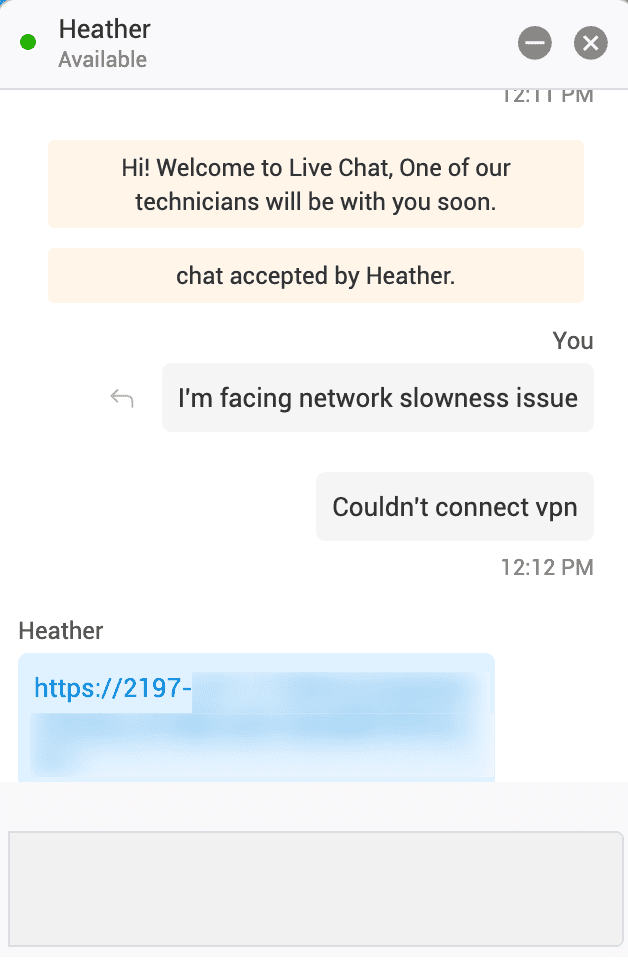
In the chat window, type your queries and press Enter.
-
Click
 to attach images, audio, videos, PDFs, or text documents.
 -
To close a chat before a technician accepts it, click
 .
.
Live Chat for Technicians
Live Chat enables technicians to provide technical support to requesters in real time and resolve requests quickly.
Requester - Technician Chat
When a requester initiates a chat, the technician receives the chat request.
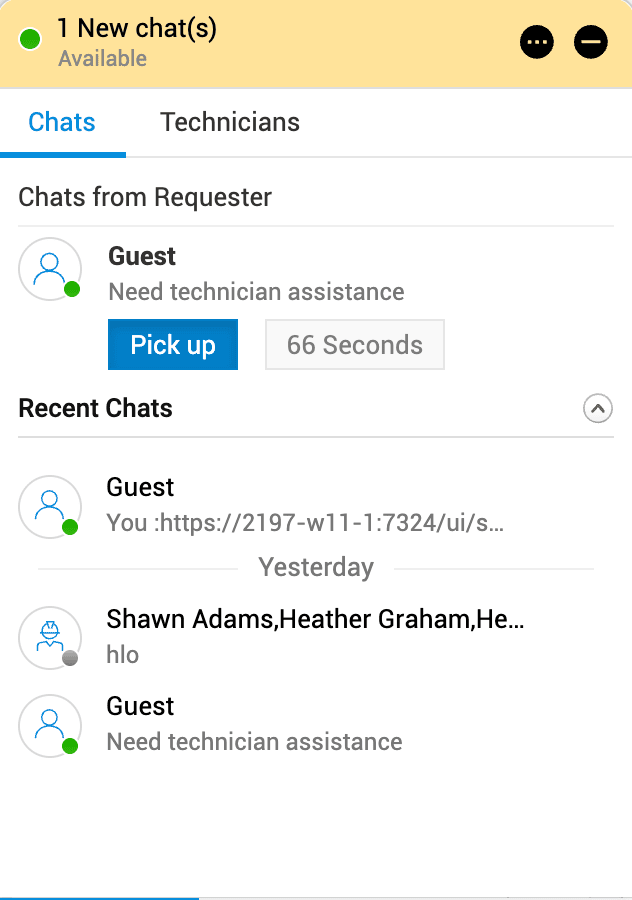
An illustration of the technician's chat window when a new chat arrives
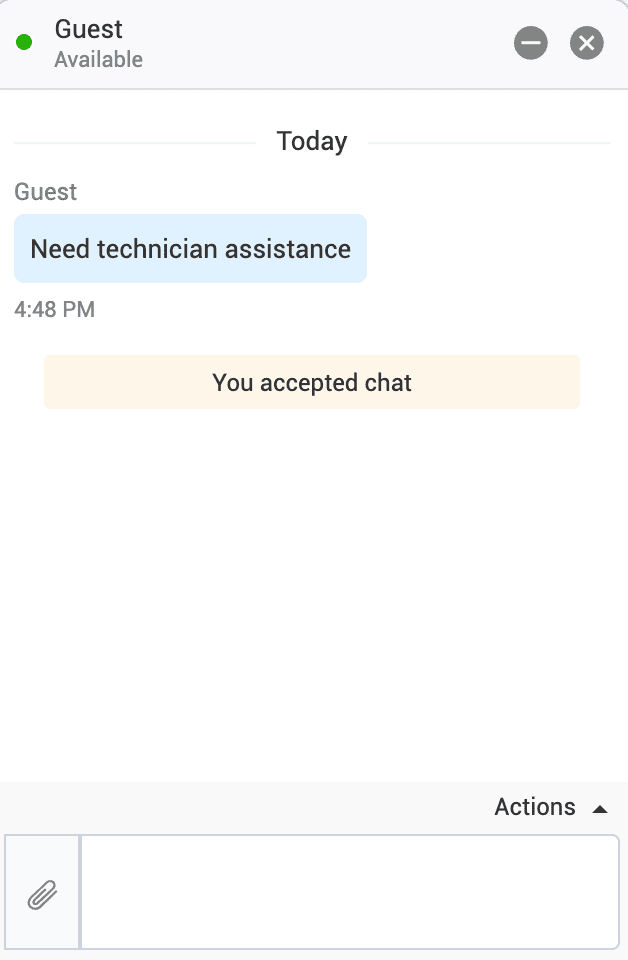
On accepting the request within the configured chat response time, the requester can chat directly with the technician.
Transfer Requester Chat to Support Group
When the technician accepts the chat request, the Actions button on the top right corner of the chat window becomes available. Using this button, the technician can add a title to the conversation, add notes, attach files, transfer the chat to another technician / any Support Group or end the session.
-
Log in to the ServiceDesk Plus application using your login credentials.
-
Click Chats interface from the bottom left corner.
-
Select the required requester from the active requester chat list.
-
A new pop-up will be opened.
-
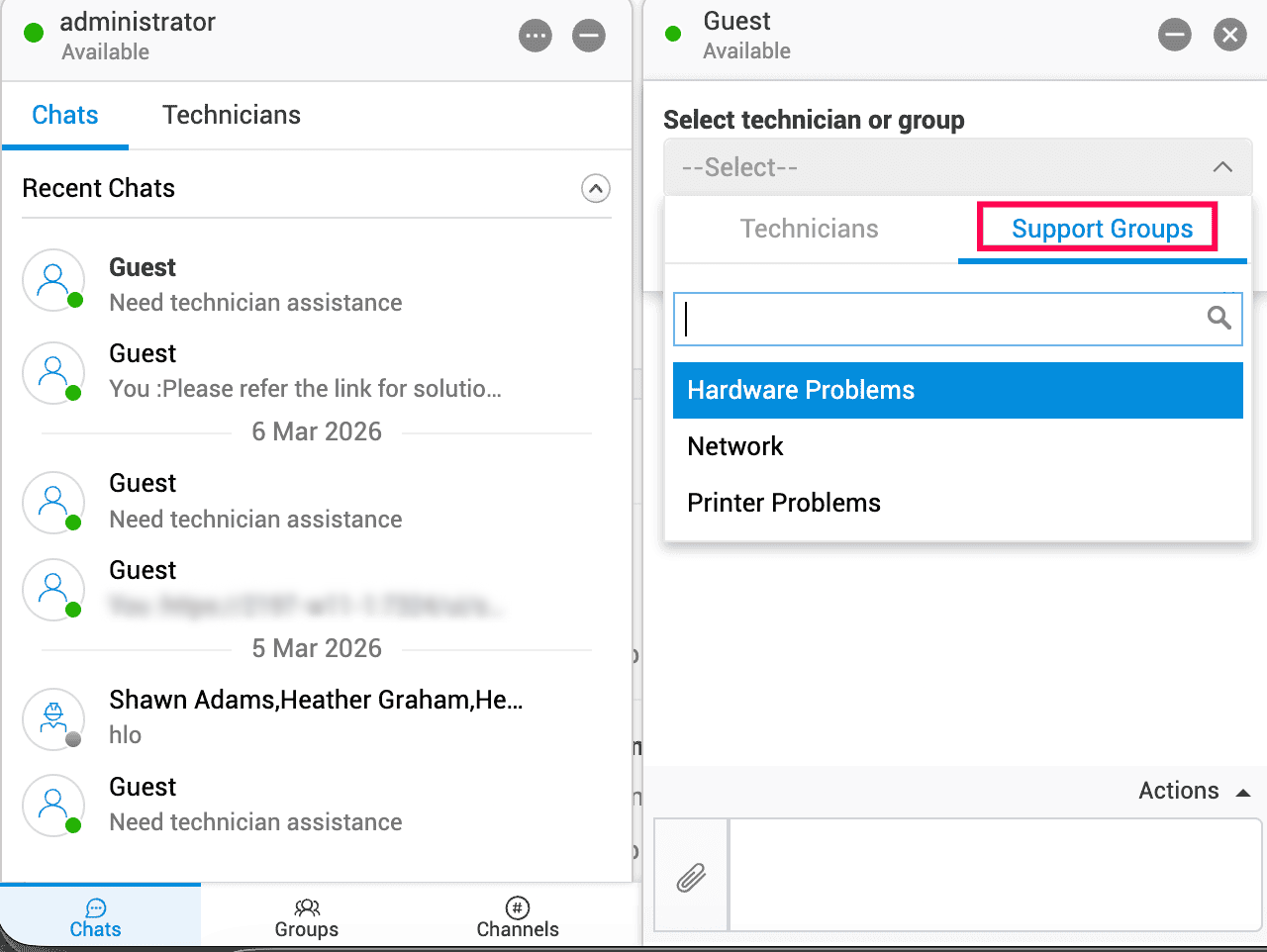
Select Support Groups.
-
A list of support group names will be listed.
-
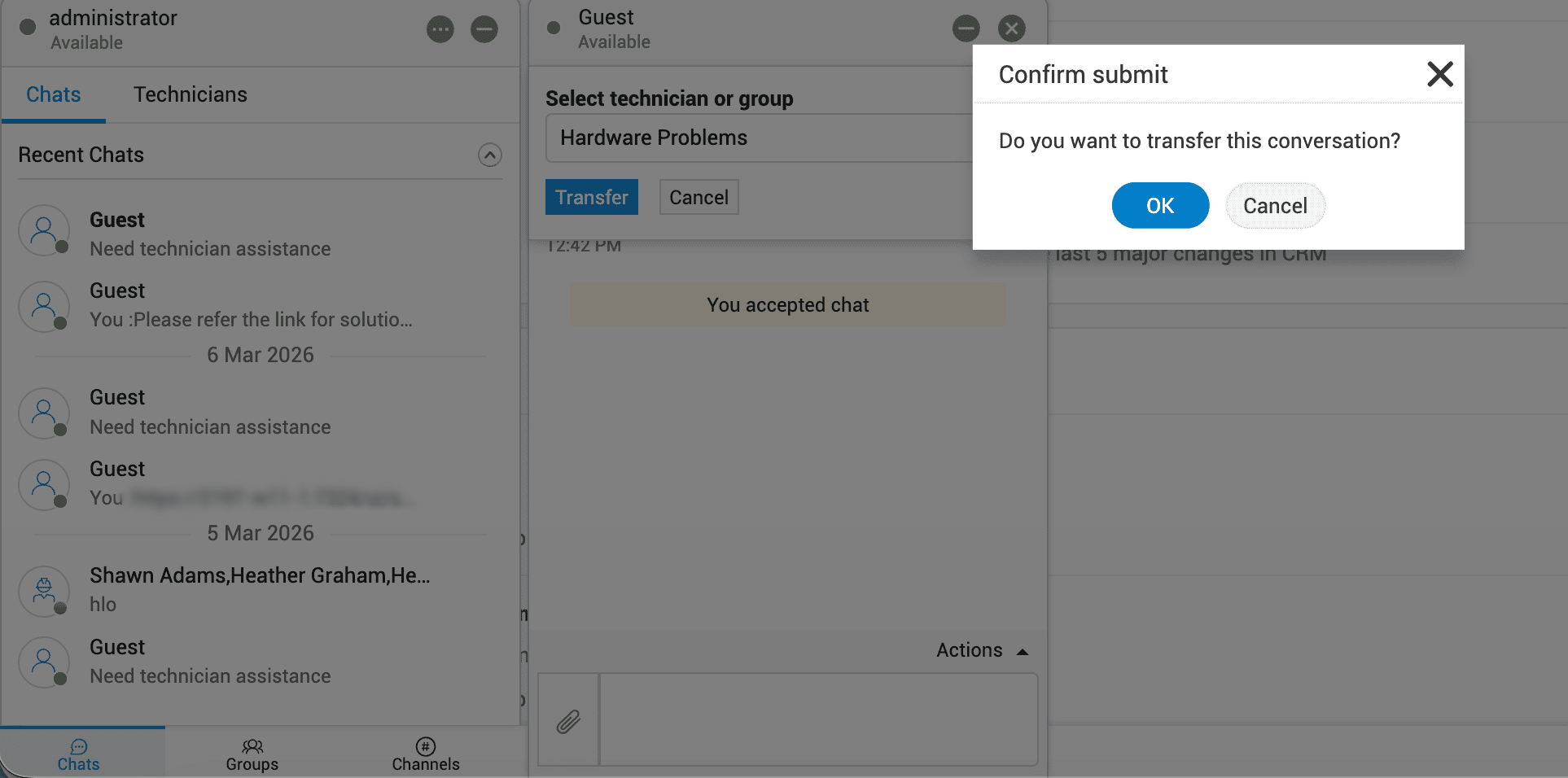
Select the required support group and click Transfer.
-
A confirmation pop-up will be displayed. Click OK.
-
The requester chat conversation will be transferred to the selected support group.
Actions
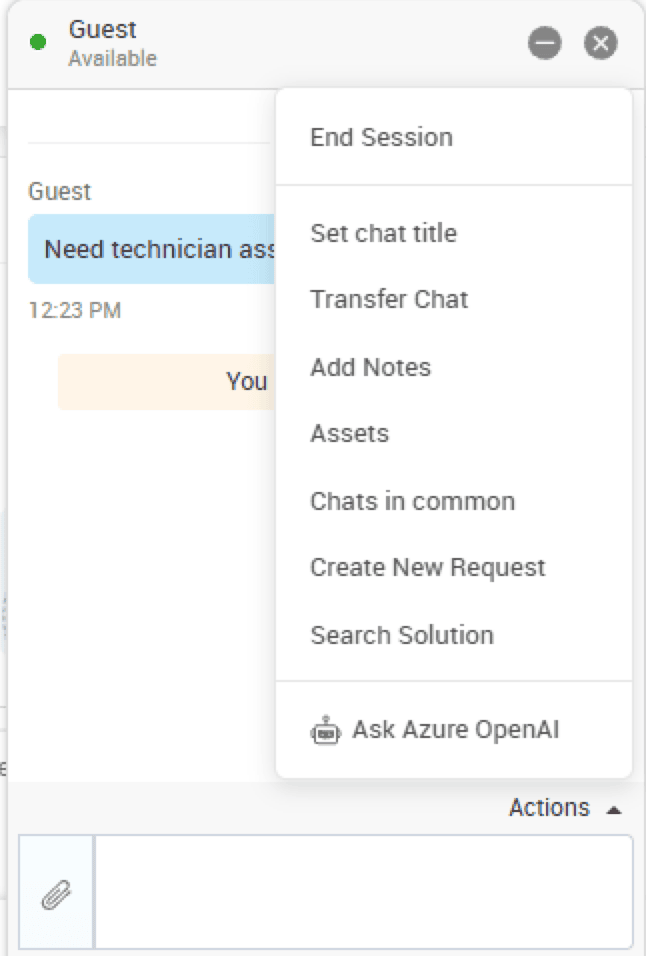
During a chat, technicians can perform the following actions by clicking Actions on the bottom-right corner of the chat window.
-
End Session
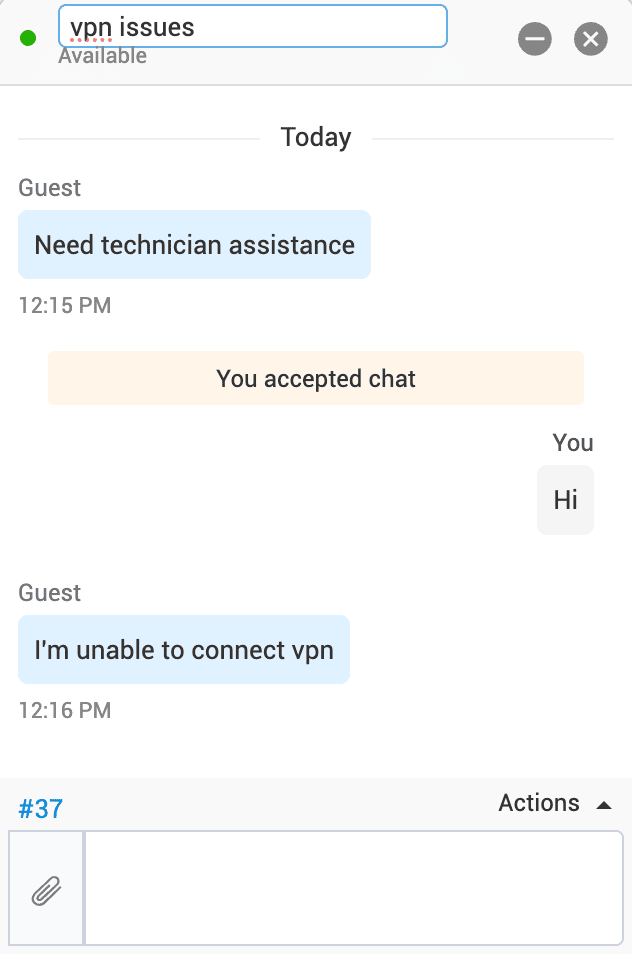
Set Chat Title
Click Actions > Set Chat Title to set a title for the chat session.
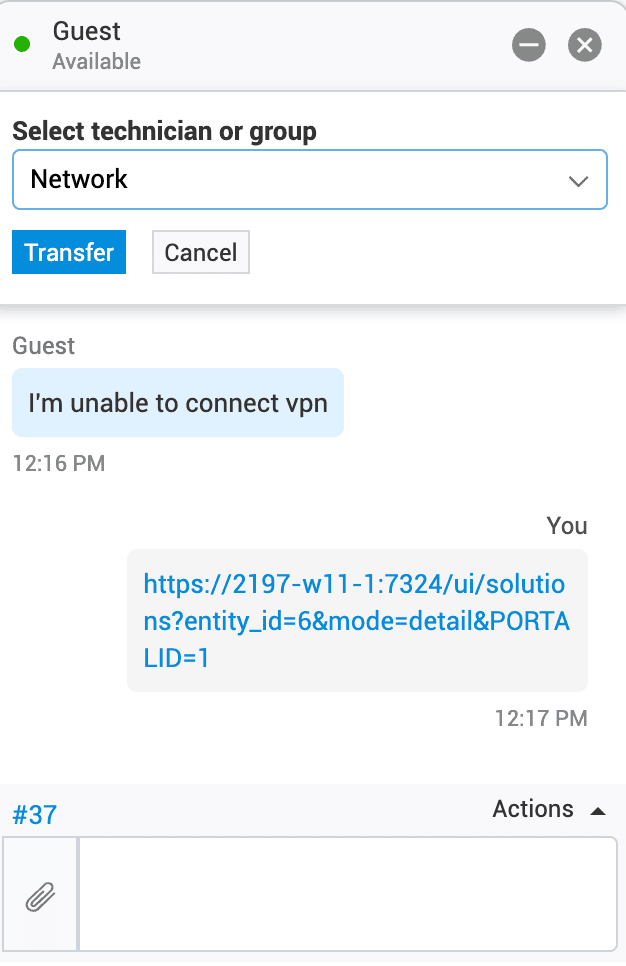
Transfer Chat
Hand over a live chat session to another technician or support group to provide the right assistance to the requester without interrupting the conversation.
When a chat is transferred, the chat transcript is also transferred to the new technician.
Add Notes
Add internal notes to record information about the conversation during the live chat without displaying it to the requester. To make a note visible to the requester, mark it as public.
View Assets
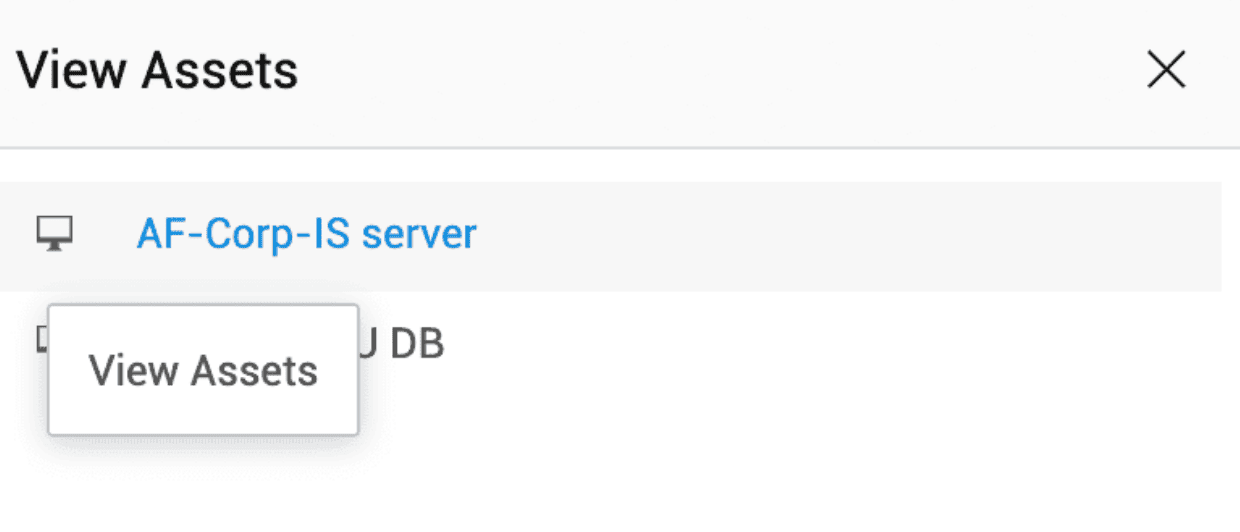
View the IT assets associated with the requester and access the required asset remotely using an available remote access application.
- Click Actions > Assets to open the View Assets pop-up.
-
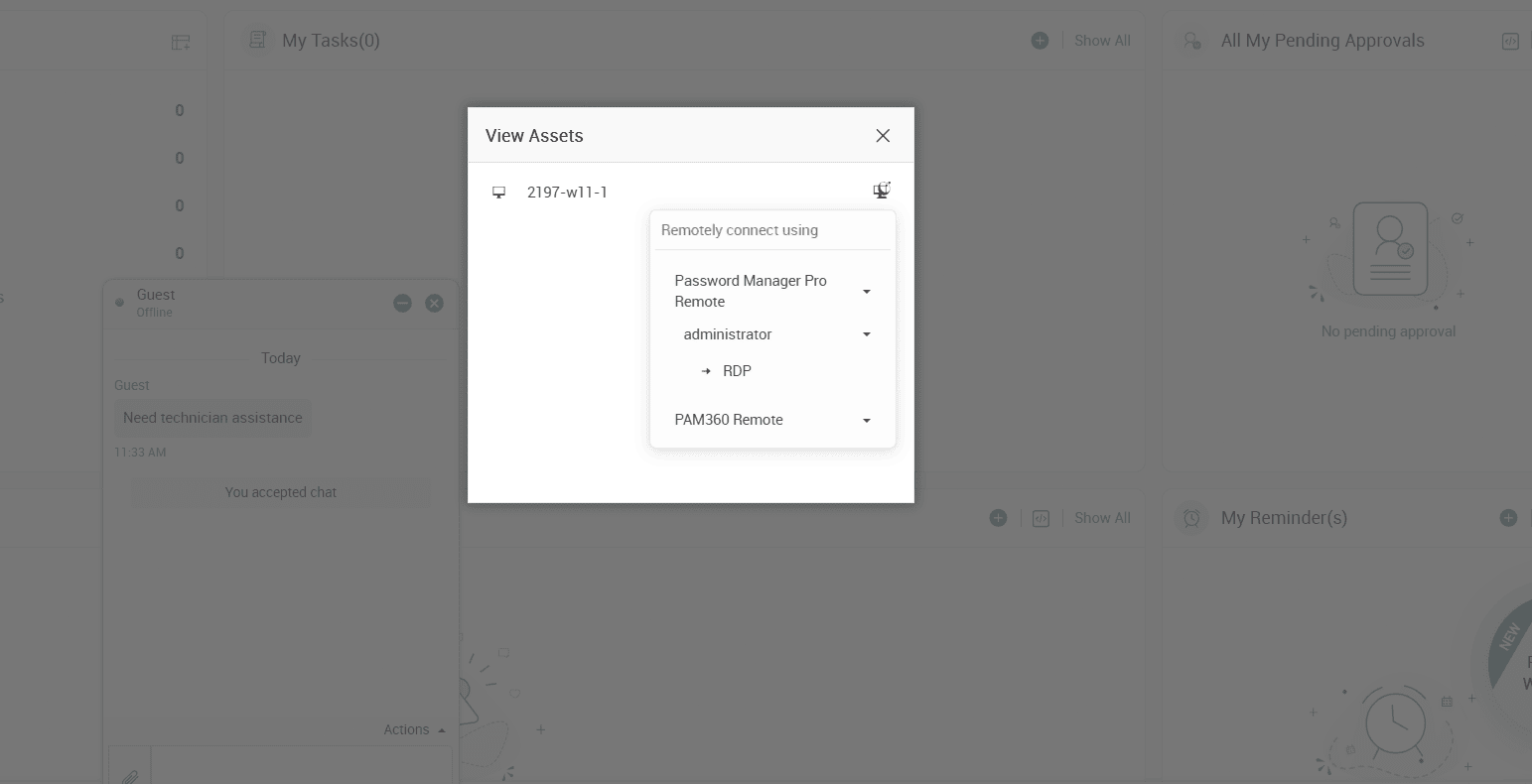
Select the required app from the list to connect the selected asset from remote.
-
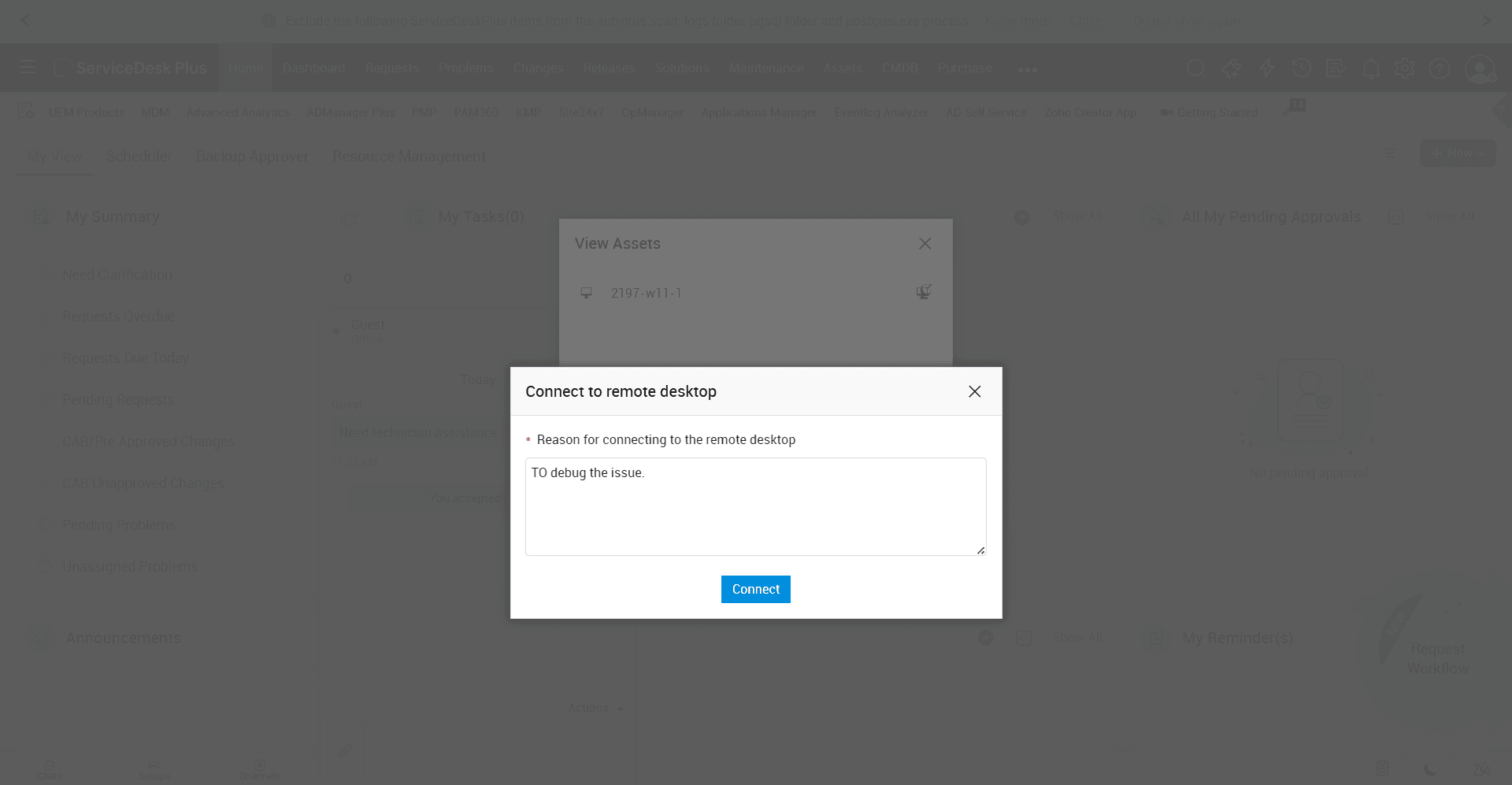
Connect to Remote Desktop pop-up will be displayed.
-
Enter a reason for connecting to the remote desktop.
-
Click Connect.
-
The asset will be connected remotely using the selected app. Eg. PAM360 Remote.
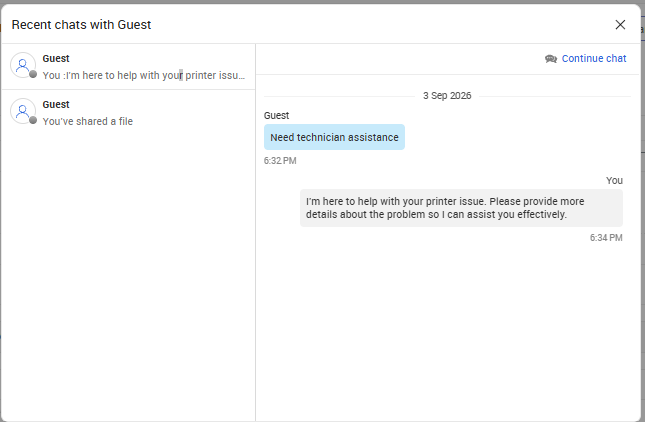
View Chats in Common
View other ongoing chat sessions with the same user.
Create New Request
Create a request while chatting with the requester.
-
Click Actions > Create New Request.
-
Select the required template and click Create Request.
-
Fill out the request form and click Add Request.
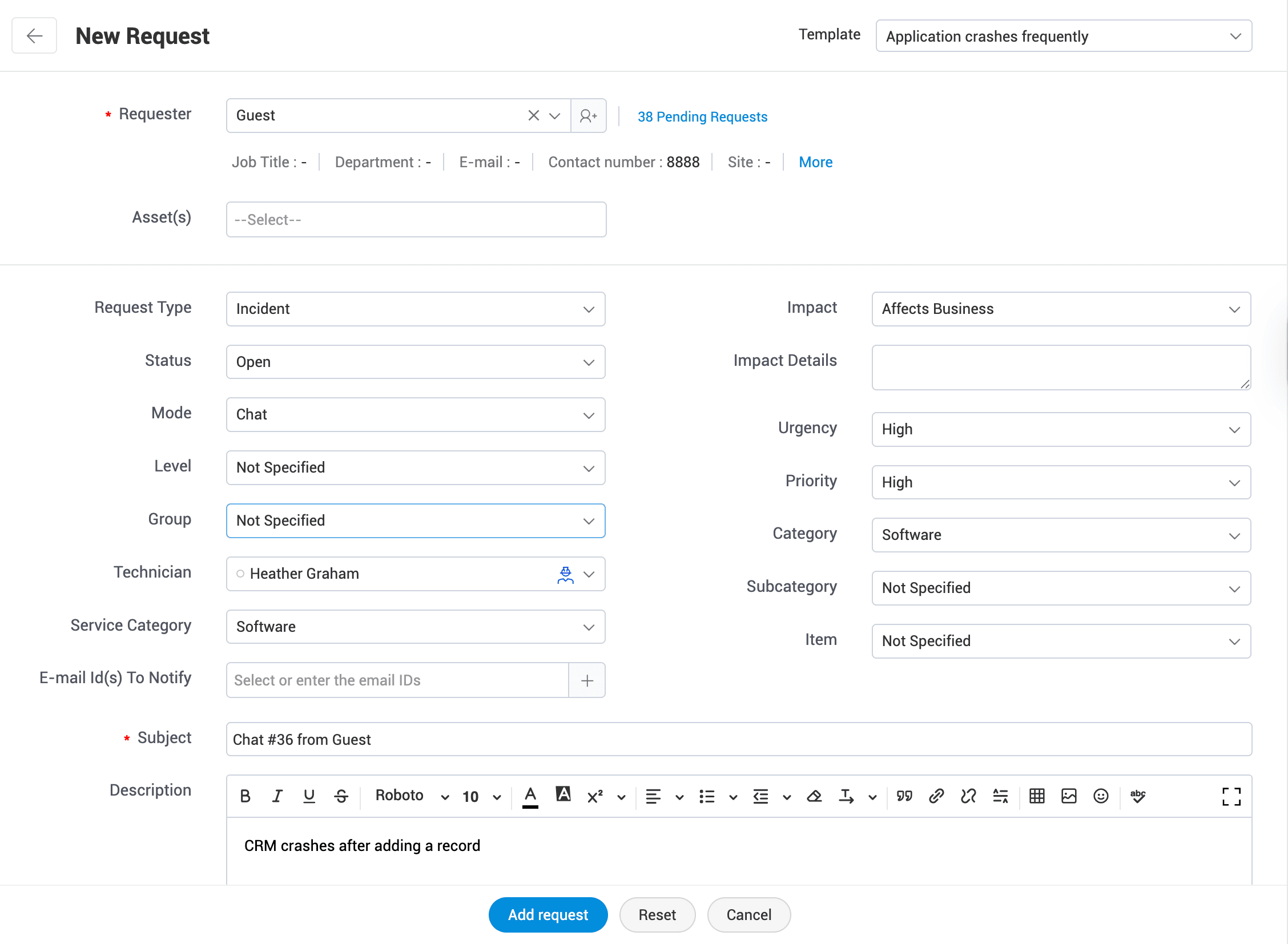
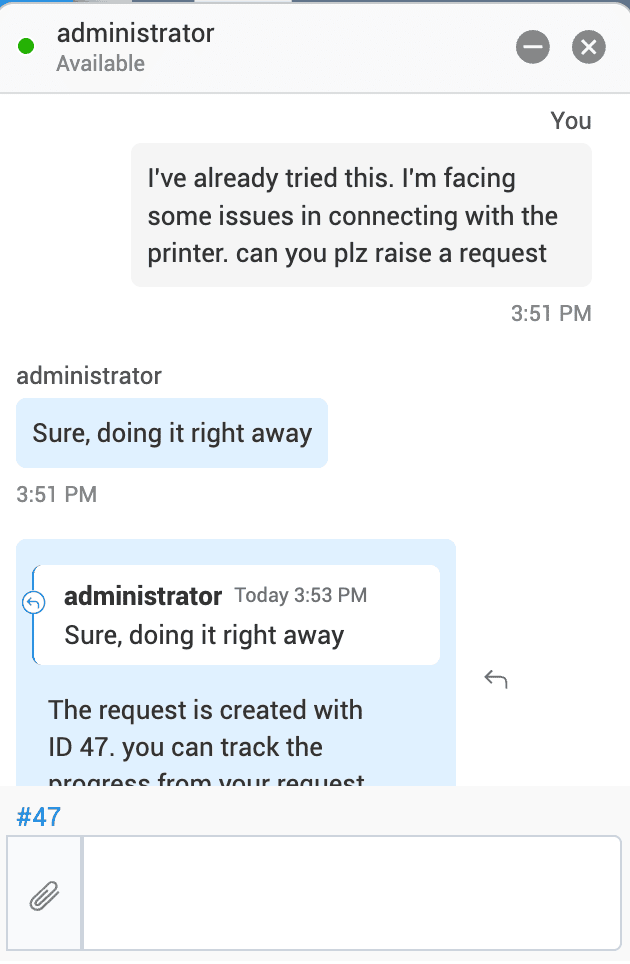
The request ID is shared with the requester. The requester can track the request by clicking the request ID or from the Requests module. Upon closing the request, the chat transcript is added to the request conversation. This action is captured in the request history.
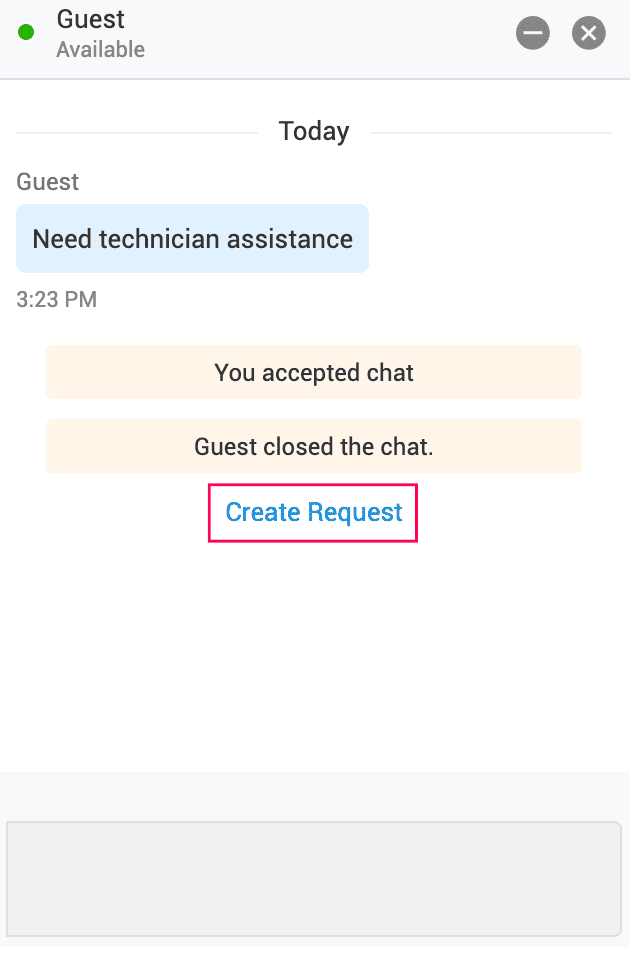
Technicians can also create a request for a closed chat by clicking Create Request from the closed chat.
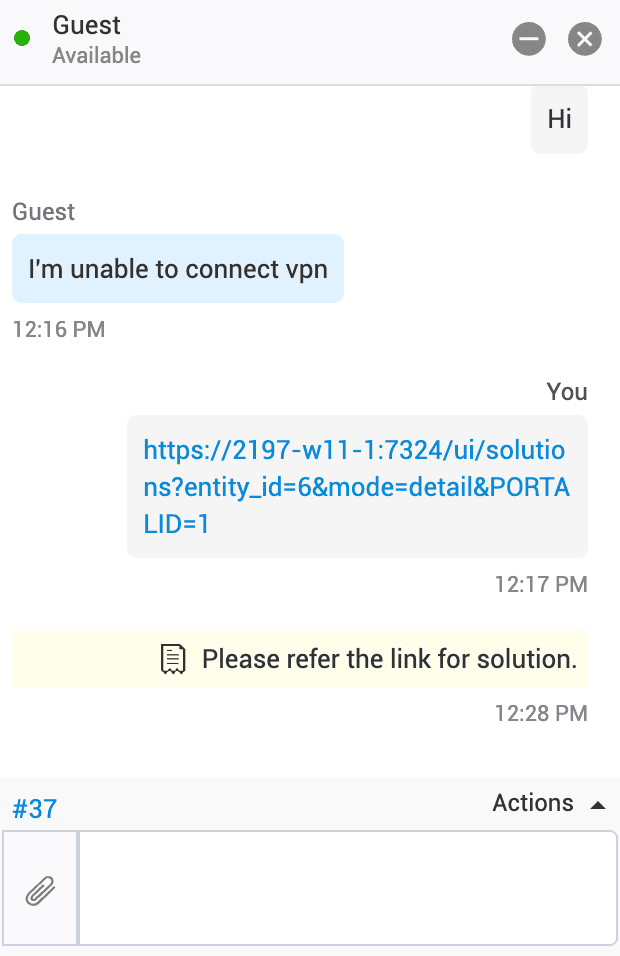
Search Solutions
While chatting, technicians can share relevant solutions with requesters for quick and efficient access to resources.
-
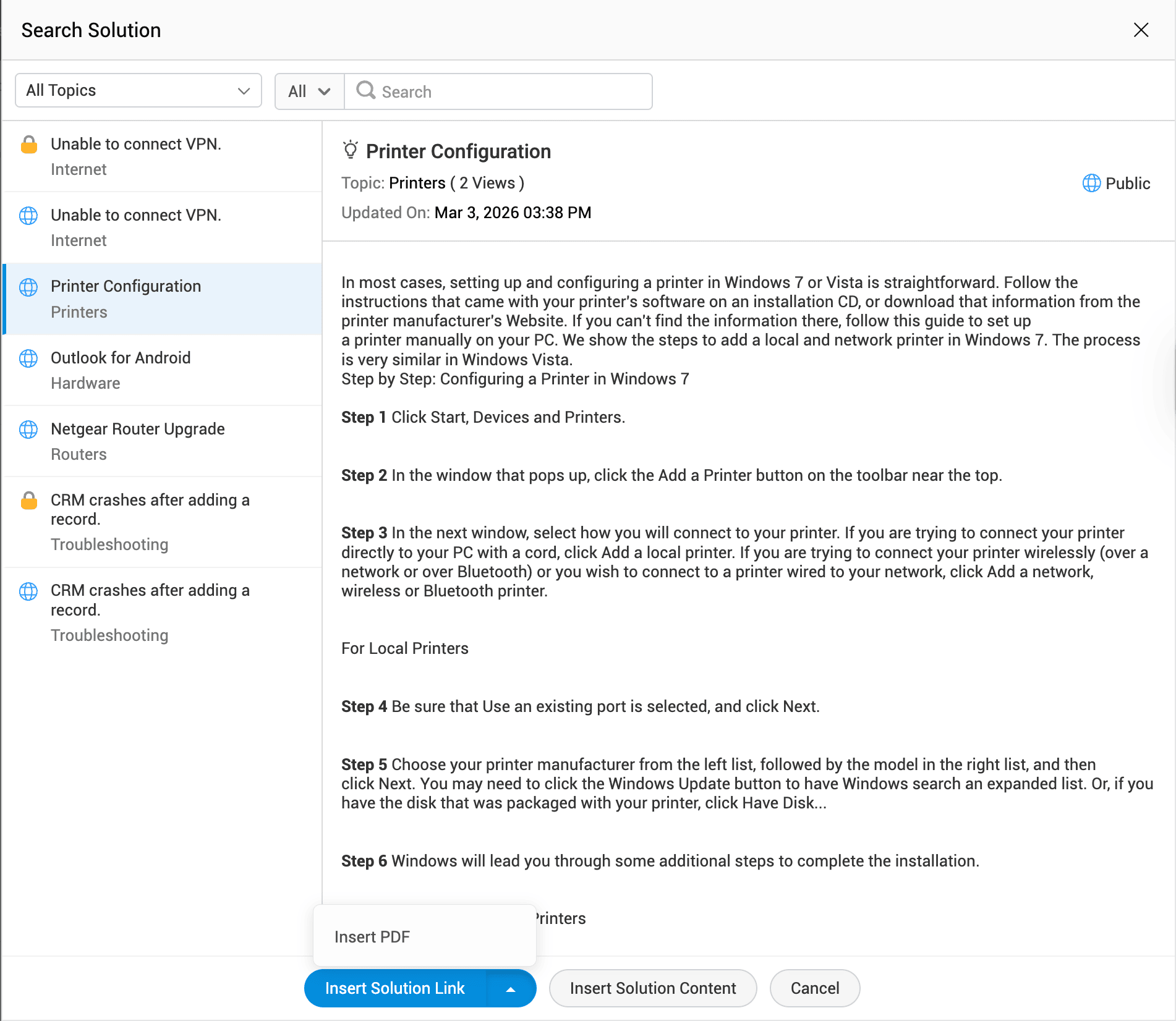
Click Actions > Search Solution. Only published solutions are listed.
-
Select the required solution.
-
Share the solution as a URL, PDF, or HTML file. Private solutions can be shared only as a PDF or a HTML file.
Ask LLM
Technicians can use LLM from within the chat window to understand and respond to requester queries.
Prerequisites
To use LLM in the chat window, administrators must enable Ask LLM in Chat under Admin > Apps & Add-ons > Integrations > ChatGPT/Azure OpenAI/Google AI/DeepSeek/SiliconFlow/locally hosted LLM via Ollama.
To access AI Agent from the chat window:
-
Click Actions > Ask <configured LLM>, or
-
Click
 beside the message and select Ask AI Agent.
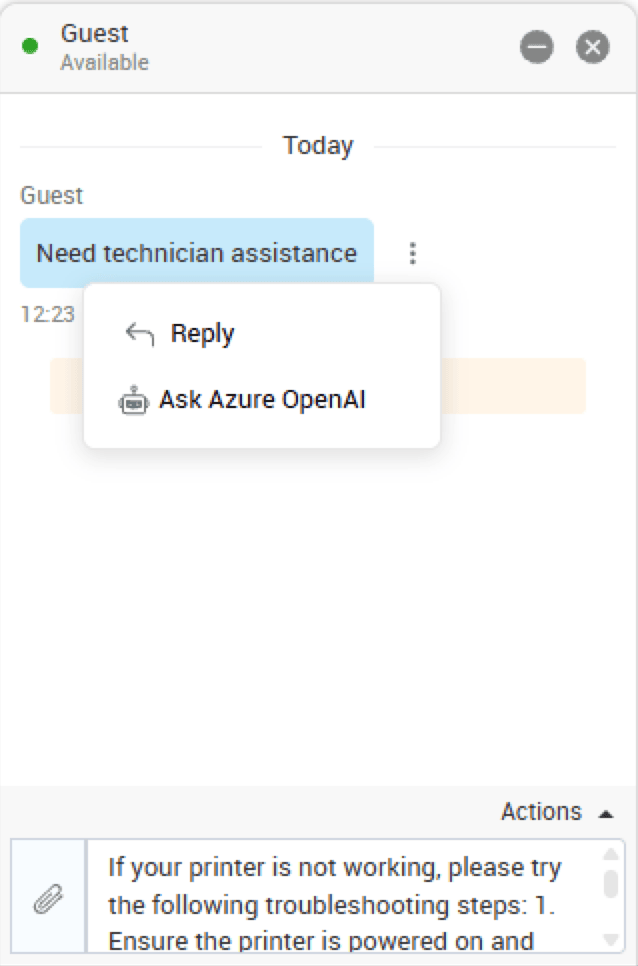
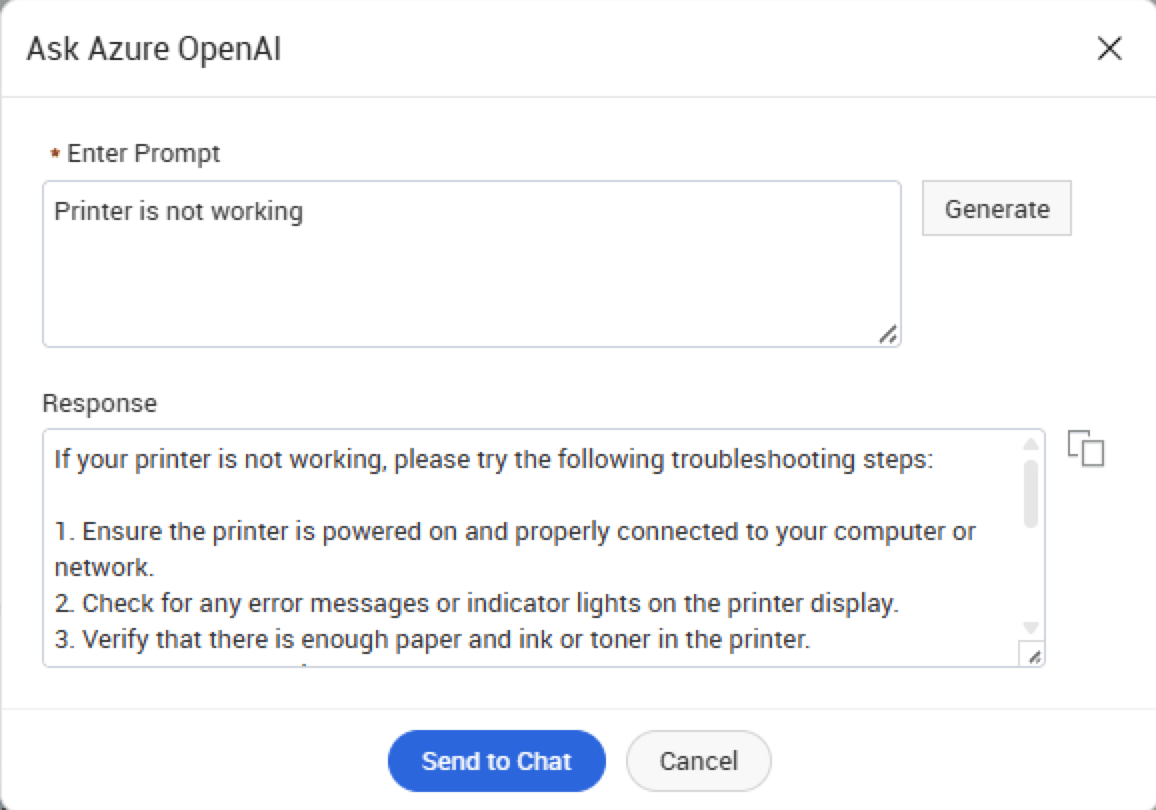
When accessed via More Options , the message is entered as a prompt. Edit the prompt if required and click Generate to get a response. After the response is generated, click  to copy the content, or click Send to Chat to insert it directly into the chat window.
Technician - Requester Chat
Technicians can initiate a chat with a requester from the request details page. The requester must have valid login credentials.
Initiate a Chat
-
Go to the request details page.
-
Click
 beside the requester name. A chat window opens.
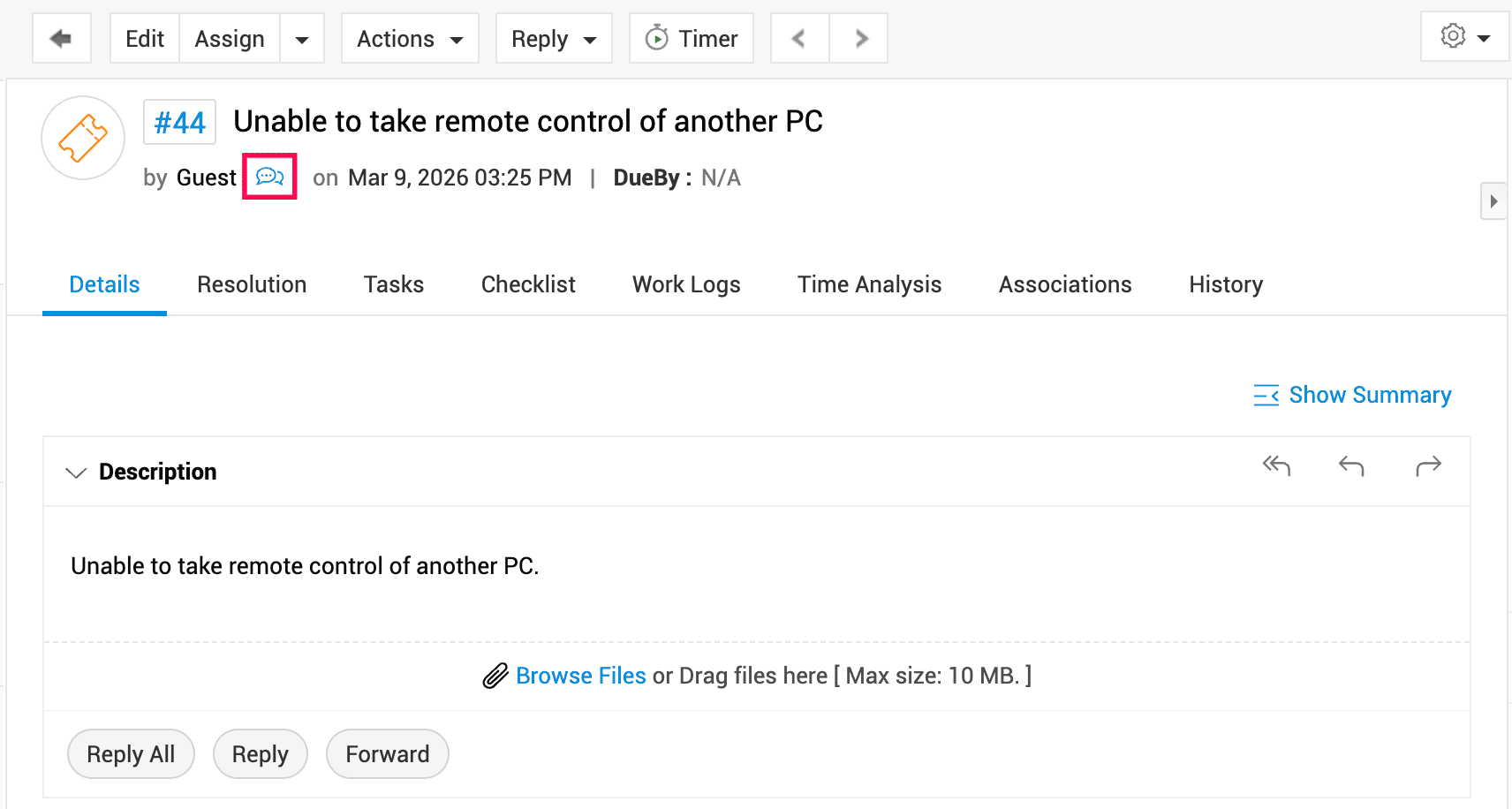
Only one technician can chat with a requester at a time. The ongoing chat must be closed before another technician can initiate a chat with the same requester.
Actions
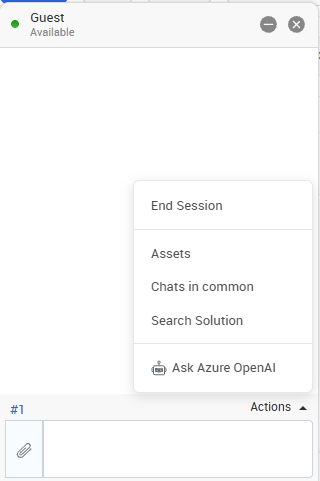
Technicians can perform the following actions from the chat window:
-
View Request Details - Click the request ID in the chat window to open the corresponding request details page.
-
End Chat - Click Actions > End Session to close the ongoing chat. Alternatively, closing the chat window ends the chat session. The chat transcript is appended to the request conversation as a system notification for reference.
-
Assets - Click Actions > Assets to view the IT assets associated with the requester and access the required asset remotely using an available remote access application.
-
View Chats in Common - Click Actions > Chats in Common to view other ongoing chats with the same requester.
-
Search Solution - Click Actions > Search Solution to share relevant solutions with requesters. Know More
-
Ask LLM - Click Actions > Ask <configured LLM> to use LLMs from within the chat window to understand requester queries and respond effectively.
-
Technician -Technician Chat
Private Chat
A technician can have a private chat with another technician.
To initiate a private chat with another technician, click the Technician chat from the footer. Select the required technician from the list of technicians available and start the conversation.
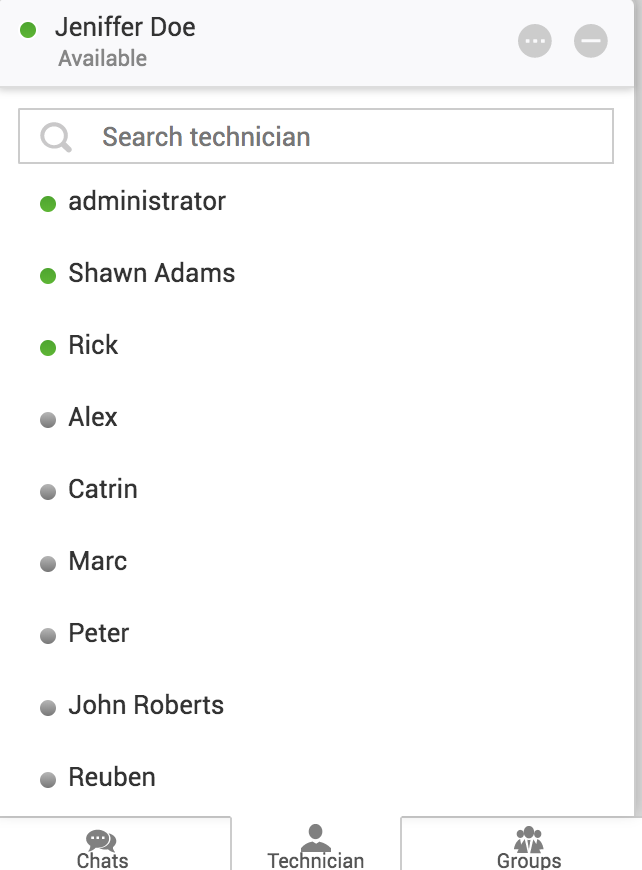
From the private chat window, you can view other group chats and collaborator chats with the same technician.
Click Actions > Chats in Common from the chat window. The chats in common will be listed as shown in the screenshot below:
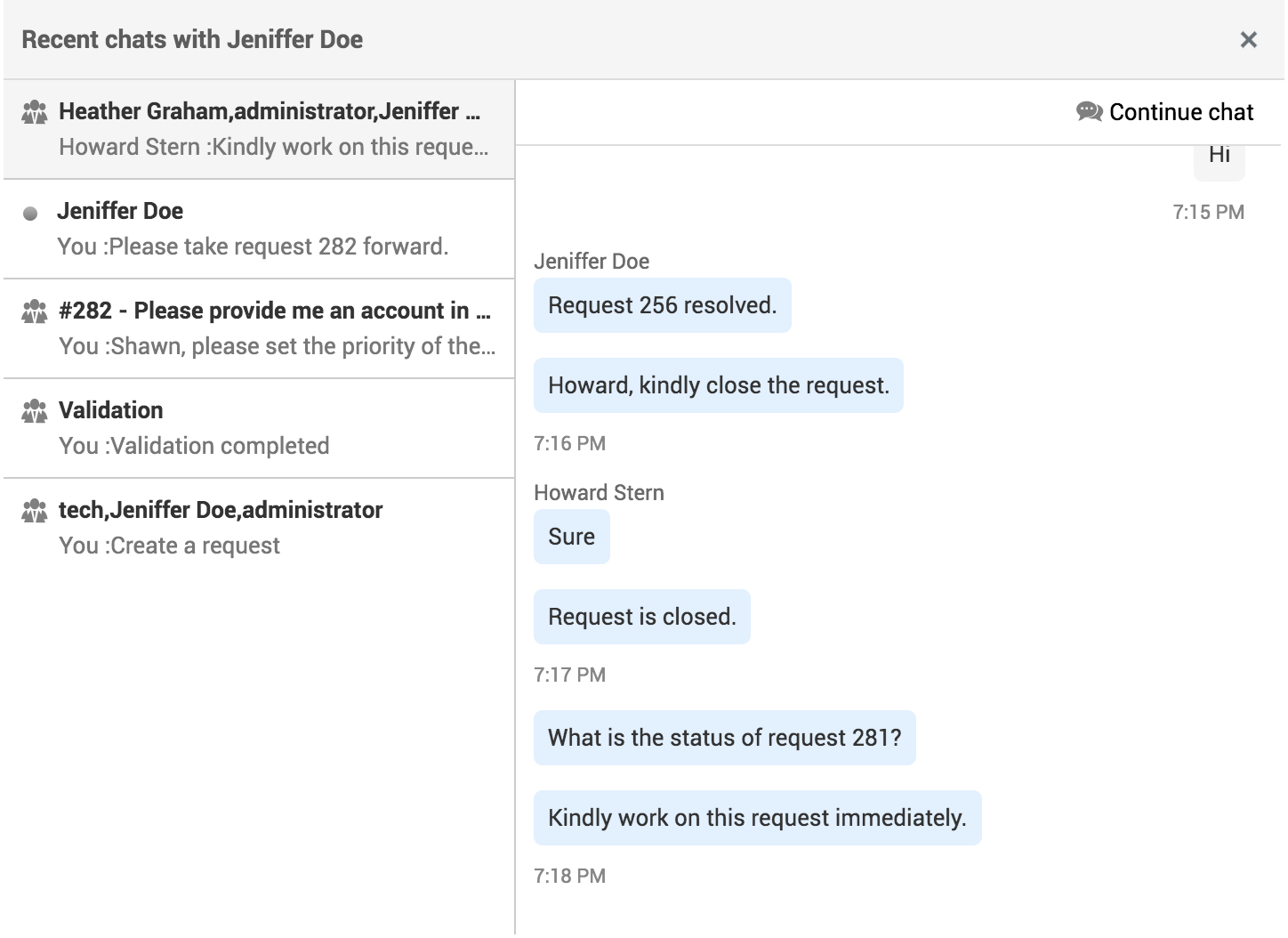
To open one of the group chats listed, click the chat and click Continue chat.
Group Chat
You can add a third technician to a private chat and convert it into a group chat.
-
Open the chat window of the required technician.
-
Click Actions > Add Member. Alternatively, you can type + in the editor to display the list of technicians.
-
Choose the technician to be included in the group chat.
-
On the displayed pop-up window, click Add to include the technician. This will enable the added technician to view the previous conversations. You can alternatively click Create New to initiate a group chat afresh.

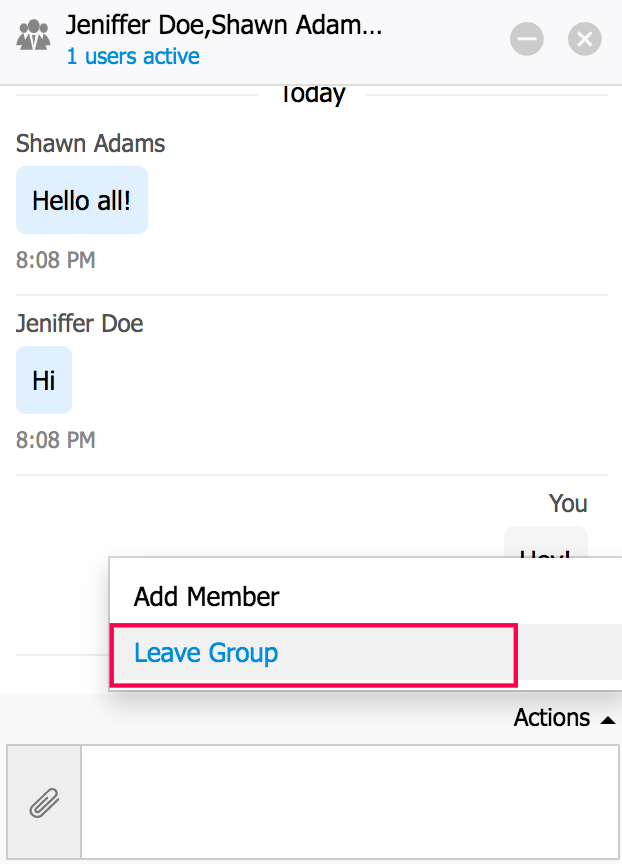
To leave an ongoing group chat, click Actions > Leave Group.
Support Group Chat
Technicians associated with a support group will form a separate group chat by default. When a new technician is added to the support group, the technician will be automatically added to the corresponding group chat. Similarly, when the technician is removed from the group, the technician will also be removed from the group chat.
Collaborators Chat
Technicians who are viewing a request simultaneously can collaborate through chat.
To start a collaborators chat,
-
Open the required request.
-
Click the
 icon displayed on the upper-right corner of the request details page.
 -
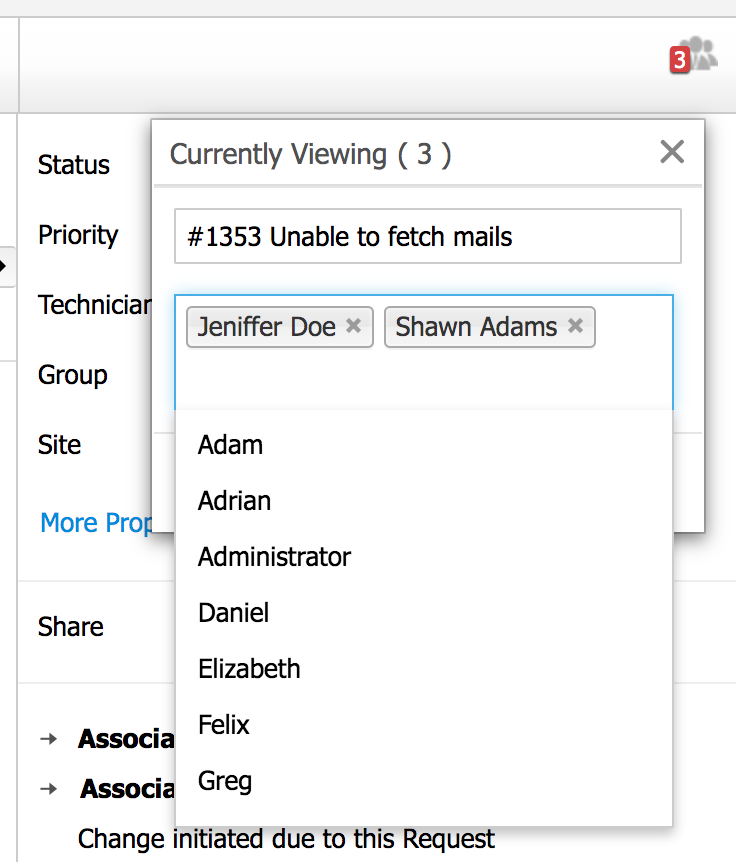
Click Start Chat to start a chat with all present collaborators and with the chat title in the format <Request ID - Request Title>.
To select specific collaborators for the chat or to edit the chat title before starting the chat, click Manage.
-
Click Start Chat to initiate the group chat in a separate chat window.
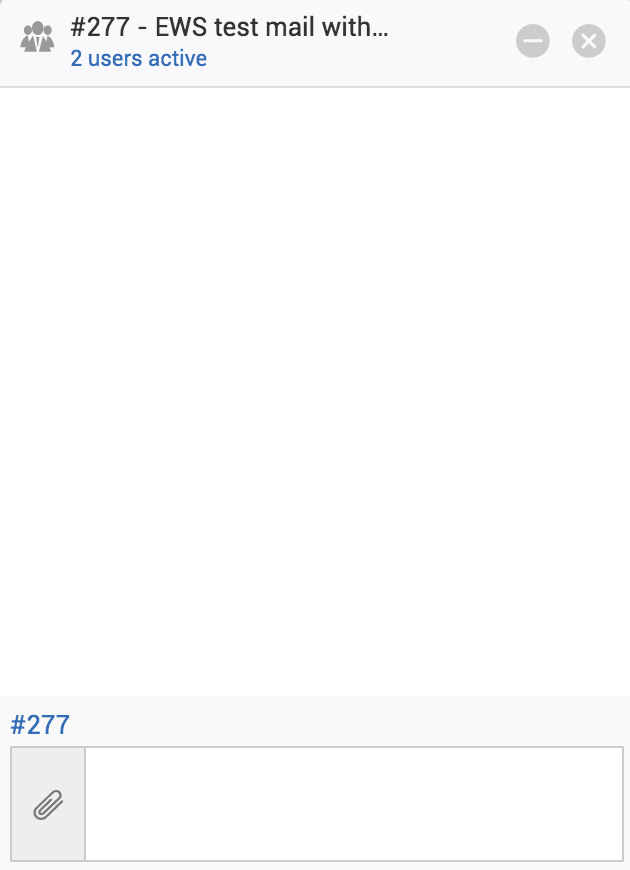
To open the request details page, simply click the request ID in the chat window.
When a technician opens the same request, the members of the ongoing collaborators' chat will receive a pop-up message as shown in the screenshot below:
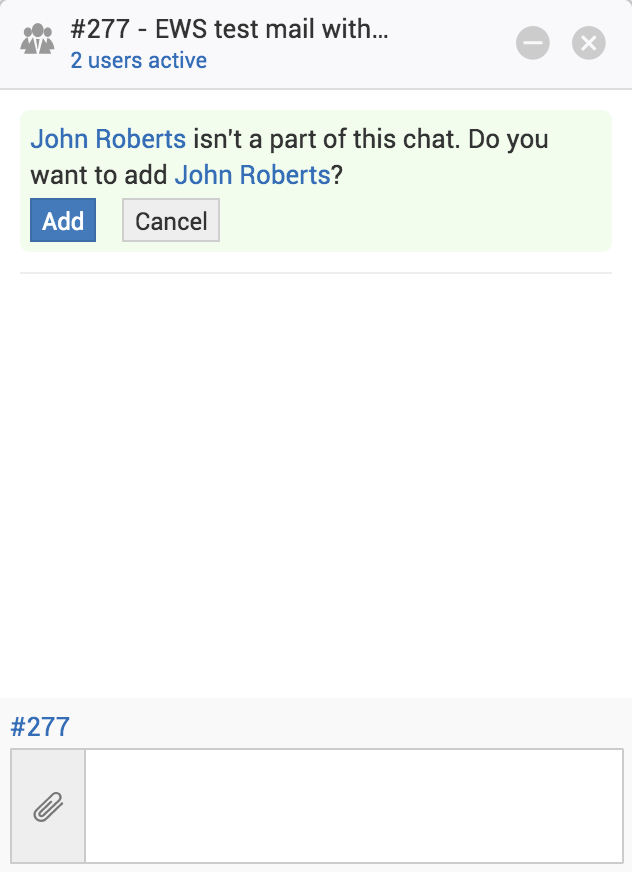
You can include the new technician in the collaborators' chat by clicking Add.
To add a technician to an ongoing collaborators' chat, type + in the chat box and select the technician from the displayed list.
Technicians can also join an ongoing collaborators' chat by clicking > Join in the request details page.
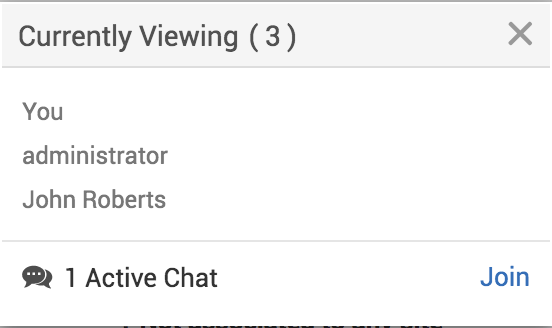
To leave an ongoing collaborator chat, click Actions > Leave Group in the chat window.
Chat Room
With the SDAdmin role, you can access the chat room to get an overview of the ongoing, missed, and unpicked chats in the application. You can also edit chat configurations, view chat history, and integrate Live Chat with other services.
To access the chat room, go to any chat, click the <> icon, and choose Chat Room.
<can add more info on chat room>
Delete Old Requester Chats in the Chat Room
You can delete old chats under missed chats and history.
-
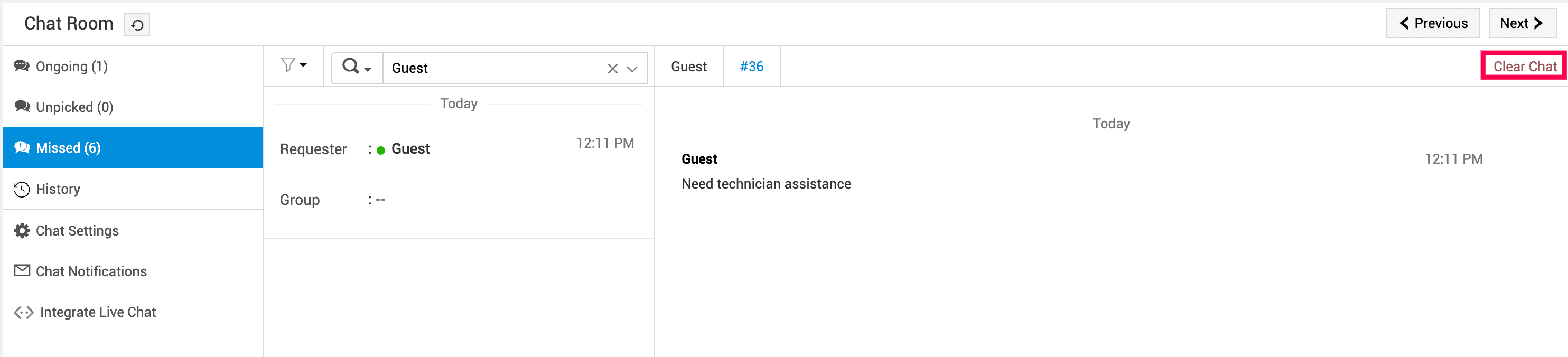
On the Chat Room page, from the left pane select Missed or History.
-
A requester, technician, and group list will be displayed.
-
Select the required requester, technician or group, a detail page will be displayed.
-
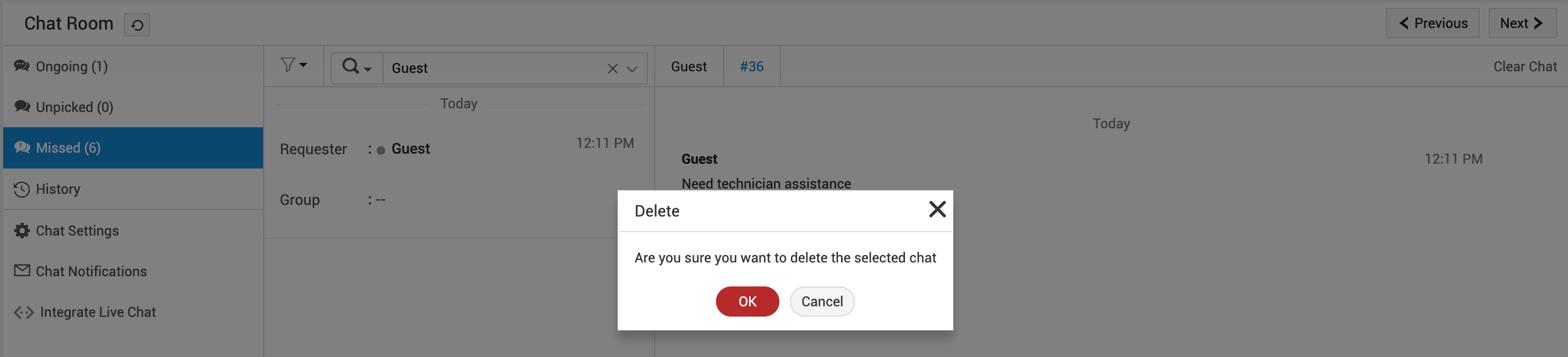
On the top right corner, click Clear Chat.
-
A confirmation message will be displayed as Are you sure you want to delete the selected chat.
-
Click OK.
-
Selected chat will be deleted successfully from the missed chat or history.
Chat History
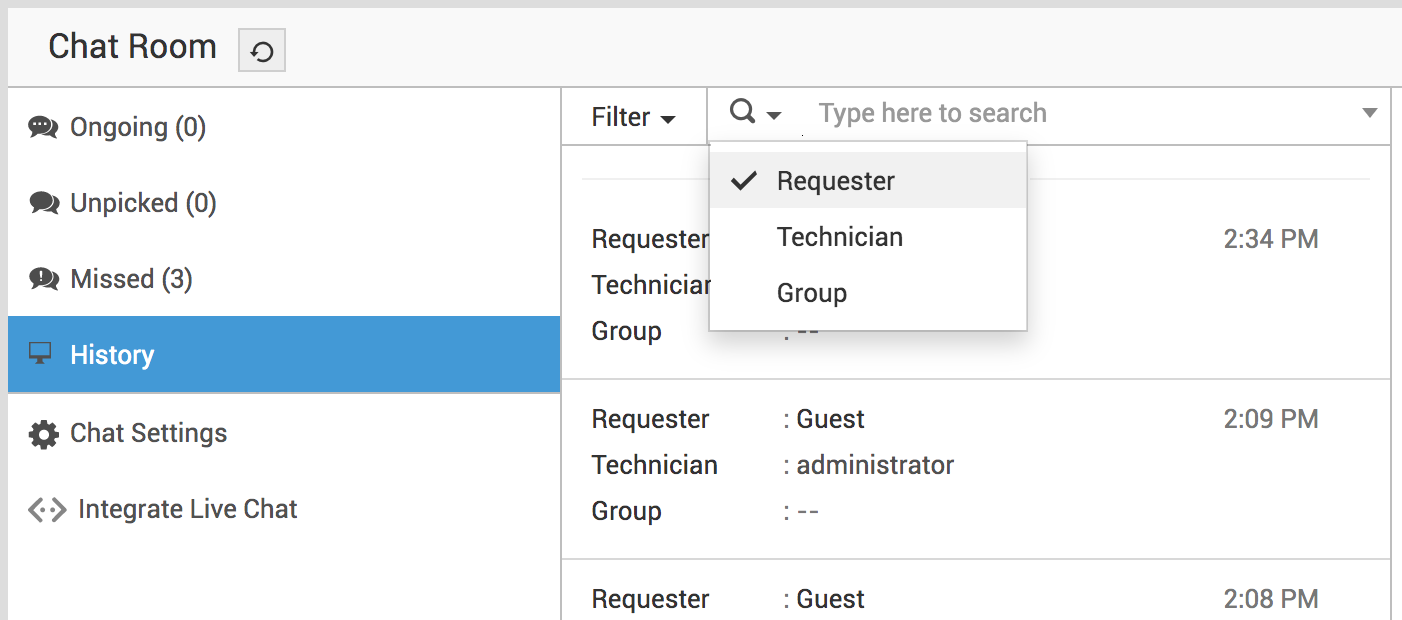
The History option in the left pane displays the details of all chats. To locate a specific chat, you can either use the Search button or manually scroll through the chats.
Refine the search results based on time, requester, technician, group, and keywords.
ServiceDesk Plus Chat as an External Widget
ServiceDesk Plus Chat as an External Widget
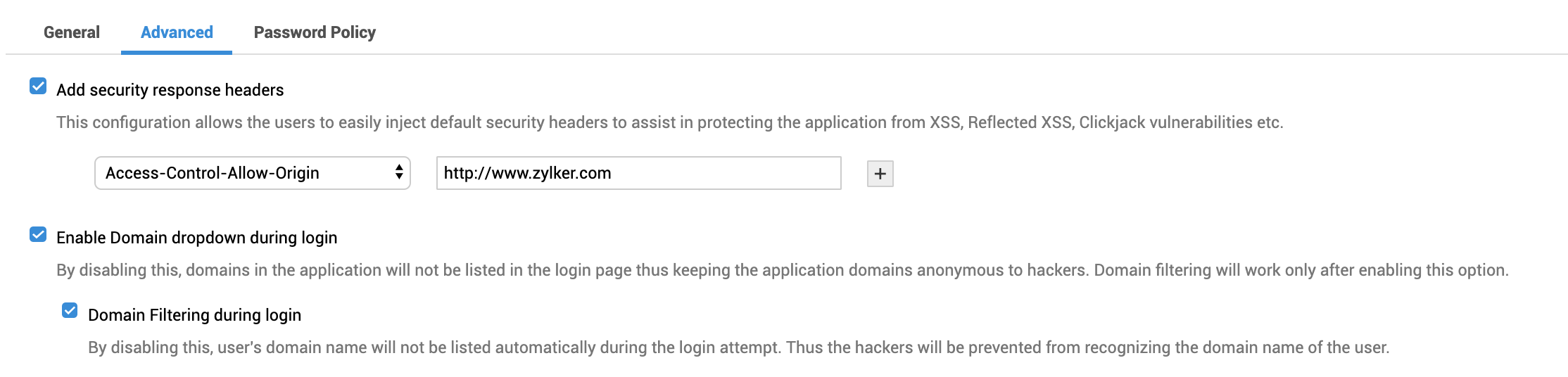
You can embed ServiceDesk Plus chat in external websites. You must add the target website as a security response header in ServiceDesk Plus for security reasons.
To enable ServiceDesk Plus as an external widget,
-
Go to Admin > General Settings > Security Settings.
-
Under the Advanced tab, enable the Add security response headers checkbox.
-
Select Access-Control-Allow-Origin from the drop-down list. Enter the target website address or the trusted word in the given text field. The trusted word enables you to access the application in any domain.
-
Click Save.
-
Go to Admin > Incident Management > Chat Settings > Integrate Live Chat.
-
Enable the Add Live Chat toggle button.
-
Click Save.
-
Copy the displayed code to the target website's HTML source code.
ServiceDesk Plus Live Chat will be added as a widget in the target website.
Enable Technicians to Create Requests from Chat Room and Chat History
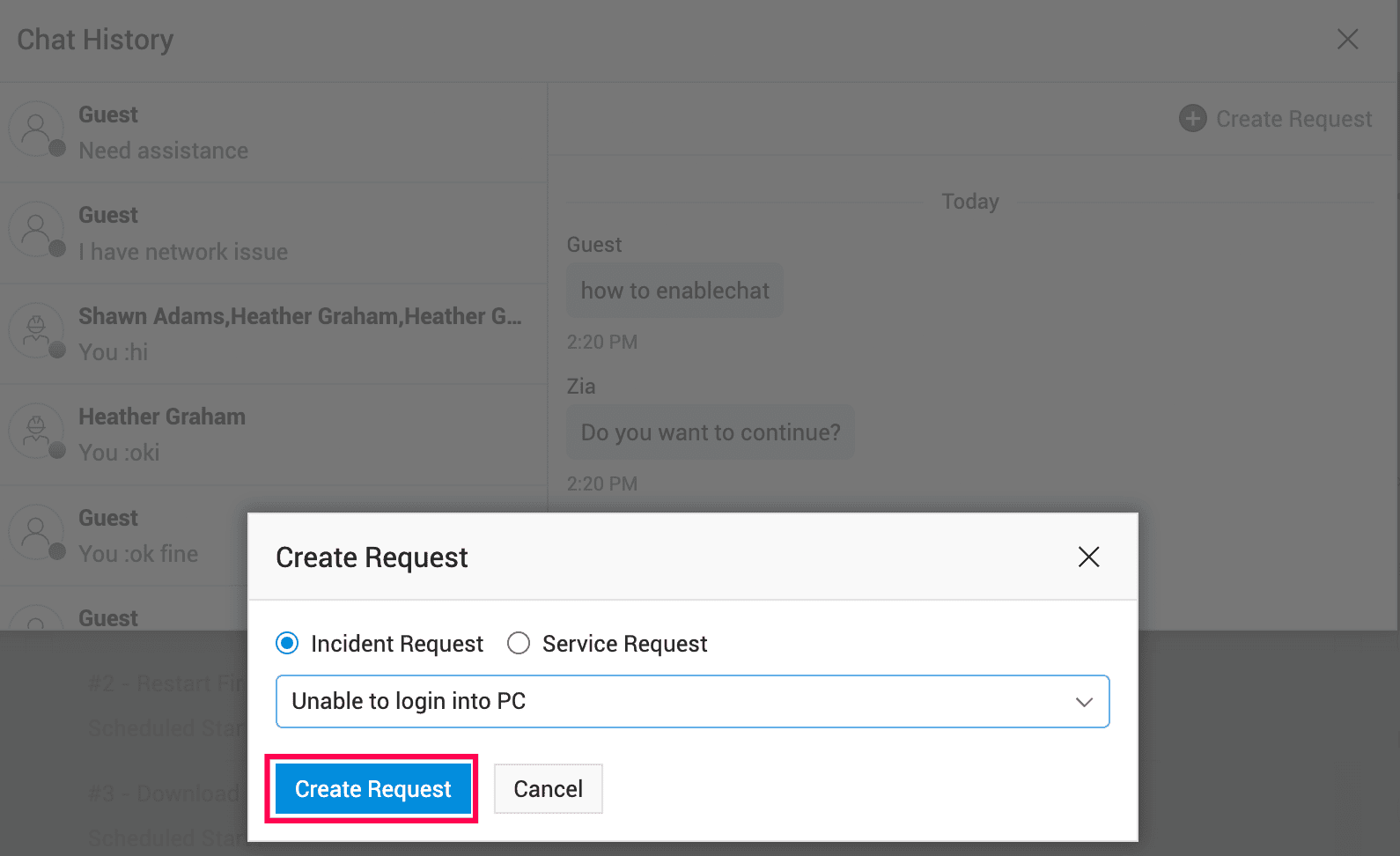
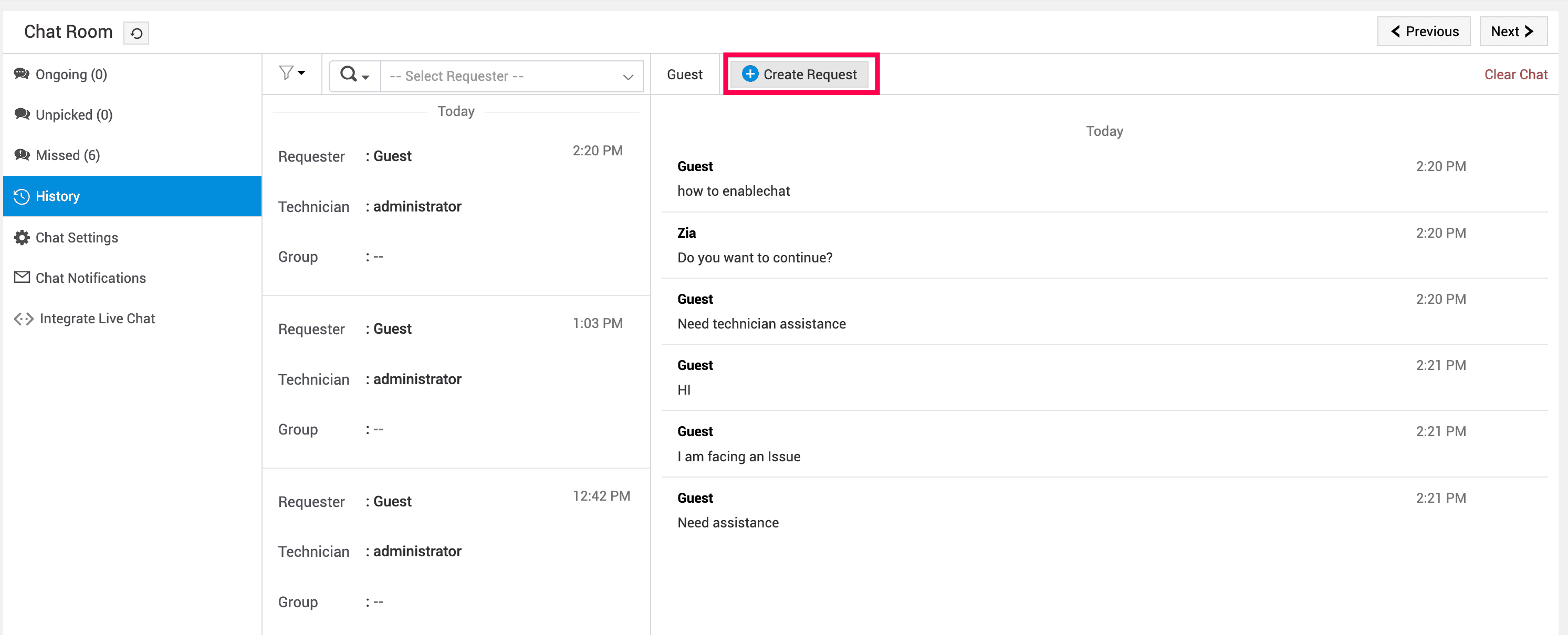
Technicians can now create requests directly from the Chat Room or Chat History for missed or ongoing conversations, provided a request has not been created already.
To create a request from Chat Room
-
In Chat Room, select Missed or History from the left pane.
-
A requester, technician, and group list will be displayed.
-
When you select the required requester, technician or group, a detail page will be displayed.
-
Click Create Request.
-
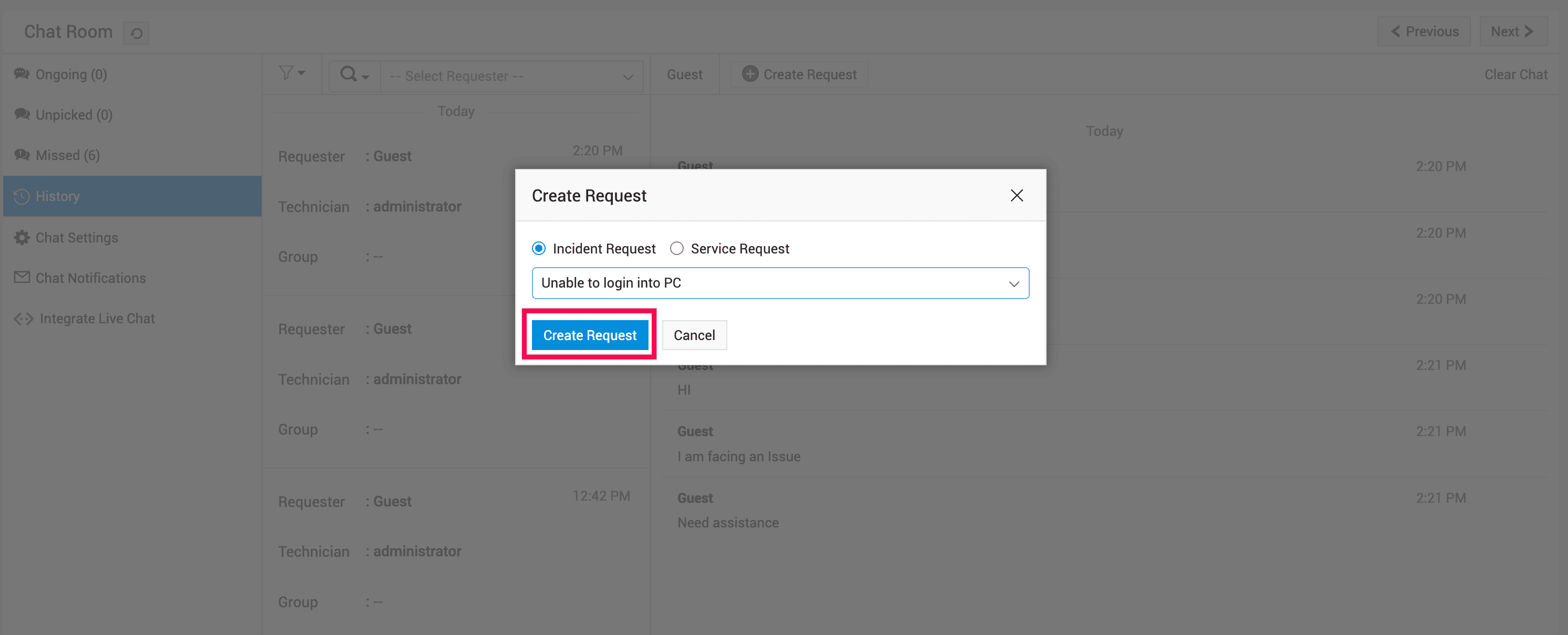
A Create Request pop-up will be displayed.
-
Select Incident Request or Service Request.
-
Choose the template from the drop-down.
-
Click Create Request. A request will be created for the particular chat.
To create a request from Chat History
-
Open the Chats interface from the ServiceDesk Plus bottom left corner.
-
A list of recent chats will be listed.
-
Click
 this icon from the top right corner of the Chats interface.
 -
Select Chat History from the list.
-
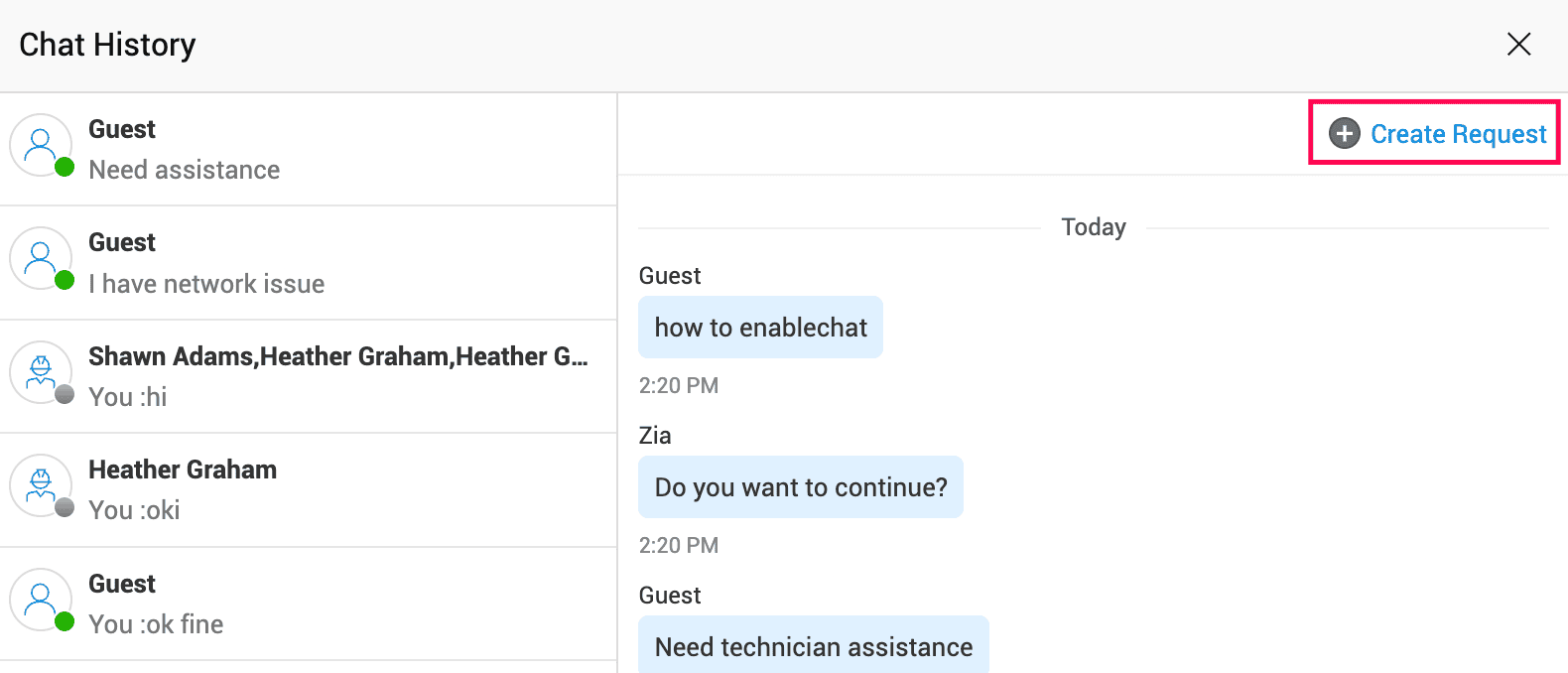
Chat History pop up will be opened.
-
Click Create Request.
-
Create Request pop-up will be opened.
-
Select Incident Request or Service Request.
-
Choose the template from the drop-down.
-
Click Create Request. A request will be created for the particular chat.