

Users
You can add, edit, remove, or merge users from ServiceDesk Plus application and also provide them with login permissions to access the self-service portal.
To open the user configuration page:
-
Click the Admin tab in the header pane.
-
From the Users and Permission (Users in old UI) block, click Users. The User List page is displayed with the available list of both Requesters and Technicians. You can add, edit, or delete Requesters or Technicians in this page.
Add User
There are three ways through which you can add Requesters in the application
Adding Users from the application
-
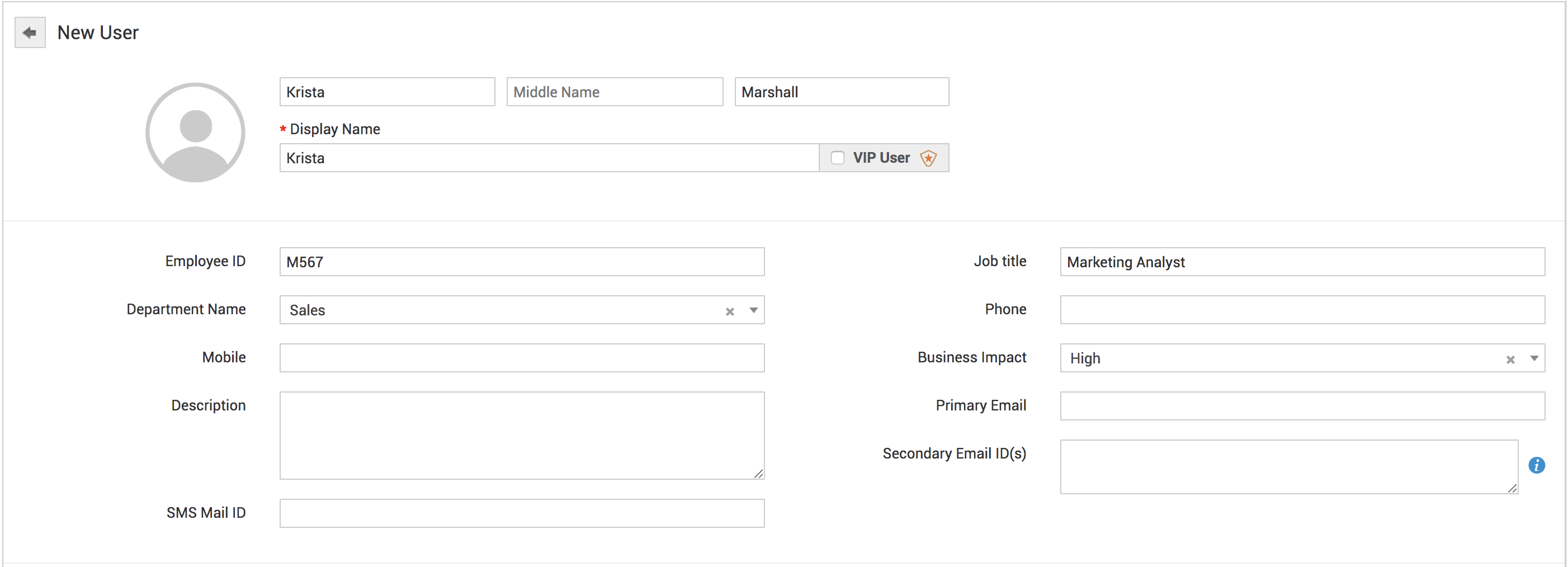
Click New button from the User List page. This displays the Add New User form.
-
In the Personal Details block, enter the Full Name (includes the First Name, Middle Name and Last Name) of the Requester. The Display Name field gets filled in automatically as you type the Full Name. You can also edit the Display Name if required.
- In the Employee Details block, specify the Employee ID, Test, and Description. Choose Business Impact (High, Low, Medium).
-
In the Contact Information block, enter a valid E-mail ID.
More than one E-mail IDs belonging to the same Requester can also be added. Enter the different E-mail ID's of the Requester and click Save.
Note: The multiple E-mail ID's can be entered by using comma(,) or entering a new line or by creating a separation using blank space. After configuring, a request sent from any of those E-mail ID's will have the same User name.They will not be considered as a new User. The first E-mail ID entered will be considered as the primary E-mail ID. The other E-mail ID's will be taken as secondary E-mail ID's.
If the User has a Phone and a Mobile number, you can enter the same in the space provided for entering these values.
-
A User can be marked as a Very Important Person and be differentiated from a normal user with the help of VIP user option. To mark a new Requester as a VIP, click the check box marked as a VIP user. Now any request sent from the User marked as VIP will appear with the following symbol
 in the Details page and Requesters List View. The service level agreements and business rules can be configured accordingly when a Requester is marked as a VIP and reports can be generated.
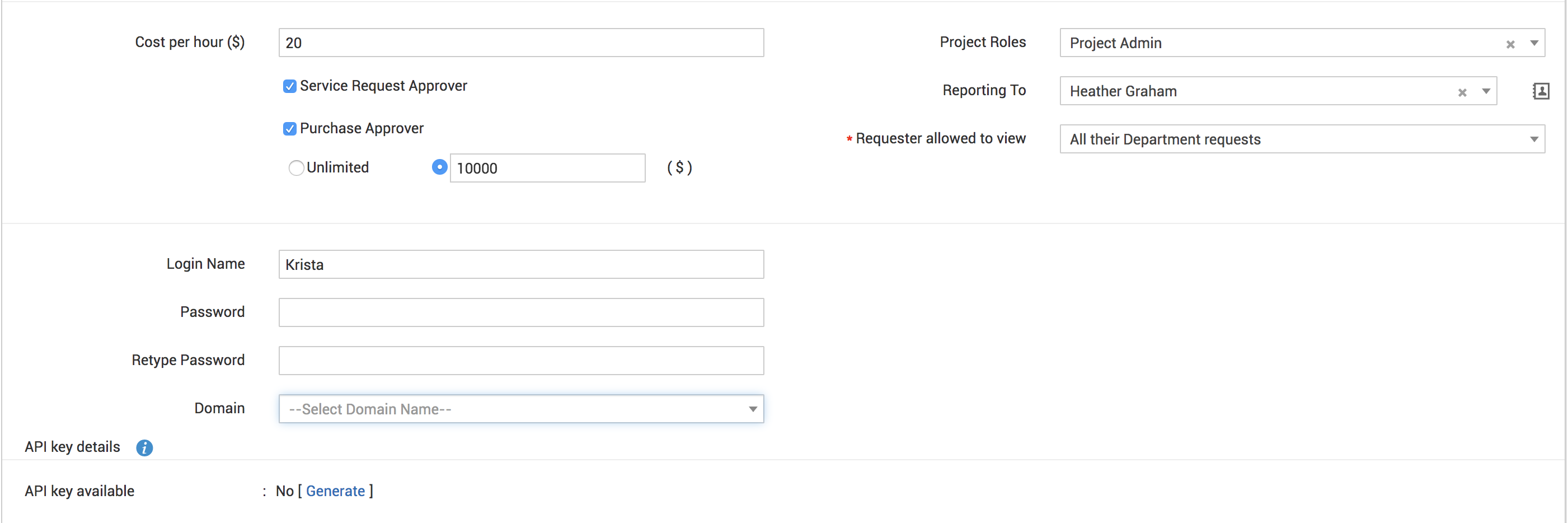
- Enter the Cost per hour ($) value.
- Specify the Department Details. Enter the Job title and in Reporting to field enter the name of the Requester to whom should the new Requester report. You can also choose from the existing Requesters by clicking the icon. Choose the Site and the corresponding Department Name to which the Requester belongs from the respective combo boxes.
The User has the following options: to view only his requests or to view all his department requests, or all the requests in the site to which he is associated. Select the options from the User allowed to view combo box.
-
In the Self-Service Access Details block, enter the Login Name and Password, if you wish to provide self-service access to the Requester. Enter the password again in the Re-type Password field.
-
If the User is associated with a domain then select the Domain from the drop-down list.
-
If the User is to be associated with projects then select Project Role from project role drop-down list.
-
Certain Users can also approve Purchase Order in an organization. Upon enabling the checkbox adjacent to Purchase Order Approvers, a link is sent to the Requester to accept or reject the PO. Also, set the Approver Limit within which the User can approve the PO.
-
You can also provide Users with the privilege to approve Service Requests raised in the application. Enable the checkbox beside
Service Request Approver.
-
Click Save. If you want to add more than one user then, click Save and Add New button.
-
Click Cancel or back button on the top-left corner to abandon the form and get back to the User List View.
Import Users from Active Directory
You can also import Users from an active directory. To import Users from Active Directory:
-
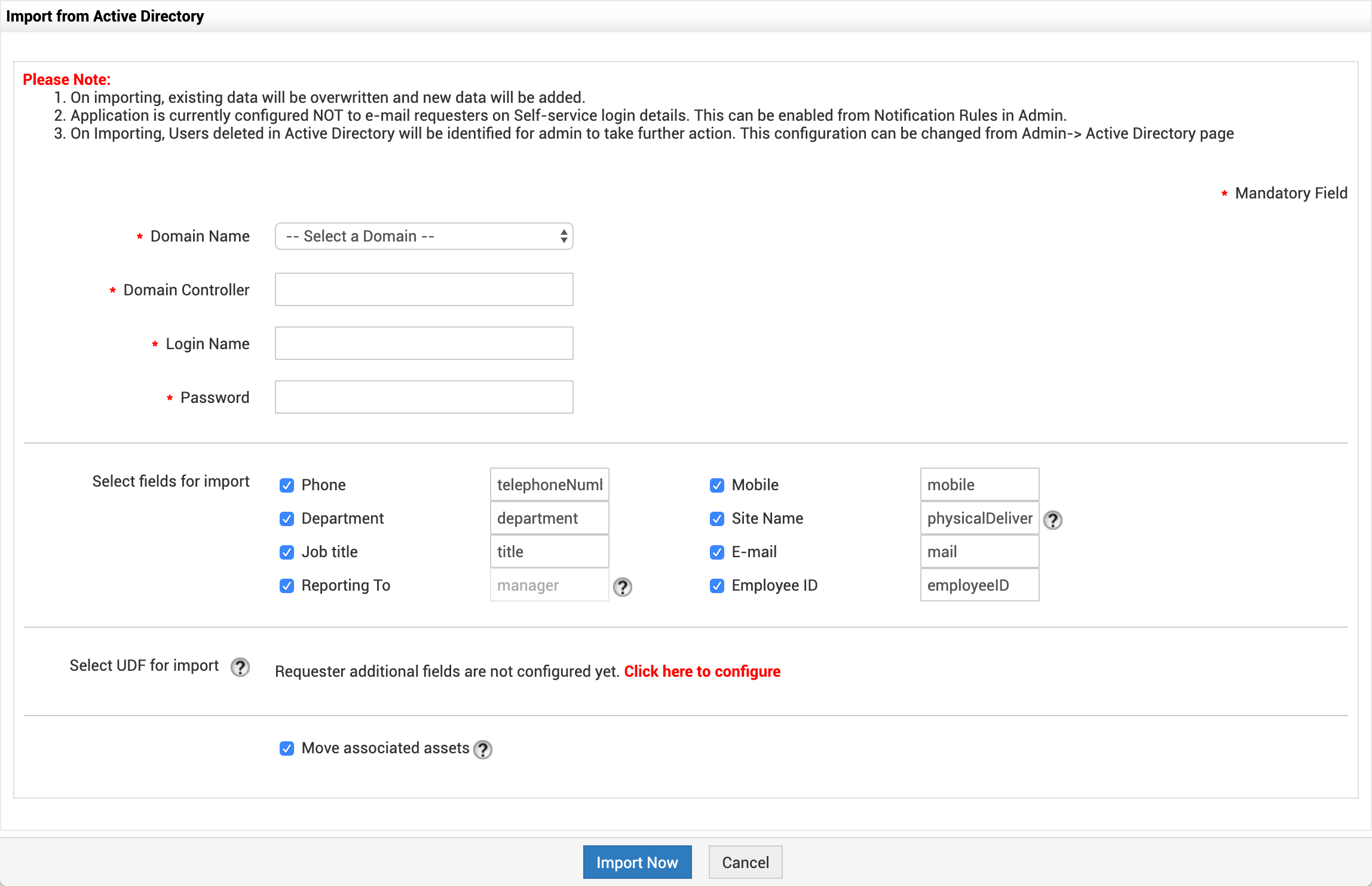
Click Import from AD button on the User List View. The Import From Active Directory window pops up.
-
From the list of domains that are listed in the Domain Name combo box, select the domain name in which the active directory from which you wish to import is installed. If the other details such as Domain Controller name, Login Name, and Password have already been entered in the Domain scan page, then that will be populated automatically. Else, enter the relevant details.
-
Select fields for import from the active directory by enabling the checkbox. The fields name configured in Active Directory can be specified beside the corresponding text fields. The unselected fields are not imported.
- Select UDF for import from the active directory by enabling the checkbox. This is to import Requester additional fields based on Active Directory mapping fields. Upon importing, fields will update only the Requester additional fields, and will not update technician additional fields.
-
Click Import Now. The import wizard displays the various Organizational Units (OUs) available in that domain. Choose the specific OU from which you wish to import users by selecting the checkbox beside it.
-
Click Start Importing. Once the import is complete, the data on how many records were added, how many overwritten, and how many failed to import will be displayed.
Import Requester from CSV (Comma Separated Values) Files
You can also add Users by importing from CSV files. To import Users from CSV file:
Step 1: Locate the CSV file:
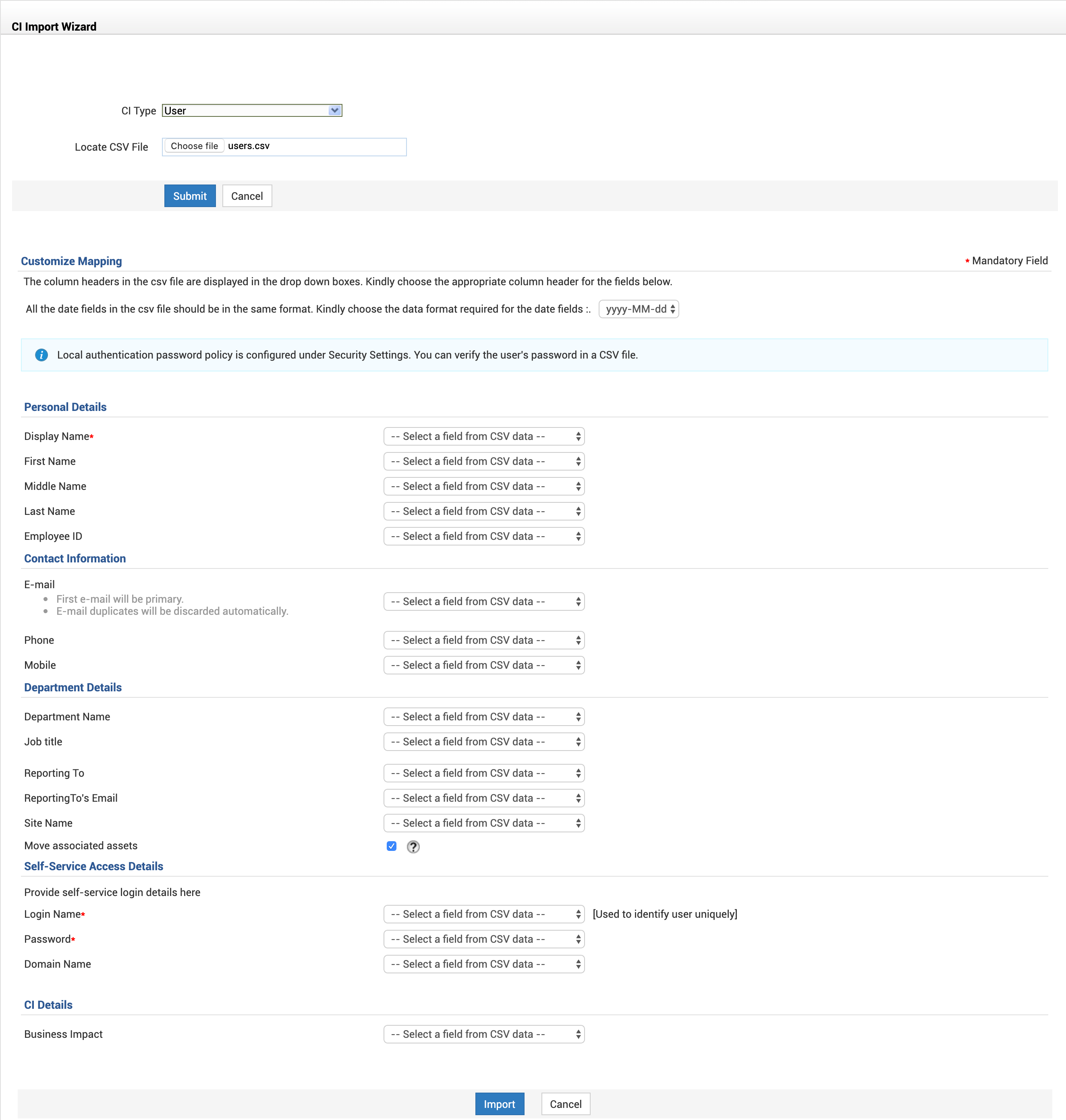
- Select Import from CSV from the drop-down arrow beside the New button on the User List page. The Import Wizard opens in a pop-up window.
- Click the Choose File button in the wizard.
- Select the CSV file in the file chooser window and click Open.
- Click Submit.
Step 2: Customize Mapping:
-
The column headers in the csv file are displayed in the drop-down boxes. Choose the appropriate column header for the fields displayed.
-
Choose the Date Format. All the date fields in the csv file should be in the same format. Choose the format required for the date fields.
Step 3: Import:
- Click Import button. The values from the CSV file will be imported to the User details. Once the import is complete, the data on how many records were added, how many overwritten, and how many failed to import.
So, if by mistake there was any mismatch of fields during mapping, and a new import of CSV is performed, the records will be updated based on the login name value. If there were any records that did not have any login name at all or there was a mismatch in the login name itself, then duplicate entries will be created. In these cases, delete such entries from the Requester list and import again or manually edit the information available.
Viewing User Details
To view the details of a User, click the name of the Requester. While viewing the details of the Requester, you have options to
-
Edit the details of the User
-
Change the Requester to Technician
-
Associate Workstations to the Requester
-
View requests raised by the Requester, and
-
Attach any documents related to the Requester.
Editing User details
You can edit user details individually or collectively (bulk editing). However, not all fields are available for bulk editing.
For non-ESM users
-
All fields are editable when editing one user at a time.
-
In the case of bulk editing, only certain fields are available.
For ESM users
-
Only instance-specific fields are available for editing irrespective of whether editing a single user or multiple users.
-
To edit other fields, go to ESM Directory>>User Management>> Users. To know more click here.
A comparison of default editable fields for non-ESM and ESM users available for bulk editing is as follows.
|
Field |
Availability for Non-ESM Users in Bulk Editing |
Availability for ESM users in Bulk Editing |
|
Name |
No |
No |
|
Display Name |
No |
No |
|
VIP User |
Yes |
No |
|
Employee ID |
No |
No |
|
Job Title |
Yes |
No |
|
Department Name |
Yes |
No |
|
Phone |
No |
No |
|
Mobile |
No |
No |
|
Business Impact |
Yes |
Yes |
|
Description |
Yes |
No |
|
Primary Email |
No |
No |
|
Secondary Email ID(s) |
No |
No |
|
SMS Mail ID |
Yes |
No |
|
Cost per hour |
Yes |
Yes |
|
Project Roles |
Yes |
Yes |
|
Service Request Approver |
Yes |
Yes |
|
Purchase Approver and Purchase Limit |
Yes |
Yes |
|
Reporting To |
Yes |
No |
|
Requester Allowed to View |
Yes |
Yes |
|
Login Name |
No |
No |
|
Password |
No |
No |
|
Retype Password |
No |
No |
|
Domain |
Yes |
No |
|
Enable Organization Administrator |
No |
No |
To edit a single user:
-
Go to Admin>>Users.
-
Click the edit icon
 beside the user's name.
-
In the user edit form that appears, make necessary changes and then click Save.
To edit multiple users:
-
Go to Admin>>Users.
-
Select the users that you want to edit and then click Edit from the Actions drop-down menu.
-
In the user edit form that appears, make necessary changes and then click Save.
You can change the User's password while editing the Requester details.
-
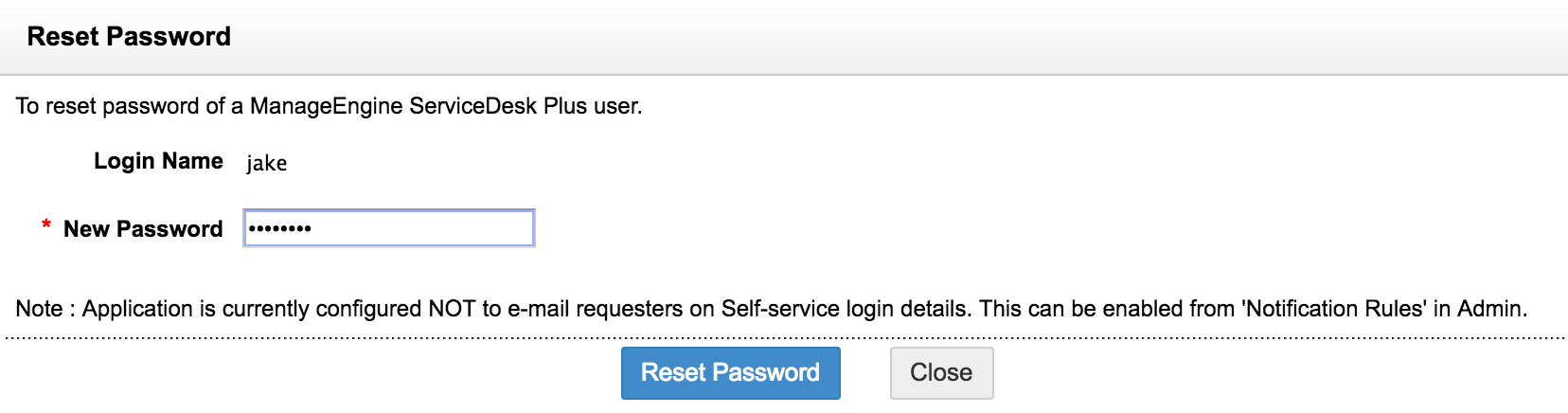
To change the password of the User, click the Reset Password link. The reset password window is opened.
-
Below the Login Name display, enter the New Password in the text field.
-
Click Reset Password. If you do not wish to change the password, click Close instead of Reset Password.
Change Requester to Technician
You can change a Requester to Technician without having to delete the Requester information and recreate the same as a technician. To change Requester to technician,
-
In the Requester details page, click Change as Technician option. The page refreshes to display the edit technician form.
-
Change the roles assigned to the Requester from SDGuest to any other role that you wish to provide the technician.
-
Enter any other details that you wish to enter including the Cost per hour and so on.
-
Click Save. If you do not wish to change the Requester to technician, click Cancel instead of Save.
If you want to continue adding technician after converting a Requester to technician, then instead of clicking Save, click Save and add new button. This saves the technician details and reopens the add technician form after displaying a success message for changing the Requester to technician.
Associate Workstation to User
You can also associate a workstation with the Requester. To associate a workstation with the Requester
-
Click Associate Workstation option. The associate workstation window is opened.
-
In the Associate Workstation pop-up, select the workstations that you wish to associate with the Requester from the Workstation List and move them to the Associated Workstations list by clicking the >> button. To dissociate workstations, select the respective workstations in the Associated Workstations list and click the << button. If you wish to dissociate all the workstations, then click Dissociate All.
-
After associating the required workstations, click Save Changes.
-
A message is displayed. Click the Close button.
View Requests
While viewing the User details, you can view all the open requests raised by the User. Click View Requests button. The page redirects you to the Requests module where the list of all Open Requests raised by the User is displayed.
Deleting Users
-
In the Requester List page, enable the checkbox beside the Requesters to delete.
-
Click Actions drop-down menu -> Delete User(s) option. A dialog box confirming the delete operation appears.
-
Click OK to proceed with the deletion. If you do not want to delete the Requester, then click Cancel.
Viewing deleted users
SDAdmins can view and anonymize the users (both requesters and technicians), who are deleted from the application until the present. Anonymization will be possible only if the privacy settings are enabled. As you anonymize a user to a random name, the user's PII, marked to be deleted during anonymization in privacy settings, will be removed from the application as well.
In the requester list view page, select the filter Deleted users.
Select users to anonymize and click Anonymize users.
Enter random names for the users and click Anonymize users.
To search Users
-
In request list view, click on the alphabet with which the name of the user starts. This lists the users whose name starts with that alphabet.
-
If you are unsure of the starting letter, then you can type the name (first name or the last name, whichever you know) or email ID or any other parameter that will identify the users in the field beside the Search Requester List. This lists the users whose details match the search string that you entered.
You can also search users from the Search available on the left menu in the other pages of the application. From the Search in combo box, select Requesters and type your search string in the Enter Keyword text field. Click Go or press Enter. The user names that match the search string are listed in a separate pop-up window.
Another option to search users will be using the column-wise search option. To perform a column-wise search
-
Click the search icon
 at the end of the user list view headers. This opens the search field just below every column that is visible in the list view.
 -
Enter the search key in the field under the column of your choice.
-
Click Go. The search results matching the search string(s) are displayed.
Merging requesters
The user merge functionality will help you detect duplicated requester accounts (with the same login name or email address) in different domains and merge them into single accounts. It also helps you avoid confusion in identifying the correct users.
Following are the probable causes of duplication:
- The same user is fetched from more than one domain during user import
- Servers are moved from Windows to Linux
- When Active Directory users send emails to the help desk, new (or duplicated) accounts will be created
As for the accounts duplicated by other ways rather than login name or email address, you can manually locate them and then merge.
You can merge completely distinct accounts as well.
Merge process
During the merge process, you will select a parent account to which you want to merge other accounts. The other accounts will be recognized as child accounts. After merging these child accounts to the parent account, all associations of the child accounts across product modules will be transferred to the parent account.
Merging duplicated accounts
- On the requester list page, click Merge user button.
- Before you merge the requesters, you might want to take a look at how attribute values for the selected accounts will be merged. Click Merge workflow on the user merge page.

Following is the merge workflow screenshot that illustrates different types of attribute value merge.
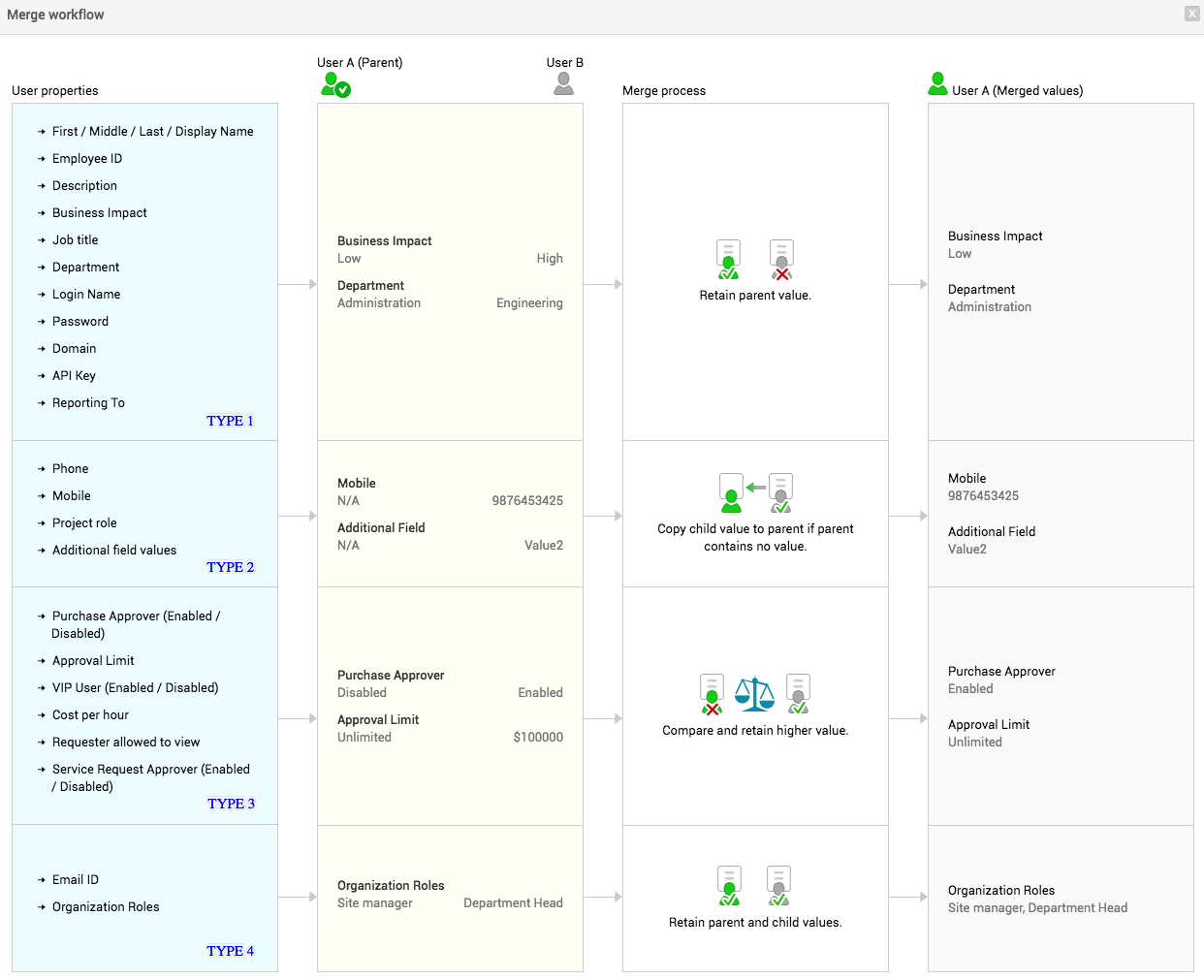
Let's look at some examples for each type of attribute value merge.
|
Attribute merge type |
Example attribute |
Attribute value retained after merging |
|
1 |
Department |
Parent account's department will remain unchanged. |
|
2 |
Phone |
If no phone number is added to the parent account, the phone number in the child account will be copied to the parent. |
|
3 |
Approval Limit |
Approval limits of the parent and the child accounts are compared and higher approval limit is retained. |
|
4 |
Primary and Secondary email addresses |
|
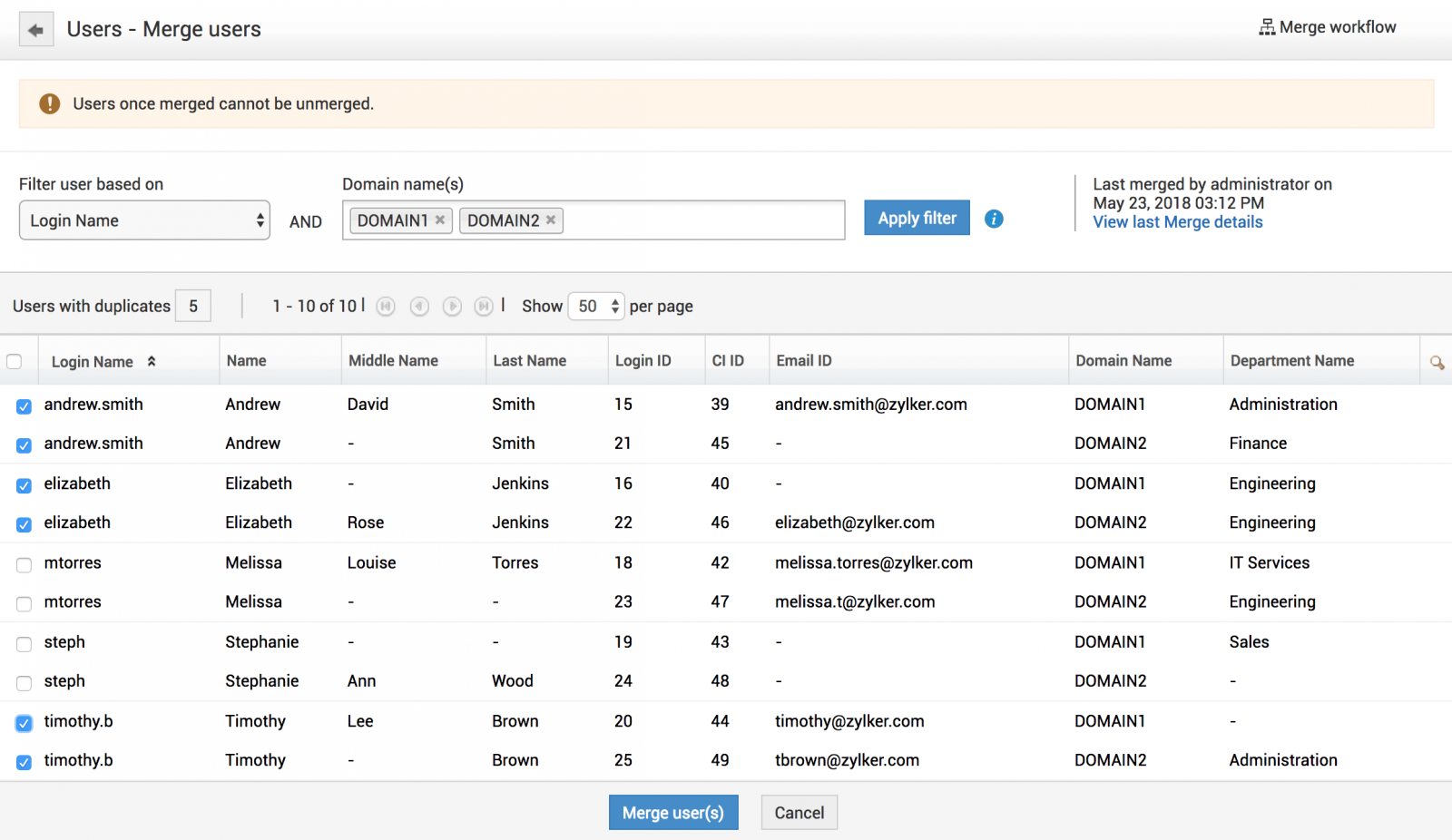
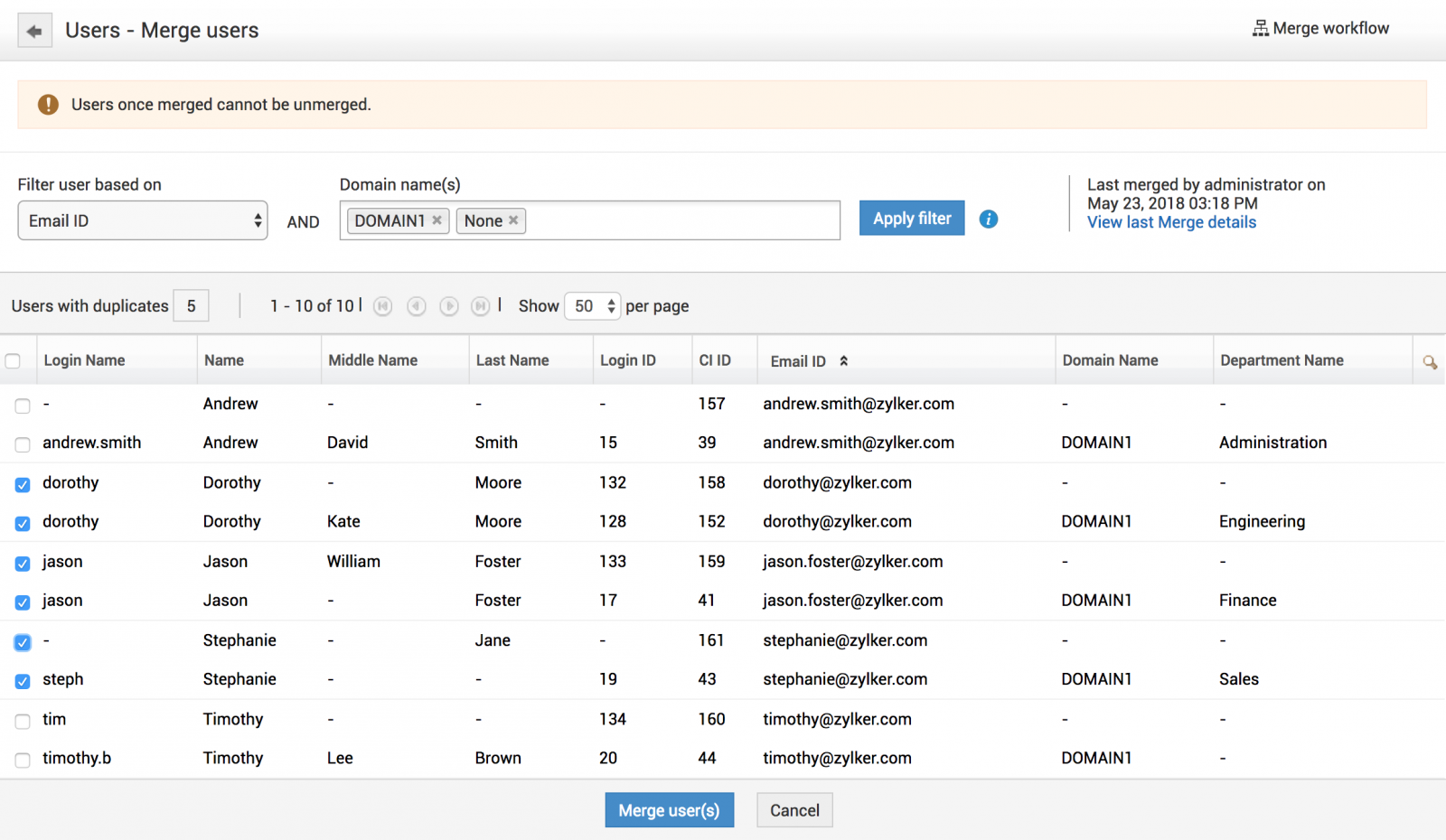
- Select the criteria to identify the duplicated accounts as Login Name or Email Address.
- Enter the user domains (two at a time) or a domain and none (no domain).
- Click Apply filter. The uniquely duplicated accounts appear in pairs. Note that the duplication is across the selected pair of domains and not within the same domain.
- Select the pairs to be merged and click Merge user(s).
Example for duplicated users from two domains and with the same login name.
Example for duplicated users, where one user is from a domain, and the other user is not associated with any domain. They have the same email address.
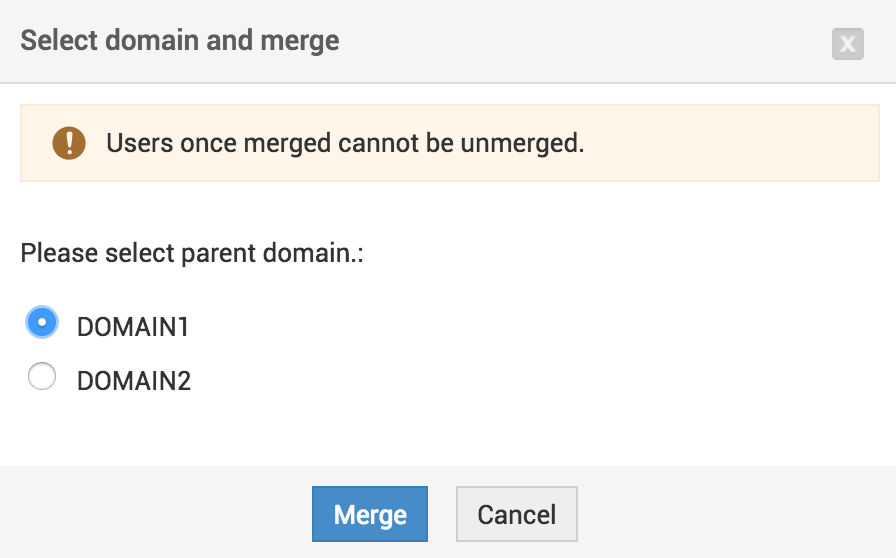
- Select the parent domain (the user accounts that belong to the parent domain will be the parent accounts in all merged user pairs.) and click Merge. The merge process will be initiated.
Merging distinct accounts
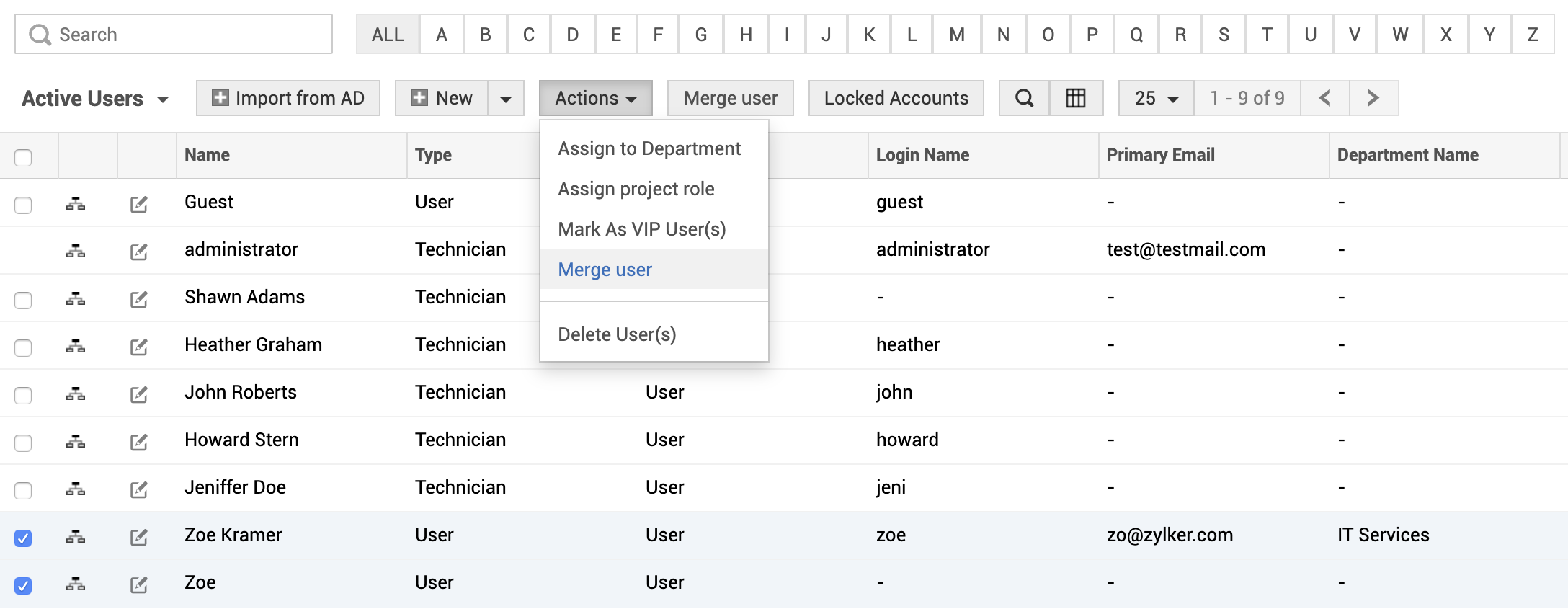
- On the requester list page, select the users to be merged.
- Click Merge user from the Actions drop-down menu.
- The selected users will be listed as shown below.
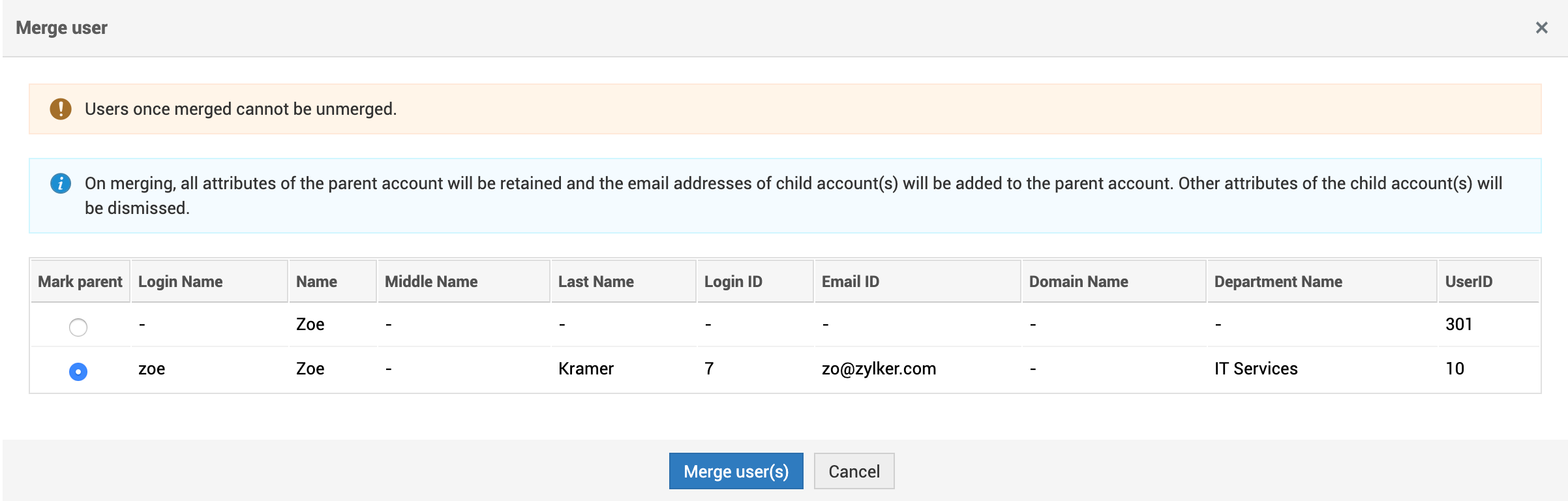
- Select the parent user and click Merge user(s). The merge process will be initiated.
Following are common to both merge types:
- All SDAdmins will receive a notification when the merge process is when it's completed.
- There will be no transfer of associations from the child account(s) to the parent in any user-based criteria for Business Rules, SLAs, Custom Views, Reports and Advanced Search.
Viewing merge process summary
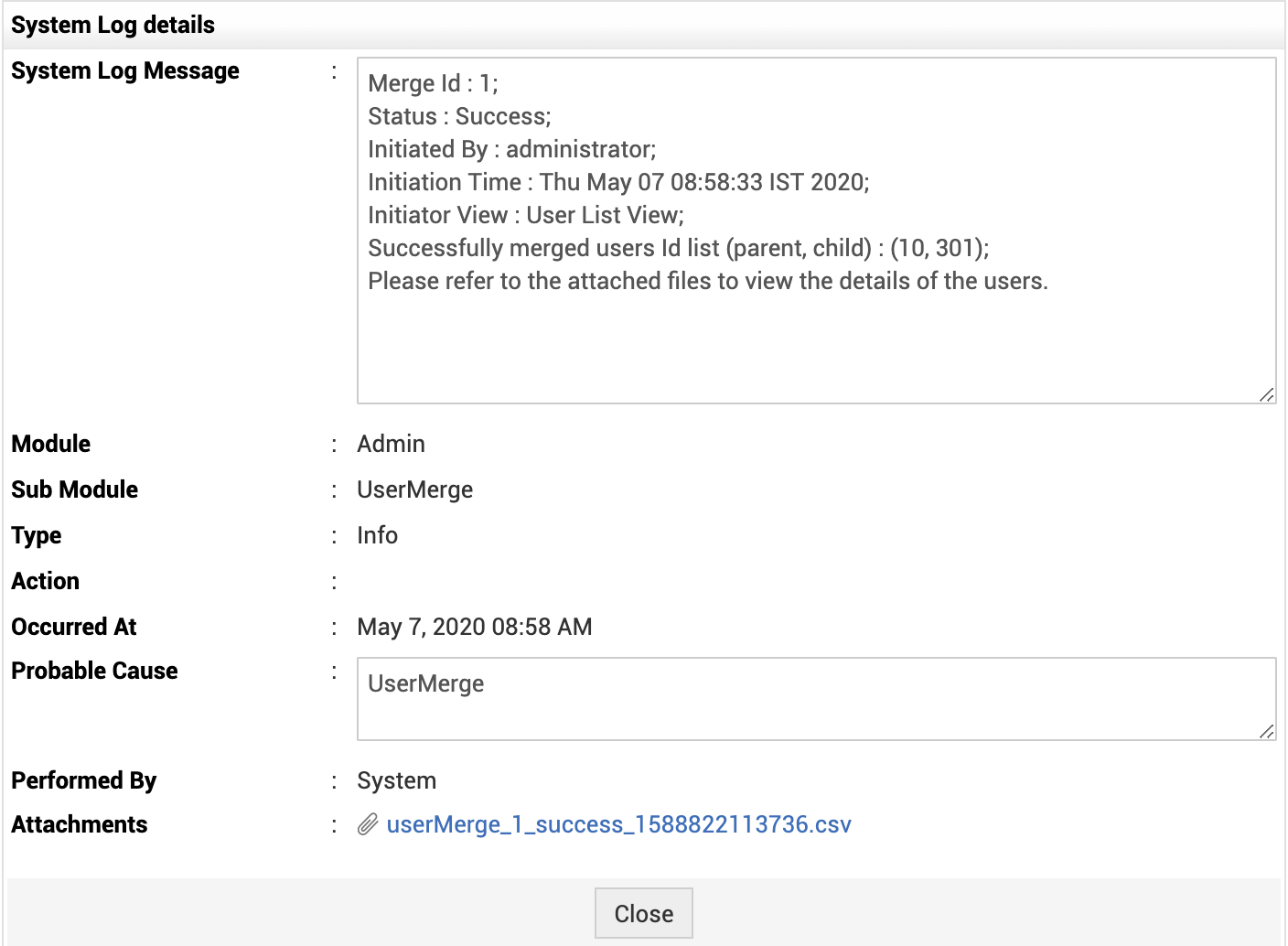
You can view merging details in System log Viewer.
To access it,
- Go to Community tab >> System Log Viewer. You can also access System Log Viewer from Merge Process completion notification by clicking the notification icon the header pane.
Attachment files in the system log details have the list of account pairs that are successfully merged or failed.
User List View Customization
To customize the User list view
-
Click the column edit icon available. This opens the available columns that can be displayed in the list view. All those that are visible currently, will have the checkbox beside them selected.
-
To remove a column, disable the checkbox beside the column name.
-
To add a column to the list view, enable the checkbox beside the column name.
-
To change the column order, click the up and down arrow after selecting the column that you wish to move.
-
Click Save.
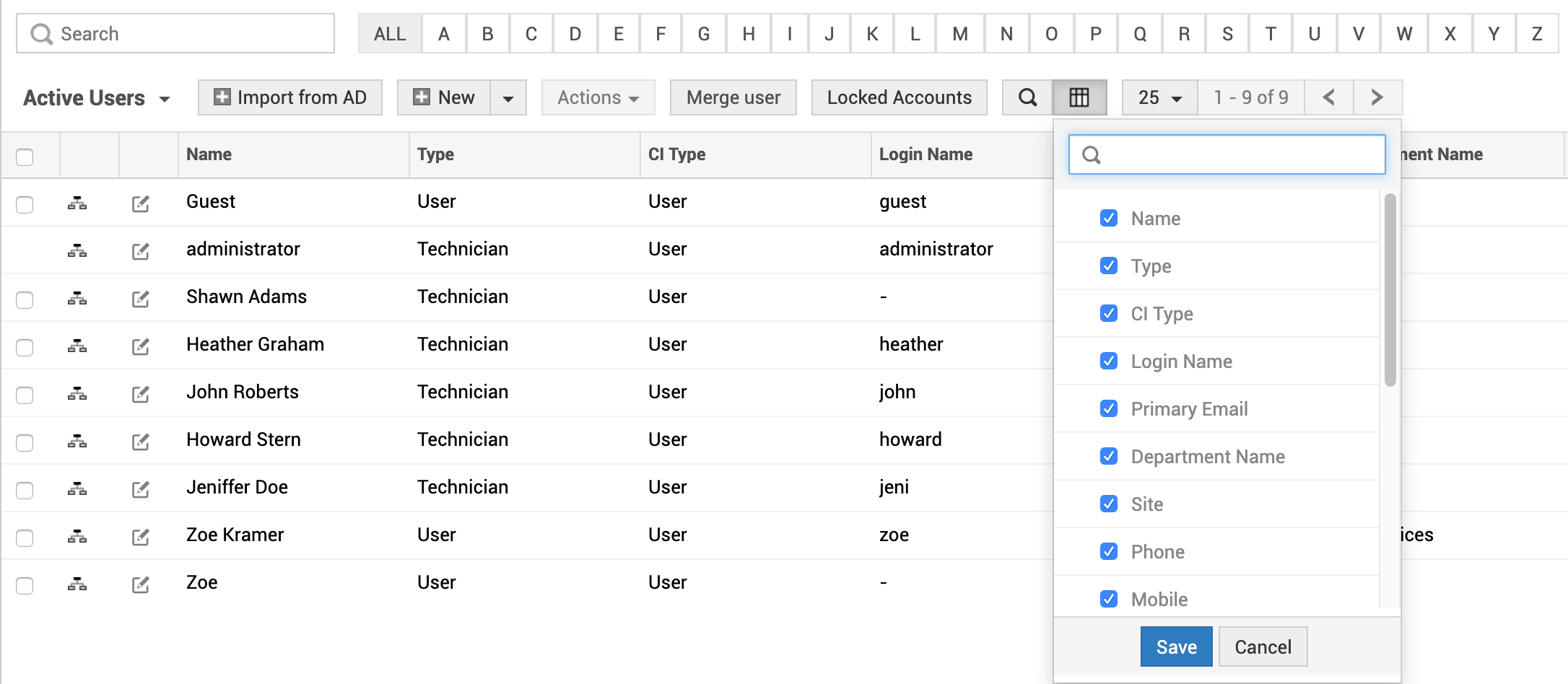
You can also sort certain rows in ascending or descending order based on columns such as Name, Login Name, Primary Email, Department etc. To sort the User list by rows, simply click the column header such as Name, Login Name, and Email etc to switch between ascending or descending order.