
Field and Form Rules
Field and form rules allows you to define rules that dynamically modify template forms and details pages based on user input.
Form Events
ServiceDesk Plus allows you to configure field and form rules for the following form events:
On Form Load: Rule will execute each time the request form is loaded.
On Field Change: Rule will execute when the specified form field is modified.
On Form Submit: Rule will execute on form submission.
Form Actions
You can execute the following actions on form templates and details pages based on form event and user input.
|
Form Actions |
Description |
Available For (Templates) |
|
Enable Fields |
To enable form fields for further edits. |
Service Catalog, Incident, Change, Release, and Custom Modules. |
|
Disable Fields |
To disable form fields for further edits. |
Service Catalog, Incident, Change, Release, and Custom Modules. |
|
Show Fields |
To show form fields |
Service Catalog, Incident, Change, Release, and Custom Modules. |
|
Hide Fields |
To hide form fields. |
Service Catalog, Incident, Change, Release, and Custom Modules. |
|
Mandate Fields |
To mandate form fields. |
Service Catalog, Incident, Change, Release, and Custom Modules. |
|
Non-Mandate Fields |
To remove the mandatory properties of the specified form fields. Note: You cannot non-mandate fields that are mandated in form templates. |
Service Catalog, Incident, Change, Release, and Custom Modules. |
|
Add Options |
To add options to the drop-down list based on field values. |
Service Catalog, Incident, Release, and Custom Modules. |
|
Remove Options |
To remove options from the drop-down list based on field values. |
Service Catalog, Incident, Release, and Custom Modules. |
|
Set Field |
To preset form field values. |
Service Catalog, Incident, Release, and Custom Modules. |
|
Clear Fields |
To reset form fields. |
Service Catalog, Incident, Release, and Custom Modules. |
|
Set Task |
To associate tasks with the form template. As a result, the associated tasks are automatically triggered when the form is submitted. |
Service Catalog and Incident. |
|
Unset Task |
To remove the associated tasks from the form template. |
Service Catalog and Incident. |
|
Show Task |
To show tasks in the form template. |
Service Catalog, Incident. |
|
Hide Task |
To hide tasks in the form template. |
Service Catalog, Incident. |
|
Show Resource |
To show resource sections. |
Service |
|
Hide Resource |
To hide resource sections. |
Service |
|
Execute Script |
Executes a script in the form. The script must be a valid JavaScript code. ServiceDesk Plus supports some default methods for script execution. For example, to hide Category and Level, you can call the below method with an array of fields as: $CS.hideField(["CATEGORY","LEVEL"]); You can also write custom scripts or import and modify frequently used sample scripts. |
Service, Incident, Change, Release, Custom Modules. |
Create a New Rule
On the Field & Form Rules tab,
- Click one of the form events.
- Click New Rule.
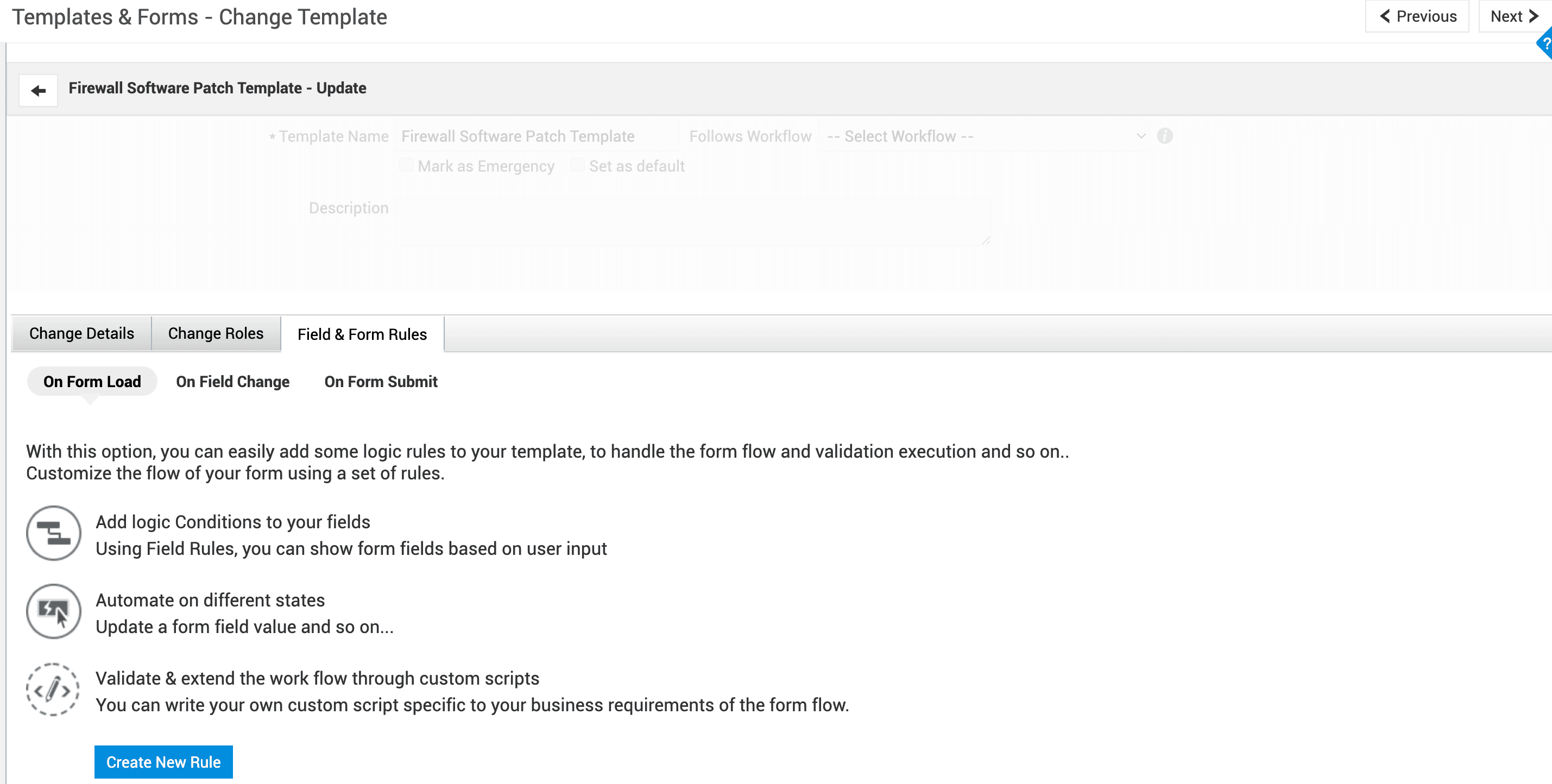
- Fill out the form and click Save.
|
Rule Name |
Give the rule a name. |
|
Applies to |
Choose if the rule needs to be applied to all users, technicians, or requesters. |
|
Rule Execution |
Choose whether the rule must execute on record creation or edit. |
|
Event |
Choose a form event from the drop-down. For On Field Change, specify the form field that should trigger the rule when it is edited. |
|
Conditions |
You can define field criteria for rule execution. Click the plus icon AND – checks if the user input matches for all chosen fields. OR – checks if the user input matches for any of the fields. The rule will execute even when no criteria is defined.
|
|
Actions |
Select the form action to be executed for the chosen form event. • Specify the fields to be enabled/disabled/shown/hidden/mandated/non-mandated in the form template and details page. • For Execute Script, click Write Custom Script to draft the form action code. Use sample scripts and refer to predefined methods for certain fields. Click the plus icon |
 to add more conditions. Use the and drop-down to select the required logical operator.
The created rules can be accessed under the corresponding form events as shown:
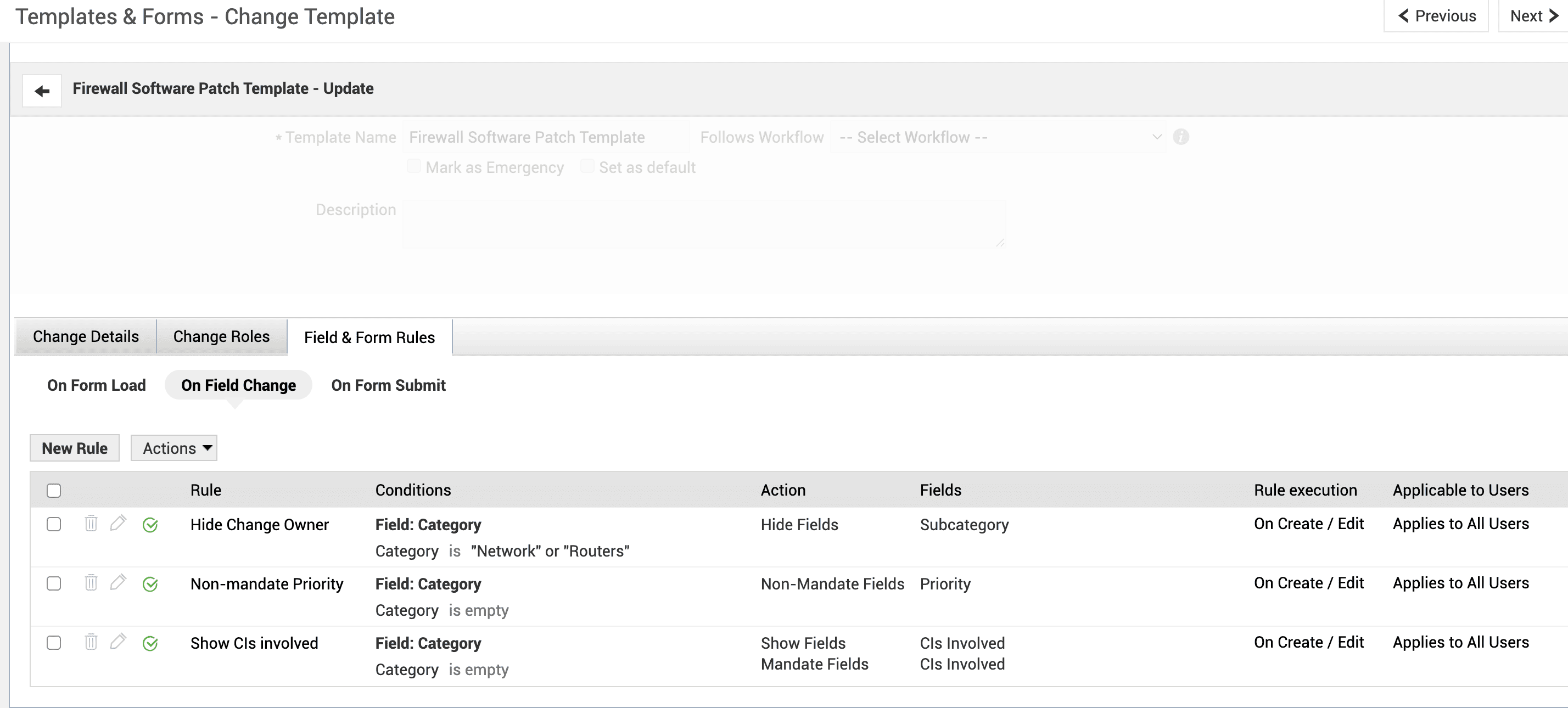
Rule List Actions
Enable/Disable a Rule
- Go to the rule list in the required form event.
- The
 icon next to the rule name indicates that the rule is enabled and will be applied to form templates and details pages when the user input matches the rule conditions. Click the icon to disable the rule.
 - The disabled rule will be indicated with the
 icon and will not be applied to any form template or details page. Click the icon to re-enable the rule.
Edit/Delete a Rule
- Go to the rule list in the required form event.
- Click the edit icon
 to edit the necessary rule details.
 - Click the delete icon
 to delete the rule permanently.
Bulk Actions
Select the required rules using check boxes next to them and use the Actions drop-down at the top of the rule list to perform the following actions:
- Delete Rules: To bulk delete the selected rules permanently.
- Disable Rules: To deactivate the selected rules. The disabled rules will not be applied to any form template and details page and are marked with
 .
. - Enable Rules: To activate the deactivated rules. The enabled rules are marked with
 .
. - Copy Rules: Select the target templates where you want to copy the rules from the current template.
Note:
- You can only copy rules to templates within the module.
- Rule will not be copied if the fields chosen for form actions and rule conditions are not present in the target template.
Click here to learn more about specific use cases for configuring field and form rules.