Service Level Agreements
A service level agreement (SLA) is an official commitment between a service provider and the customer. In ServiceDesk Plus, you can set up SLAs exclusively for incident/service requests. You can also configure escalation rules to notify technicians when a request is unattended or unresolved within a specified time frame.
Role Required: SDADmin or HelpDeskConfig
To open the SLA configurations page, go to Admin >> Incident Management >> Service Level Agreements.
Select the site from the Helpdesk - Service Level Agreements for drop-down menu. To know more about how to configure SLAs for sites, go here.
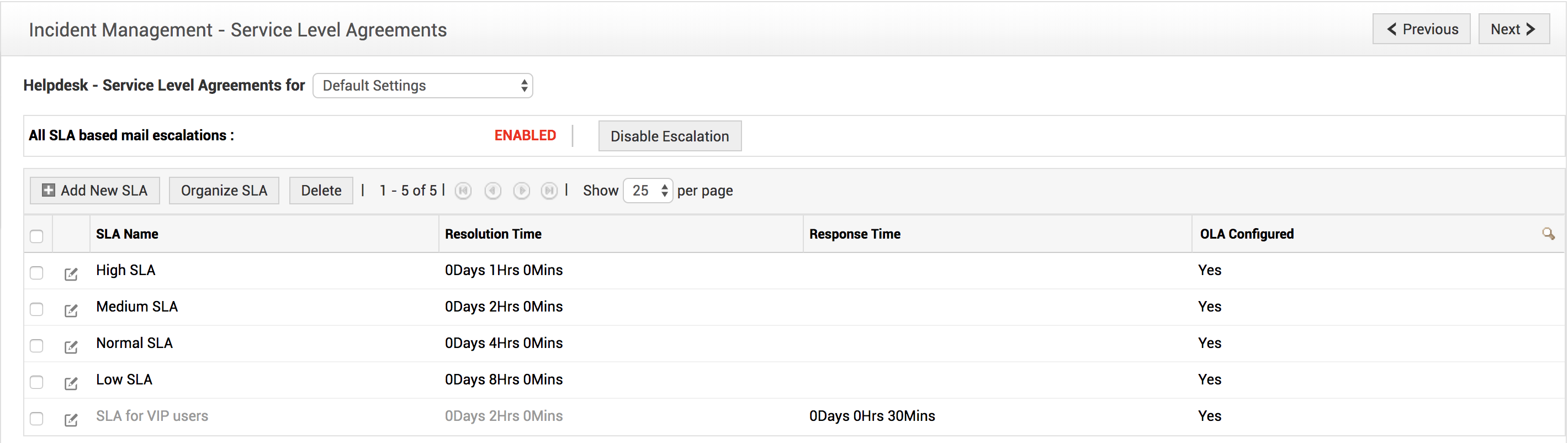
All SLA-based mail escalations will be enabled by default. To disable the escalation, click Disable Escalation.
There are four default SLAs: High, Medium, Normal and Low. You can also add more SLAs to the list.
Add New Service Level Agreement
Select the site to add the SLA. By default, the Default Settings option is selected.
In the Incident Management - Service Level Agreements window, click Add New SLA.
The Site selected is displayed as non-editable text.
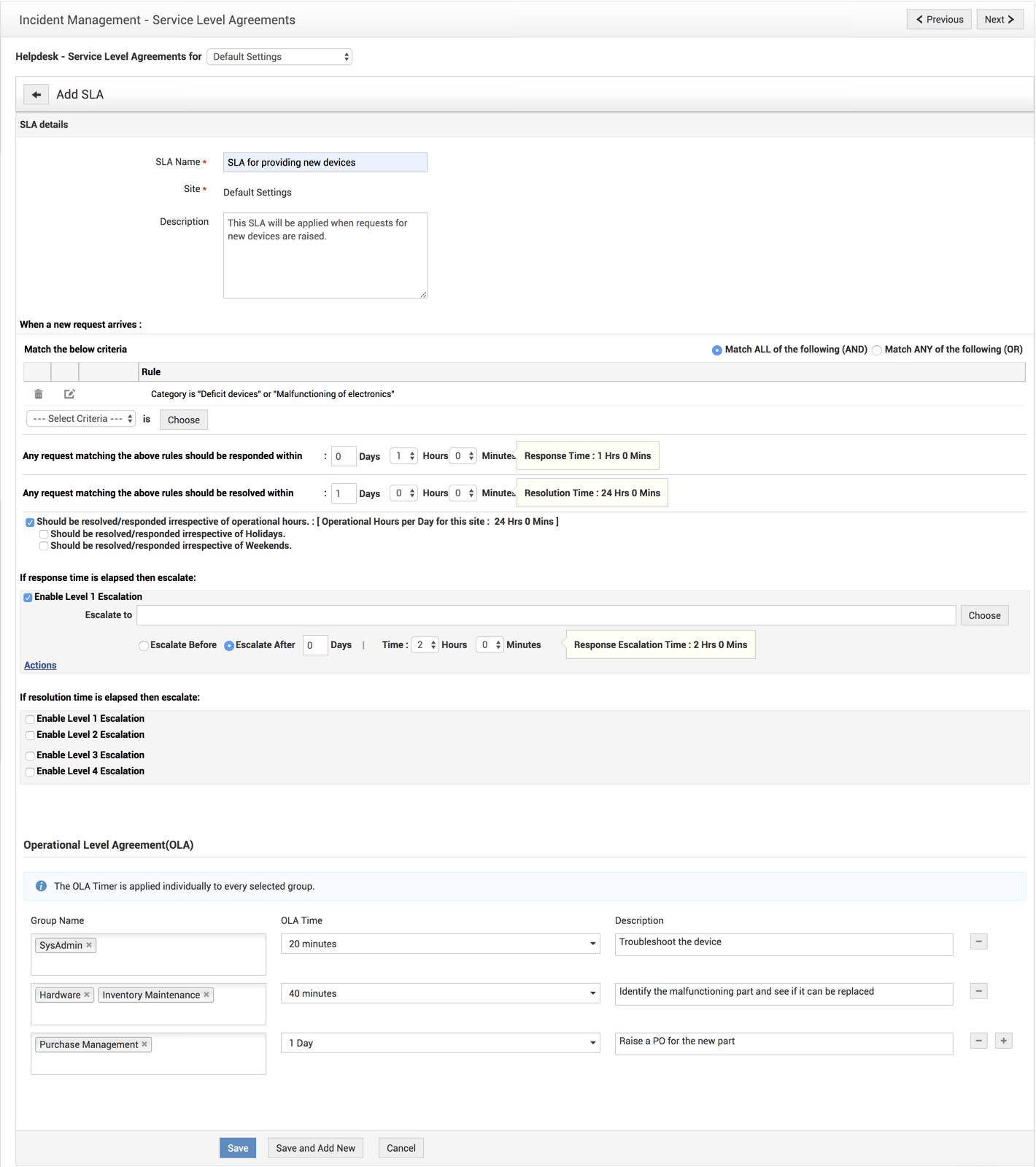
The SLA form has three blocks of information:
- SLA Details
- Enter a unique name for your SLA and provide a brief description.
- SLA Rules
- Set a rule for your SLA. You can choose between Match ALL of the following or Match ANY of the following. Then, select a criteria and click Choose to set a value. The requests matching this criteria and value will be mapped under the particular SLA.
- Set the first response and the resolution time for requests. You can define if the SLA must be applied to requests irrespective of holidays and weekends.
- Escalations
- Select an escalation level and choose a technician to notify, if the first response time/resolution time limit is exceeded.
- To escalate a request before the SLA is violated, choose Escalate Before and set the time of escalation.
- Click Escalate After to escalate after the violation.
- Click Actions to select the technician, group, priority and level of the request after escalation.
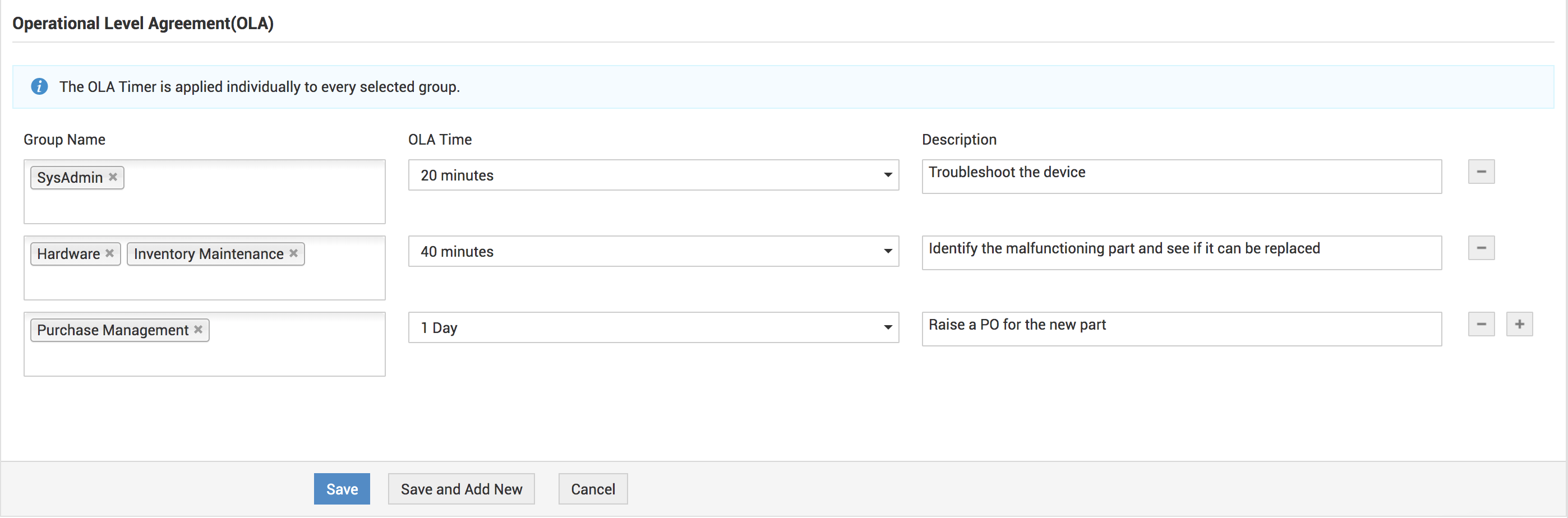
Enter the OLA parameters. Click here to learn more.
Click Save or Save and Add New.
Edit a Service Level Agreement
-
Select the site of the SLA you wish to edit.
-
Click the
 icon.
icon. -
Modify the necessary details.
-
Click Save or Save and Add New.
Delete Service Level Agreement
-
Select the site of the SLA you wish to delete.
-
In the SLA list view, enable the check box beside the SLA.
-
Click Delete.
-
Click OK to confirm.
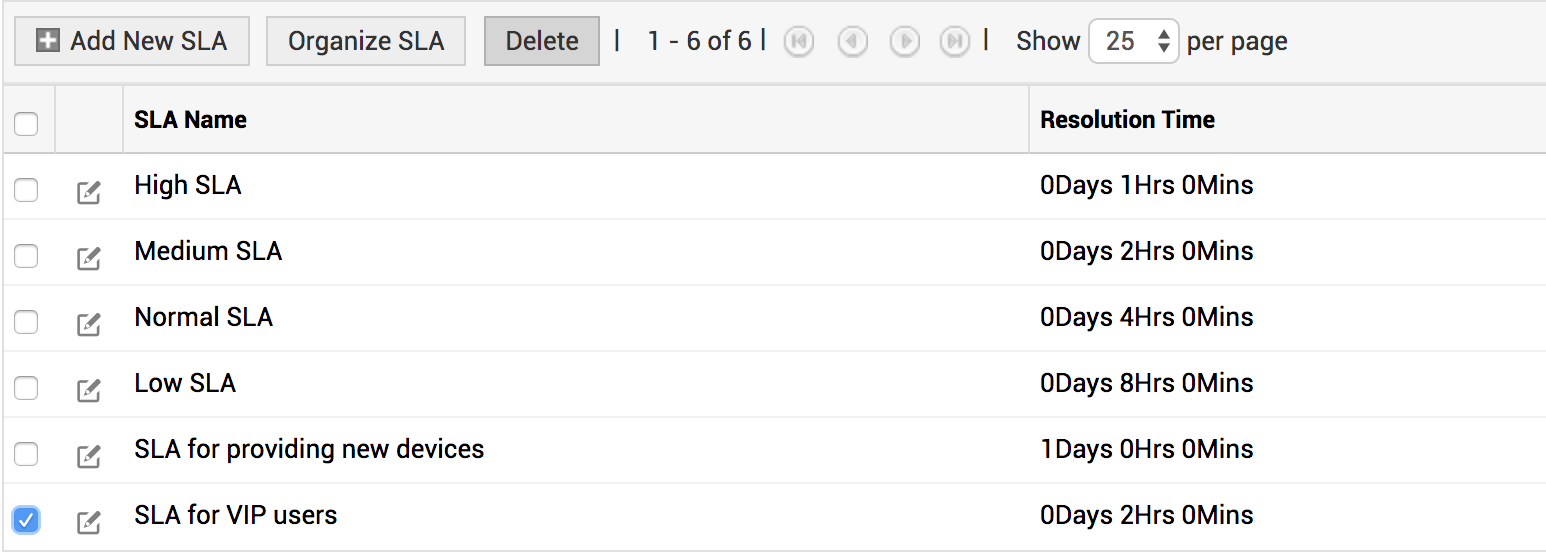
icon and deselect SLA not for further usage.
Organize Service Level Agreements
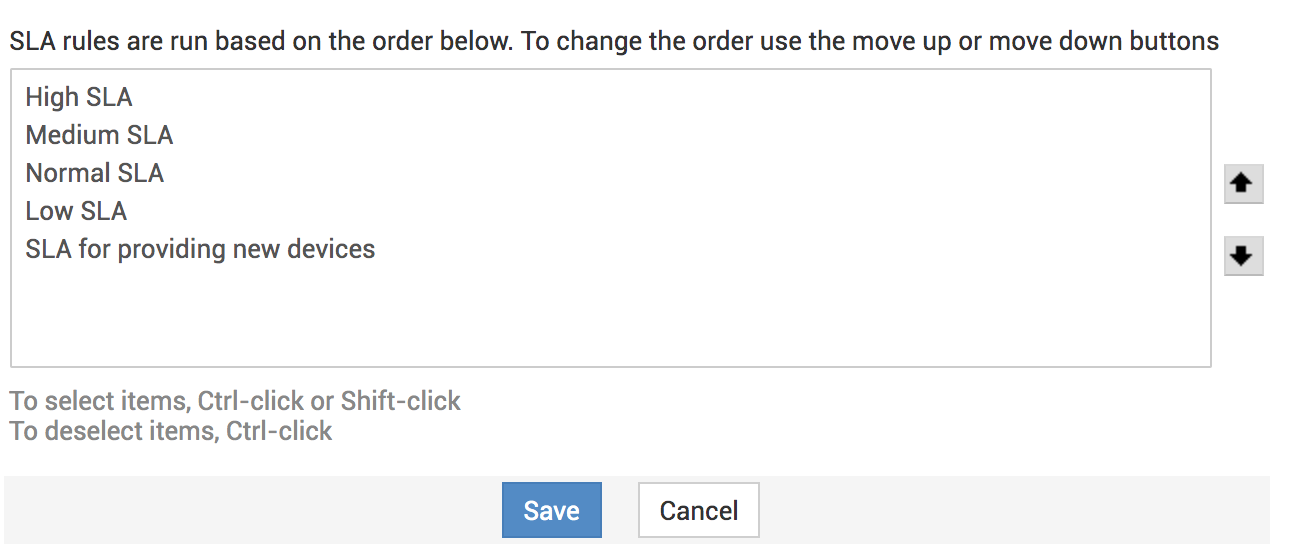
Organizing the SLAs decide the order in which the SLA is applied to the incoming request.
-
Select the site for which you wish to rearrange the SLA order.
-
Click Organize.
-
Select an SLA, and click Move up or Move Down button beside the list.
-
Click Save.
Operational Level Agreement
Operational level agreements (OLA) define how various IT groups within an organization plan to deliver a service. In ServiceDesk Plus, you can configure OLAs for every service level agreement (SLA) to decide how the SLA can be achieved by the internal groups working on the request.
-
In the Add/Edit SLA page, go to the Operational Level Agreements (OLA) block.
-
Fill in the required information by using the pointers in the table:
|
Fields |
Description |
|
Group Name |
Enter the group/s that will handle requests. You can configure up to 5 support groups for each OLA. |
|
OLA Time |
Set the time within which the selected group/s must resolve the request. |
|
Description |
Add a short description, if needed. |
-
To add different OLA timers for different groups, click
 .
. -
Click Save or Save and Add New.