Self Service Portal Customization
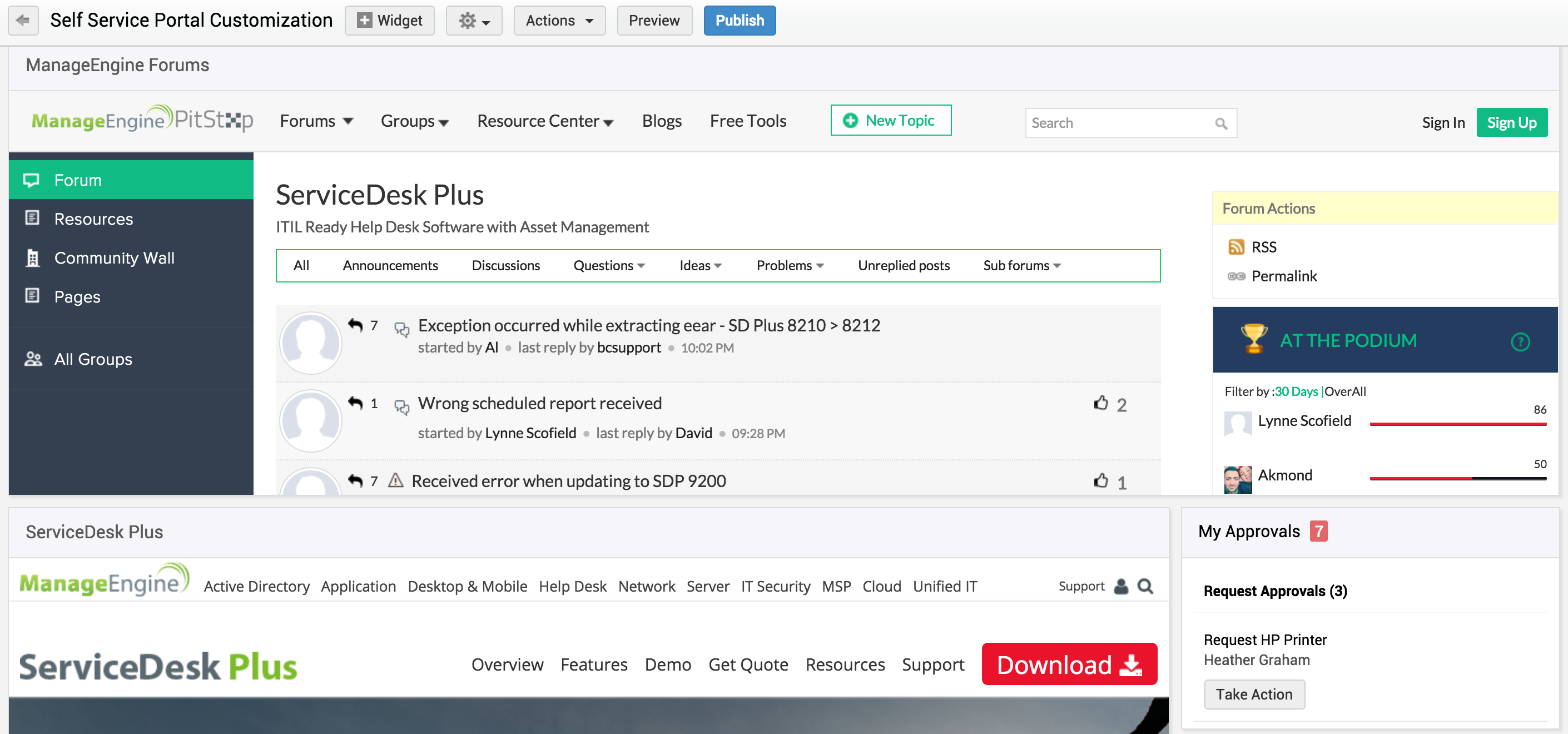
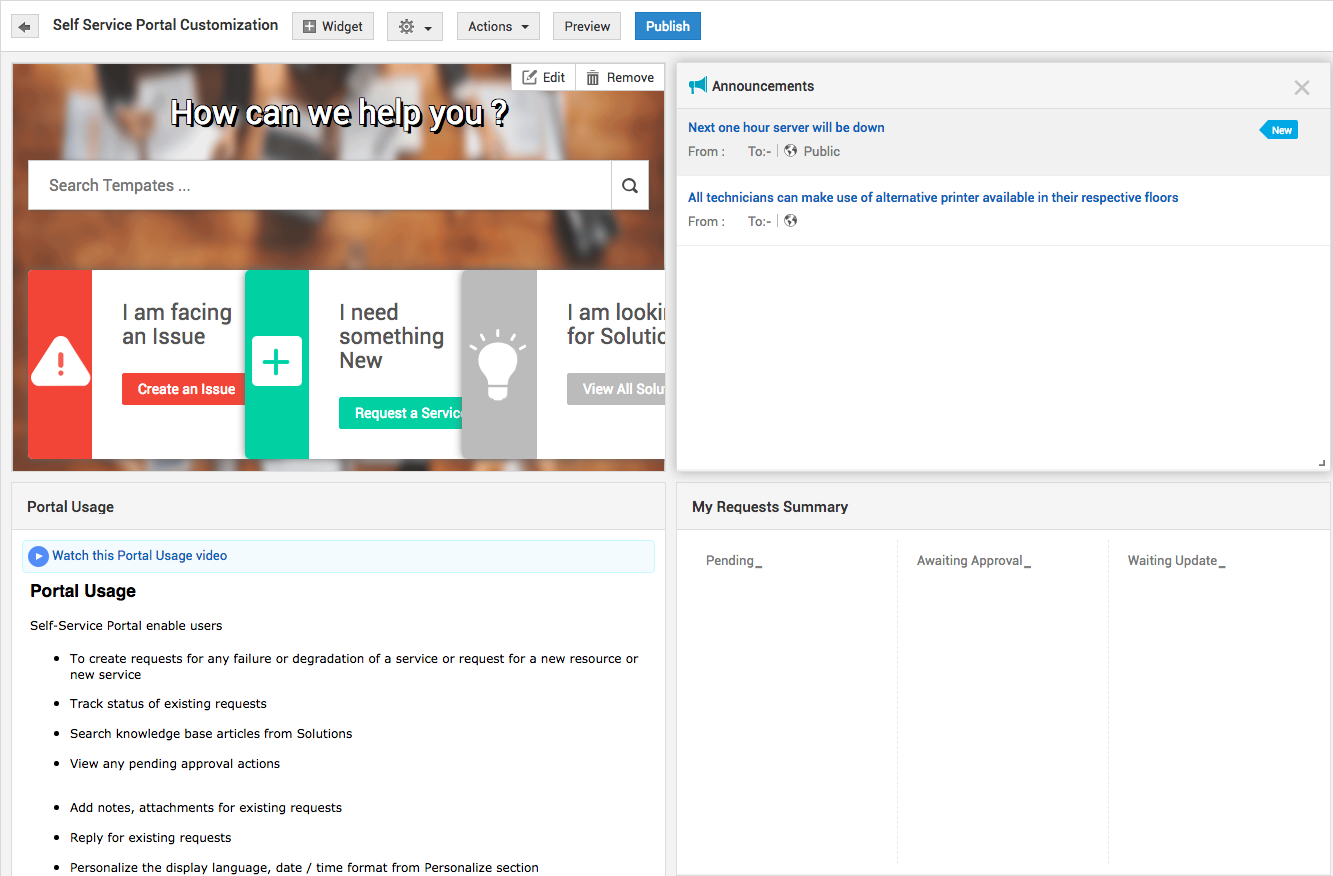
The Self-Service Portal can be designed and customized by the administrator to display it in a way that he/she requires the users to view it. This customization option allows the administrator to re-arrange, restore, add, delete, hide and re-size the widgets. The widgets can be positioned anywhere in the screen and can re-sized through easy drag and extend/compress. To access this, go to Admin > General Settings > Advanced Portal Settings > Customization and click Customize Self-Service Portal.
-
Self-service Portal Customization (Advanced) - For build 14000 or later
Beginning with build 14000, ServiceDesk Plus offers extensive options to customize the home page of the self-service portal based on your business requirements. You can customize the requester home page with advanced options such as panels, buttons, snippets, widgets, etc over pre-defined or custom templates.
With this advanced customization, the SDAdmins can create and save multiple customized pages. However, only one of them can be published.
This is an instance-specific configuration.For fresh installations with build 14000 or newer, the advanced customization replaces the basic customization.For installations migrated to 14000, the existing basic customization will be accessible only if a customized home page is already configured. If the advanced customization options are used to create a new home page, the existing basic customization will be removed.Create or Edit Pages
To customize the requester portal with advanced options,- Go to Admin > General Settings > Advanced Portal Settings > Customization.
- Click Customize Self-Service Portal.
- Open the page editor using one of the following options:
- New page with pre-configured template: Under the All Pages tab, hover over the page of your choice and click
 on the card.
 - New page without pre-configured template: Click Create New card to open the editor, create your own page from the ground up using various customization options.
- Previously saved page: Go to My Pages and hover over the page of your choice and click
 on the card.
- New page with pre-configured template: Under the All Pages tab, hover over the page of your choice and click
- Adding a Template: Click
 and select the preferred template from the list to apply a pre-defined template.
 - Adding background color: Click
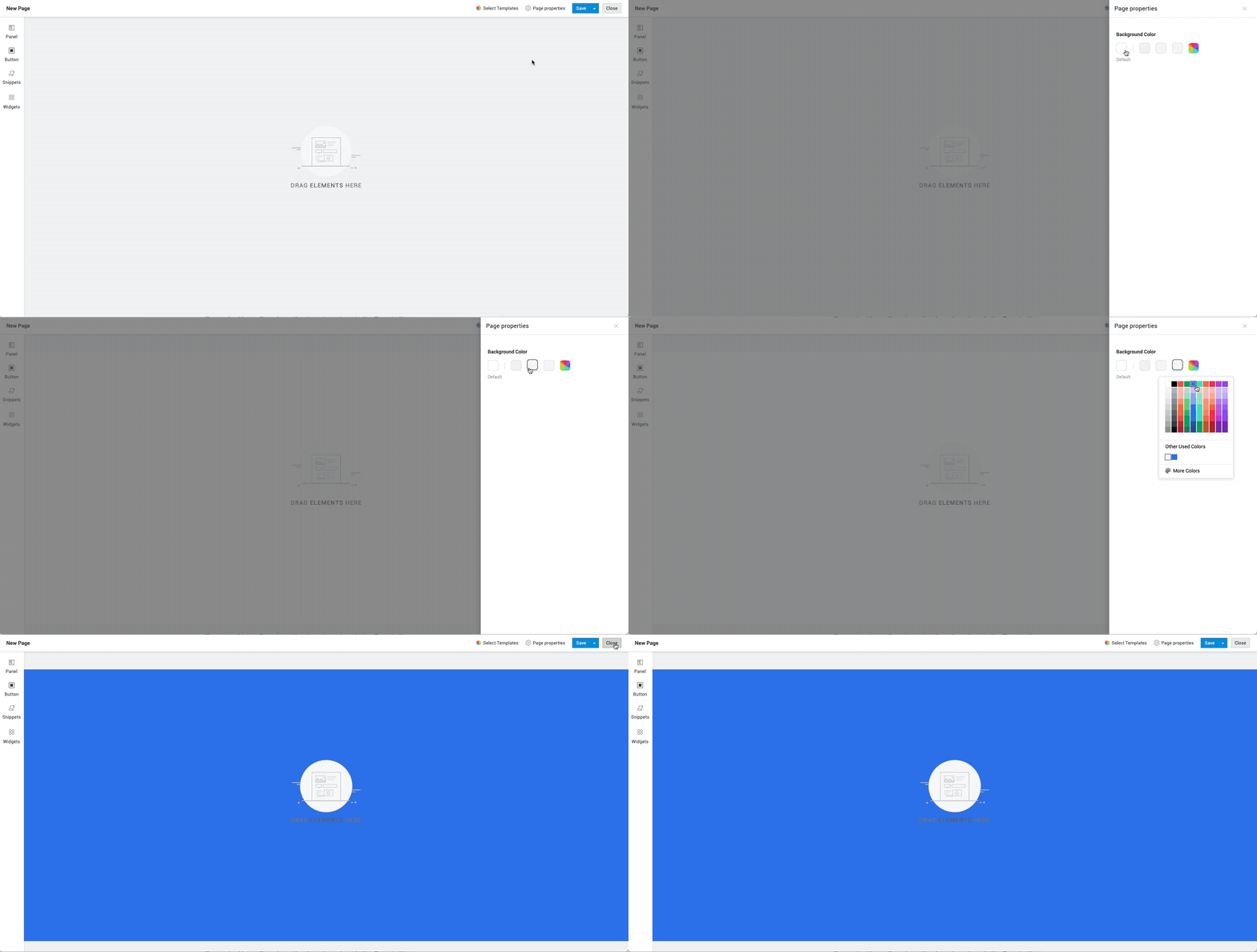
 and choose between pre-selected colors or click
  to choose any color of your choice from the color gamut.
- Add and configure panels, buttons, lists, or snippets to the pages as required. To learn more about the functionalities and configuration of these elements, click here.
- Finally, click Save.
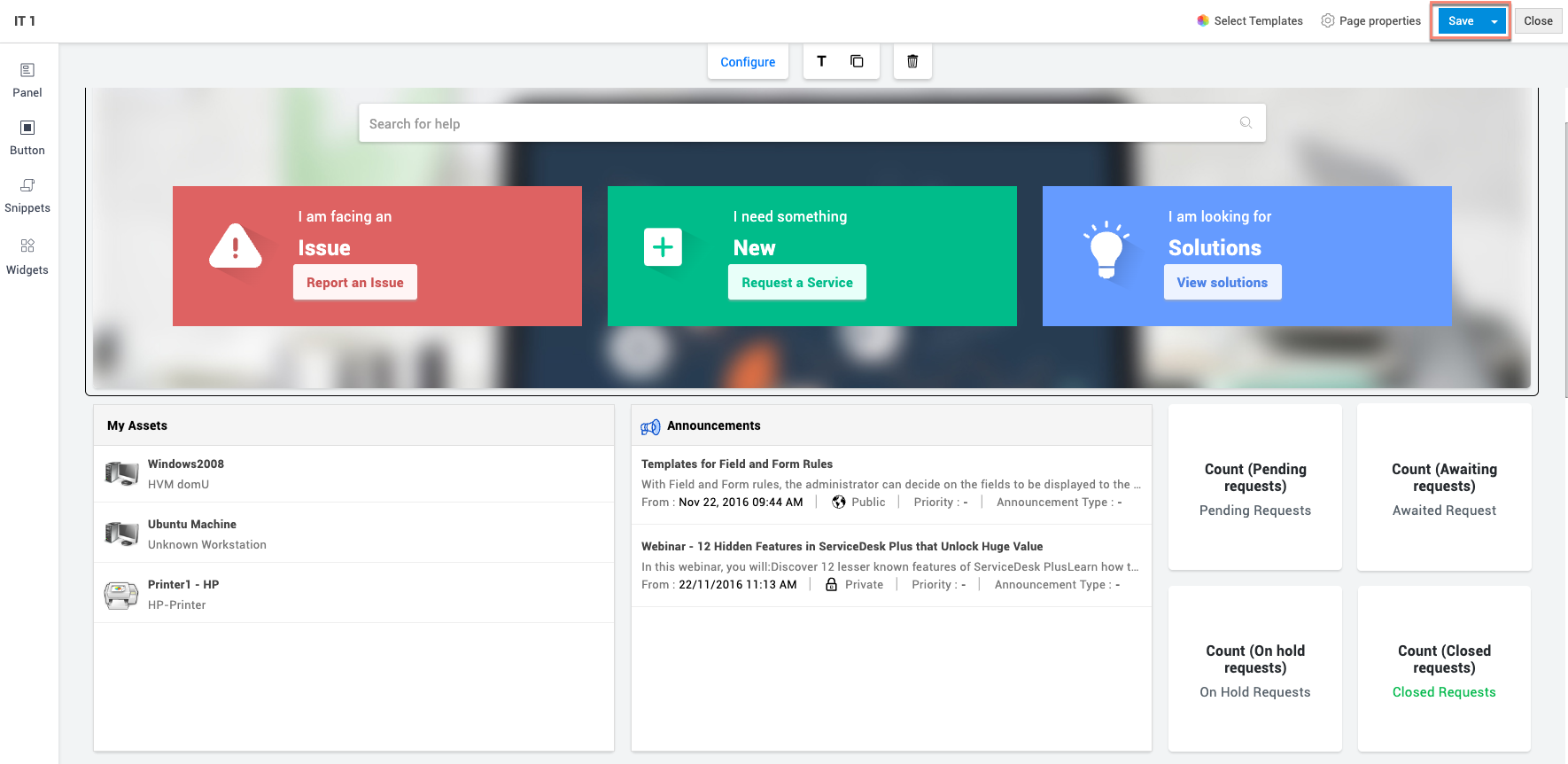 To save the self-service portal home page as a separate page, choose Save as from the drop-down beside the Save button, provide a name, and click Save.To apply customizations to requester home page, choose Save & Set as Requester Home Page from the drop-down beside the Save button.
Configuring Customizable Elements
The page editor includes various customizable elements that add different functionalities and configurations to the requester home page as described below.
Panels
Panels are used to add elements such as textboxes, functions, buttons, etc to the self-service portal home page. By default, the panel option provides pre-defined functions to display information such as the number of tasks, requests, status etc. You can customize the panel by adding other elements to it.
Adding a panel:-
Click
 on the left-side pane of the editor.
 -
Apply pre-customizations like alignment and color if required
-
Choose a panel type: No header or footer
 , Include header
 , and Include footer
 .
. -
Drag your preferred panel to the page editor.
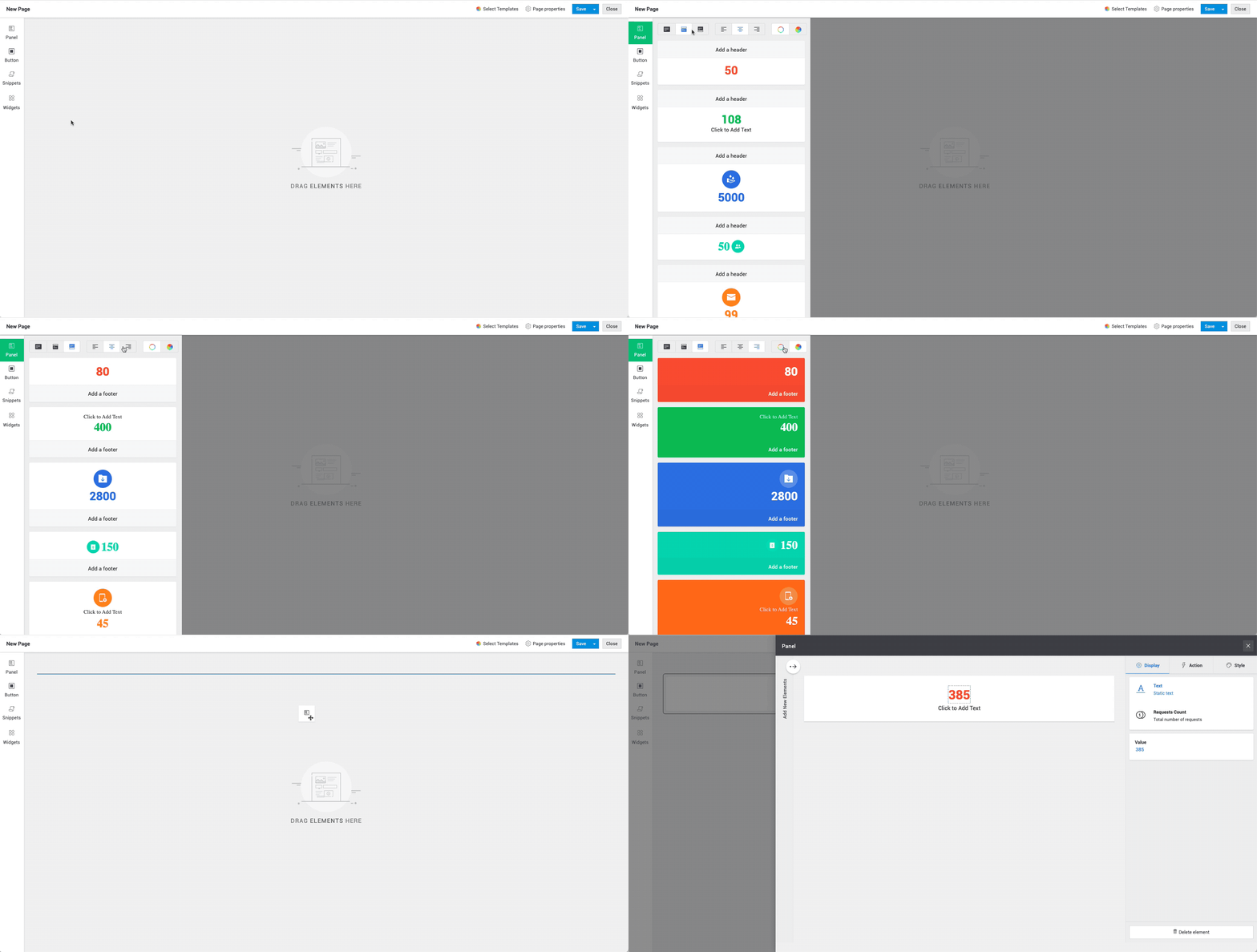
-
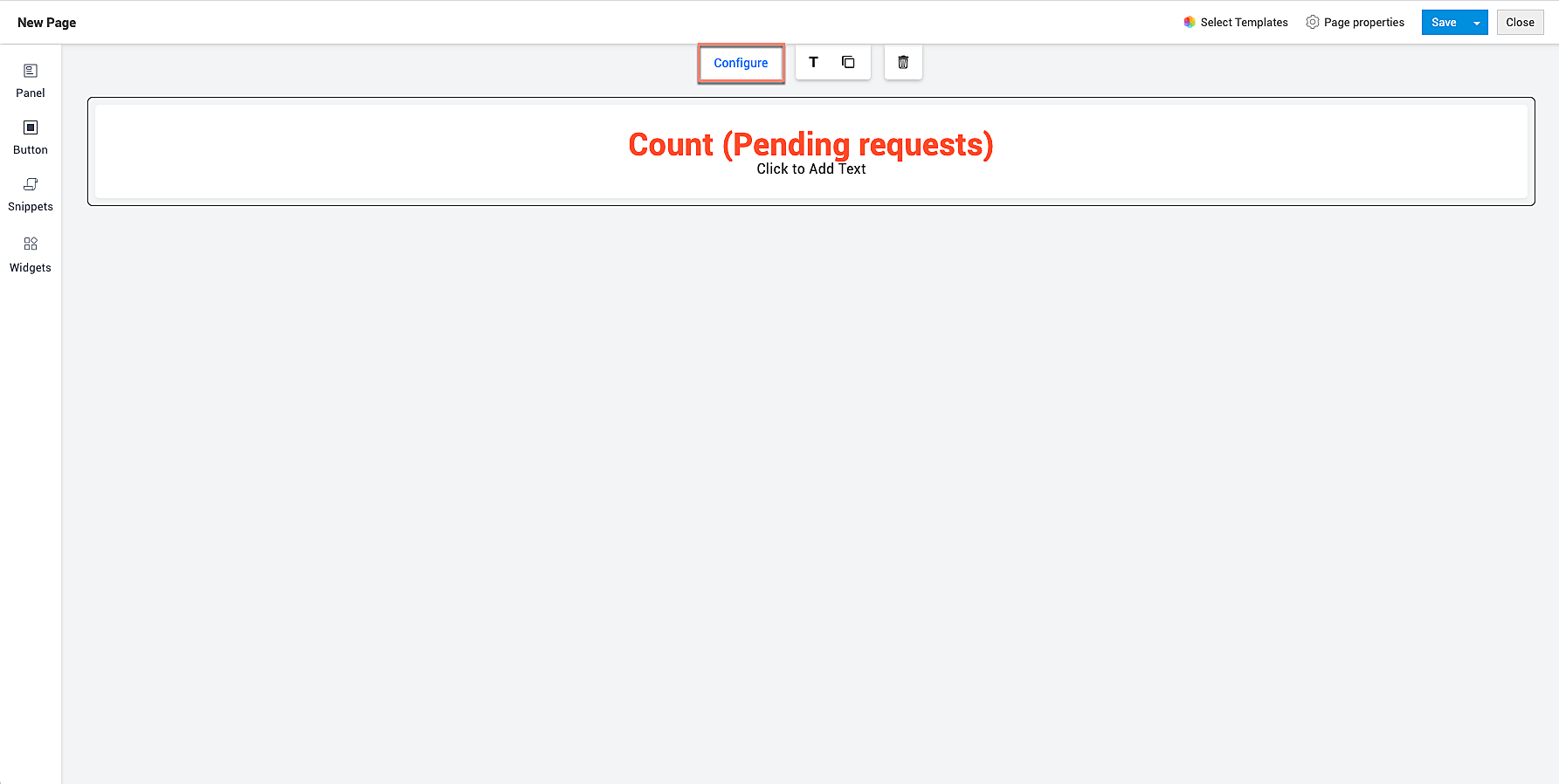
Click Configure by selecting the required/added panel to customize it as described below:
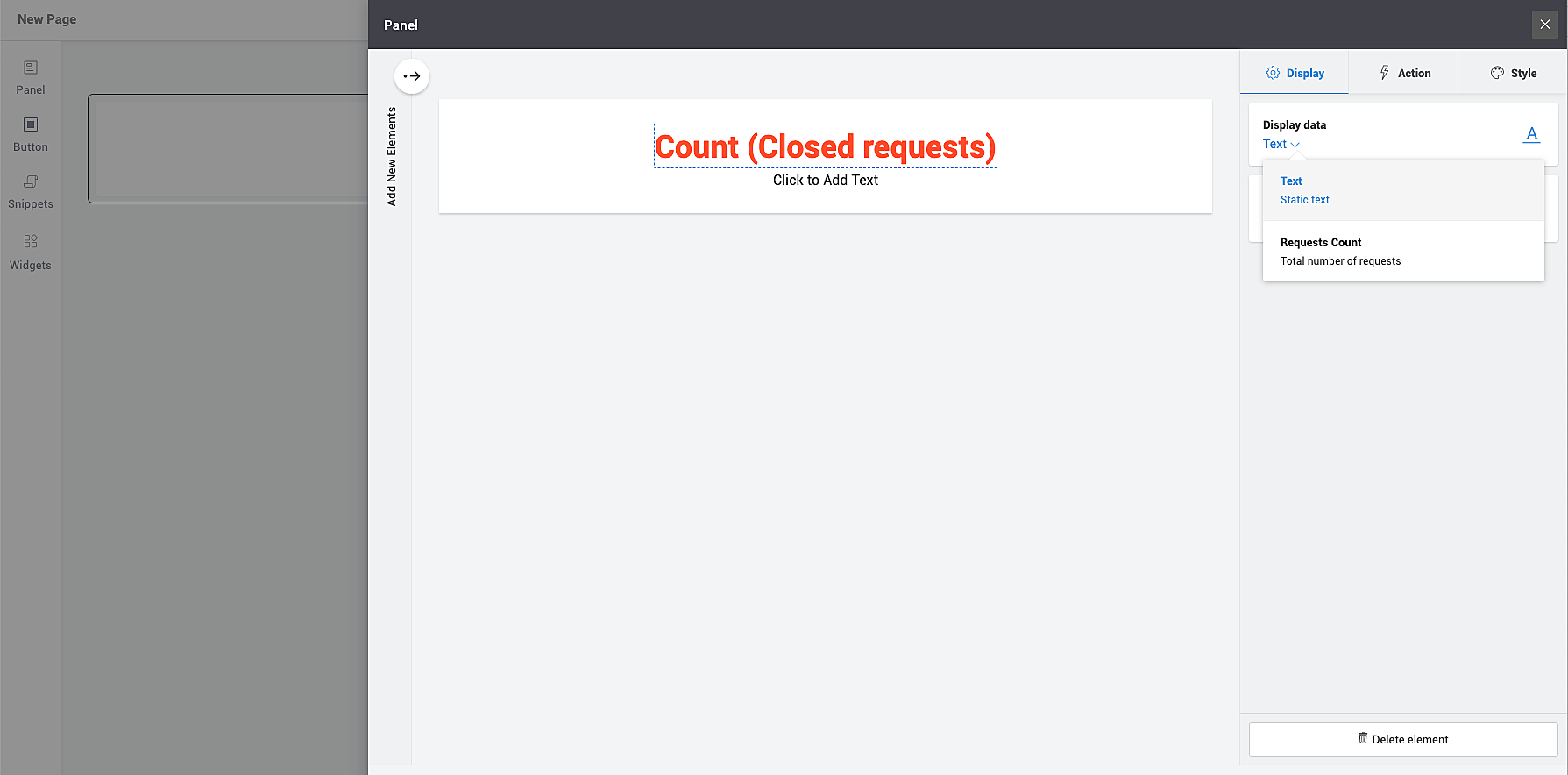
To customize the displayed information, go to Display, and select the required value. The values shown in the Display tab will be contextual as discussed below.
For functions such as task count and request count, you will be shown a non-editable field whose value is fetched based on task or request status. For search box and textbox, a placeholder will be shown.
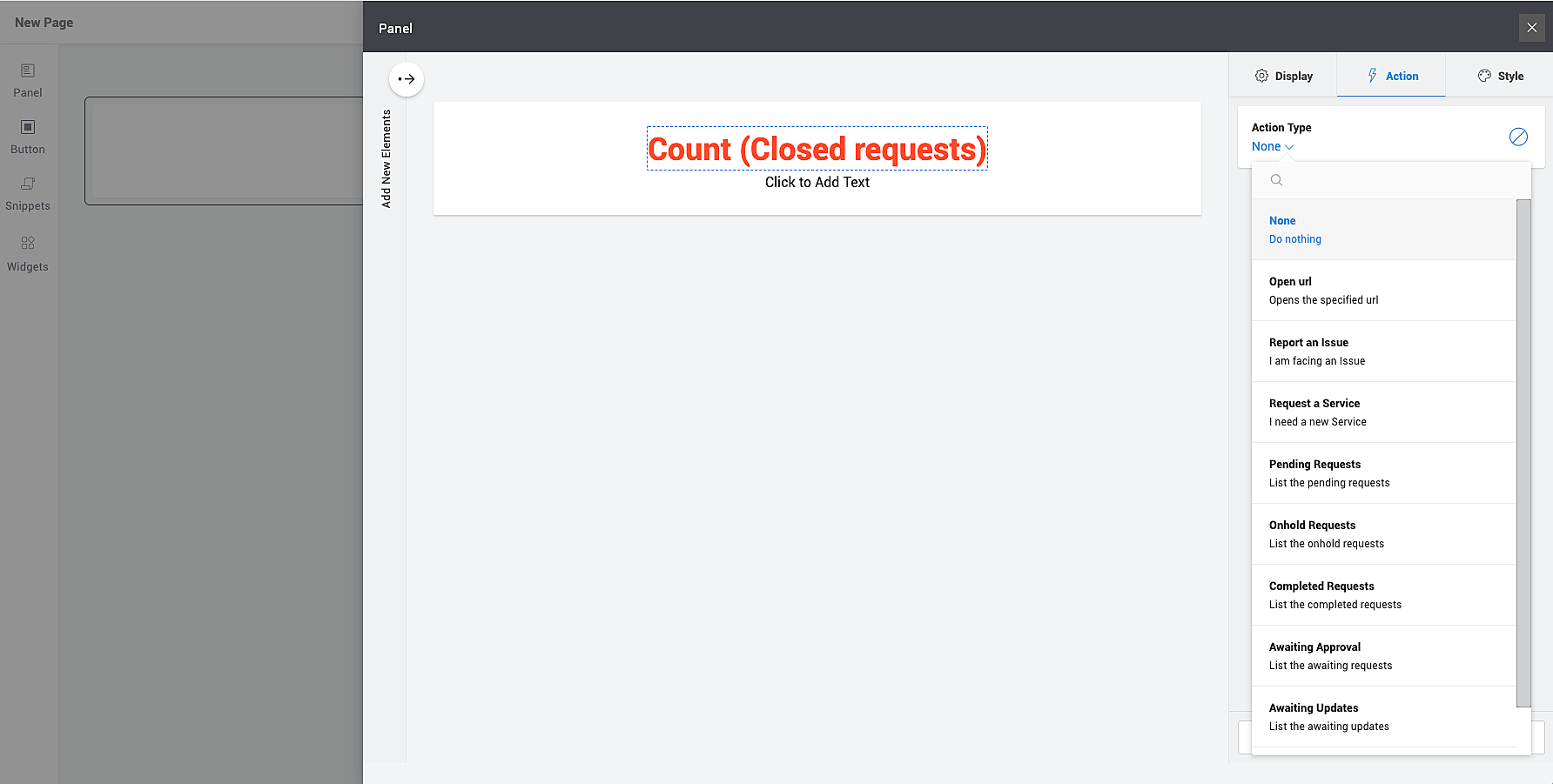
To configure an action, go to Action, and select the action type from the drop-down. The values shown in the Action tab will be contextual depending on the element
selected such as Open URL, Report an Issue, etc.
To configure the styling of the element, go to Style and choose your preferred font, color, shape, size, margin etc, depending on the element selected.
 To add a title to the panel, click
 and provide a title and click Done.To copy a panel, select the panel and click
 .To delete a panel, select the panel and click
 .
.Buttons
Buttons are used to perform an action upon clicking them. You can add buttons to an existing panel or add default buttons with a new panel and customize the panel as required to include other elements.
Adding a button:
To add a button within an existing panel:
- Select the panel, click Configure.
- Click
 and drag the required button to the panel.
To add a new button along with a new panel:
- Click
 on the left-side pane of the editor.
 - Drag your preferred button to the page editor.
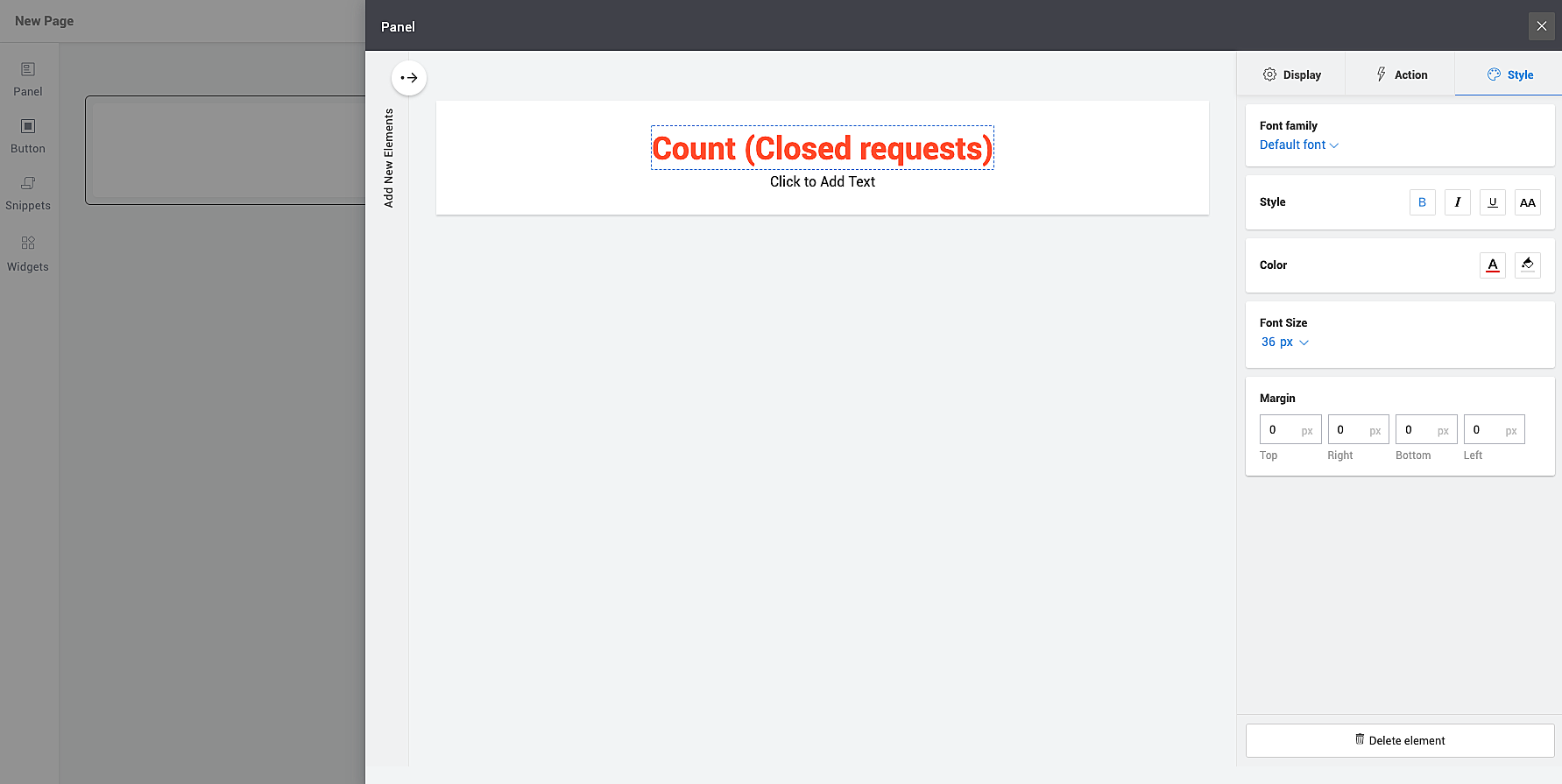
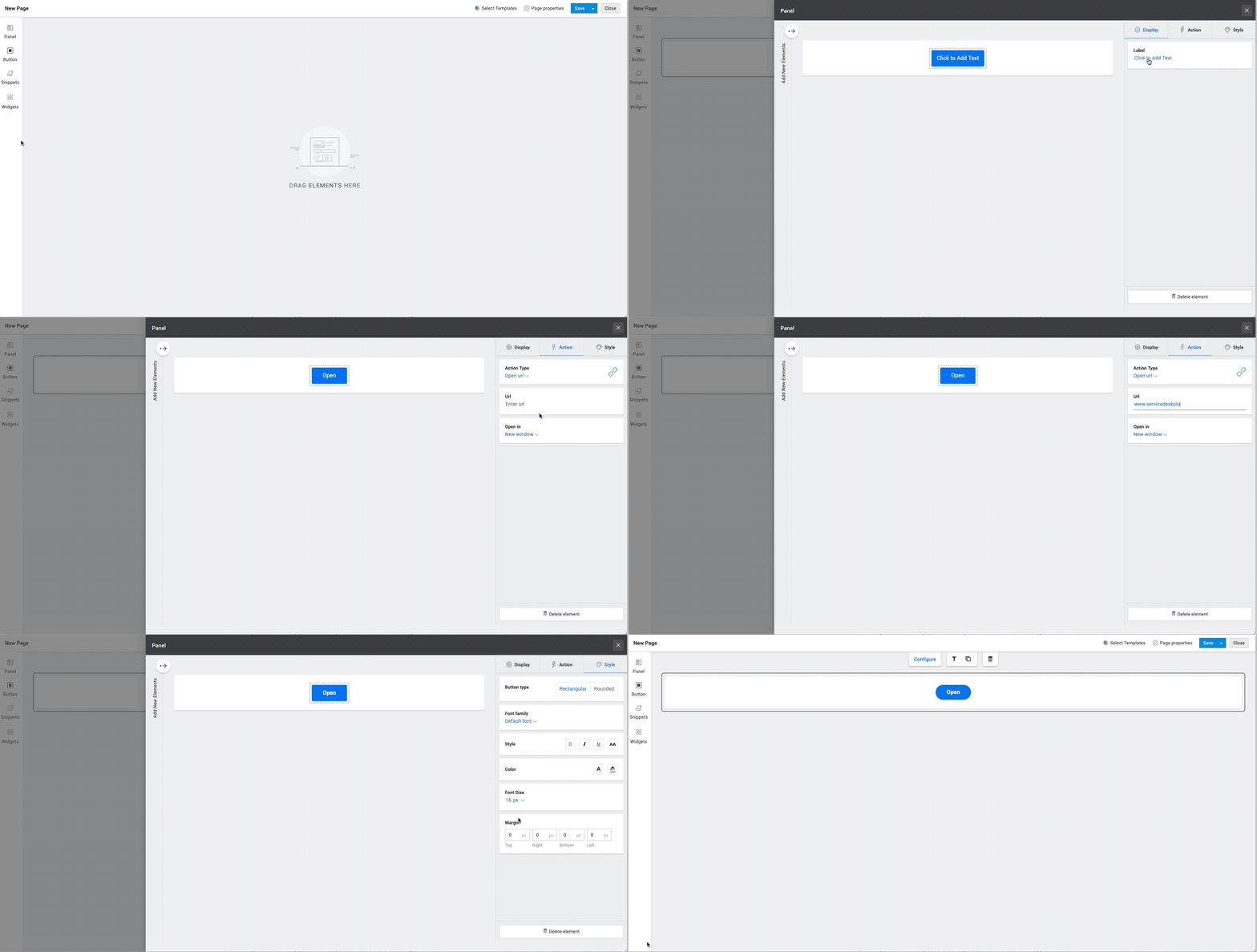
- Click Configure by selecting the required/added button to customize it as described below:
- To customize the displayed information, go to Display, and select the required value.
- To configure an action, go to Action, and select the action type from the drop-down. The values shown in the Action tab will be contextual depending on the element selected such as Open URL, Report an Issue etc.
- To configure the styling of the element, go to Style and choose your preferred button type, font, color, shape, size, margin, etc.
-
To add more elements to the panel, click
and select an element type (text, image, button, or search box) and drag your preferred element to the panel. -
To resize the panel or the elements within the panel, click the edge of the panel/element and drag it to the preferred location.
-
To arrange elements within the panel, drag the elements to the preferred location within the panel.
To add a title to the panel, click and provide a title and click Done.To copy a panel, select the panel and click .To delete a panel, select the panel and click
 .
.Widgets
Widgets allow you to add the default widgets such as My Summary, Announcements, My Assets, etc. These widgets are non-customizable. However, you can add a title and adjust its dimensions. To add a widget, click
 and drag a widget to the preferred location on the page.
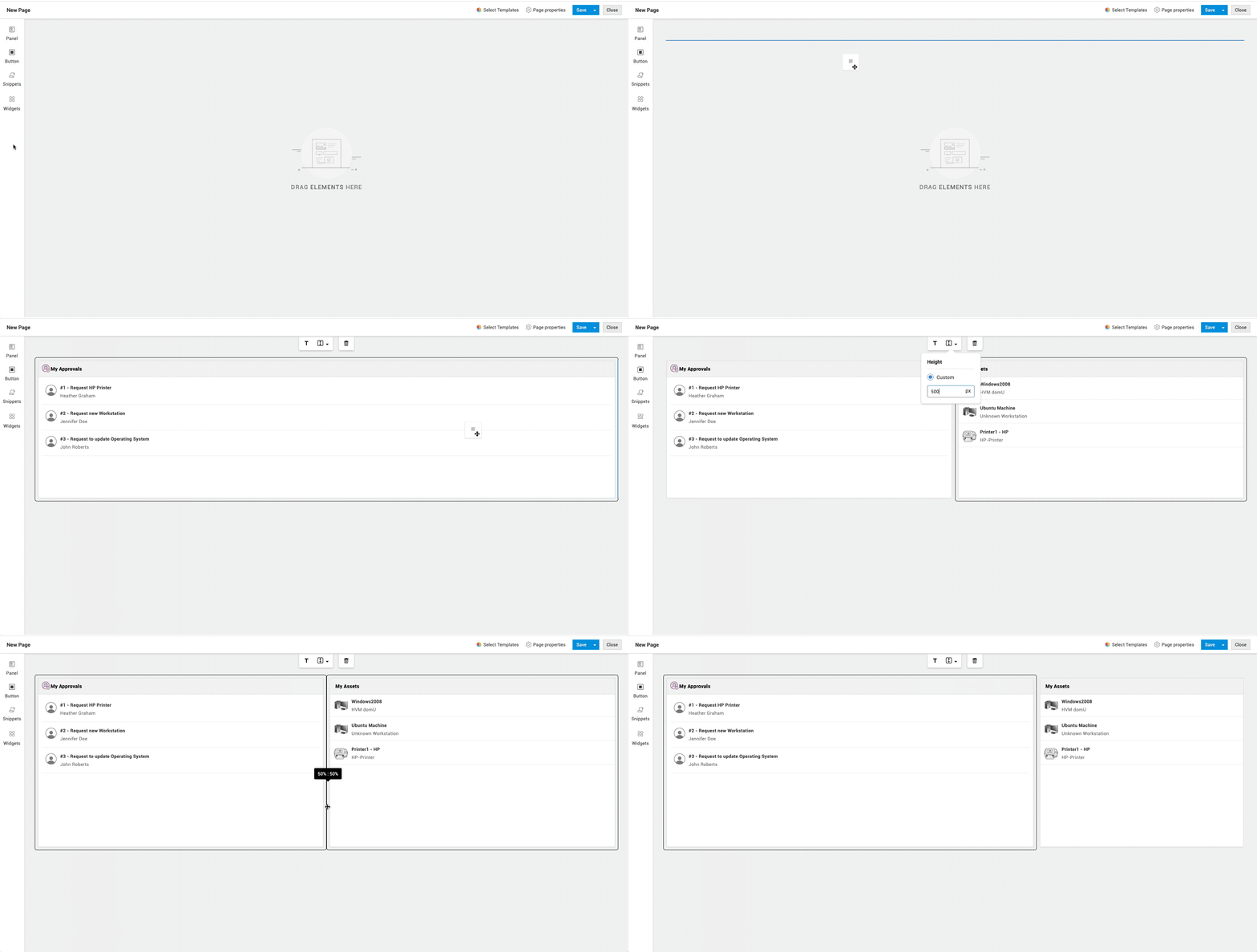 To add a title to the widget, click and provide a title and click Done.To delete a widget, select the panel and click.
Snippets
Snippets are containers used to render external links or add HTML/Deluge scripts to create custom views.
To add a snippet,
- Click
 and drag a snippet type container to the preferred location on the page.
- For HTML Snippet Container: Add your code to the HTML editor and click Save.
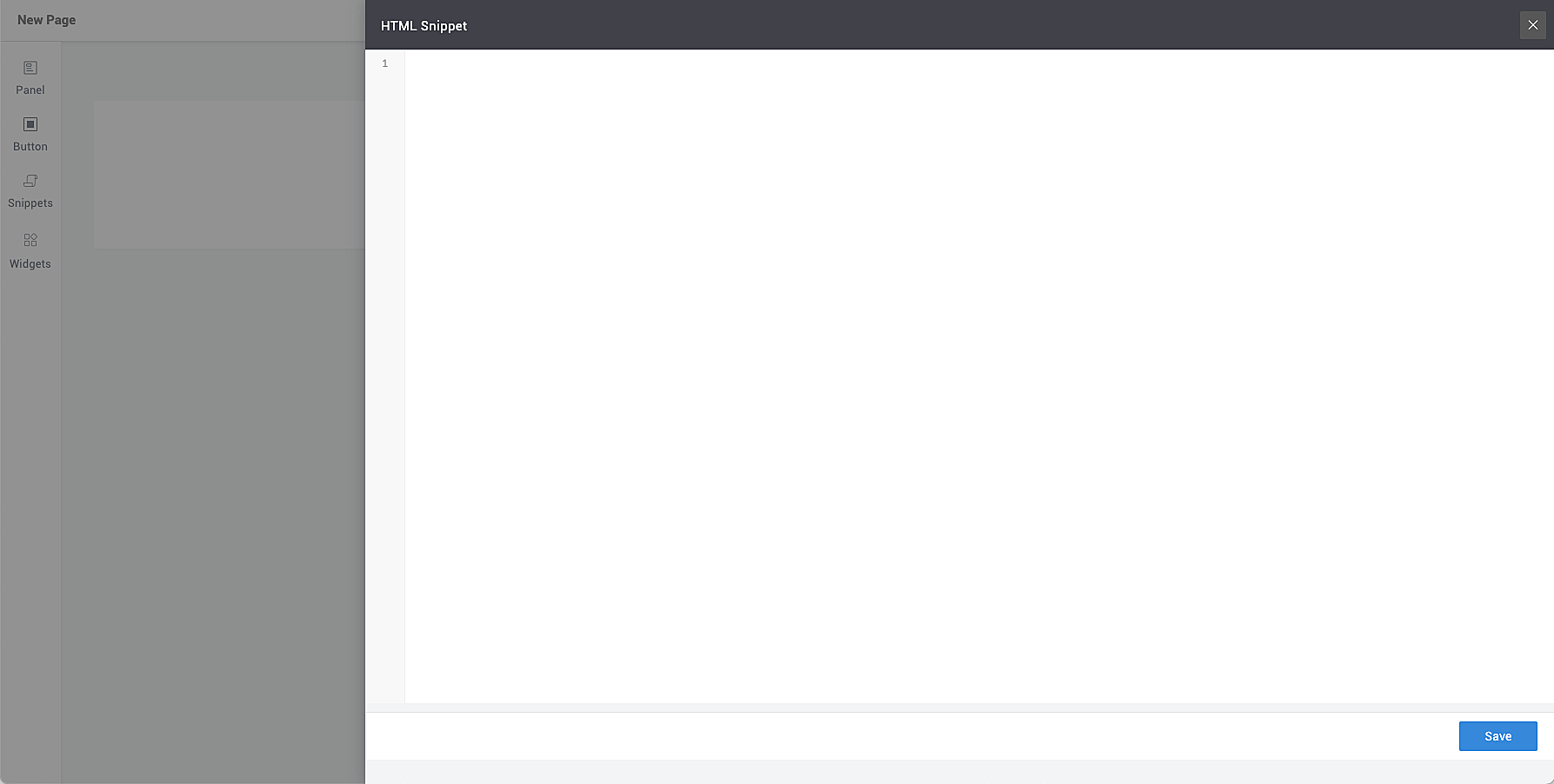
- For Embed container: Add a URL using iFrame tag and configure the dimensions using Height and Width attributes.
- For HTML Snippet Container: Add your code to the HTML editor and click Save.
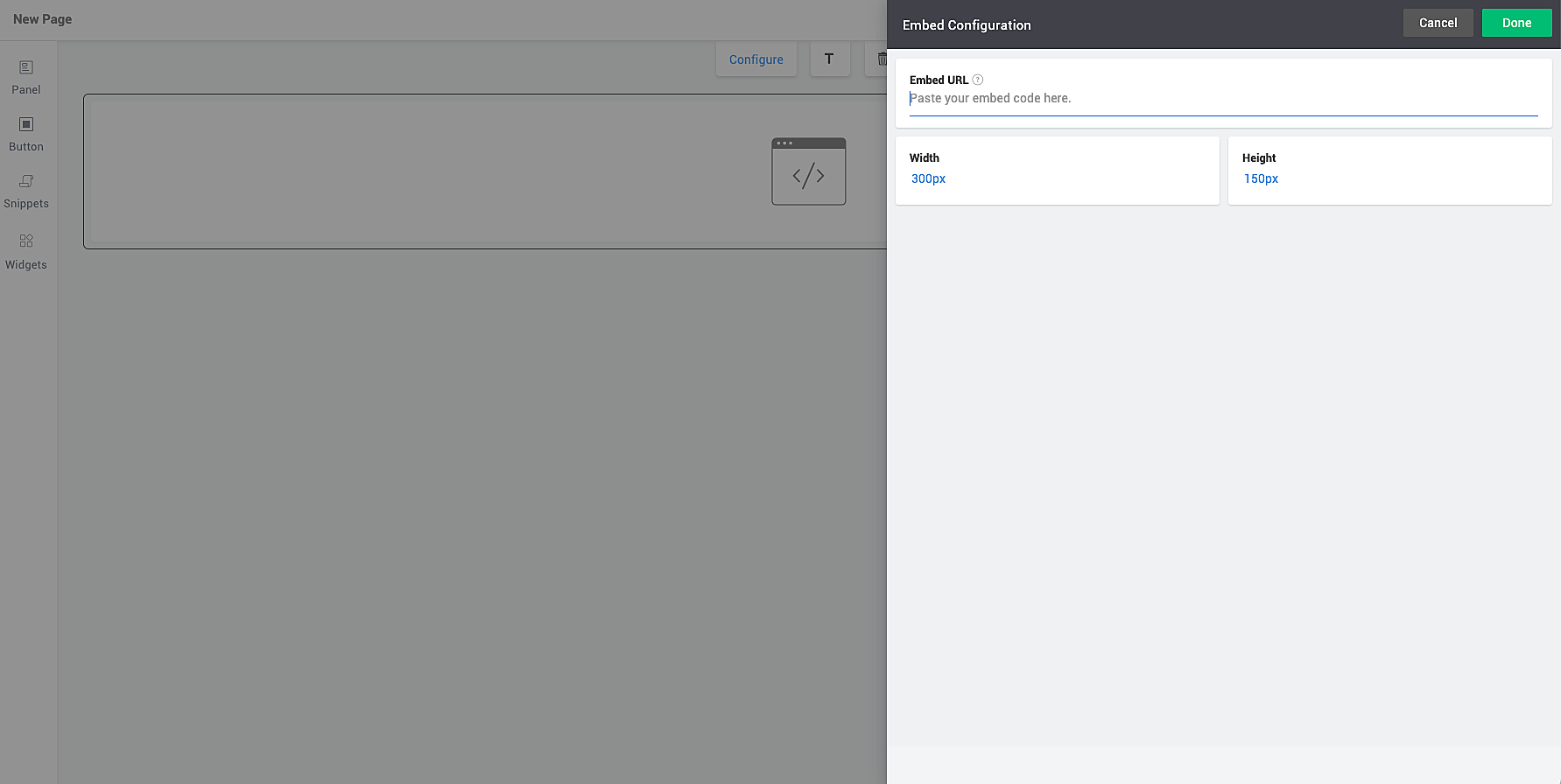
- Click Done.
To change the URL, select the snippet, click Configure, and click Change.To modify dimensions, select the snippet, click Configure, and change Width and Height.To change alignment, select the snippet, choose your preferred option from the alignment icon.To add a title to the snippet, click and provide a title and click Done.To delete a snippet, select the panel and click.Add multiple elements to a panel
-
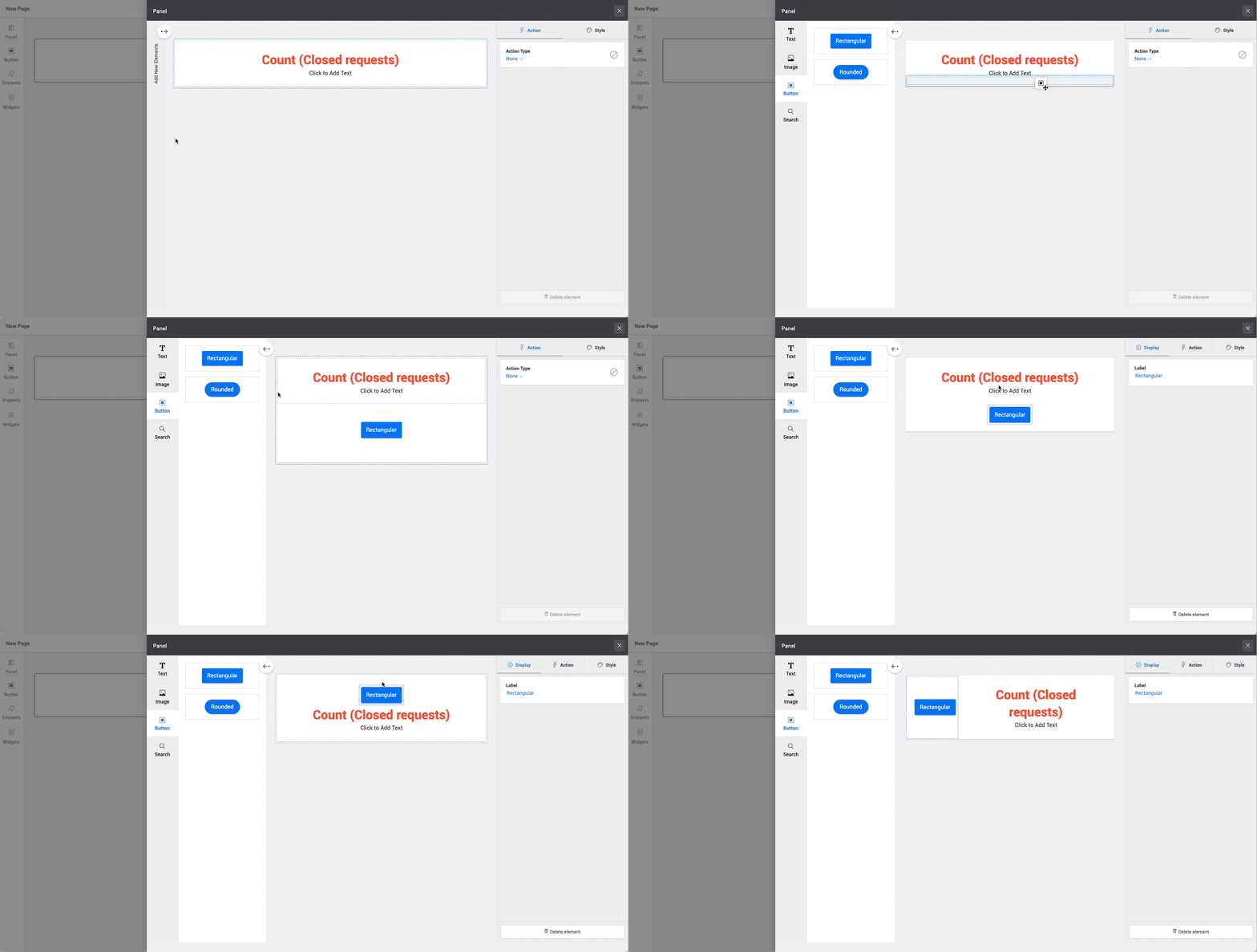
To add more elements to the panel, click
 and select an element type (text, image, button, or search box) and drag your preferred element to the panel.
 -
To resize the panel or the elements within the panel, click the edge of the panel/element and drag it to the preferred location.
-
To arrange elements within the panel, drag the elements to the preferred location within the panel.
Manage Pages
You can manage your pages from the Advanced Customization page. To access it, go to Admin > General Settings > Advanced Portal Settings > Customize Self-Service Portal and click Customize Self-Service Portal.
- To find your preferred page using keywords, use the search box on the top-right.
- To preview a page, hover over the page and click
 . Note: You can customize the preview using the toggle Show header and navigation menu.
 - To duplicate a page, hover over your preferred page, click
 and select Duplicate.
 - To rename a page, hover over your preferred page, click , click Rename, provide a name, and click Save.
- To delete a page, hover over your preferred page, click , click Delete and confirm the action.
- To preview a page, hover over the page and click
 .
.
-
Self-service Portal Customization (Basic)
- Steps to customize Self-Service Portal
- Adding Widgets
- Setting Properties
- Change Theme
- Actions on Drafts
- Preview the Portal
- Publish the customized settings

Steps to customize Self-Service Portal:
Click 'Customize Self-Service Portal'. The Self Service Portal Customization window will be displayed with five options:
- Widget: My Request Summary, Announcements, Popular Solutions, Submit Your Request, My Approvals, My Assets, Portal Usage Video & Help document are the default widgets. Click + Widget to add the default widget to the portal.
-
My Assets widget lets you list all the assets associated with a user in the Requester’s self-service portal and allows a requester to raise an issue for an associated asset right from the My Assets widget.
- Find service/incident templates easily with the new Search widget. You can also edit the HTML to display any specific option to the requester such as Solutions, Issues, or How-tos.
-
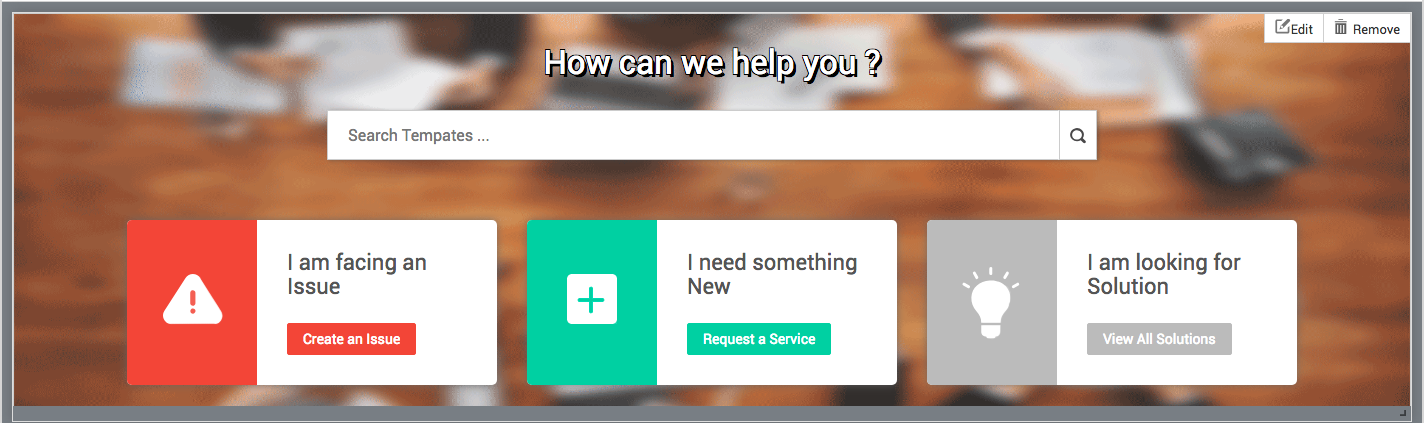
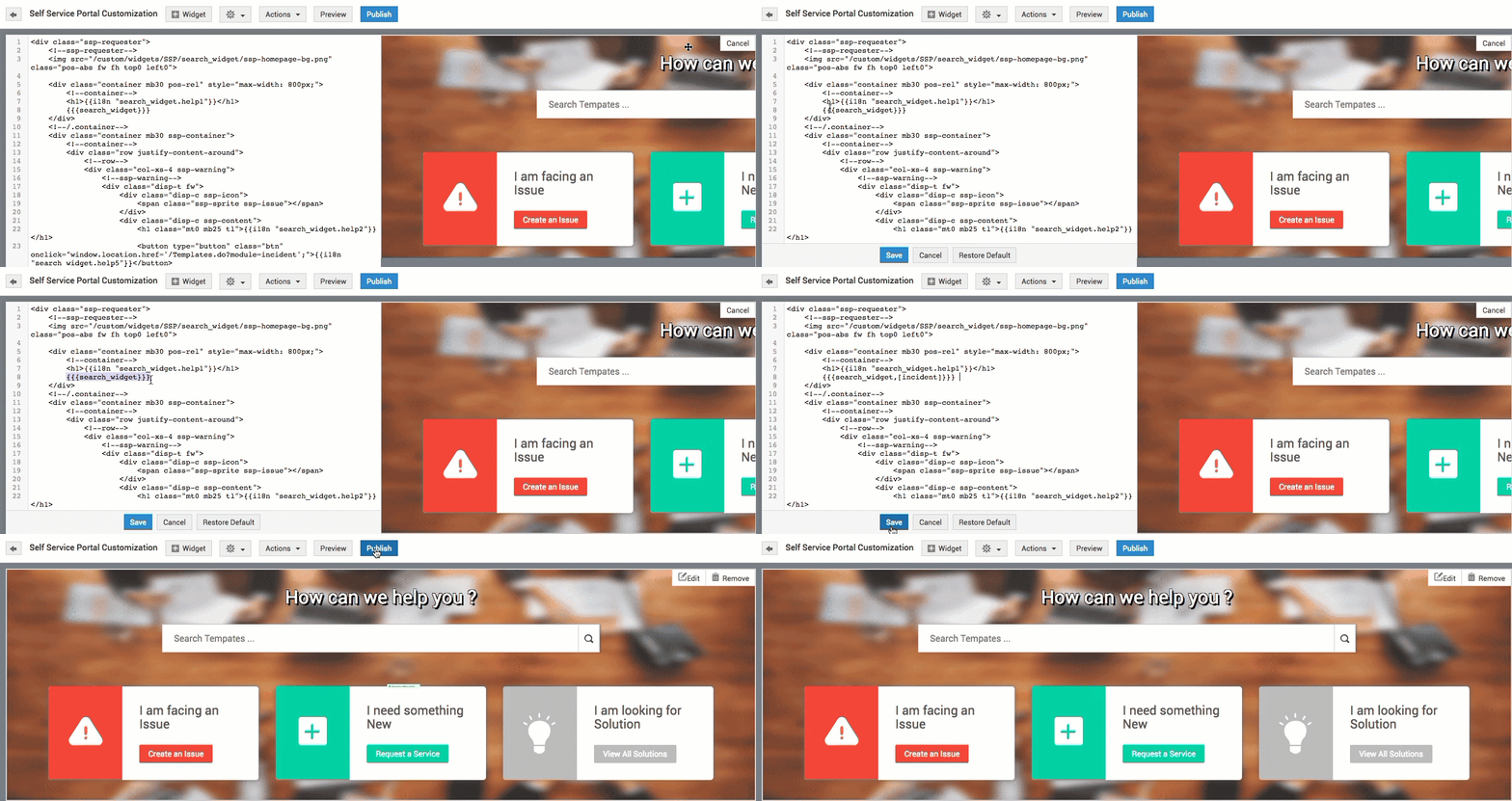
To allow requesters to search through templates, click Edit in the upper-right corner, locate {{{search_widget}}}, and add {{{search_widget,[incident]}}} or {{{search_widget,[service]}}} to display incident or service templates, respectively.
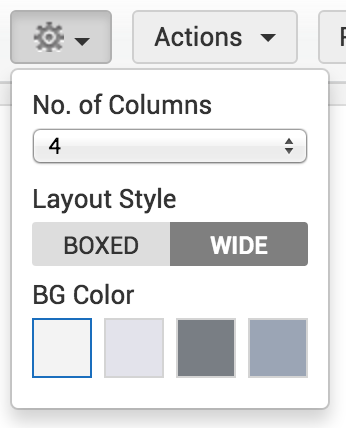
- Properties: Upto four columns can be displayed with desired layout and background color.
- Actions: Drafts pertaining to design can be cleared/saved and changes can be discarded.
- Preview: Preview displays a wholesome view of the page before saving the desired settings.
- Publish: The customization done will be saved and applied and will be visible to all users.

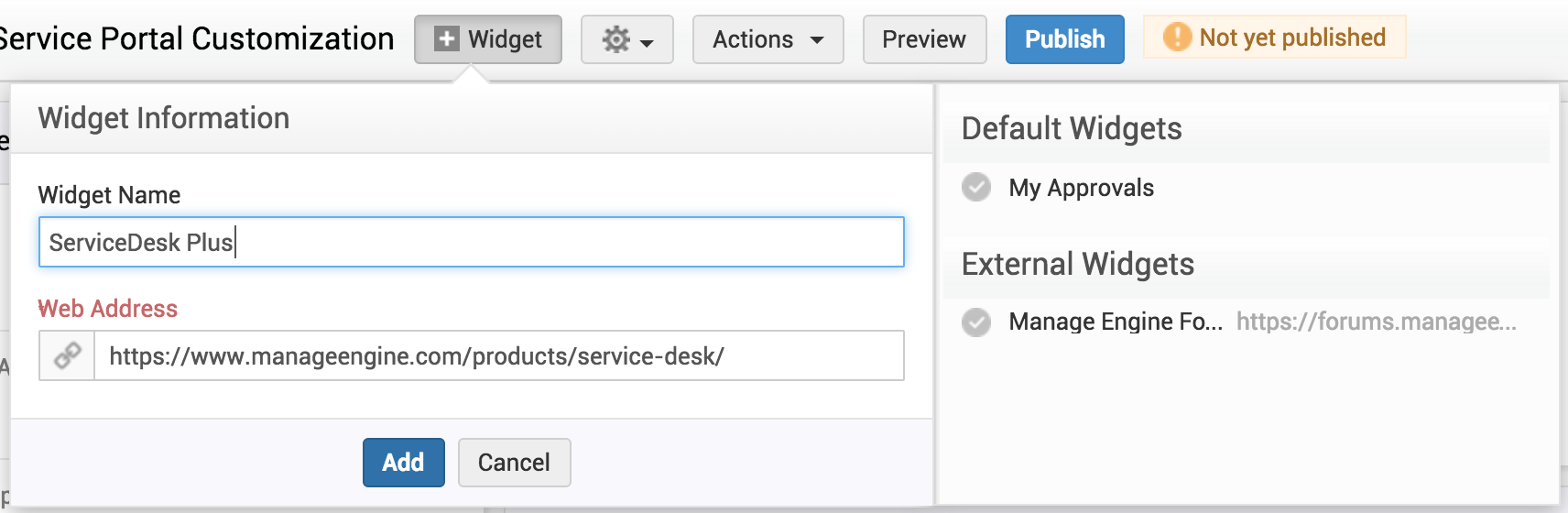
- Click 'Widget'.
- Enter the widget name and its corresponding web address in the space provided and click 'Add'.
- The newly added widget(s) will be displayed in the portal and can be re-sized and positioned accordingly.
- If any default/external widget is removed, it will be displayed under removed default/external widgets. All removed default widgets and the last three removed external widgets will be listed. The removed widgets can be added back by just clicking on the widget from the removed widgets list.
Note:
An alert message 'Not yet published' will be displayed until the design is published.
If 'Do you wish to hide solutions tab from Requester?' is set to 'Yes', ‘Popular Solutions’ widget will not be available in the self-service portal customization page. If 'Do you wish to hide solutions tab from Requester?' is set to ‘No’ and if the portal is already published or saved without the ‘Popular Solutions’ widget, then the ‘Popular Solutions’ will be available under the removed default widgets list.
- Click 'Properties'. Choose the required number of columns and the layout style.
- The layout of the Self-Service Portal can be either "boxed" or "wide". Wide layout occupies the whole screen width while the boxed layout will make the Self-Service Portal 1328 pixels wide.
- Choose the background color for the Self-Service Portal. On clicking each color, a preview along with the selected color will be displayed.
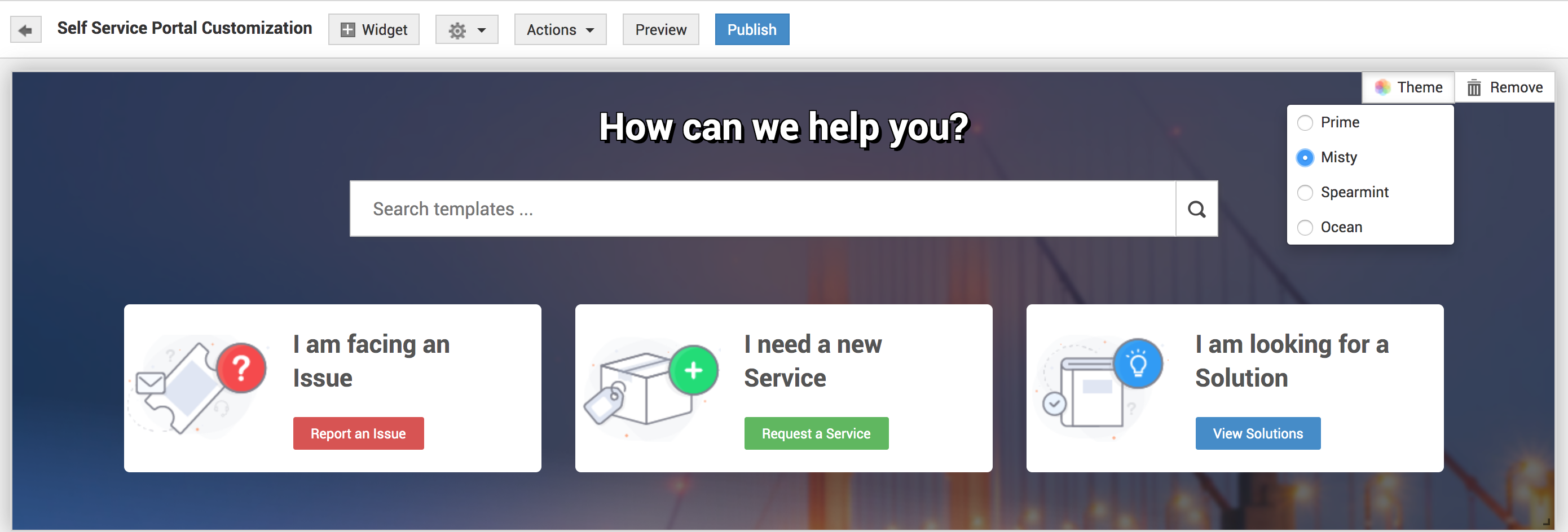
Use the list of colorful themes given to change the way the self-service portal looks. You have 4 vibrant themes to choose from.
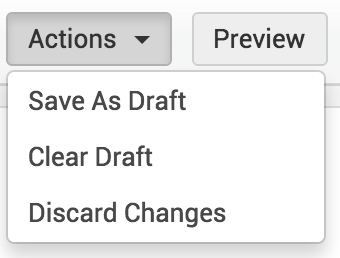
After setting the properties, Click on 'Actions' drop-down.
- Save As Draft: The customized design will be saved as draft but will not applied until 'Publish' is chosen.
- Clear Draft: The previously saved draft will be deleted and the newly published version of the Self-Service Portal will be displayed.
- Discard Changes: The changes applied so far will be deleted and the Self-Service Portal will be restored to its already existing state.
Note:
The administrator can save only a single draft. After publishing the draft, the saved draft will get removed from the 'Drafts'.
- Click 'Preview' to examine the customized Self-Service Portal. The preview of the Portal will be displayed.
- If 'My Approvals' widget is selected, then a version with 'Requester with Approval Permission' and a version without 'My Approvals' will be displayed alternately.
- To stop viewing the preview, click 'Close Preview'.
Publish the customized settings
- Click 'Publish' to save the customized changes and display the customized portal to all the users.