Zoho Telephony integration allows technicians to contact fellow technician users by placing and receiving calls directly from ServiceDesk Plus. Zoho Telephony offers a wide selection of telephony providers and a script-free setup.
Prerequisites
-
A valid Zoho account.
-
Admin access to ServiceDesk Plus.
-
Internet access to connect with Zoho’s cloud services.
Key Features
-
Initiate calls from the request details page or from the dial pad in the footer menu
-
Receive calls directly inside the application
-
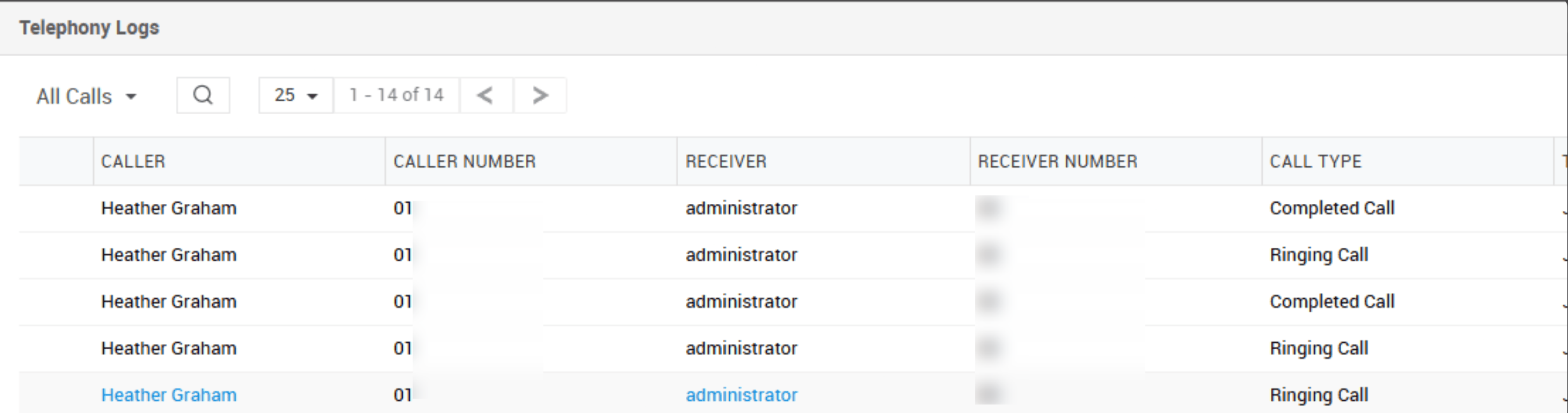
View detailed call logs
-
Choose from a wide range of providers from the marketplace.
-
Select a single vendor for the entire organization or multiple vendors for multiple user groups.
Configuring Zoho Telephony Integration
-
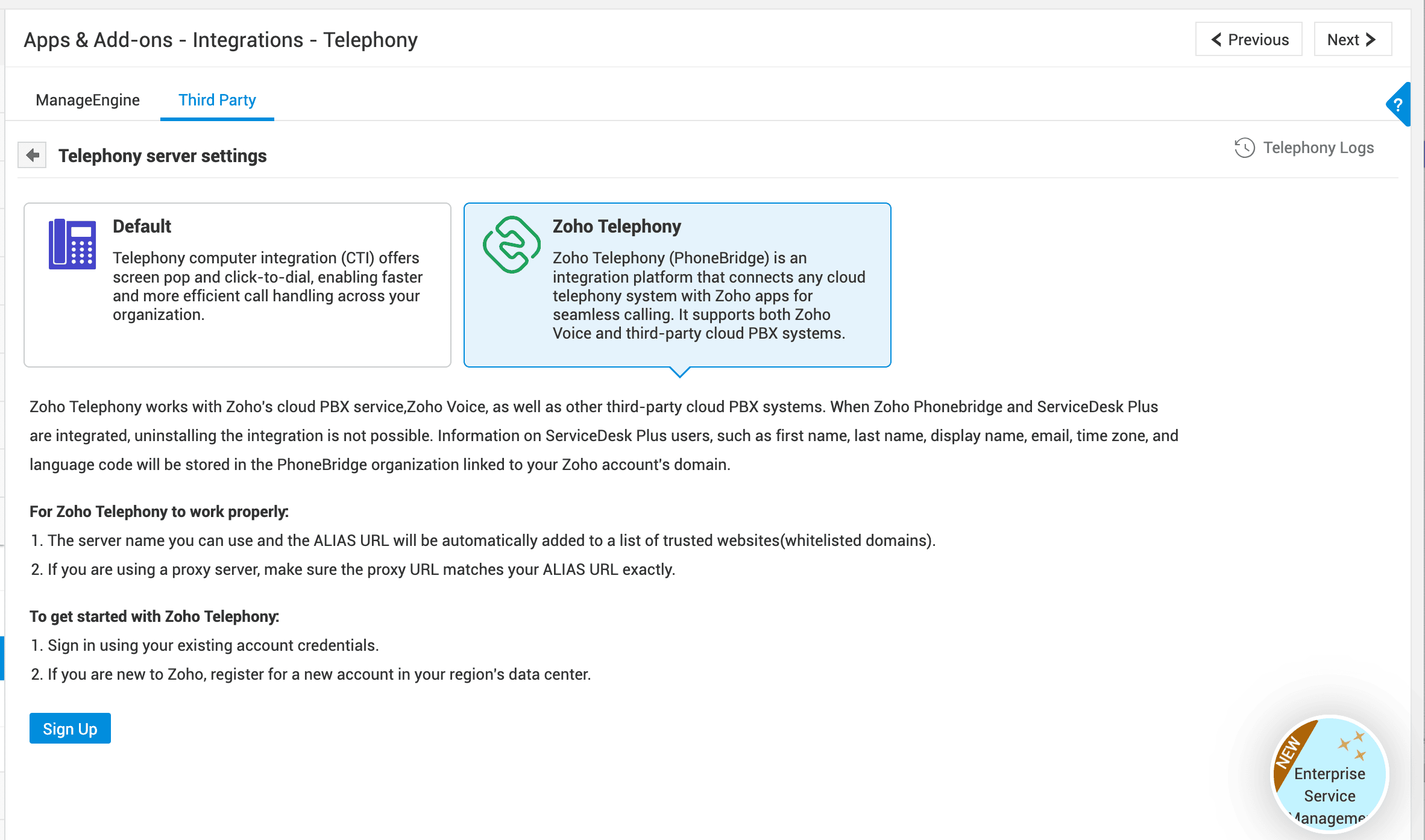
Go to ESM Directory > Telephony > Zoho Telephony (ESM setups) or Admin > Apps & Add-ons > Integrations > Third Party > Telephony > Zoho Telephony (Non-ESM setups).
-
Click Sign Up or if you have an existing Zoho account, you can sign in.
-
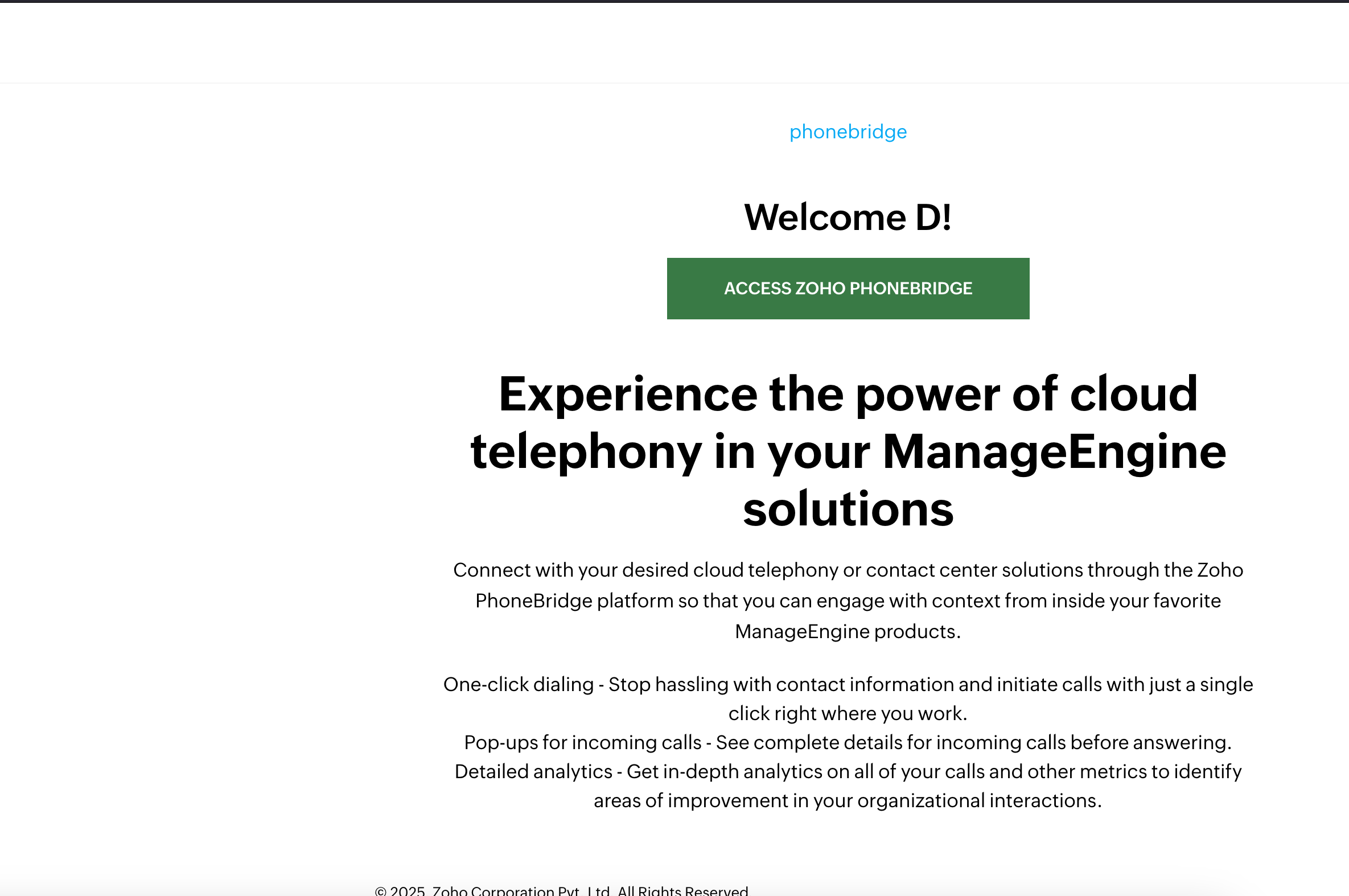
Once you sign in using your Zoho account, you will be redirected to Zoho PhoneBridge welcome page.
-
Click Access Zoho PhoneBridge on the welcome page.
-
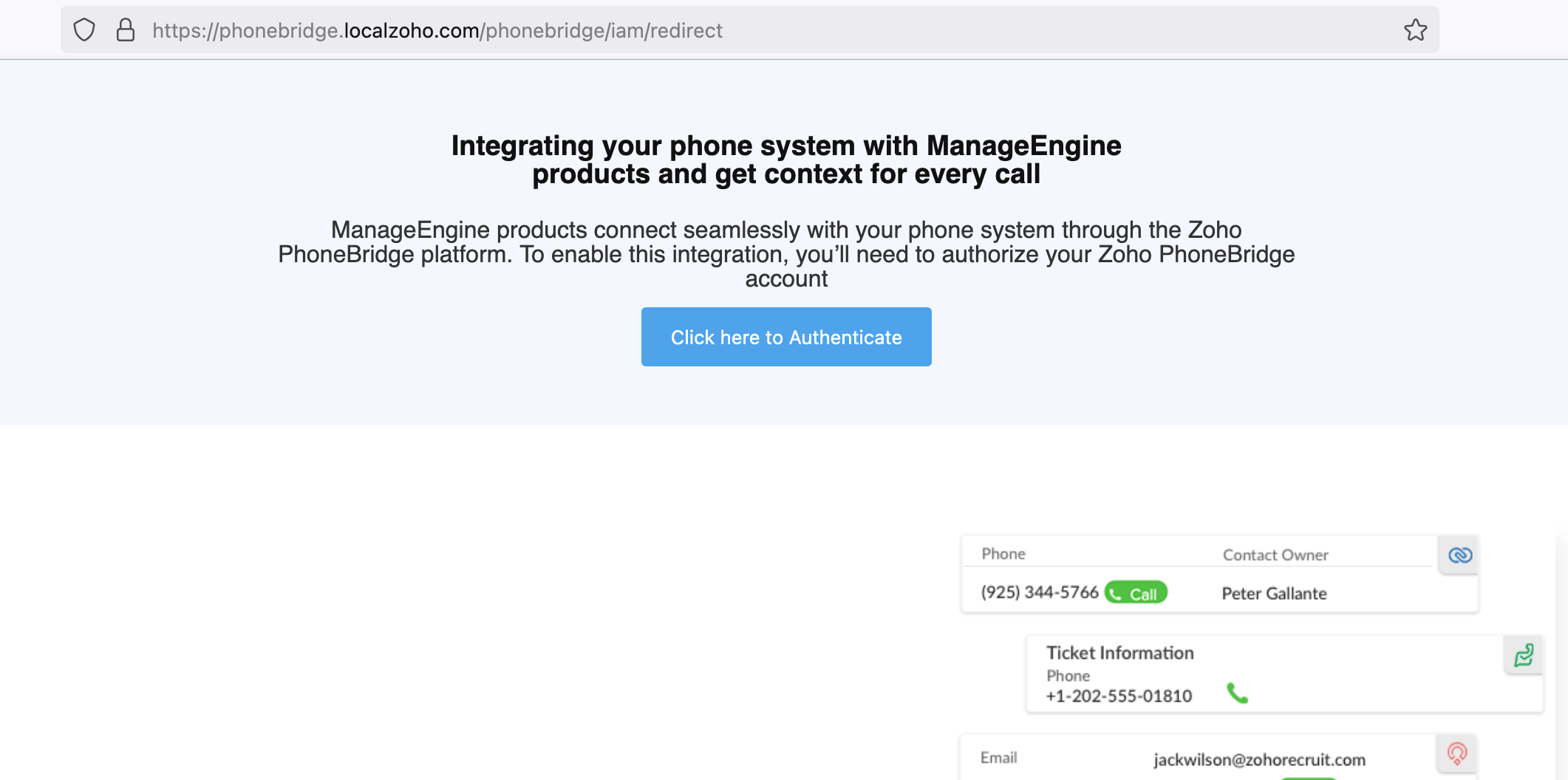
Click Click here to Authenticate to authorize access.
-
Review the required permissions and click Accept on the OrgClient page.
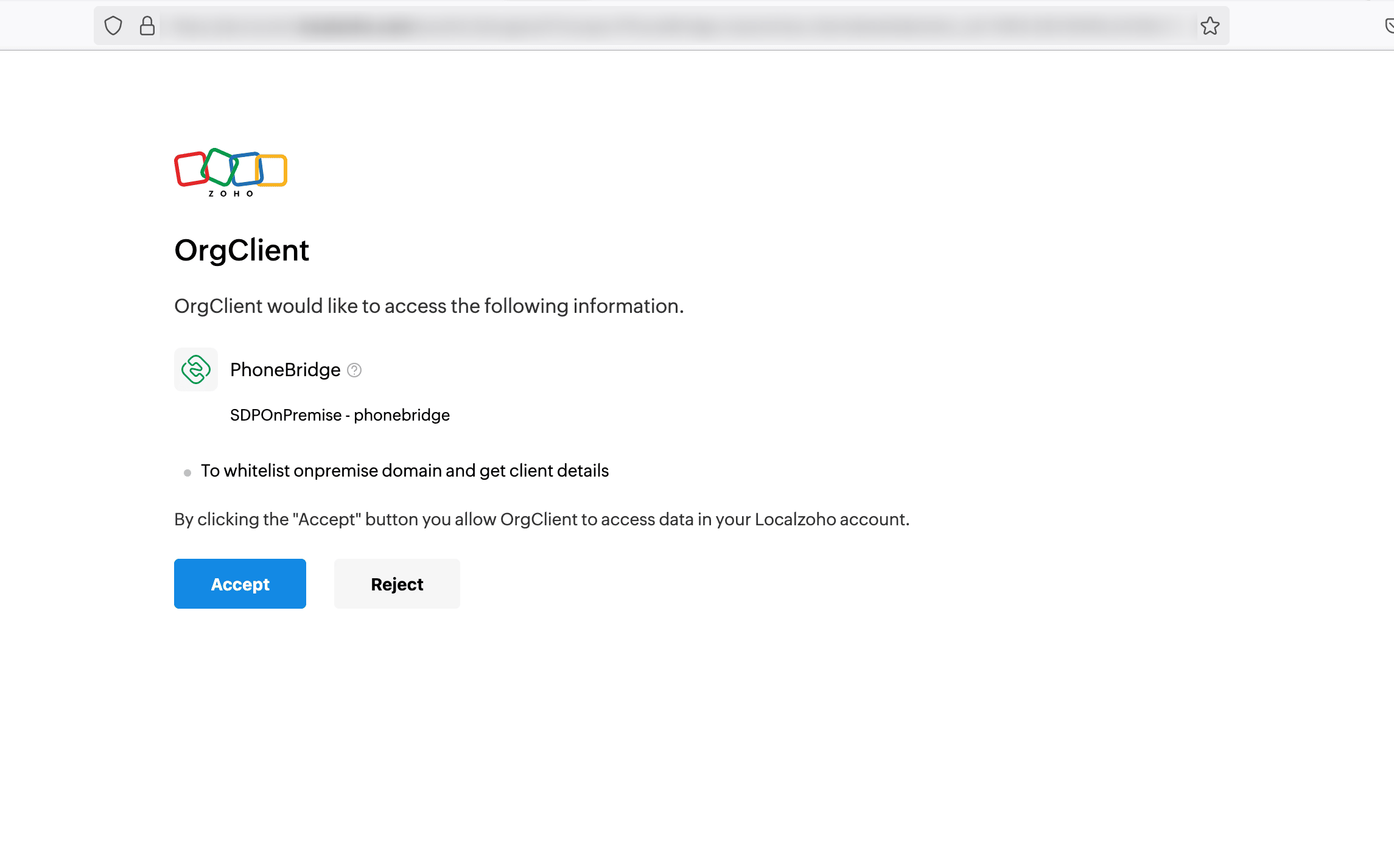
With this, the integration will be set up, and user synchronization will begin automatically in ServiceDesk Plus. First name, last name, email, and the time zone of the technician users from the IT service desk instance alone will be synced.
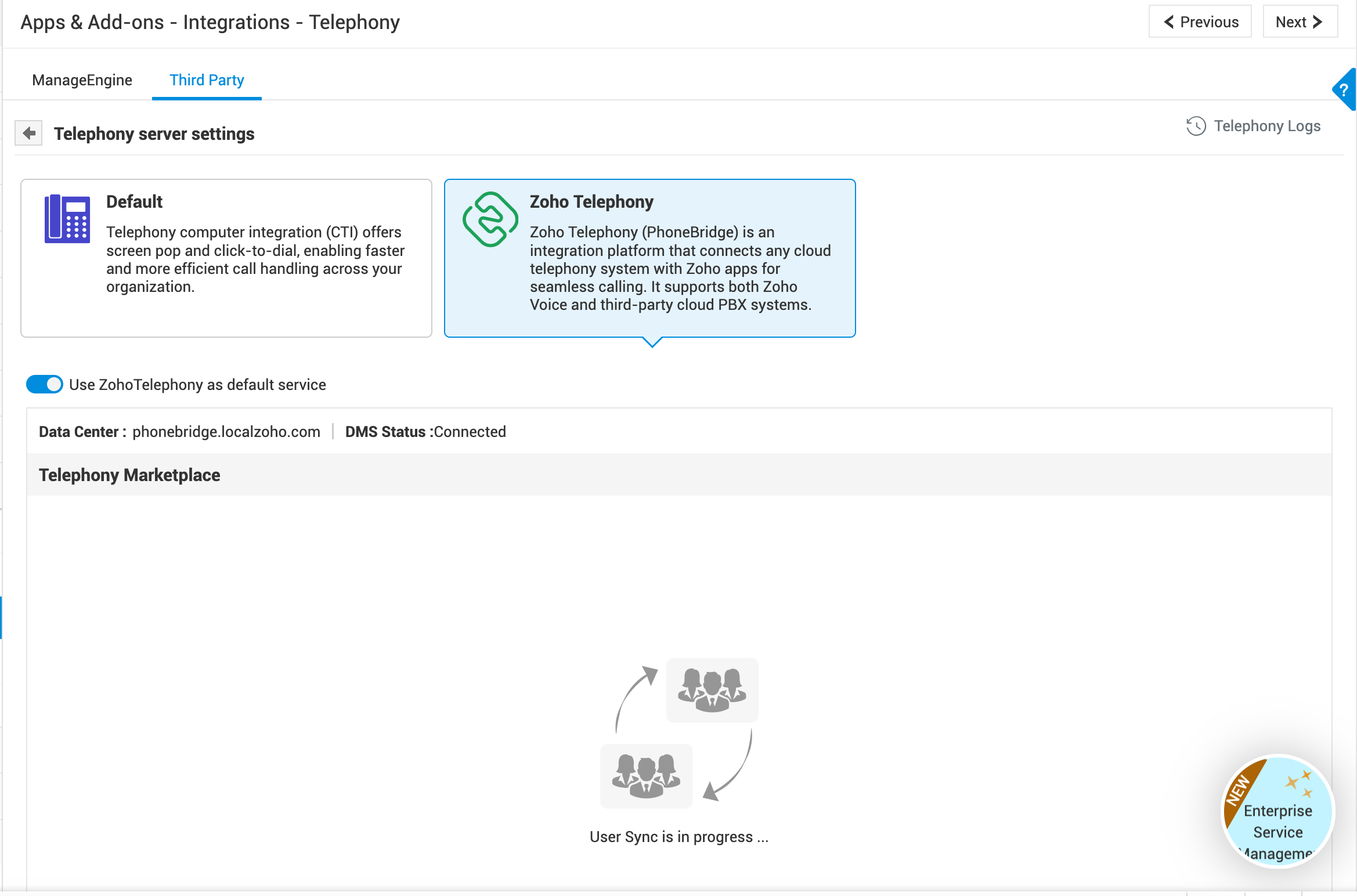
-
Once the user sync is complete, the telephone marketplace vendor list will be displayed. Select a provider that meets your requirements and click Install.
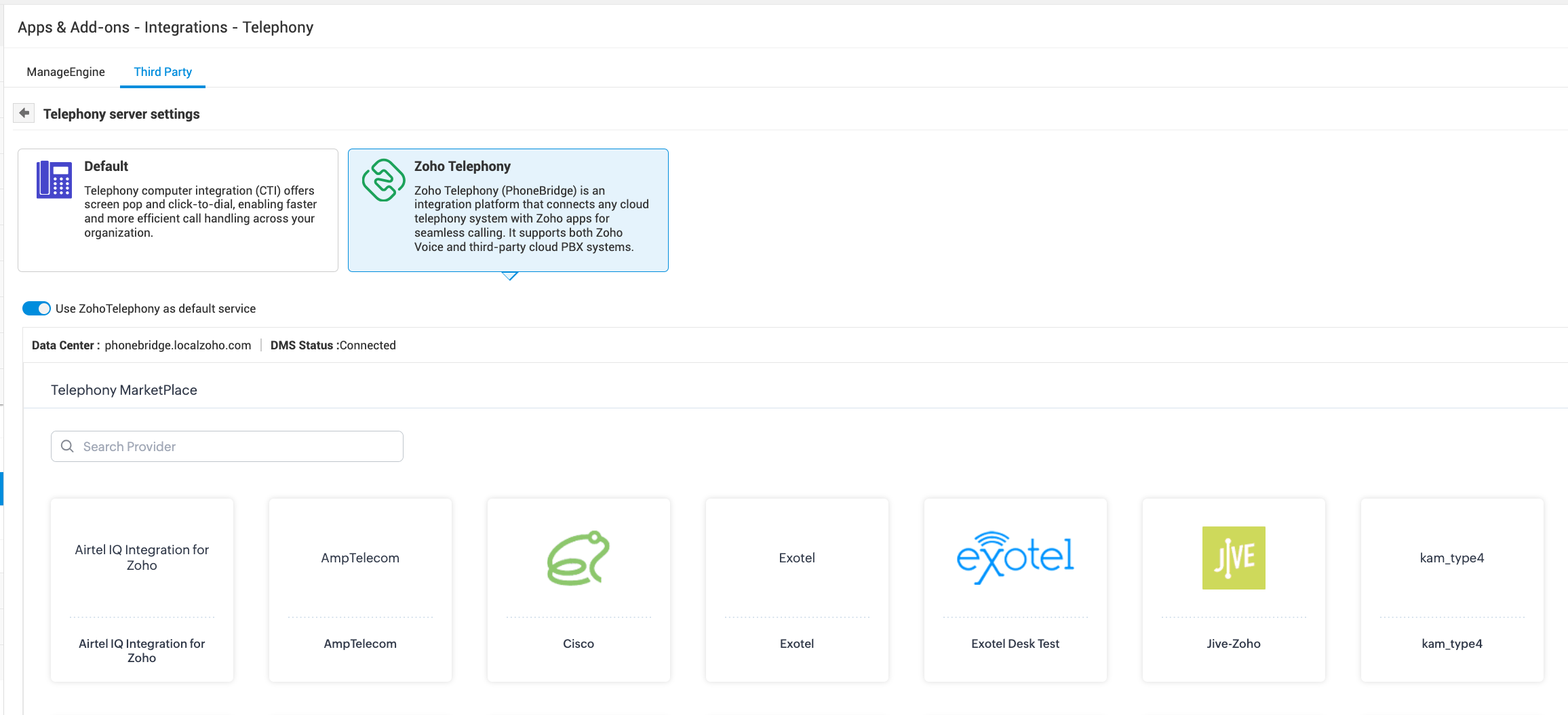
Once the provider is installed, users can manage calls directly within the application. They can place a call from the request details page right pane or from the Phone menu in the application footer.
You can uninstall the provider, or select a different provider by navigating to the Telephony settings page and selecting the appropriate options.
Call Management
Technicians can place calls from the request details page or use the Click to dial option from the application footer.
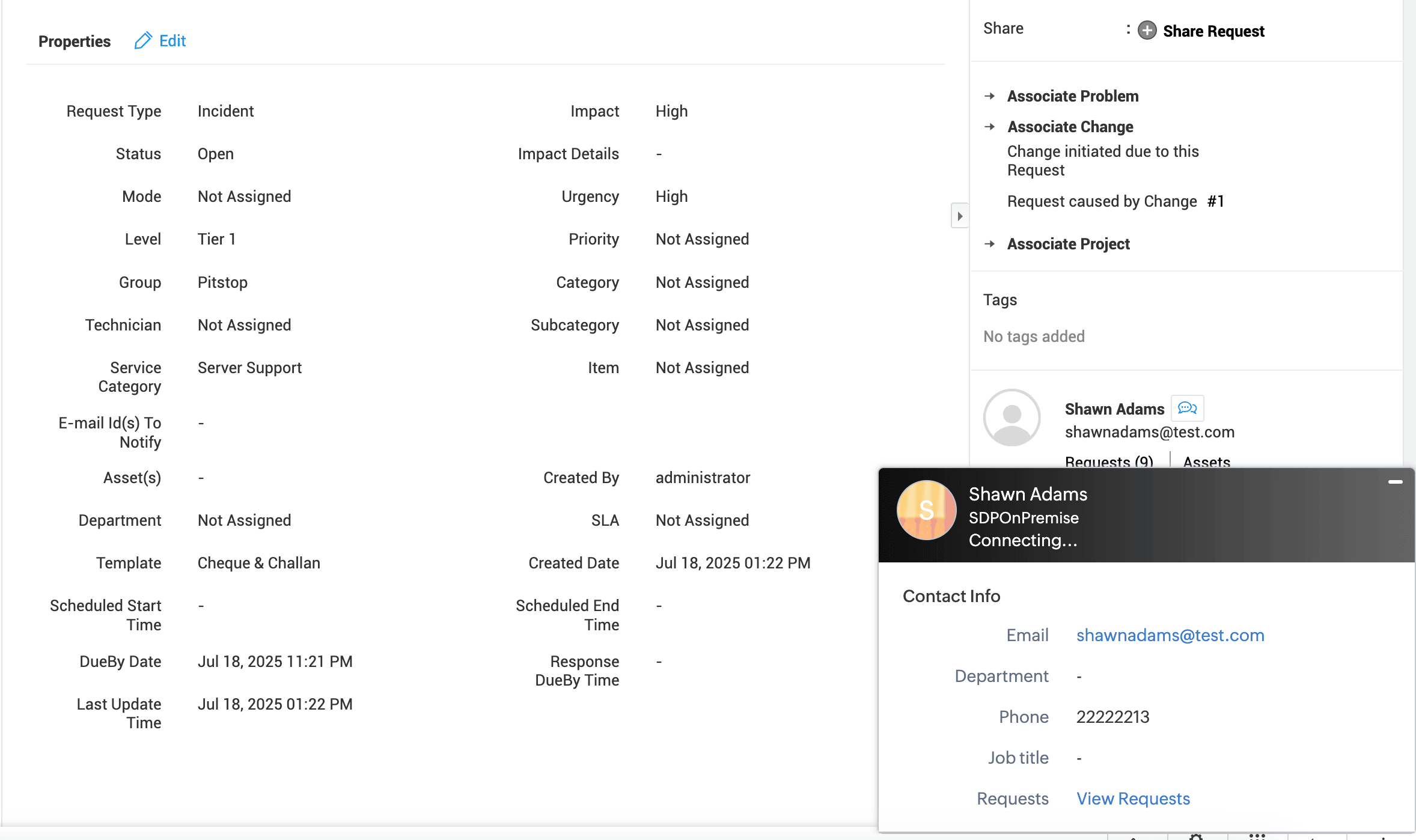
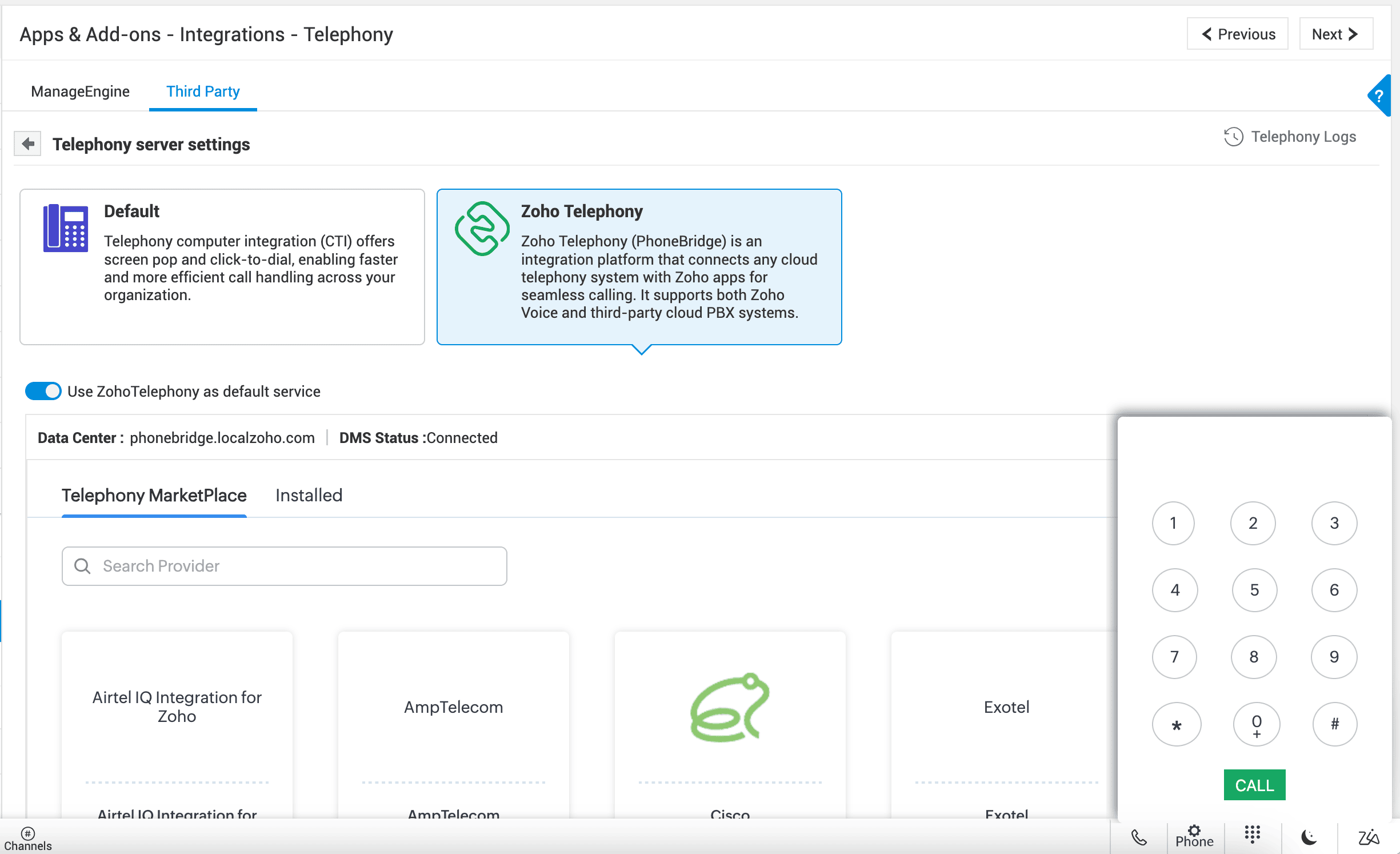
Access Telephony Logs
You can track call history through Telephony Logs in the top-right corner.