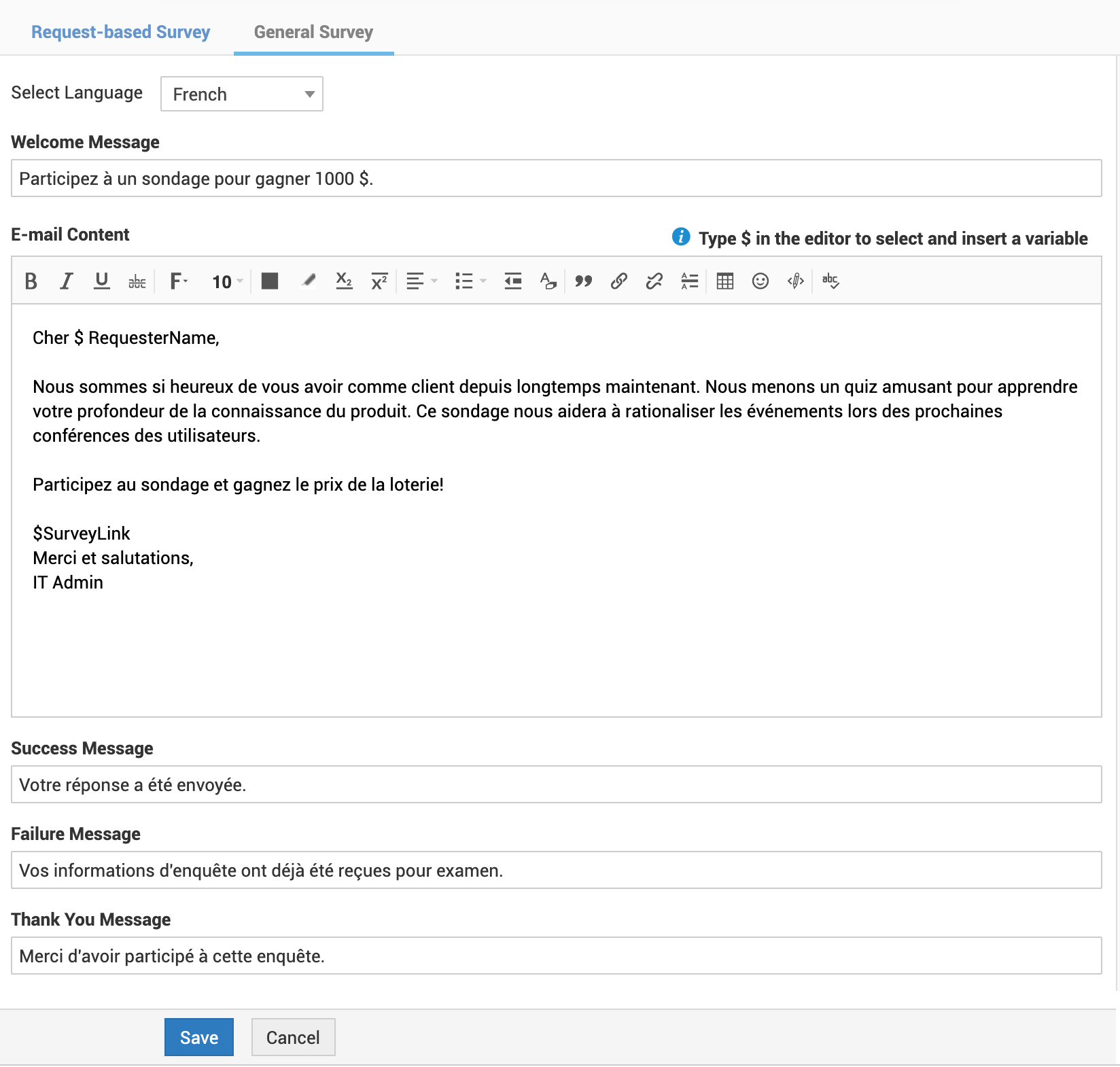
Survey Exclusion Settings
You can globally exclude surveys (both request-based and general surveys) in selective conditions such as requests for mundane tasks, requests from technicians, VIP user requests, and the like.
Go to Admin > User Survey > Survey Exclusion.
Select from the following options per your requirement.
- Disable survey when technicians are the requesters
- Exclude survey when any of the following criteria is matched
Configure matching conditions for requests to exclude them surveys. Select criteria, set conditions, and enter corresponding values.
Survey Email Configuration
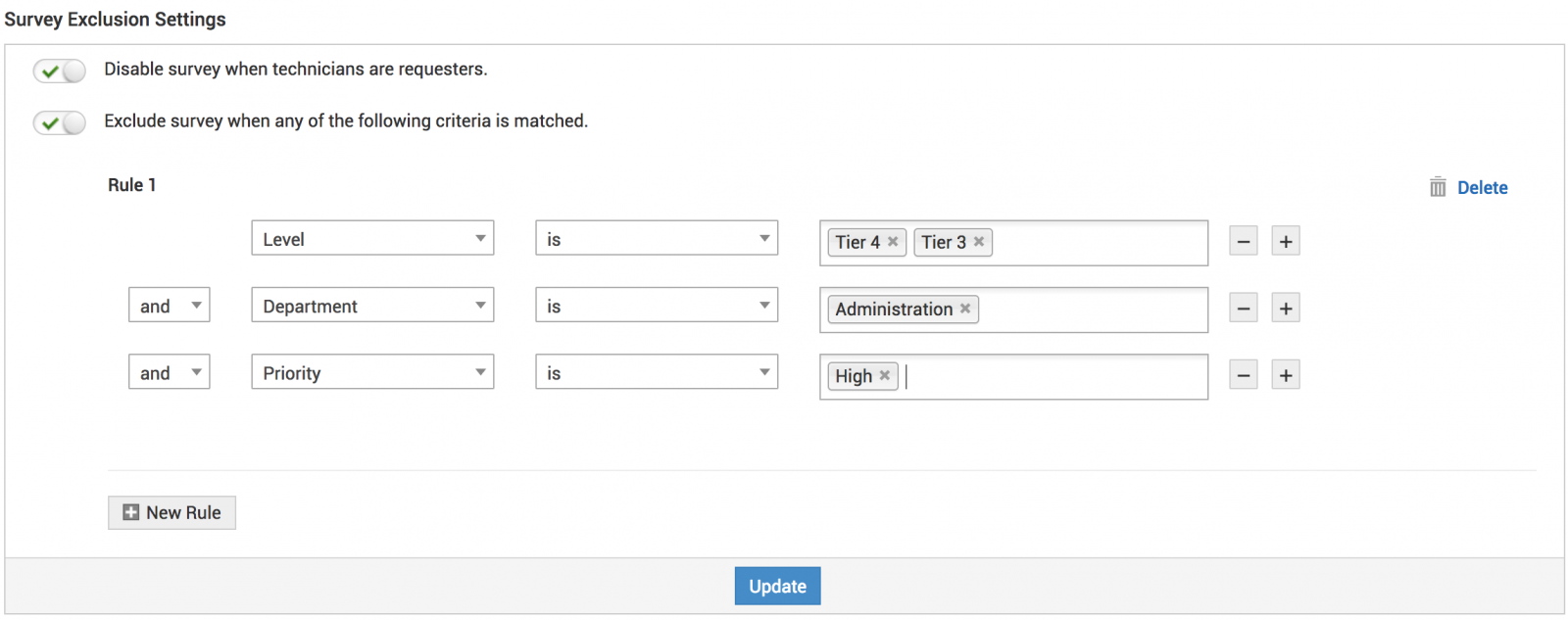
Published surveys reach users by email. You can configure different email messages for general and request-based surveys.
Configuring Emails
Go to Admin > User Survey > Survey Email Configuration.
Click Request-based Survey or General Survey.
Default notification for the selected survey type with the following fields will be displayed. You can edit them and update.
Welcome Message
- Contains the survey's subject.
- Type $ to select and insert a variable into the editor.
Email Content
- Represents the survey's purpose.
- Type $ to select and insert a variable into the editor. $SurveyLink is mandatory for both survey types.
Success Message
Confirms the survey submission to the user.
Failure Message
This message will be displayed when a user attempts a survey twice or a suspended survey.
Thanks Message
This message is displayed when the user successfully completes the survey.
Translation
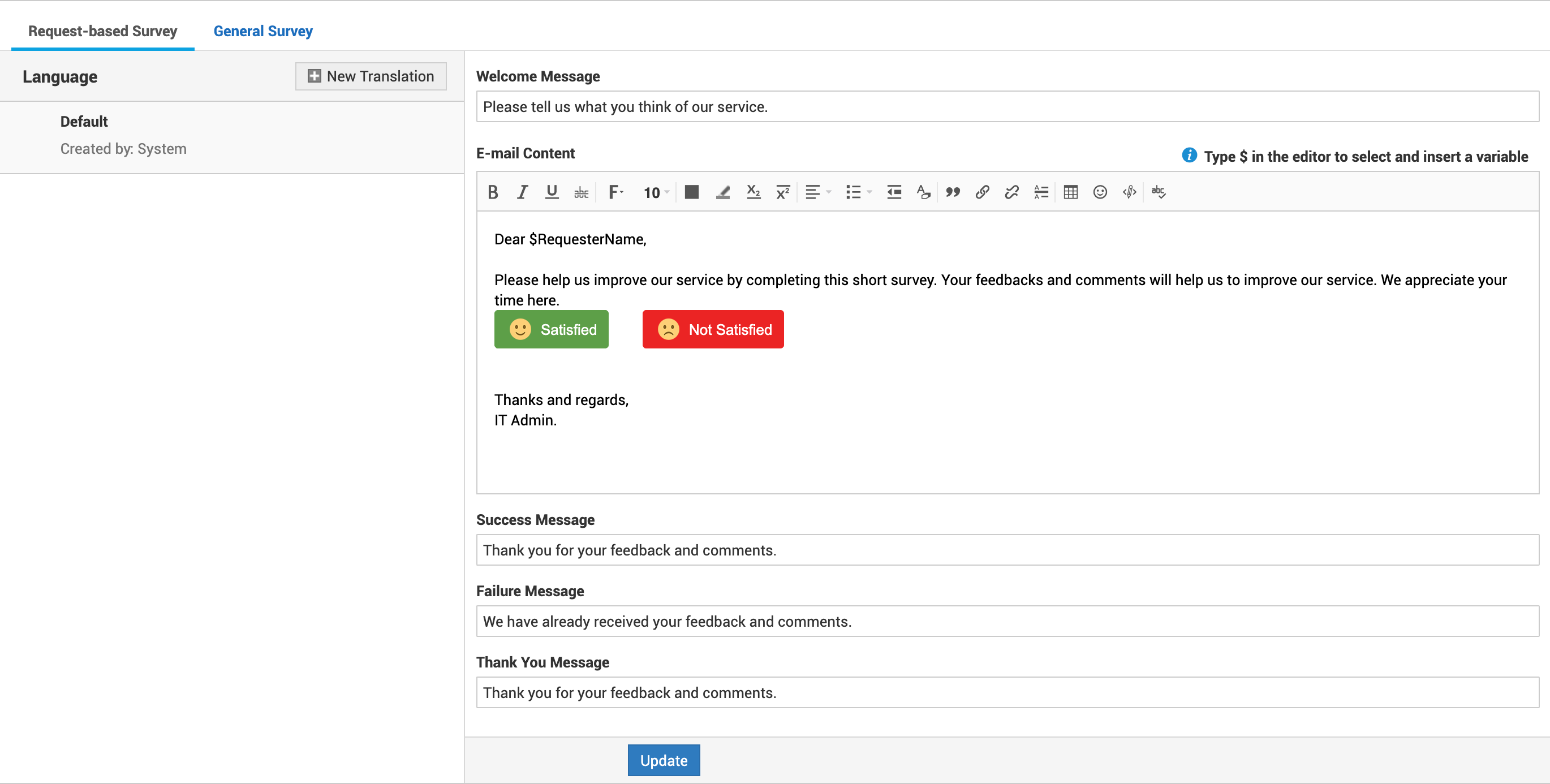
You can write the email message in different languages for your users.
- Select a survey type and click

- Select a language from the drop-down and type the email.
- Click Save. The added language will be listed in the email configuration home page.
- Use Settings icon to disable or delete them.