
Work Log Timer
Work Log Timer eliminates the need to manually add the time taken to resolve a request in the worklog form. With the Work Log Timer being present in the request details page, the technicians working on a request just have to activate the timer to track the time spent on the request. Once the request is resolved the technician can stop the timer and check the time spent to resolve the request. The time shown can be added to the worklog form from there itself. This feature also helps the admin to know if a technician[s] has started to work on a request.
Using the Work Log Timer
To activate the timer,
- Click on the Work Log Timer
 in the request details page.
 - Enter comments if any and click on the
 icon. It will trigger the timer.
The time shown in the Work Log Timer can be added to the worklog.
To add the time to the worklog,
- Click on Add to Worklog. It will stop the timer and add the calculated time to the Worklog.
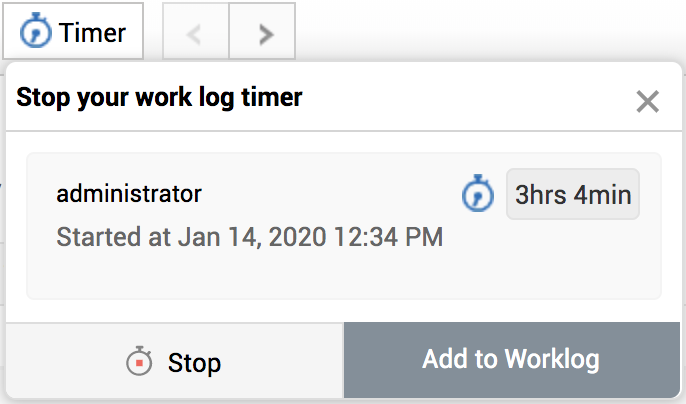
- The time taken to resolve will be added to the worklog form.

Work log Timers in the request list view
Work log Timers can be added in the request list view.
To add the Work Log Timer,
- Click on the Columns icon

- Tick the Technician Timer Check box.
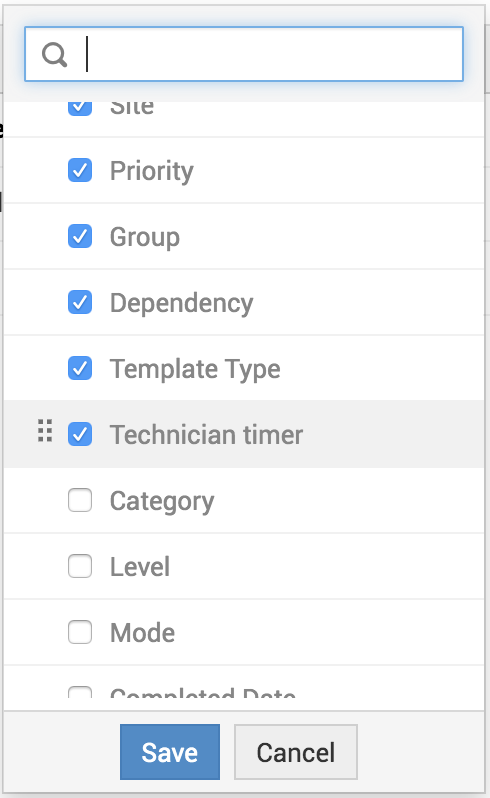
- Click on Save.
- The timer will appear in every requests.

- Click on the timer to see which technician is working on it. Also multiple technicians working on a request can also be seen with a timer icon followed by number of technicians working on it.
Three different timer icons indicating three different things
-
 : Indicates that a technician is working on that request.
  : Indicates two technicians are working on a request.
 : Indicates that the logged-in technician/admin is working on the request.
 : Indicates that two technicans[including logged-in technician/admin] are working on the request.
 : Indicates no one is working on the request.