
Integrating ServiceDesk Plus with Power BI lets you create interactive reports, dashboards, and datasets.
To integrate Power BI with ServiceDesk Plus, follow the steps given below.
1. Download Power BI and install it
2. Open the application and choose the getData option.
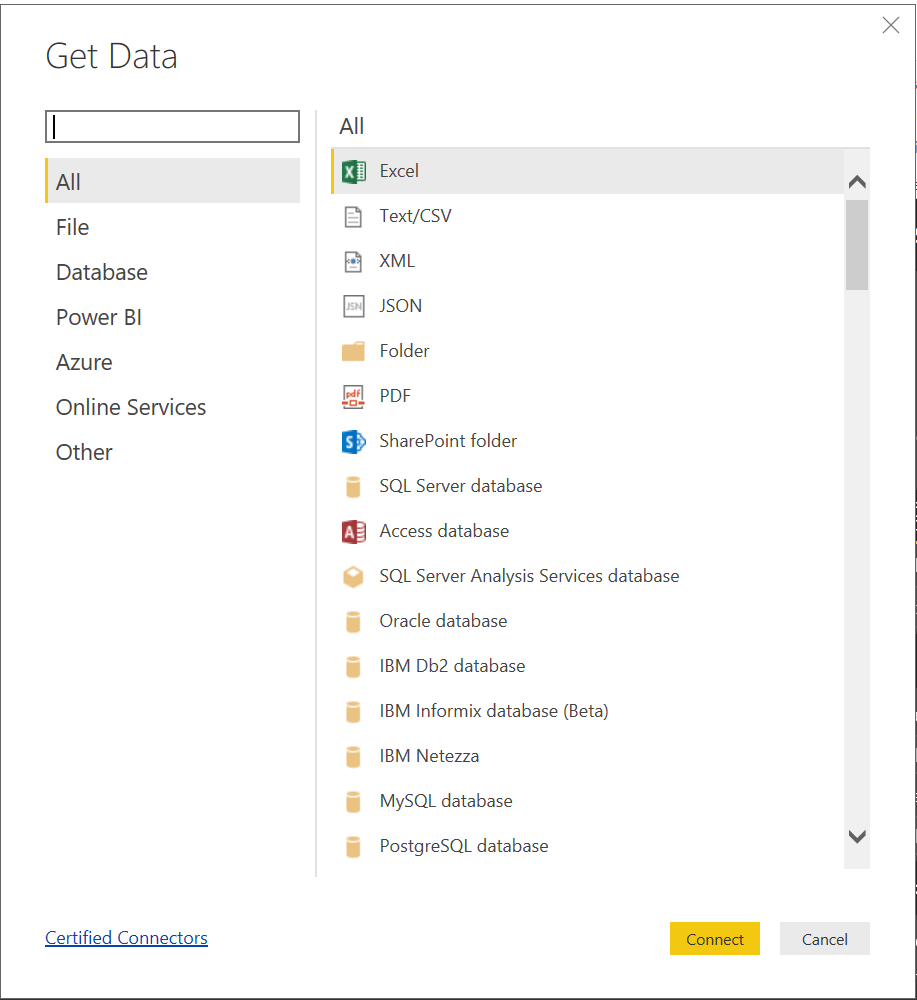
3. From the given options, choose the appropriate database; MSSQL or ODBC (for Postgres)
MSSQL
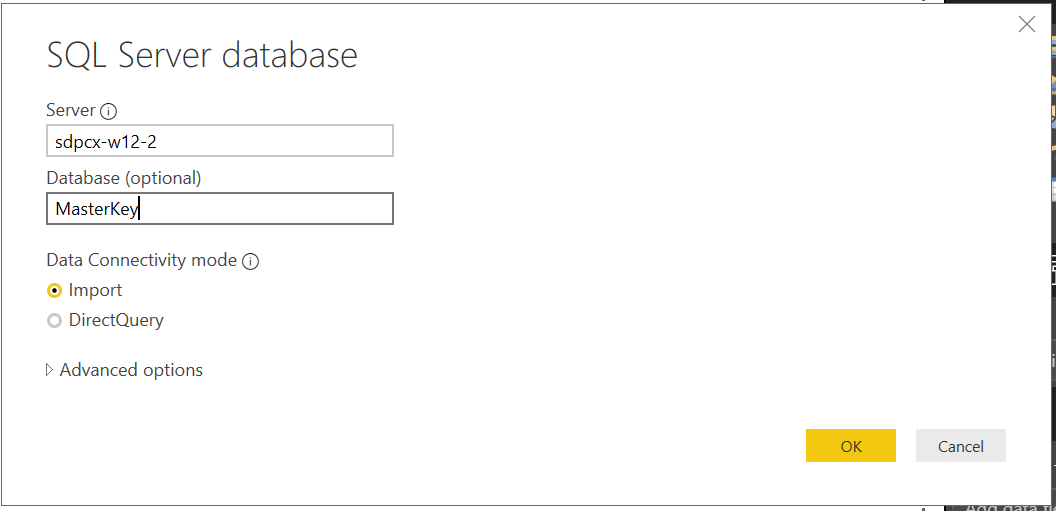
1. For MSSQL, give the SQL server database details and click OK.
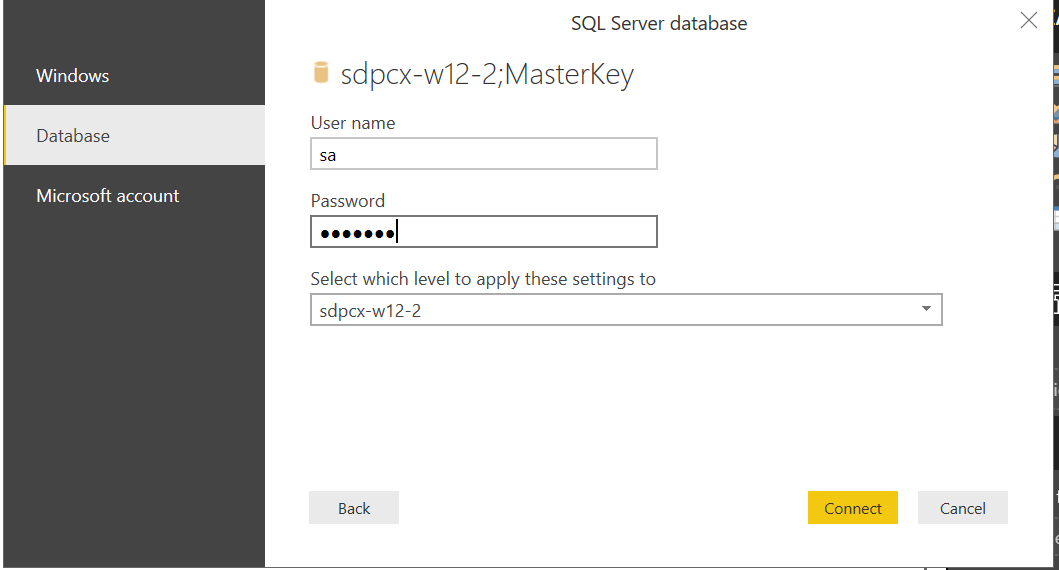
2. Now give the credentials by choosing the appropriate domain (Windows, Database or Microsoft account credentials according to the customer's environment)
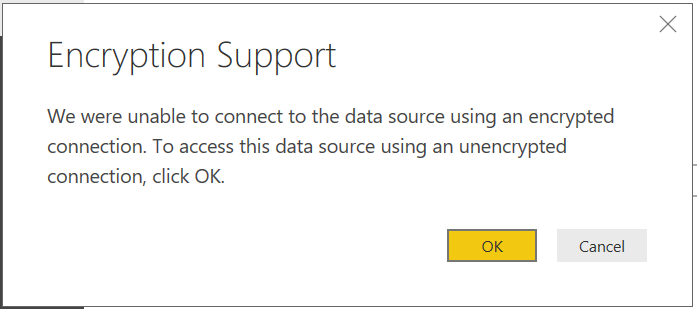
3. If the database is not encrypted, then the following pop-up appears. Click OK.
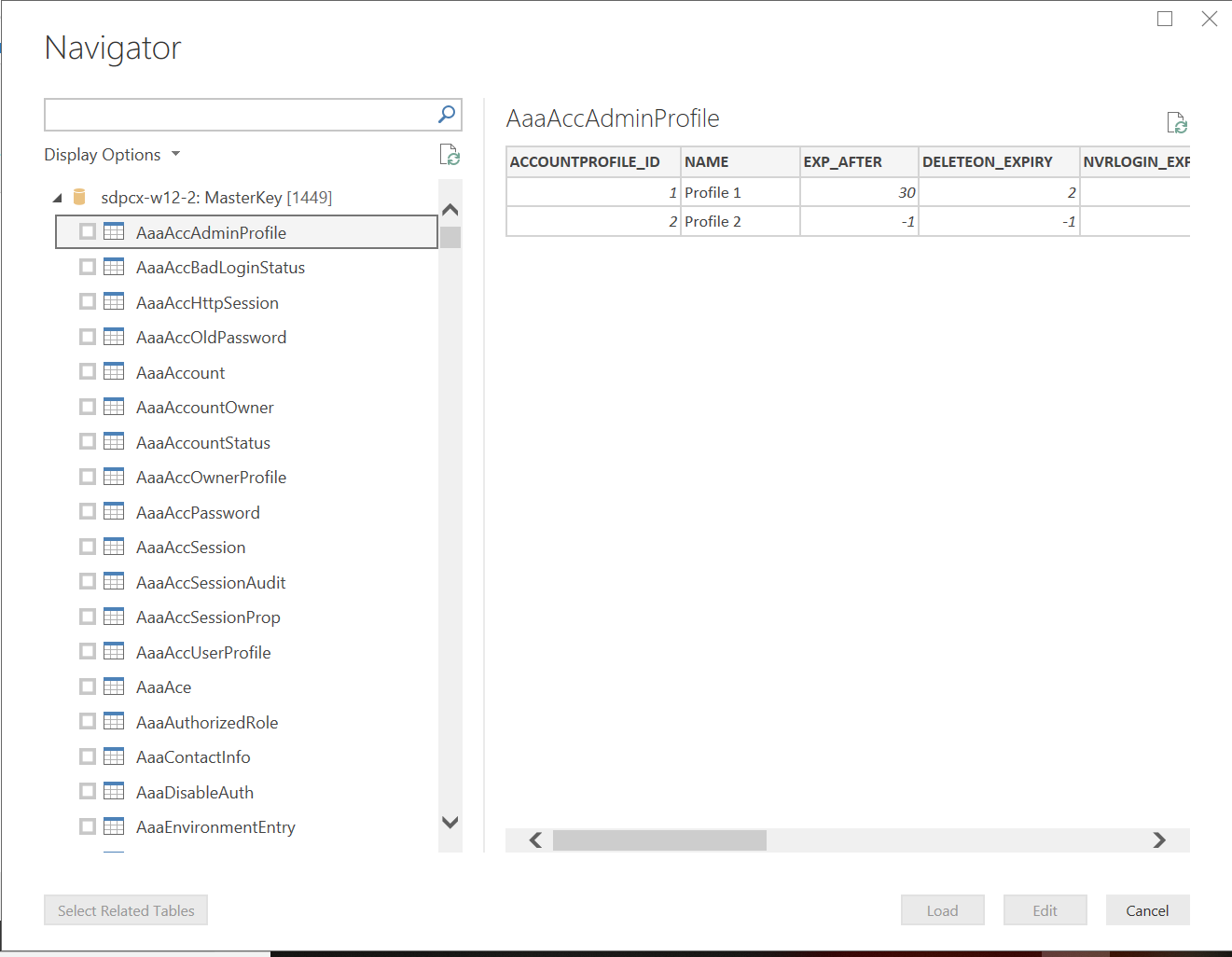
4. If the connection is successful, then the navigator page will be shown from which the tables can be chosen.
POSTGRES
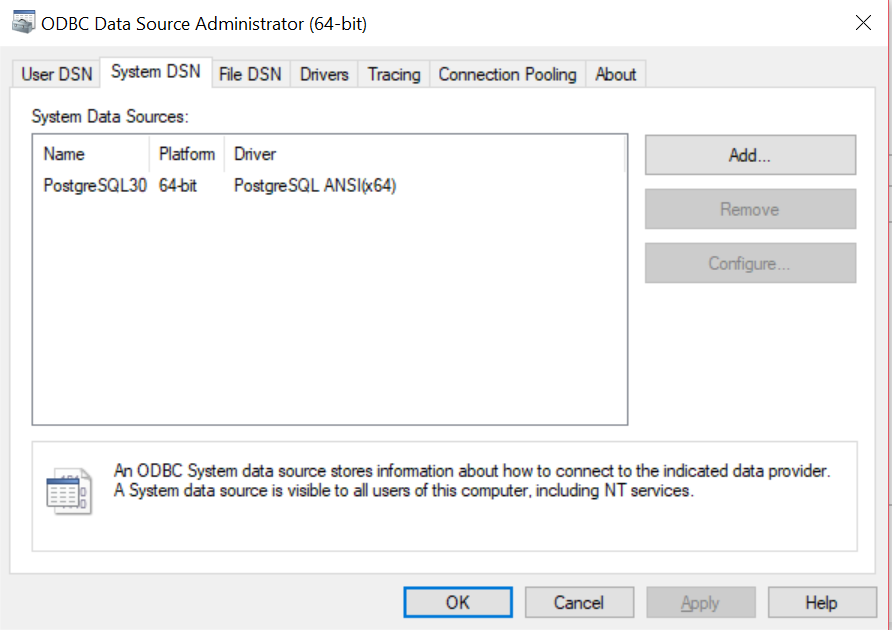
For Postgres, please download and install the ODBC driver from https://www.postgresql.org/ftp/odbc/versions/msi/ (Please match the machine OS and architecture to download it). You can check the ODBC driver by opening the ODBC data source administrator and navigating to System DSN as shown in the picture given below.
1. In Power BI, choose the ODBC option from the getData dialogue.
2. Choose "NONE" in the Data Source Name and choose the advanced options. In the connection string, provide the driver, server, port, and database name in the following format
EG: Driver=PostgreSQL ANSI(x64);server=127.0.0.1;port=65432;Database=servicedesk;
Ensure that Servicedesk Plus runs in the local host. If it runs on some other machine, then check the IP address of the machine and use it in the server parameter.
In case remote access is required please refer : https://pitstop.manageengine.com/portal/en/kb/articles/postgres-remote-read-only-access
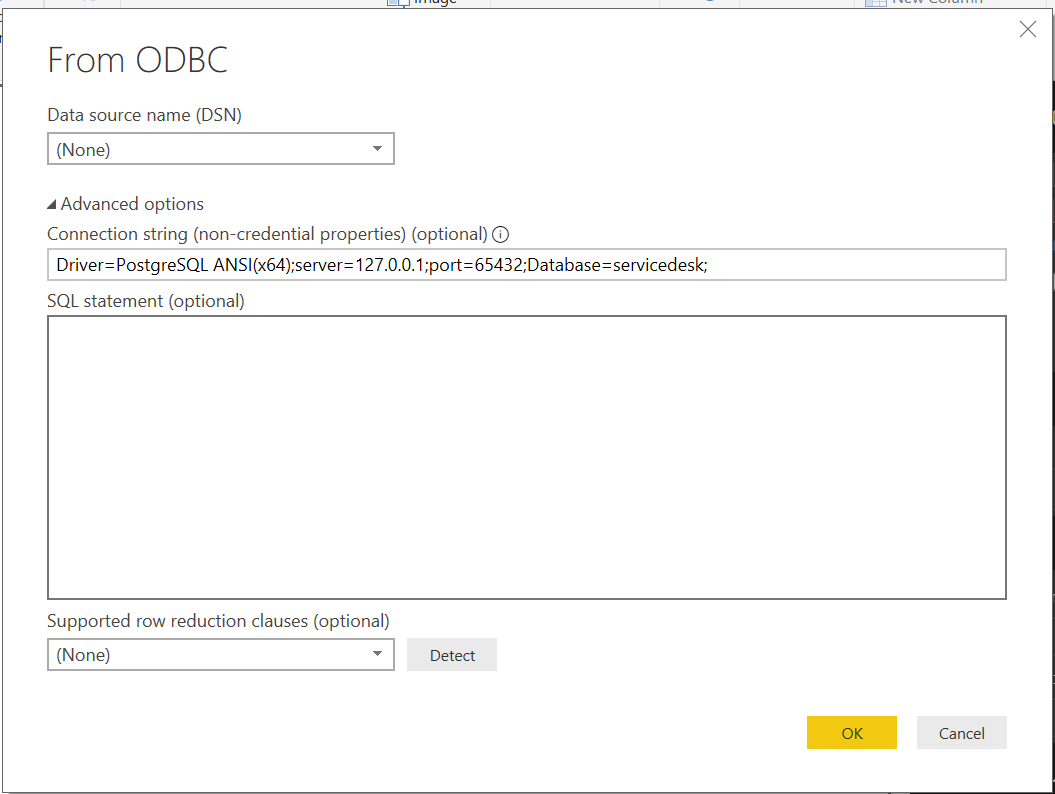
3. On clicking OK, the Navigator page will open with the tables listed from the connected database.