
Configuring Organization Roles
Configuring Organization roles helps in enabling the role-based approval process for the service requests. Once the organization roles are configured and the users are associated with them, the role-based approval can be configured from the service templates. These organization roles can be created by using the four cards representing four role types i.e Organizational Roles, Site Roles, Regional Roles, and Departmental Roles.
Organization Roles: For Organizational level roles such as CEO, CFO, or CTO.
Regional Roles: For heads of regions such as regional managers or regional sales heads.
Site Roles: For specific roles within a site, given its unique requirements.
Department Roles: For roles that might be unique to each department.
To create a new role,
- Go to ESM Directory.
- Select Organization Roles.
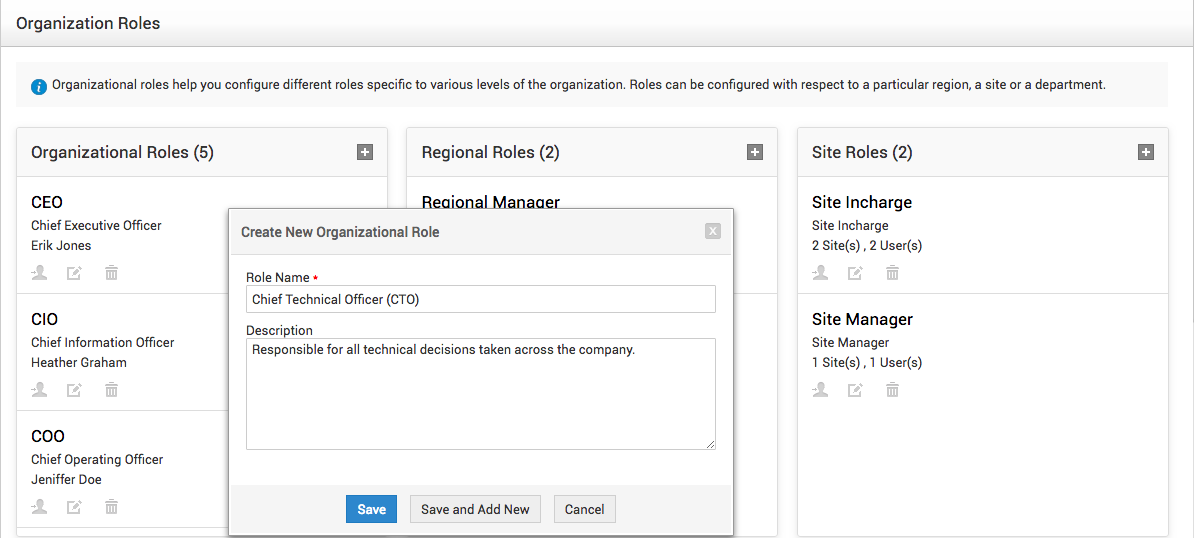
- Default roles specific to Organization, Regions, Sites, and Department will be displayed in a card layout.
- You can create any number of roles within a role type by clicking the + icon inside each card.
- Fill out the required details and click Save.
To associate a user to a role,
- Click the user icon
 inside a role.
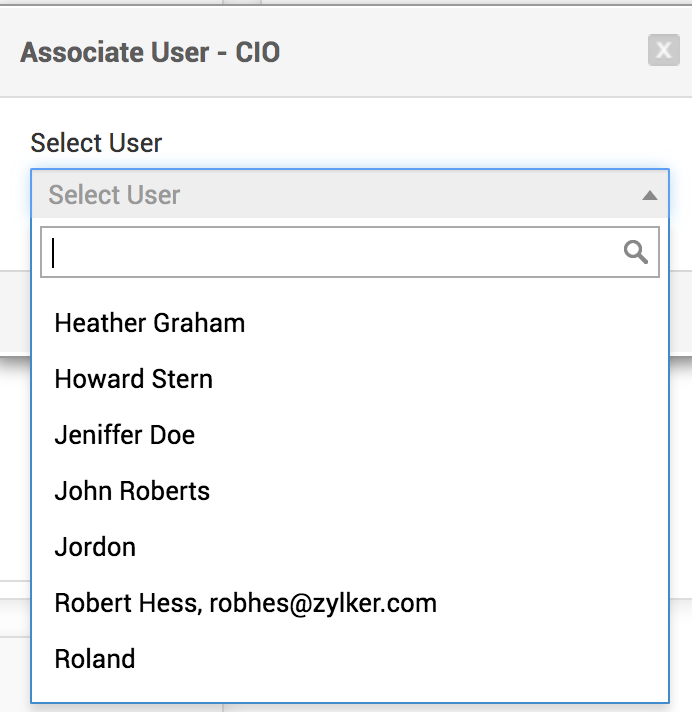
 - For organizational level roles, select the username in the Associate User pop-up.
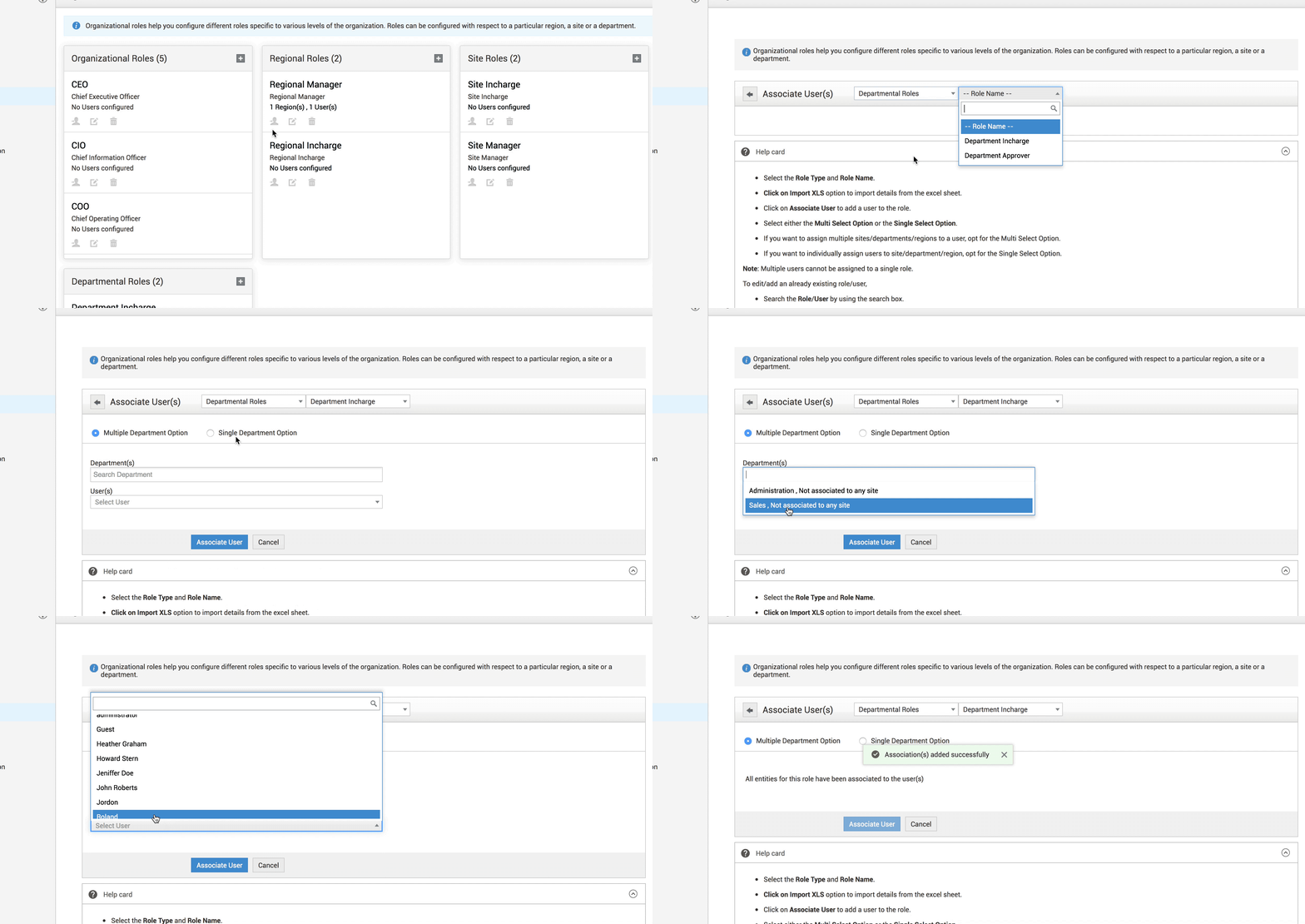
For regional, site, and department roles, once you click on the user icon the Associate User(s) page will be displayed where you will need to select the users.

- Click Associate User.
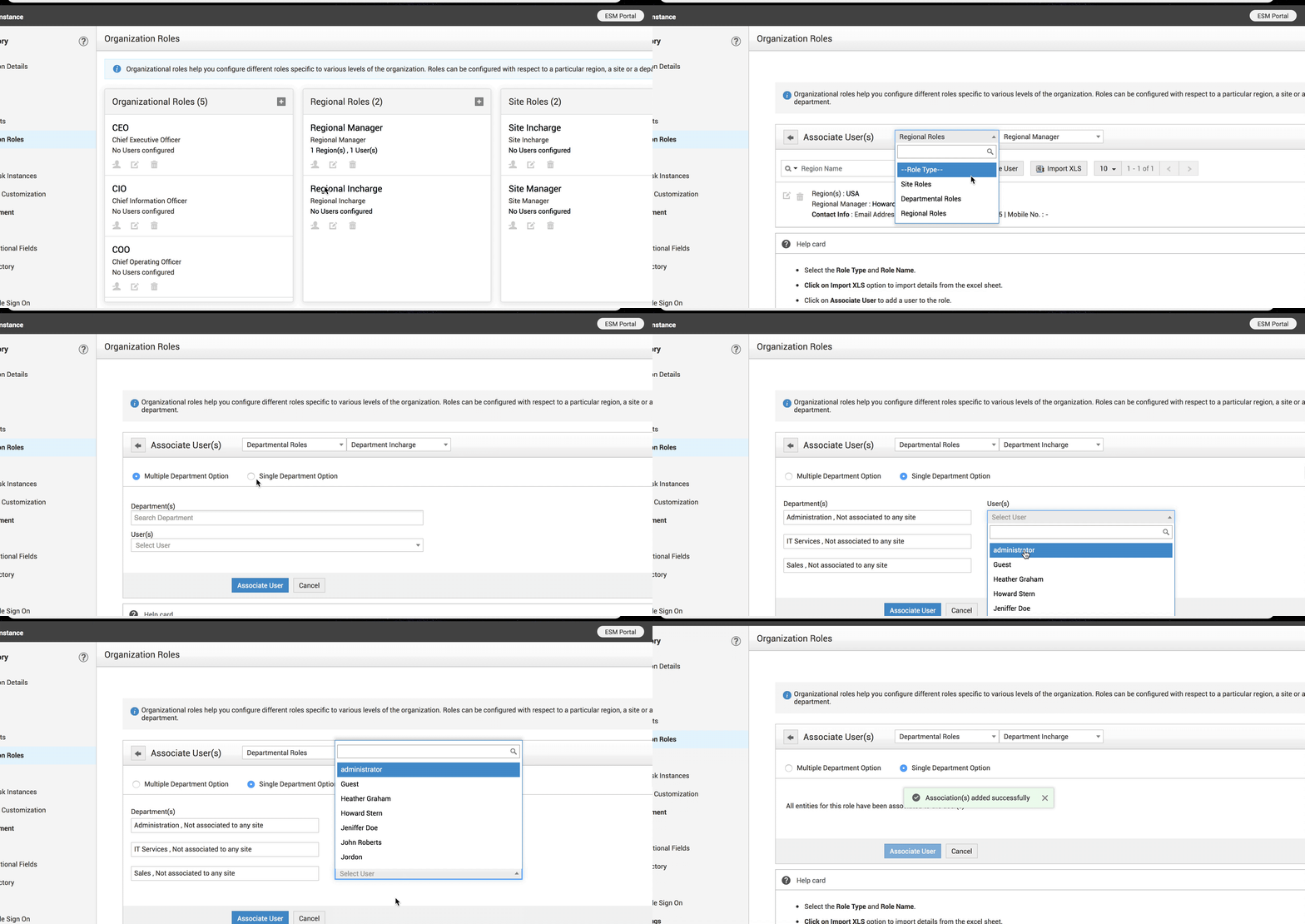
- Select roles type (Regional/Site/Departmental) and Role.
- Select either the Multi-Select Option or the Single Select Option.
- If you want to assign multiple sites/departments/regions to a user, opt for the Multi-Select Option.
- If you want to individually assign users to site/department/region, opt for the Single-Select Option.
Deleting roles/removing users from roles
You can delete the roles you have created or you can dissociate users from the role.
To delete a role,
- Click the delete icon displayed below a role.
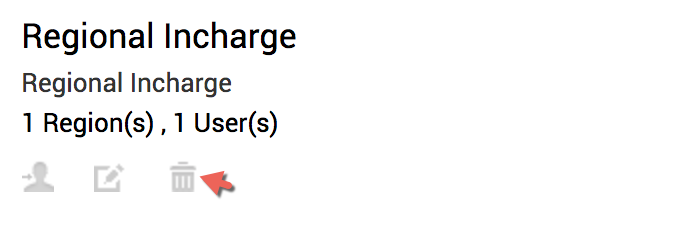
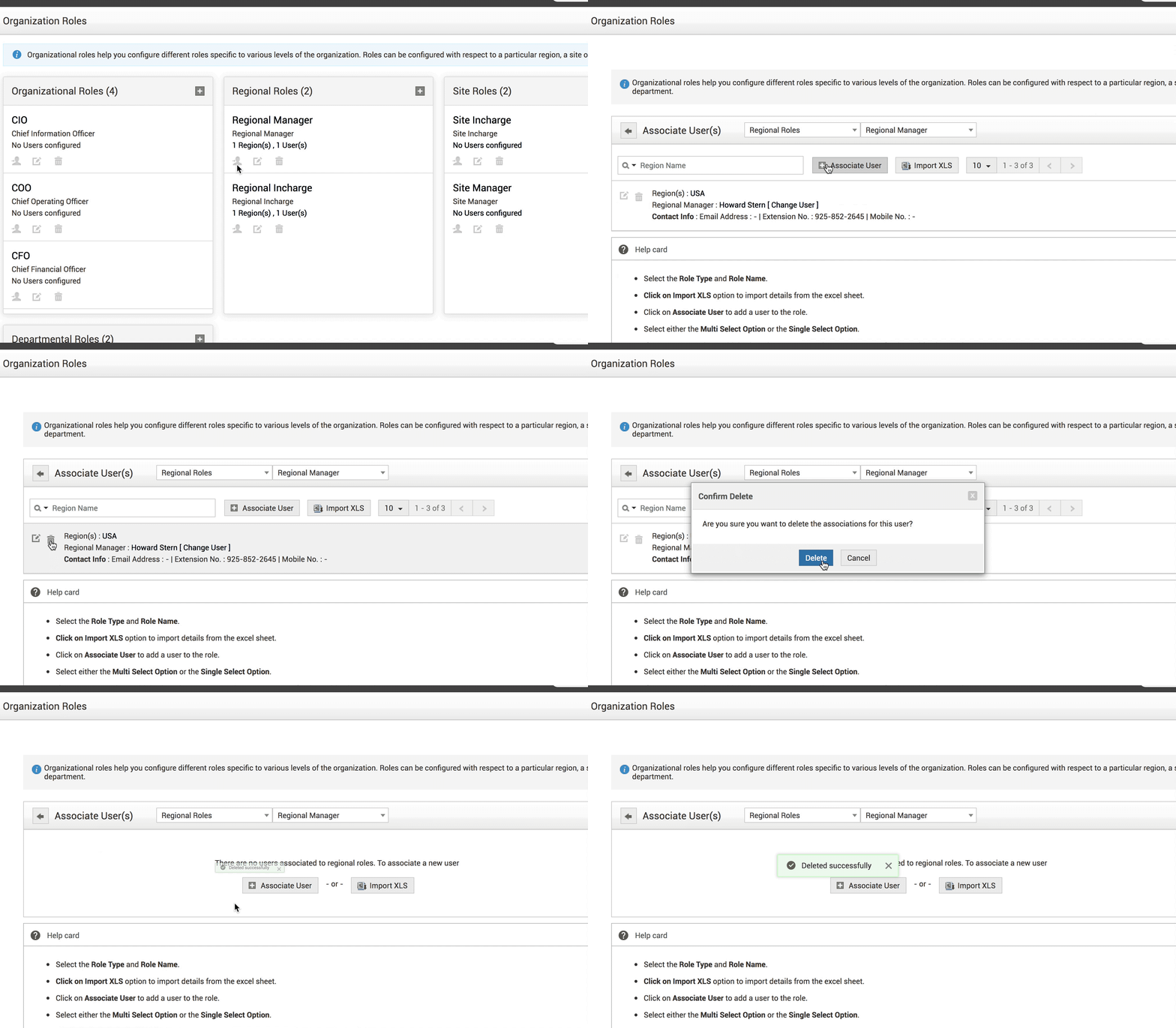
To remove users from a role,
- Select the user icon on the role from which you want to remove a user.
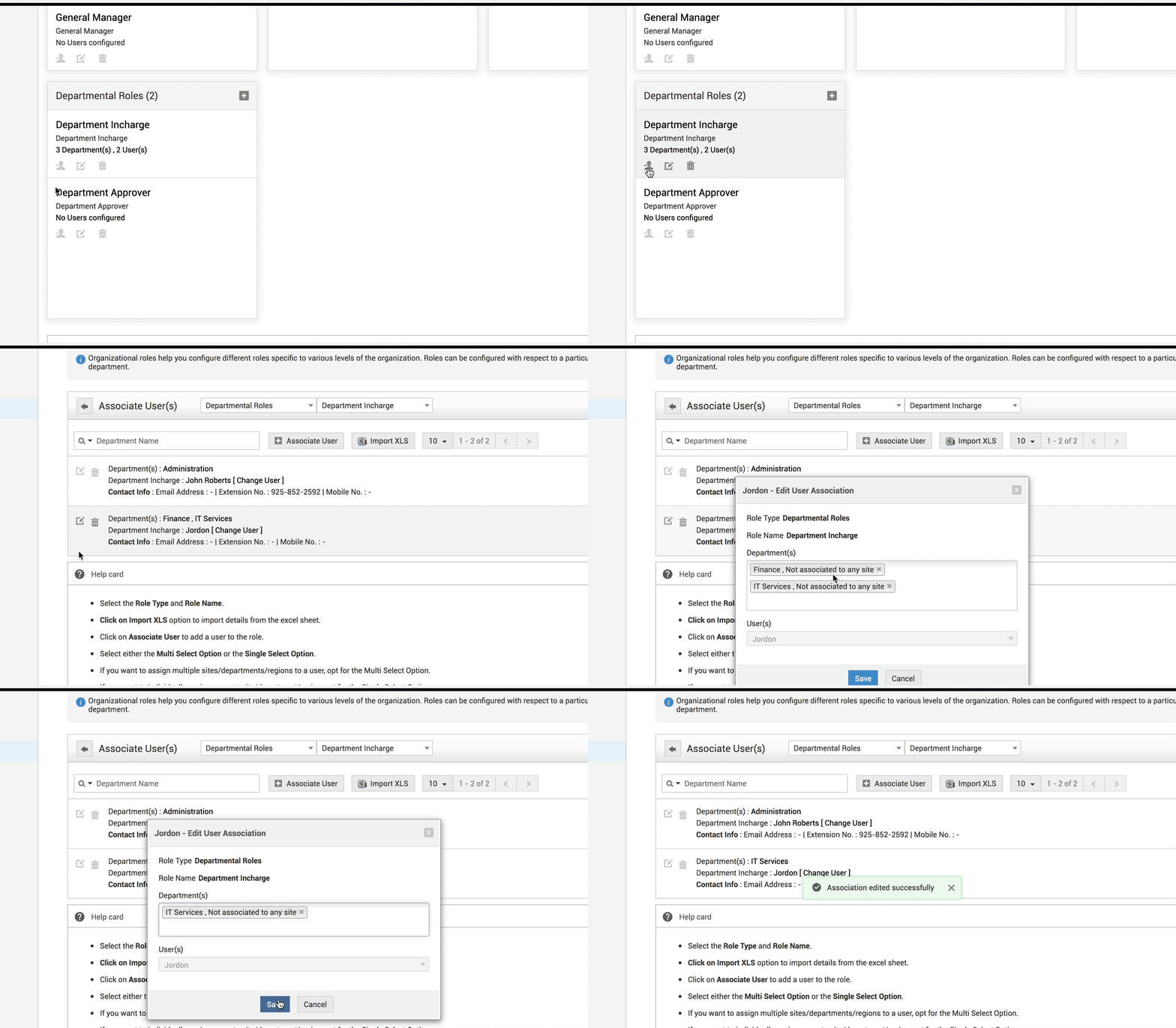
In some cases, a user might hold a role in two or more different sites or departments. If you want to remove one or two sites or departments, then go to the role,
Click the user icon .
Click the edit icon  . In the pop-up, remove the departments/sites/regions you want to remove and click Save.
Using Import XLS
You can use the Import XLS option to import the roles and users from the excel sheet. Once the role names and users are imported from the excel sheet, field mapping can be done using the map fields option.
To import XLS,
- Click on the user icon in a role.
- Click on Import XLS option.

- Click on Choose File to select the excel file from your system. Download and use the sample file to use the same format.
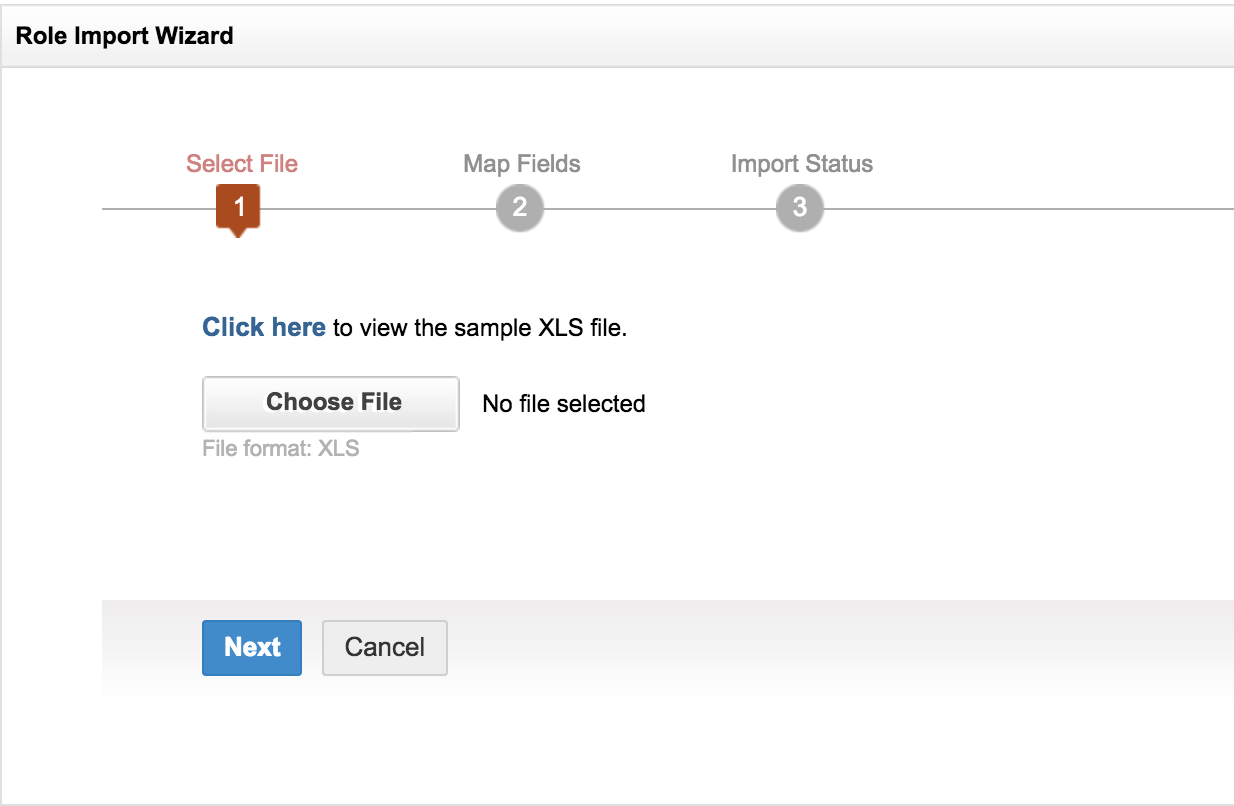
- Once the import is done, the columns in the xls file will be populated in the select boxes beside each field label such as "Email", "Role name", "Role entity" and "Parent entity".
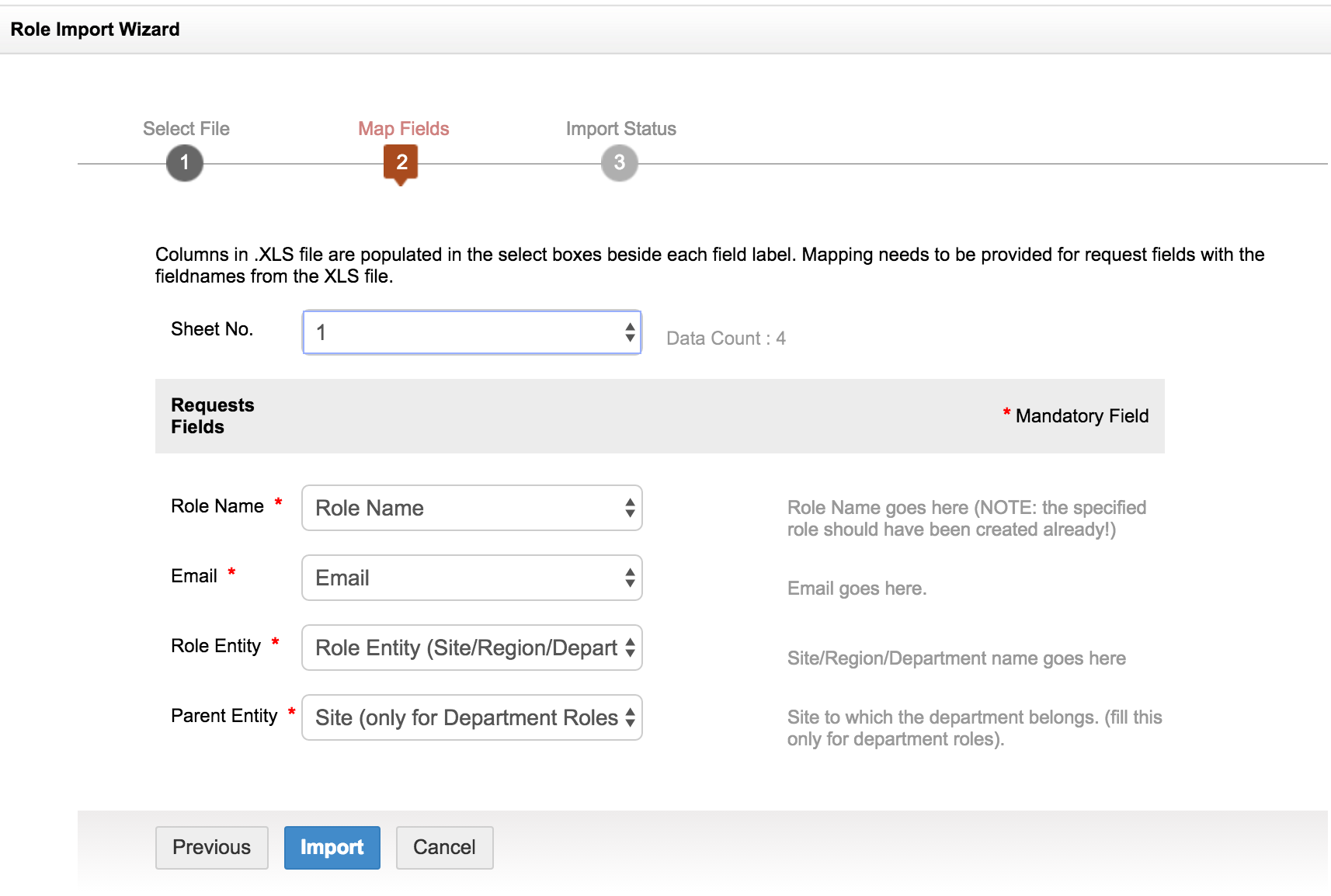
- Map the column names with the respective request fields. For e.g, if the column1 contains the role name, choose column1 in the Role name request field.
- Click on Import. The import will be completed.
- Click on Finish.