Two-factor Authentication (2FA) provides an extra layer of security for your user accounts by mandating an additional mode of authentication along with regular passwords.
Role required: SDAdmin for single-instance setups and SDOrgAdmin for multi-instance setups.
Supported Additional Authentication Modes
Email verification: Users must authenticate themselves by using the code sent to their email.
Google Authenticator: Users must verify themselves with a time-based one-time password (TOTP) generated by Google Authenticator or any TOTP-compliant authenticator application, such as Microsoft Authenticator, Duo Mobile, or similar apps.
Once enabled, the users have to enroll for the additional authentication mode during their first-time login. To learn more about enrollment, click here.
Configuring Two-Factor Authentication
-
Go to Admin > General Settings > Two Factor Authentication (in single-instance setups) or ESM Directory > General Settings > Two Factor Authentication (in multi-instance setups).
-
Use the toggle button to enable two-factor authentication.
-
Under Settings, enable/disable backup codes using the toggle and do one or both of the following.
-
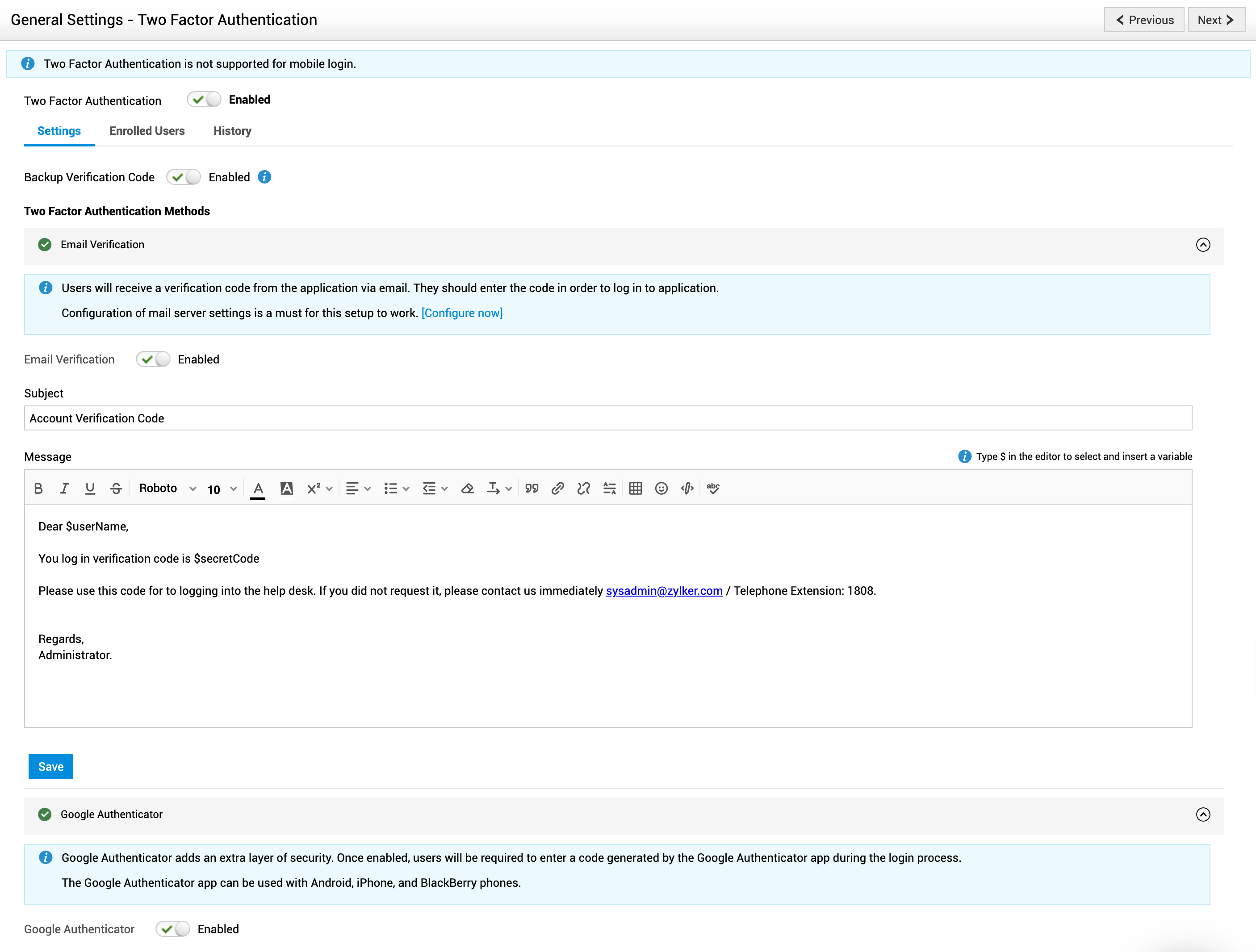
Enabling Email verification
-
- Click Email verification to expand the section and then use the toggle to enable the mode.
- Finally, click Save.
- Compose the email template to be used for sending the verification code with the appropriate subject and message body. Use the variable $secretCode in the message body. This variable is replaced with a unique code each time the email is sent to the users.
Enabling Google Authenticator
-
Click Google Authenticator to expand the section.
-
Use the toggle to enable the mode.
Managing Enrolled Users
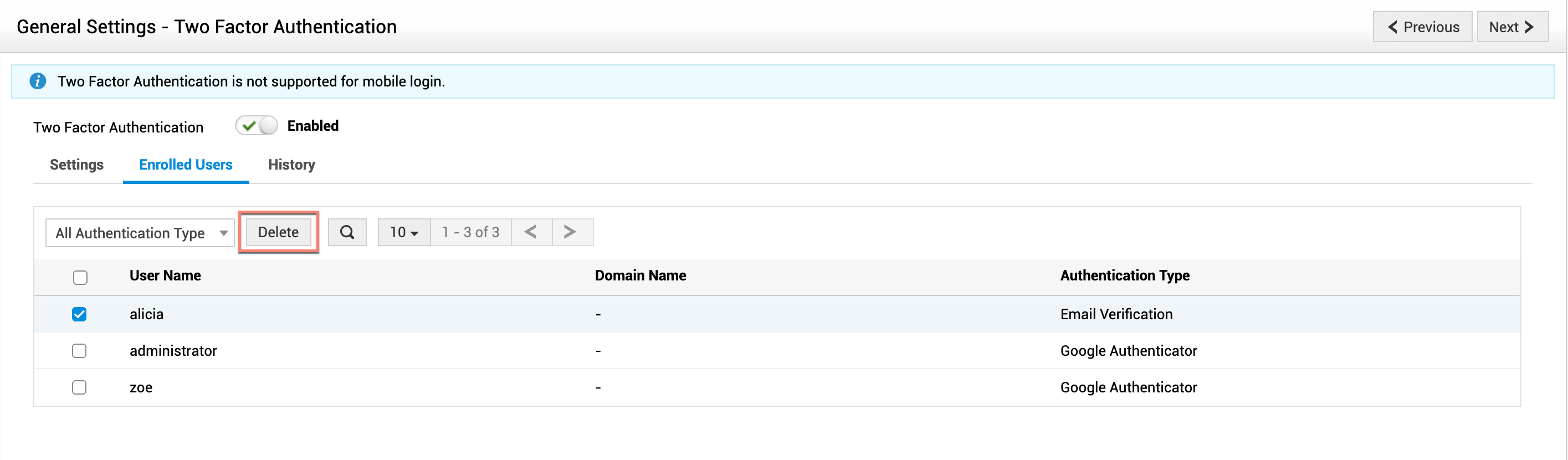
You can manage users who have enrolled for two-factor authentication under the Enrolled User tab. Here you can view details such as username, domain name, and authentication type, or delete user enrollment.
-
To access it, go to Admin > General Settings > Two Factor Authentication (in single-instance setups) or ESM Directory > General Settings > Two Factor Authentication (in multi-instance setup) and then click the Enrolled Users tab.
-
To delete user enrollment, select one or more users and click Delete.