Create New Contract
To create a new contract for an asset,
-
Click the Contracts tab in the header pane. This opens the contracts list view page.
-
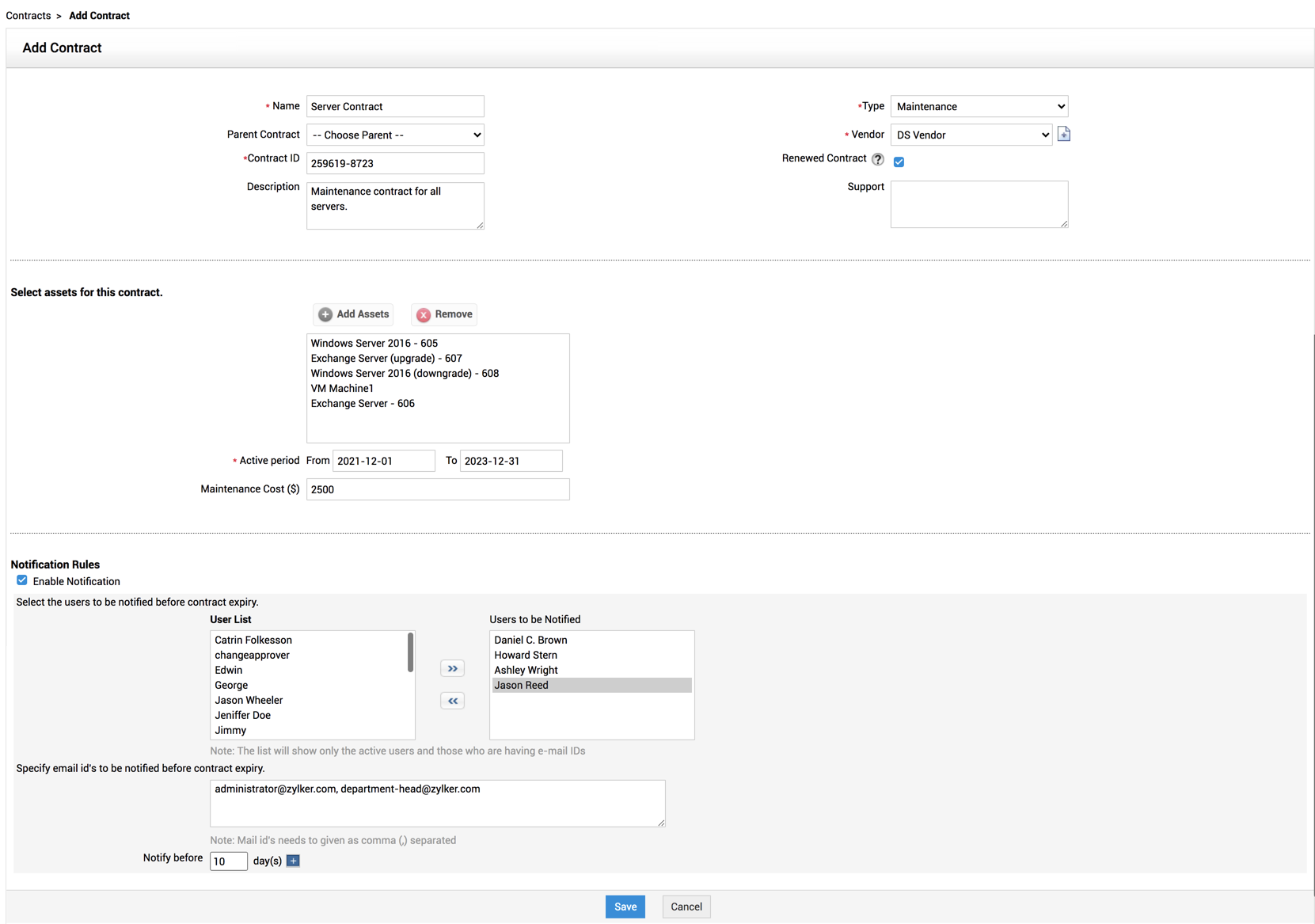
Click New Contract on the contract index page. You can also go to Quick Actions > Contracts > Create New. This opens the Add Contract form. This form has three major sections - Contract Details, Contract Rules, and Notification Rules.
-
Specify a name for the contract in the Contract Name field. This is a mandatory field.
-
Enter a relevant Description for the contract in the respective text field.
-
Select the Maintenance Vendor from the combo box listing all the vendor names available. This is a mandatory field. If the vendor is not listed, then click Add New Vendor button beside the combo box.
-
Specify the name of the vendor in the given field. This is a mandatory field.
-
Click Save. The added vendor is selected and is displayed in the combo box. If you do not wish to add a new vendor, then click Close.
-
Specify the Contact Person in the given field.
-
Enter a brief description about the vendor in the respective field.
-
-
-
In the Support field below it, enter the details regarding the kind of support that will be provided by the vendor to you.
-
Add the list of assets and set Active period of the contract is a mandatory field where you need to enter the From and To date of the contract period. Choose the dates from the calendar.
-
Enter the maintenance cost in terms of $ in the Maintenance Cost field.
-
To notify users before the contract expires, select Enable Notification check box. Here you need to select the technician who should be notified about the contract expiry.
-
Select the users from the User List column. Click >> button to move the users to Notified User List column.
-
Specify the number of days before which the notification should be sent to the selected users.
-
If you want to notify users whose E-mail ID is not entered in ServiceDesk Plus, then you can specify the Email IDs of the users in the field provided for the same.
-
-
Click Save
Sample Image: