
Configure Project Types
-
Go to Admin > Customization > Project Management.
-
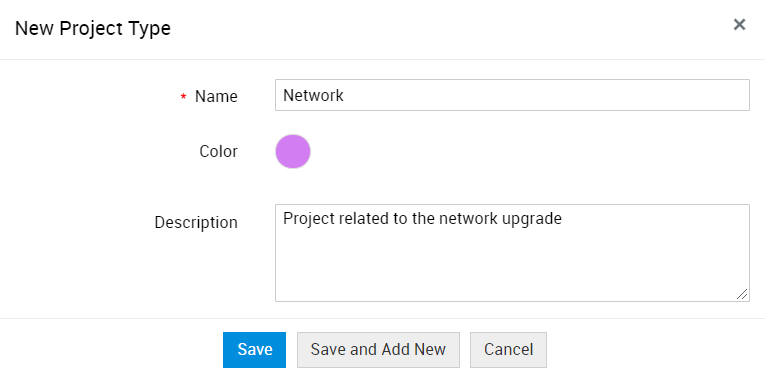
Under Project Types, click New.
-
Name: Provide a name for the project type. This field is mandatory.
-
Color: Select a color to represent the project type.
-
Description: Provide a brief description about the project type.
-
Click Save or Save and Add New.
By default, the following project type options are available.
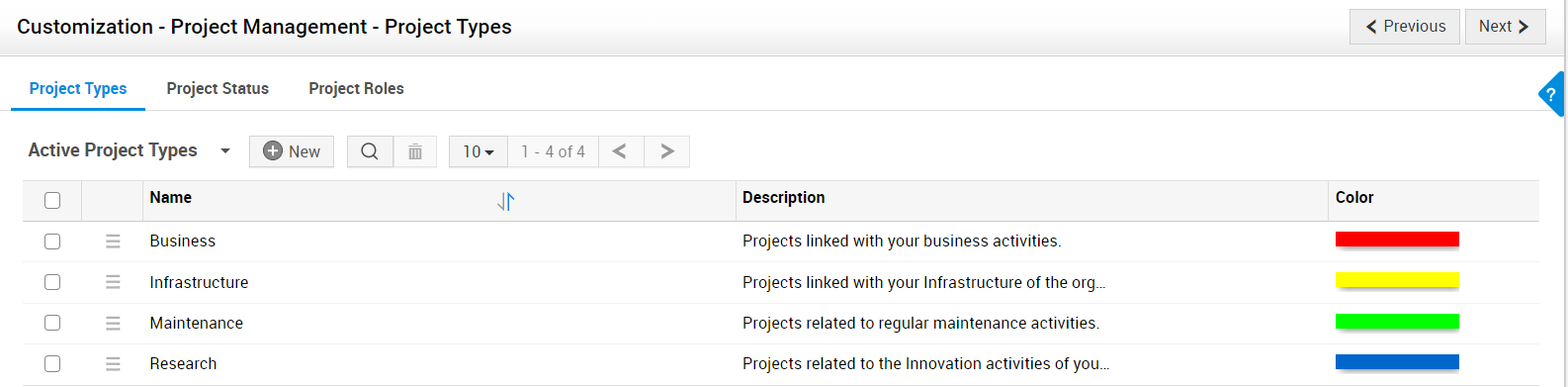
List View Actions
Edit/Delete Project Types - Click  beside the project type to edit or delete it.
To bulk delete, select multiple project types and click  .
.
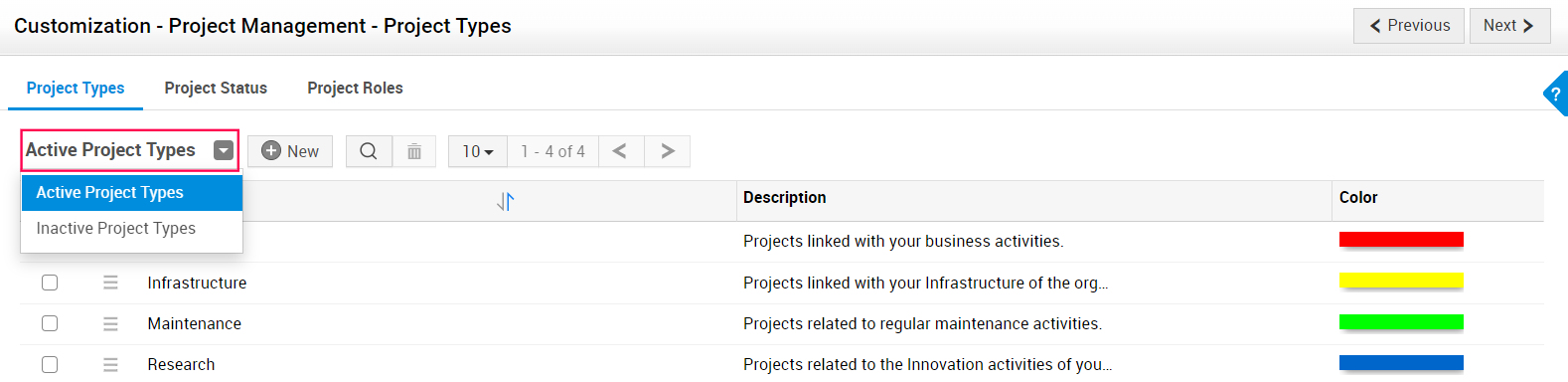
Filter Project Types - By default, the active project types are displayed on the project types page. Click Project Types drop-down to switch between Active and Inactive Project Types.
Reactivate Inactive Project Types - Edit an inactive project type and uncheck the Inactive box. Click Update to reactivate the project type.
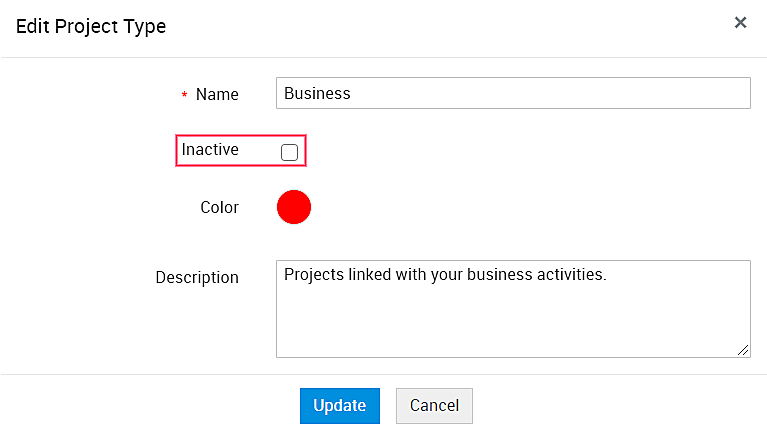
You can also select multiple inactive project types and click Mark as Active.
Search through Project Types - Click the  icon to search through project types from the list view.
Limit the number of records displayed - Choose the number of project types to be displayed in the list view.
Sort Project Types - Click the  icon to sort project types in alphabetical order.