
Configuring SNMP V1/V2 credentials
SNMP V1/V2 credentials are used for scanning network devices like, printers, routers, and switches.
To configure SNMP V1/V2 credentials,
- Login to ServiceDesk Plus using your credentials.
- Select Admin tab --> Discovery block --> Credentials Library.
- Click on Add New Credential link (available at the top-right corner). A New Credential Pop-Up Opens up.
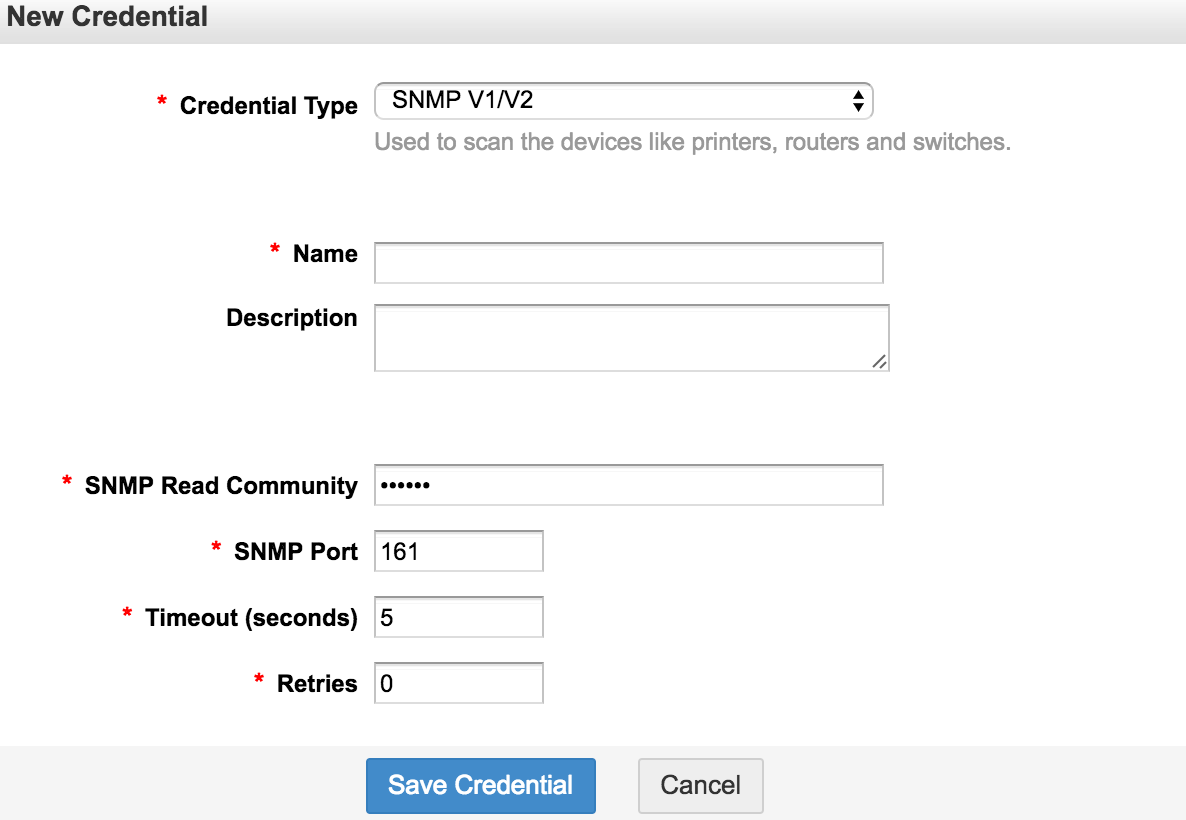
- Select SNMP V1/V2 in the credential type.
- Enter Name and Description.
- Enter the SNMP Read Community password.
- Enter the SNMP Port Number - It is set at 161 by default.
- Set the Timeout (Indicates the time after which connection would be terminated) - It is set at "5" secs by default which can be changed.
Set the count for Retries (Indicates the number of attempts that can be made before Timeout happens) - It is set at "0" by default which can be changed.
For configuring SNMP V3 credentials
-
SNMP V3 credentials are used for scanning network devices like, printers, routers, and switches.
To configure SNMP V3 credentials,
- Login to ServiceDesk Plus using your credentials.
- Select Admin tab --> Discovery block --> Credentials Library.
- Click on Add New Credential link (available at the top-right corner). A New Credential Pop-Up Opens up.
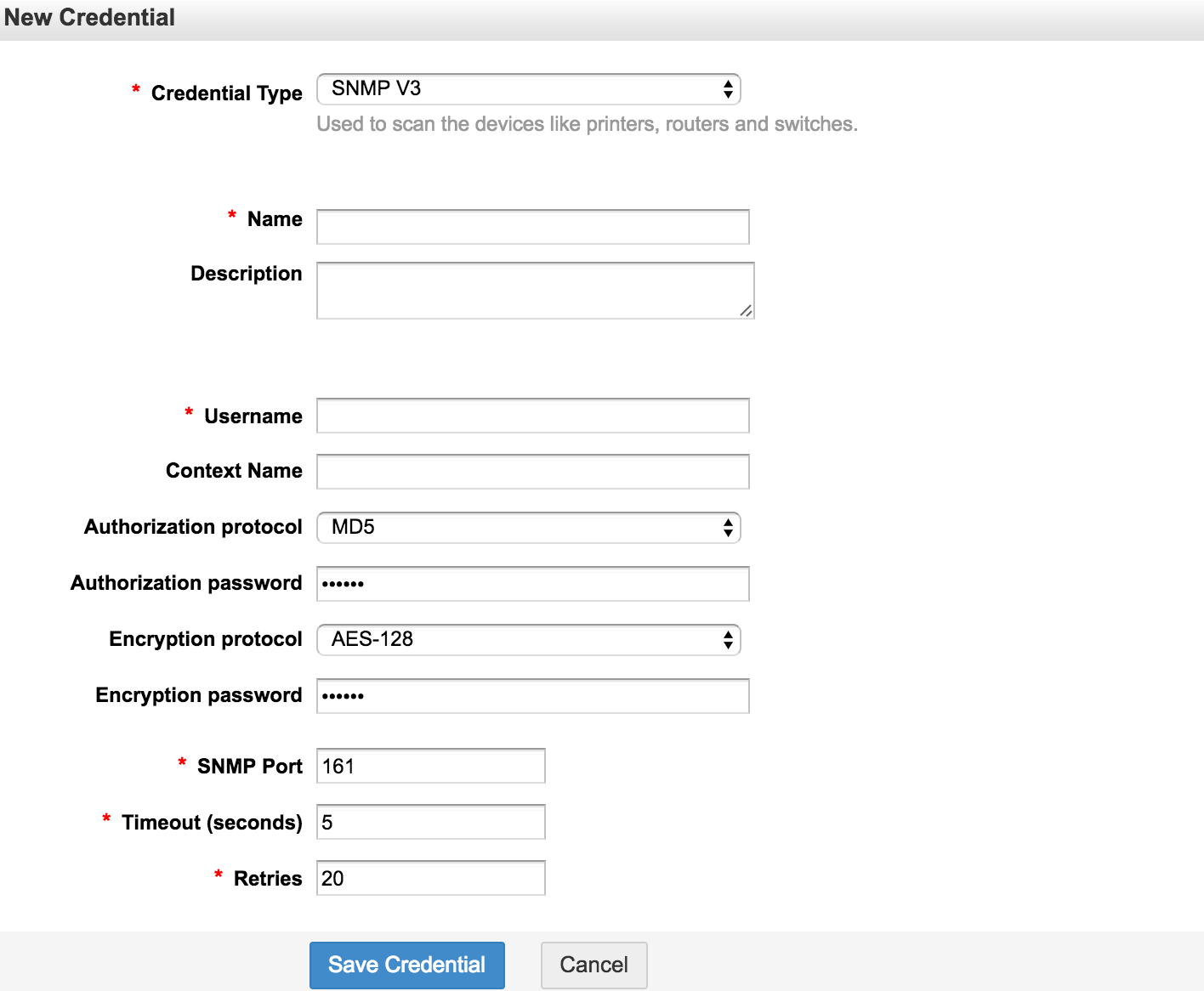
- Select the Credential Type as SNMP V3.
-
Authorization and Encryption Protocols:
-
- Choose Either MD5 or SHA for Authorization Protocol and DES or AES-128 for Encryption Protocol.
- Once the corresponding protocol type is selected, enter the Authorization password.
- Once the Encryption protocol is selected, enter the Encryption password.
- Enter the SNMP Port Number - It is set at 161 by default.
- Set the Timeout (Indicates the time after which the connection would be terminated) - It is set at "5" secs by default which can be changed.
- Set the Retries count (Indicates the no. of attempts that can be made before the timeout happens) - It is set at "0" by default which can be changed.