Map out a detailed plan to execute the proposed change. The change management team can plan the change goals and guidelines, contemplate how to implement the change, prepare fallback plans, plan outages, and set time frames to implement the change stage-by-stage.
Details
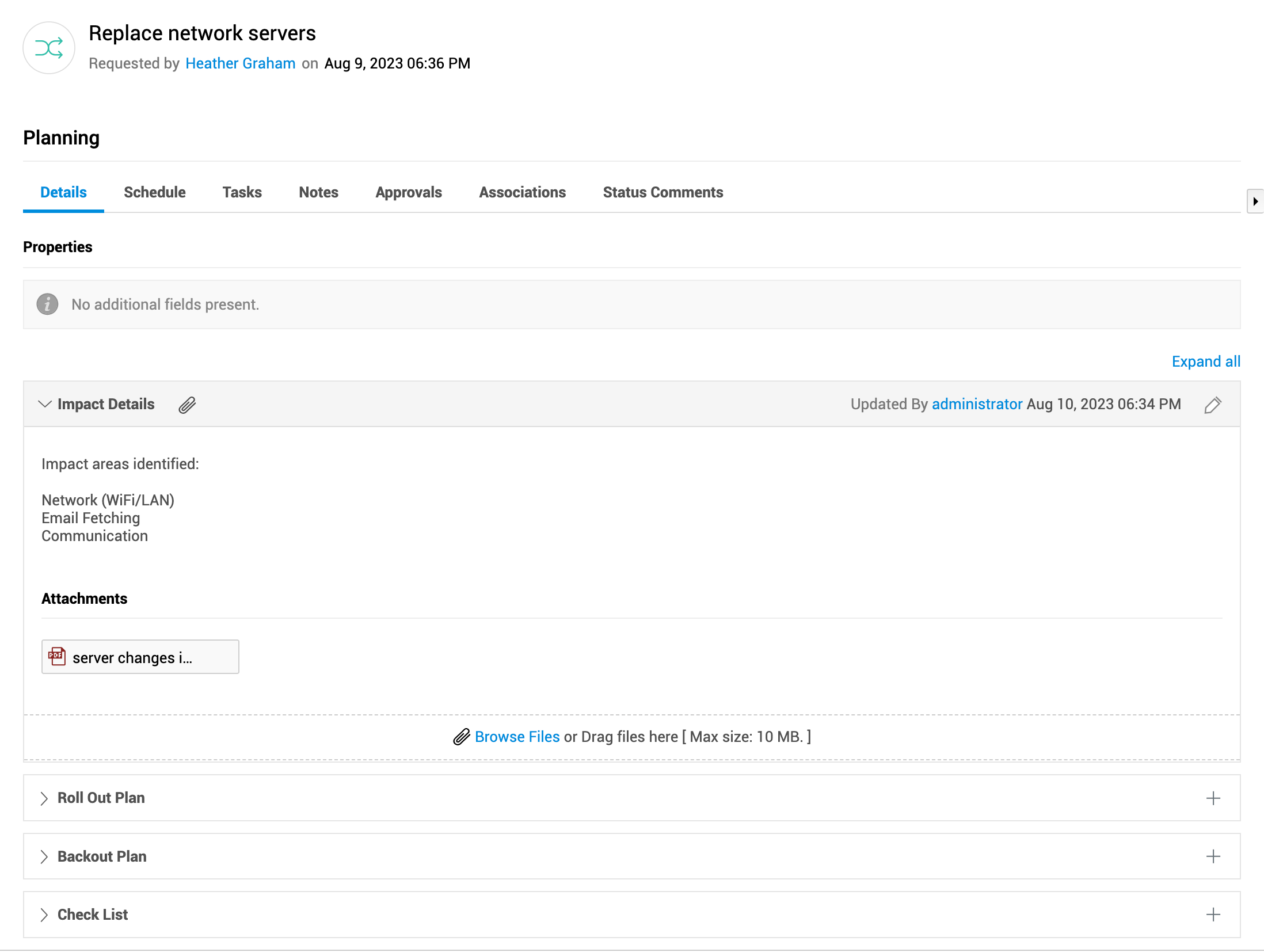
The Details sub-tab in planning stage displays the following sections that analyze the change:
- Impact Analysis - Records the effect of the change pre and post implementation.
- Rollout Plan - Discusses if the change can be implemented in phases, brought out wholly, or via a project/release request.
- Backout Plan - Contains the contingency plan to be implemented in case change technicians decide to back out of the change. The detailed procedure on how to back out by restoring the organization to last working state is described here.
- Checklist - Lists the essential steps to verify whether the change implementation is completed with all requirements.
The various analyses can be added manually using Add New option or  icon. Alternatively, you can also go to Actions menu to add various analyses to the planning stage.
Additional fields configured with the planning stage are also displayed in this tab.
Schedule Change Planning
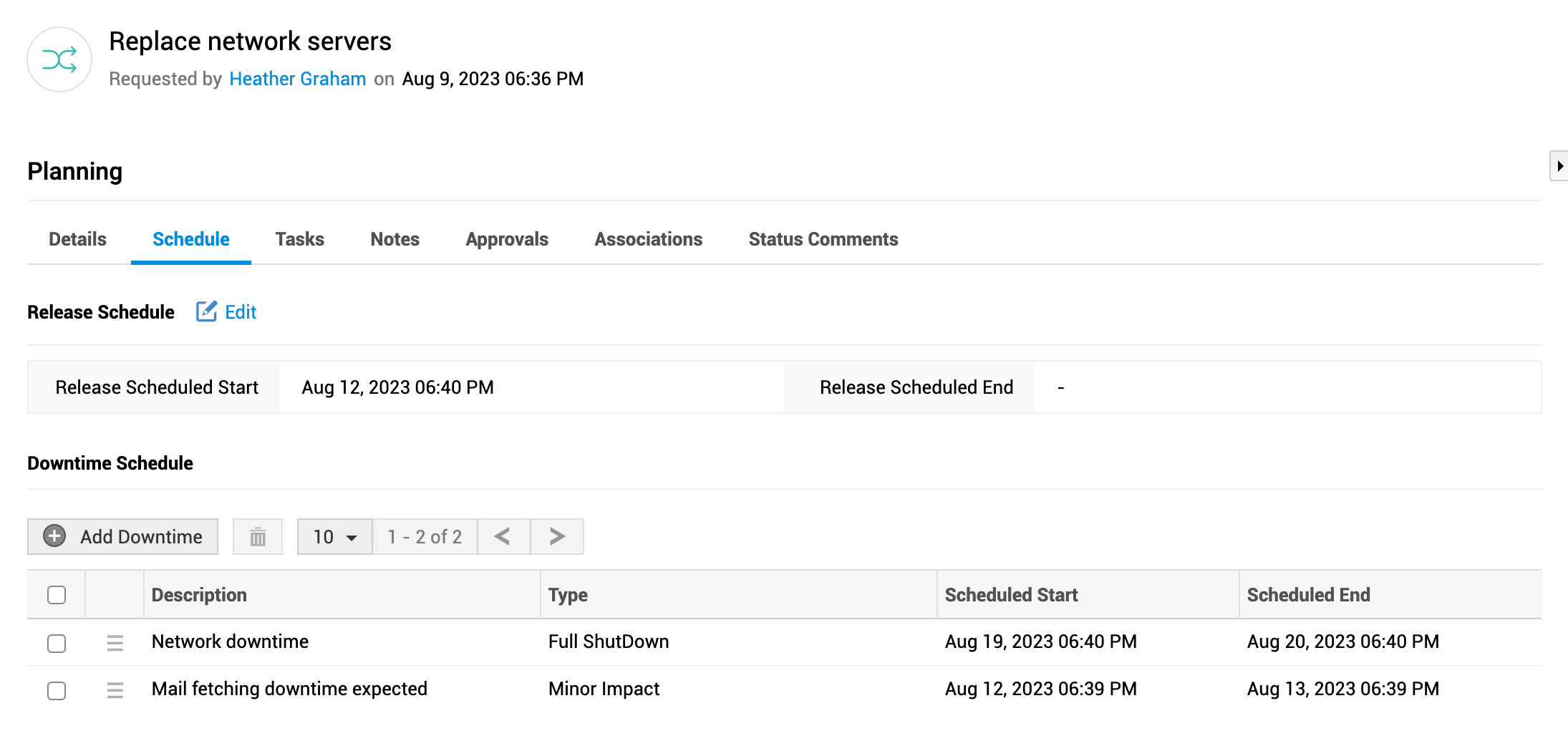
Plan the time to release the change and schedule service downtimes that might occur when the change is implemented.
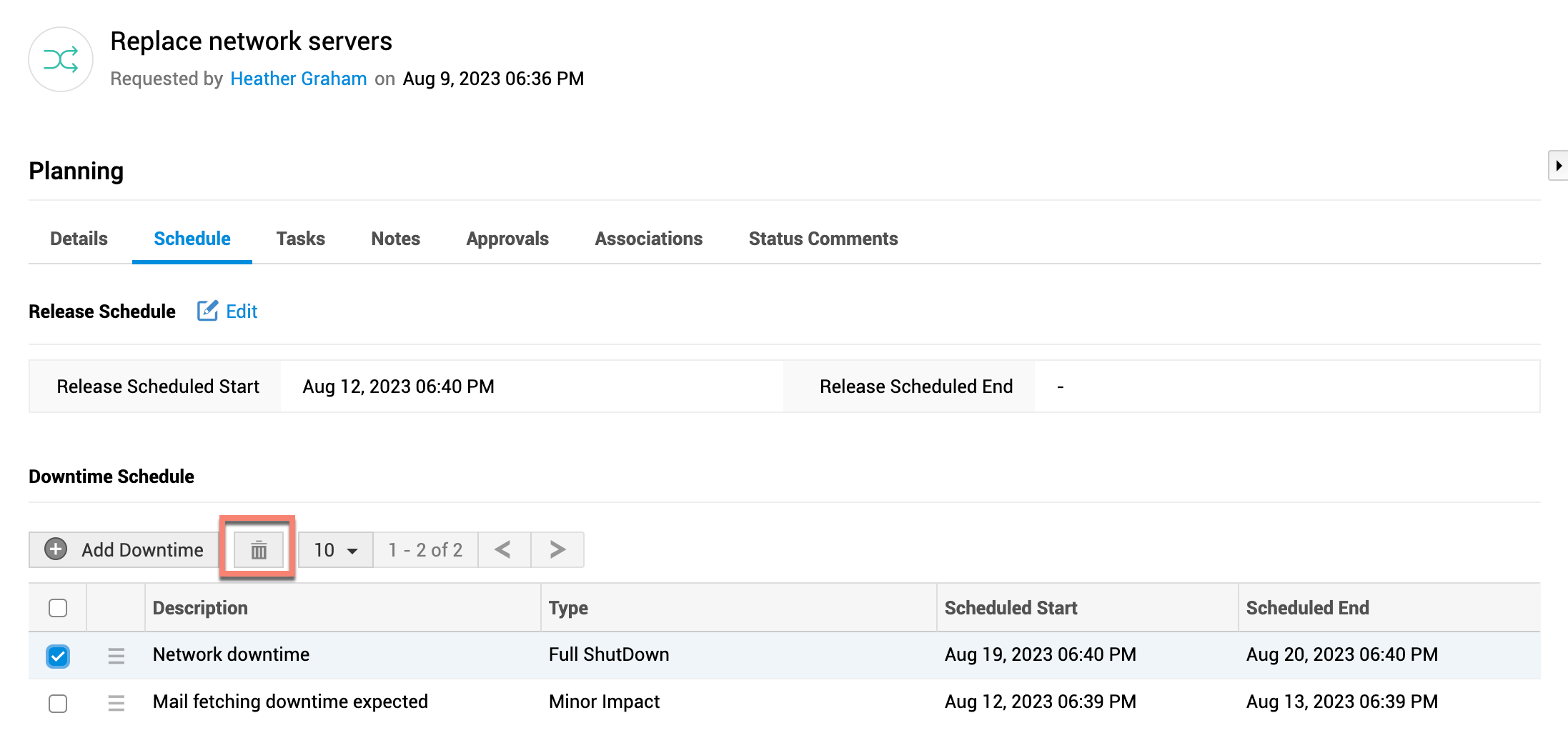
To add the planned change schedule in the Schedule sub-tab, click Edit beside Release Schedule to enter all details. You can also click  beside a field to update it.
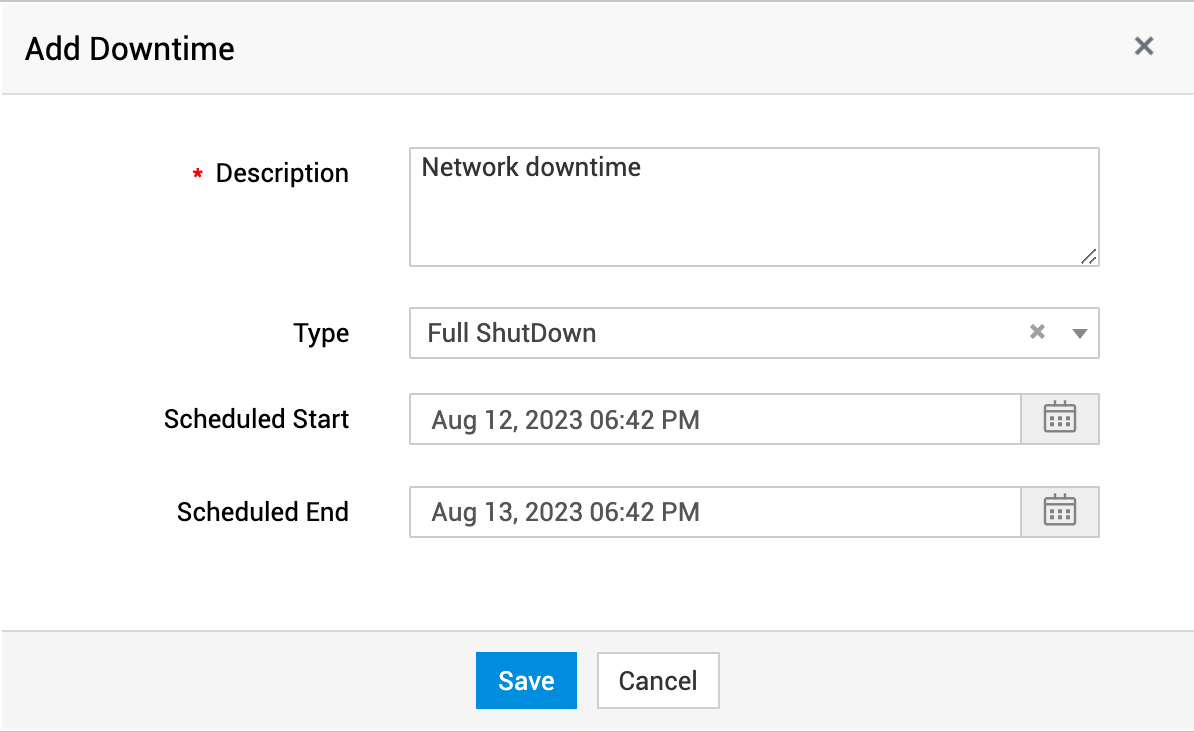
To add details about planned downtimes,
- Click Add Downtime. You can also select Actions > Add Downtime from the toolbar.
- Describe the downtime details. This is mandatory.
- Select the downtime type.
- Enter the time the downtime is scheduled to start and end.
- Click Save.
You can edit downtimes by clicking  . To delete downtimes, select the downtime and click
  on the toolbar.
Add Tasks
You can add and manage tasks to break down the work involved in the planning stage.
In the Tasks sub-tab,
- Click
 to add a task. You can also quick add tasks by clicking
  .
. - To add tasks from existing change task templates, click
 .
. - Click Organize to set the order in which tasks must be executed.
- Click Dependencies to set parent-child relationship between tasks.
- Click to edit, delete, or close a task. You can also select multiple tasks and click
 on the toolbar to close or delete tasks in bulk.
 - Select multiple tasks and use the toolbar buttons to pick up, assign or trigger tasks.
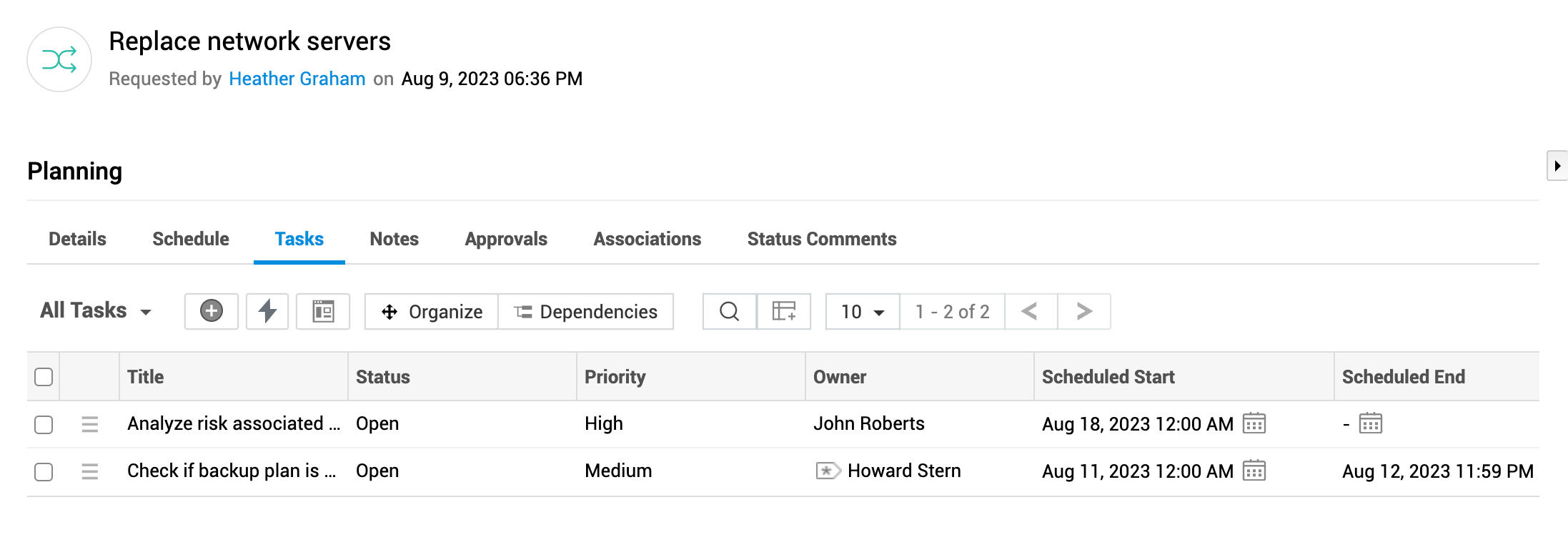
Click on a task name to open the task details page. You can view the comprehensive details of the task, spot-edit the task fields, add comments or work logs, and track history from the task details page.
You can also manage tasks from the Actions menu on the toolbar or from the Tasks tab on the left pane. Learn more.
Add Notes
Technicians can add notes add important information relevant to planning the change and tag users to notify them.
In the Notes sub-tab,
- Click Add Notes. Add the notes details and enter @ to tag users.
- Click Edit on a note to modify the note content. You can only edit the notes added by you.
- Click Delete on a note to remove the note.
- Click
 or
or  beside Add Notes option to expand or collapse all notes.
 - Click
 to sort the order in which the notes are displayed.
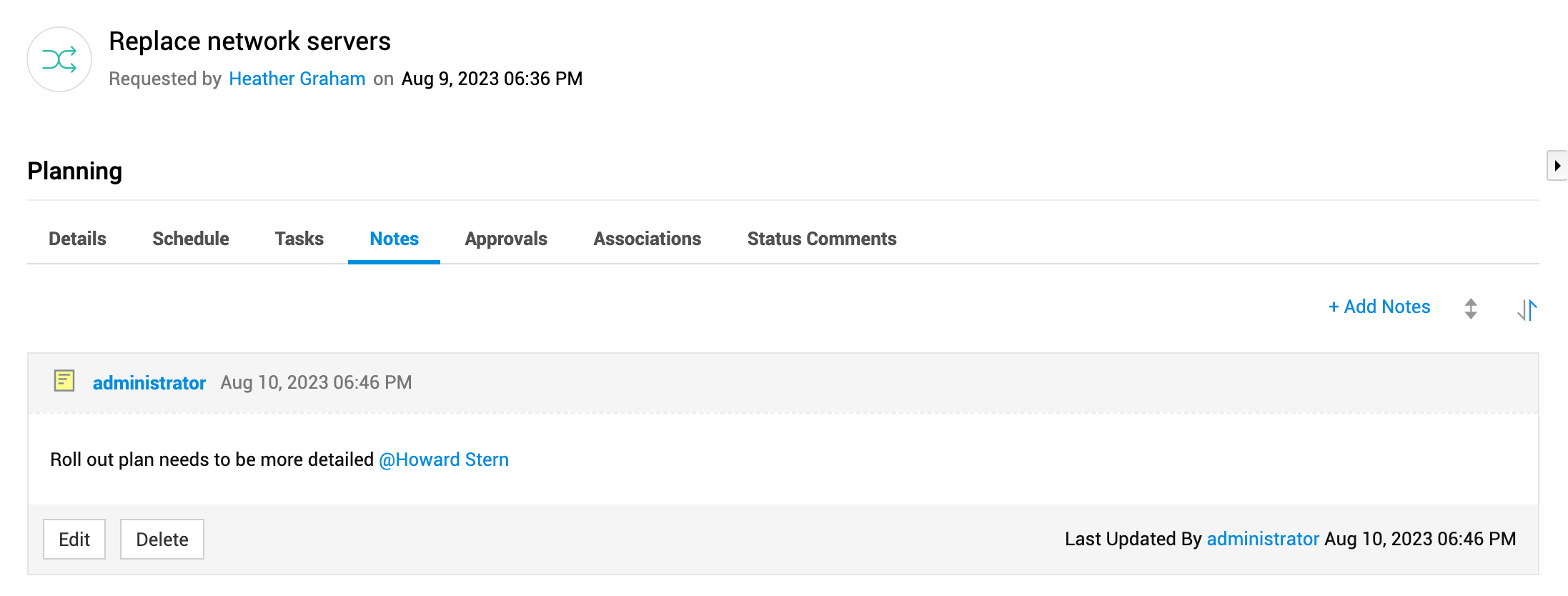
You can also add notes from the Actions menu on the toolbar or from the Notes tab on the left pane. Learn more.
Approvals
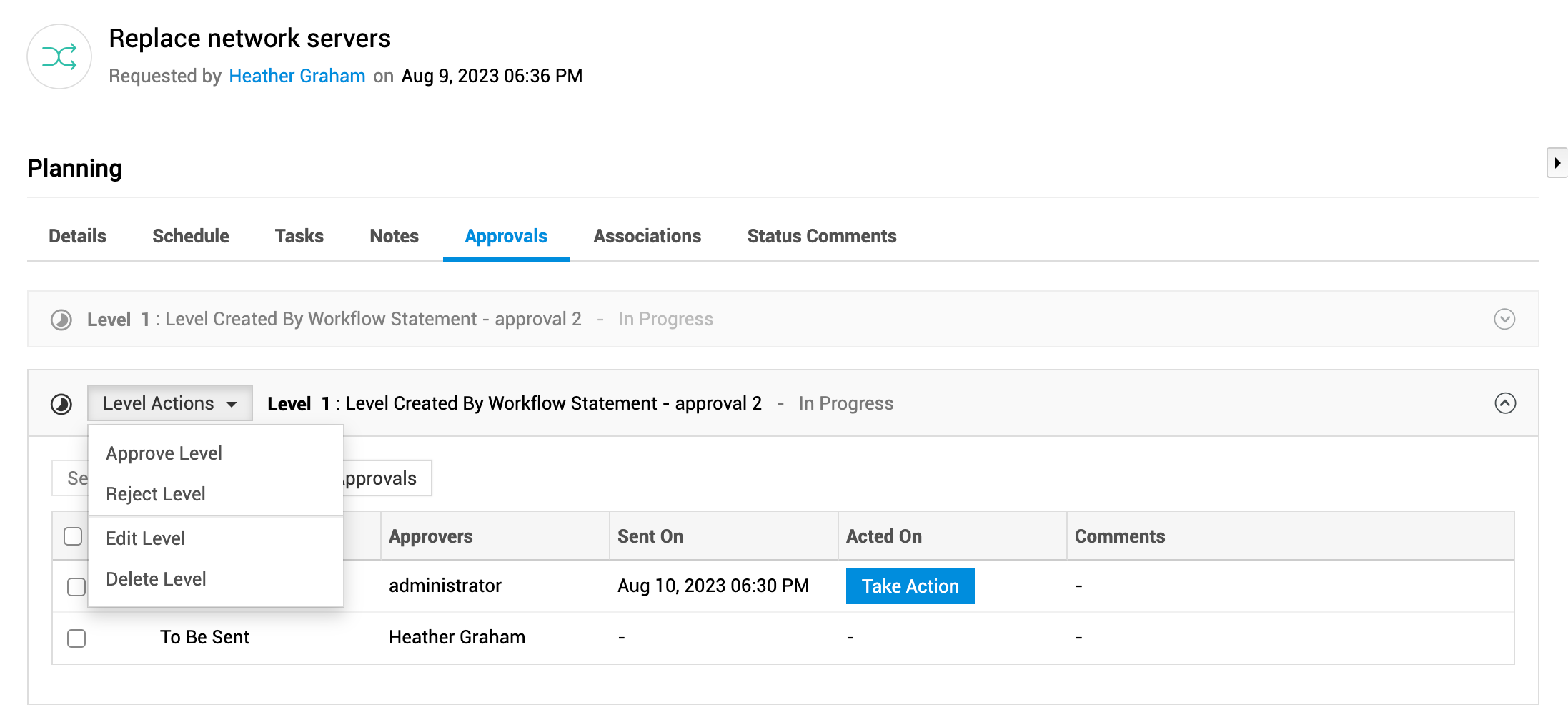
Track the approval levels associated with the planning stage via workflow. Depending on your permissions, you can perform approval actions on the change.
In the Approvals sub-tab,
- Click Add Approvals to configure additional approvals in the approval levels added from workflow.
- Select approvals and click Send for Approval to trigger approval reminder to the approvers via email.
- If you are an approver, you can take approval actions in the approval level table.
- Hover over an approval and click
 to remove the approval.
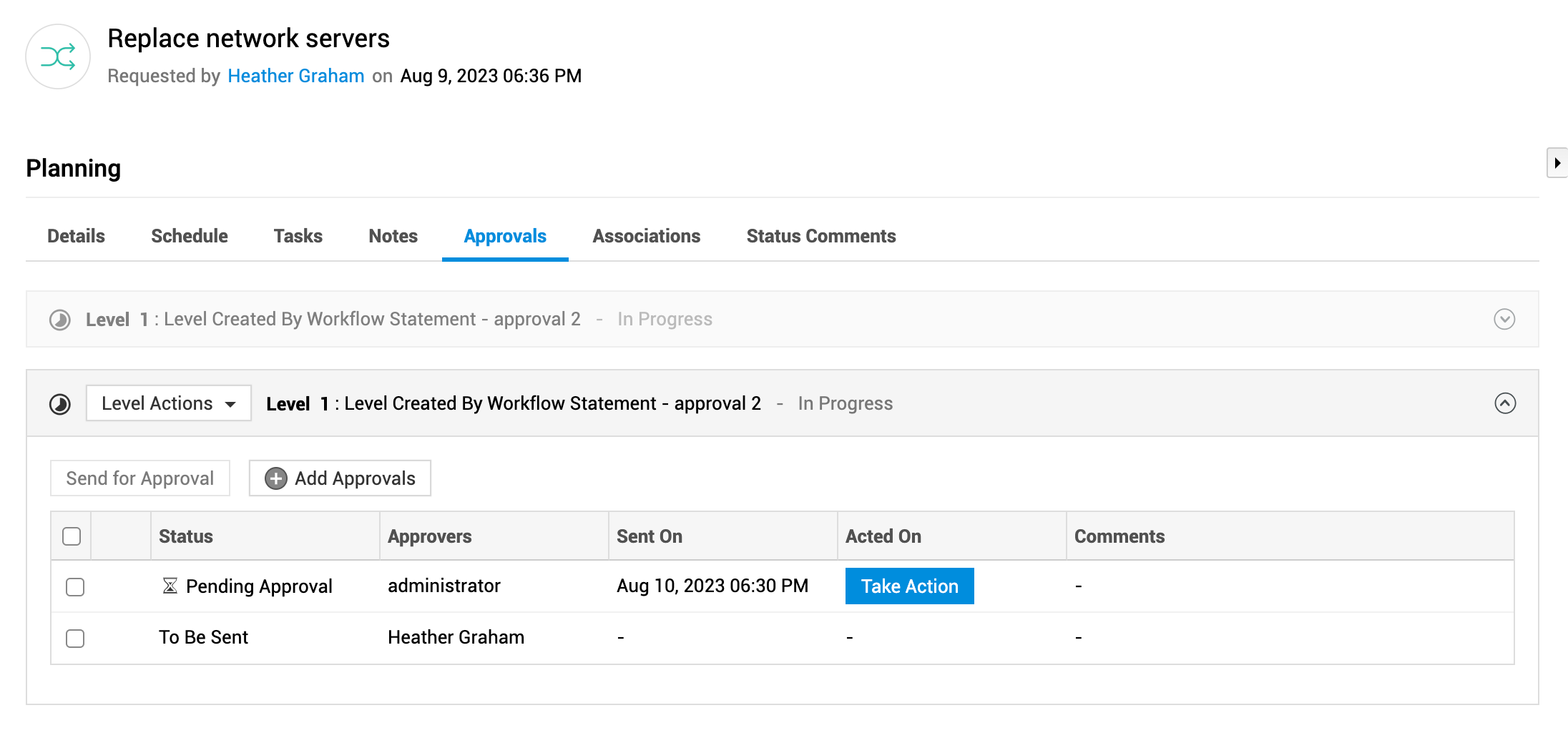
From the Level Actions drop-down, you can approve, reject, edit or delete approval levels based on your permissions.
Associations
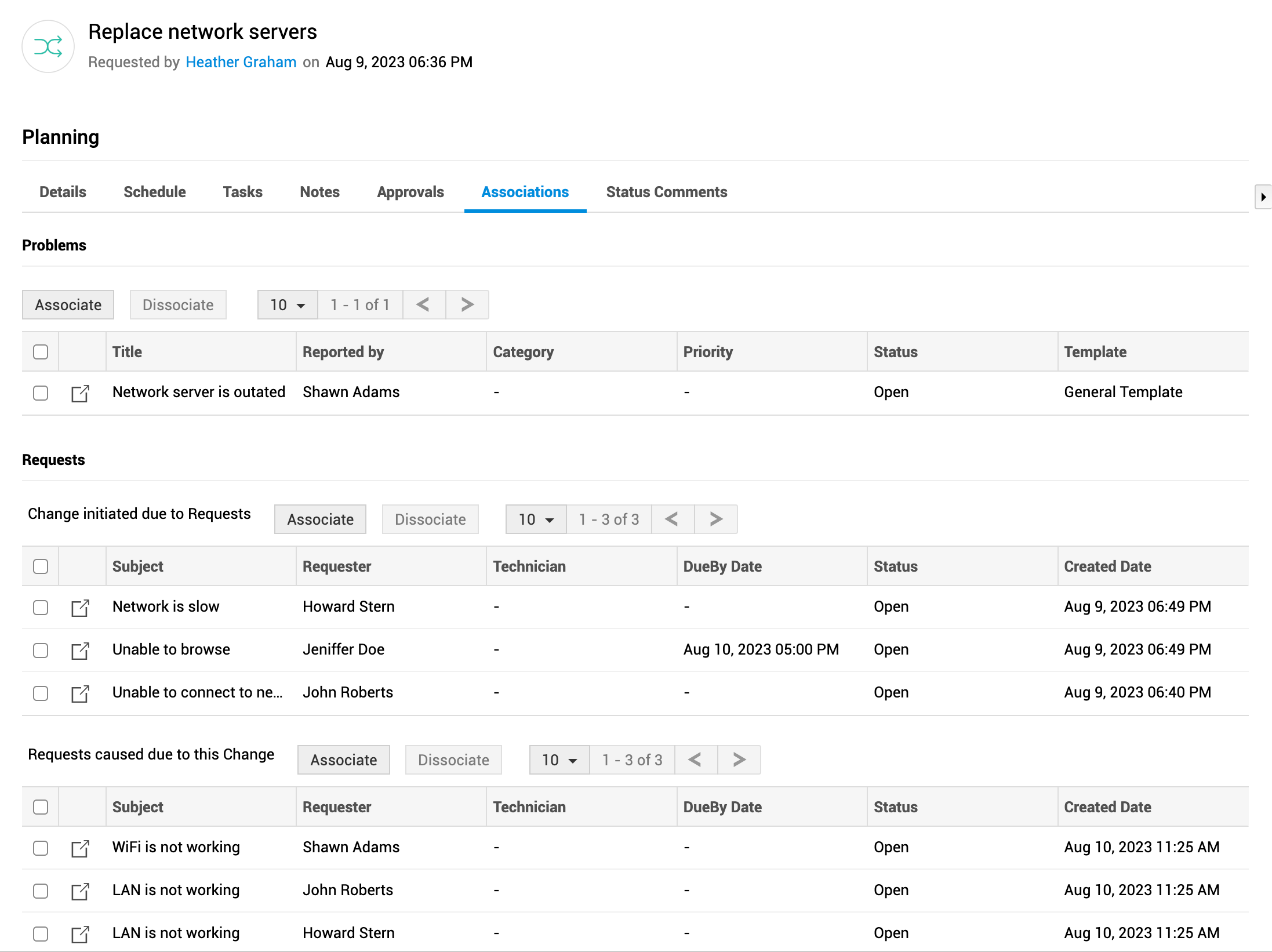
Associate problems or requests which caused the change. Requests created because of the change can also be associated.
In the Associations sub-tab,
- Click Associate under the relevant heading.
- In the slider window, select the problems or requests to associate with the change.
- Click Associate.
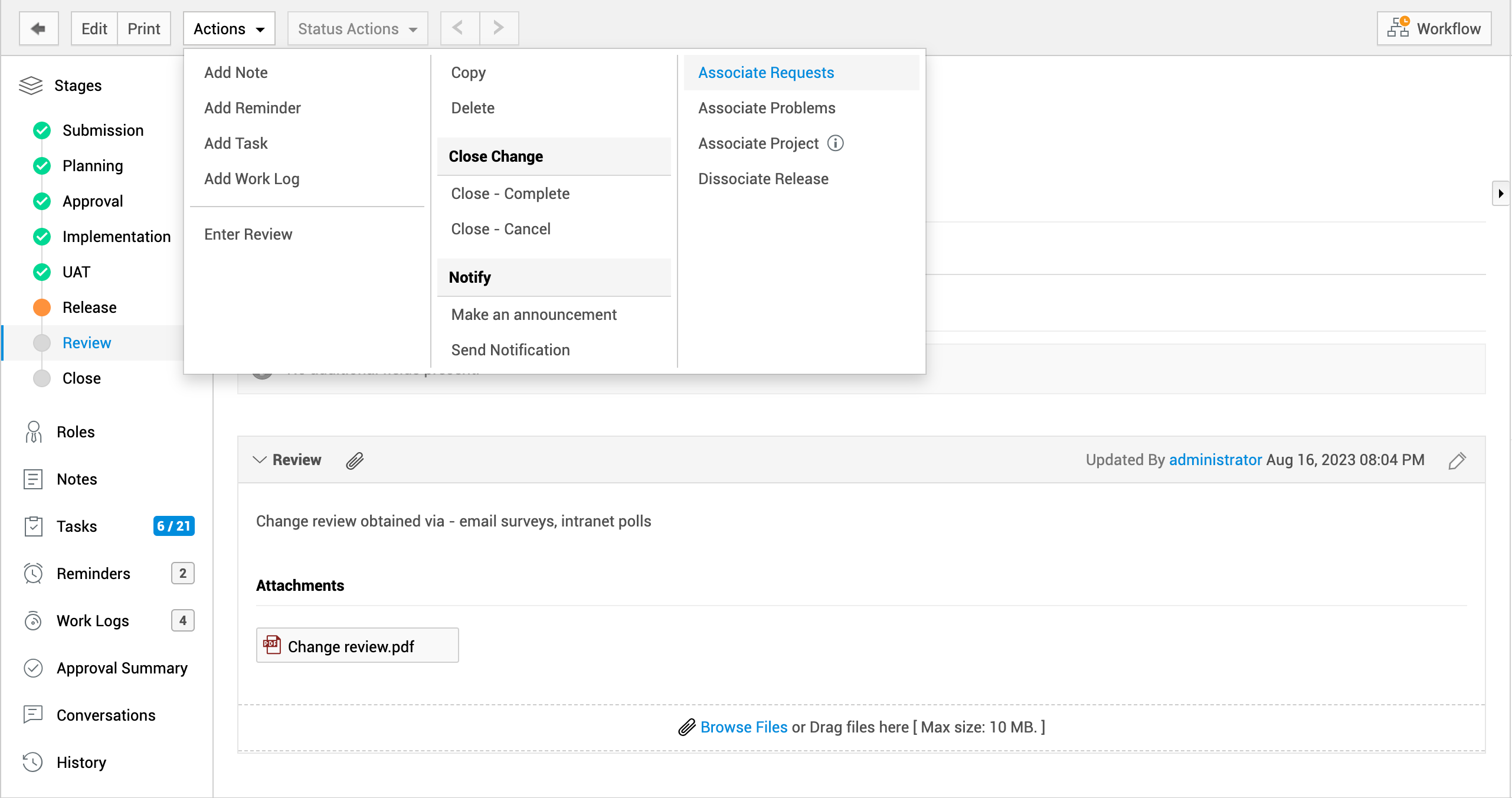
You can also associate requests and problems to a change from the Actions menu.
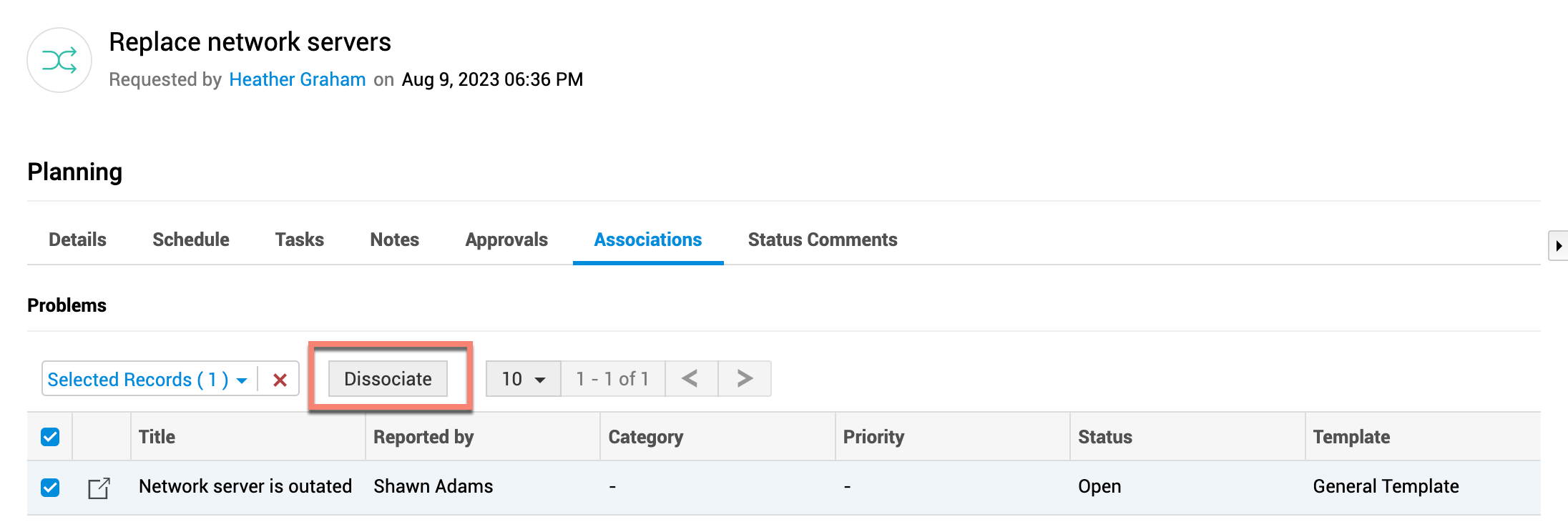
To remove any associated problem or requests, select them and click Dissociate.
Status Comments
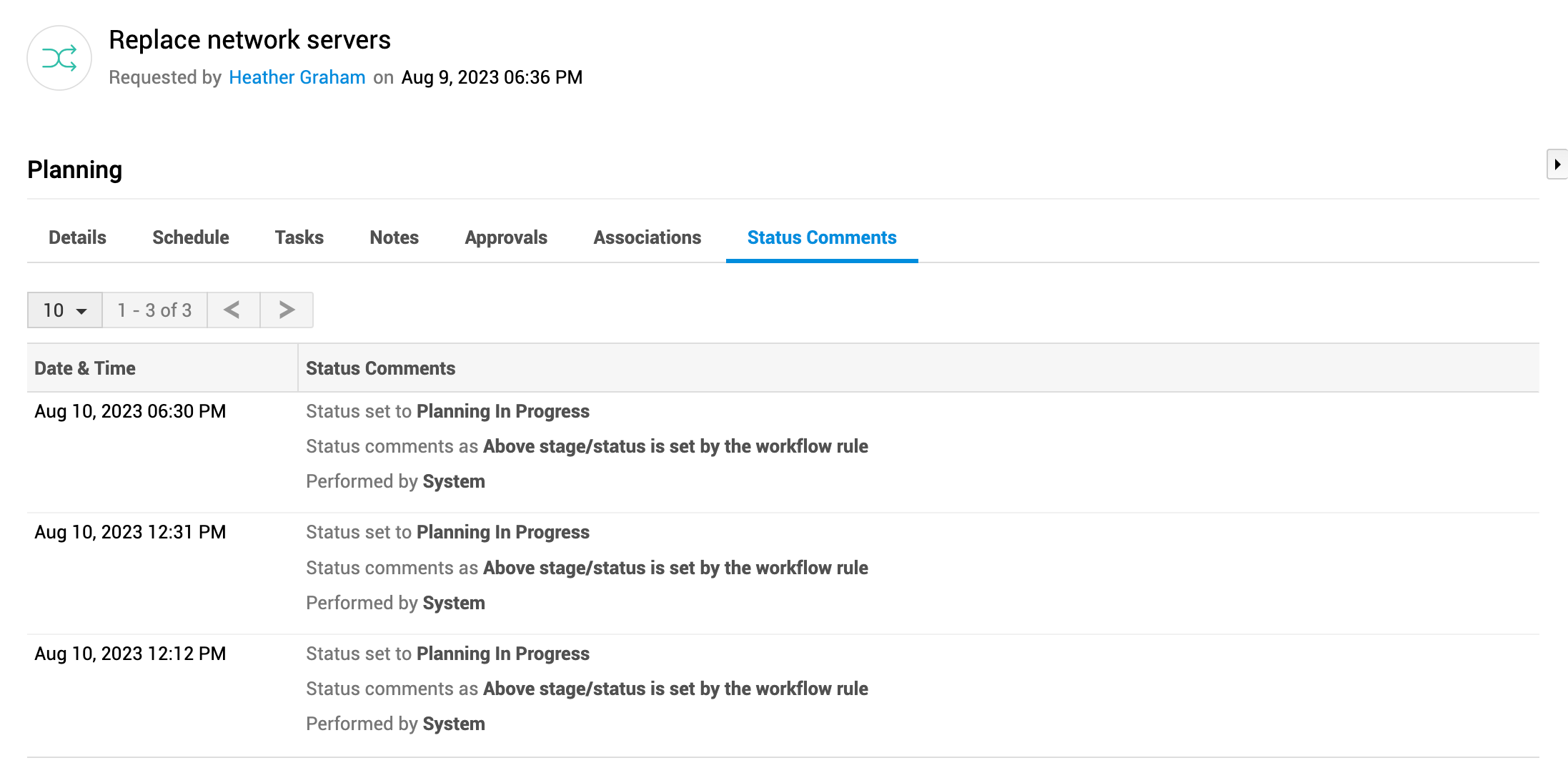
View the status transitions of the change in the planning stage, along with the comments added during transitions.