
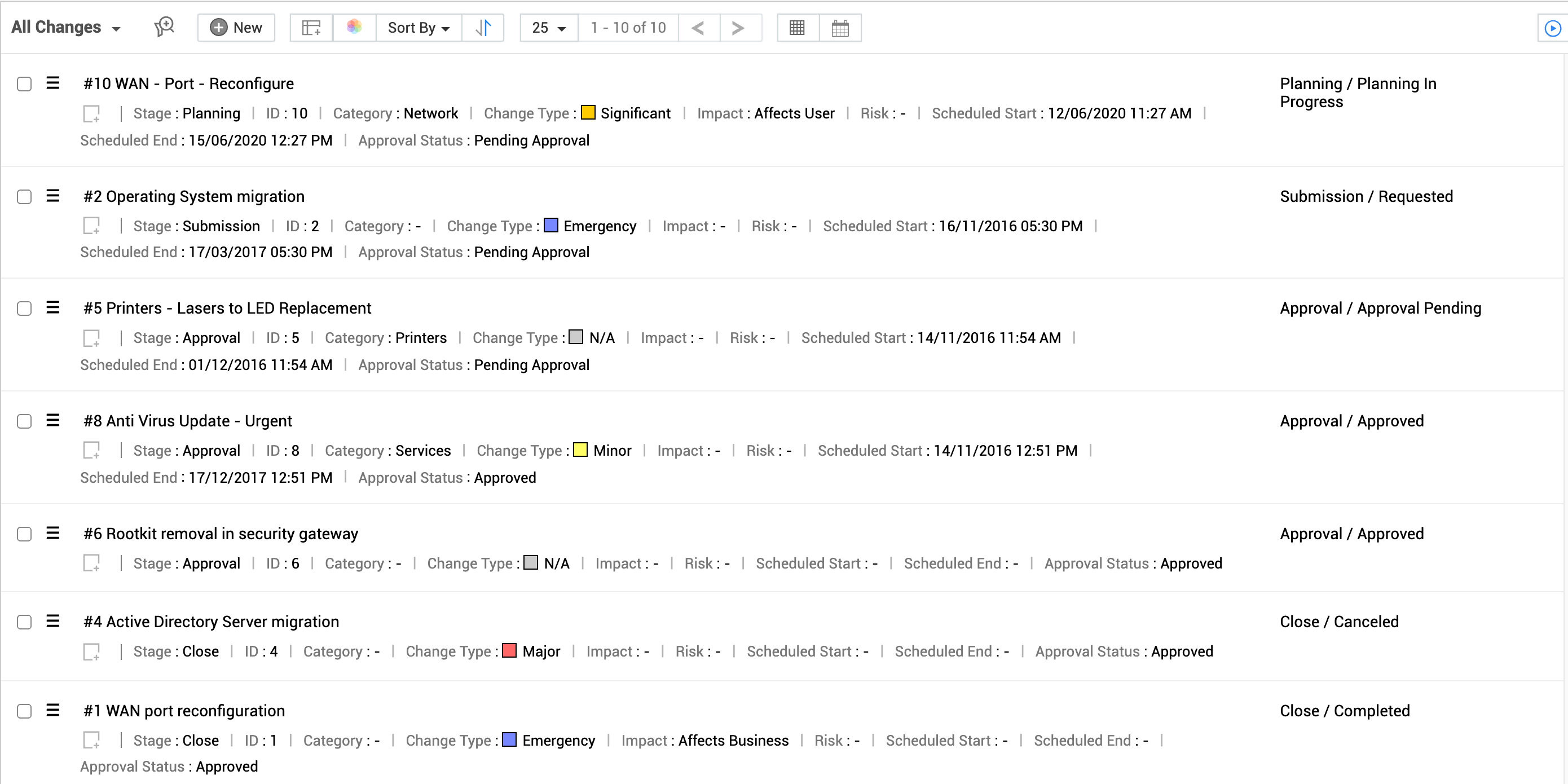
Classic View allows you to view changes as a list of items with prominence for the title and stage. All other change attributes are shown in the subsequent lines below the title. You can add or remove the attributes required using the column chooser.
To toggle classic view, click  in the header of the change list view.
Classic View in Changes:
Search
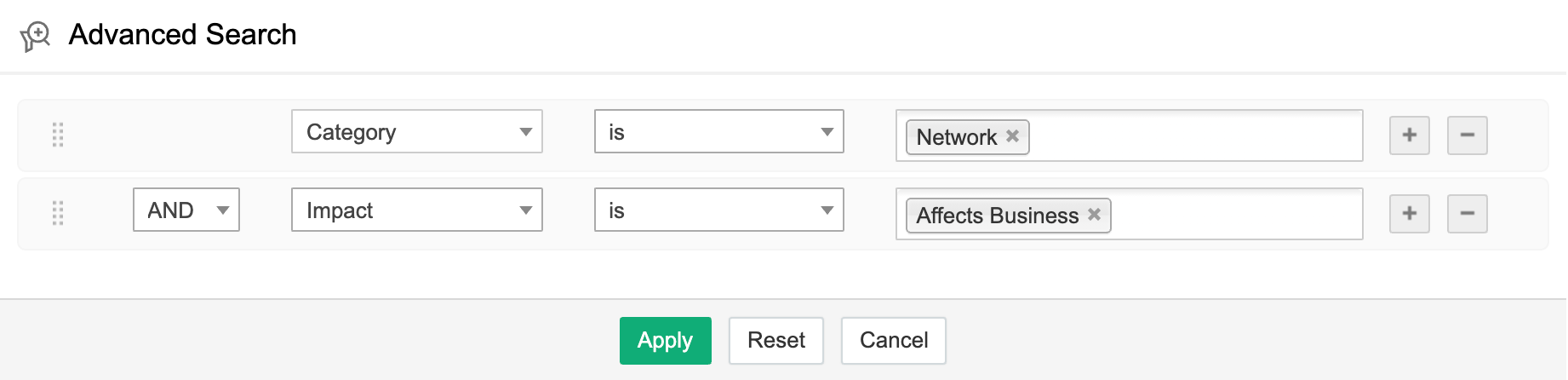
Advanced Search can be used to filter changes based on configured conditions.
To initiate Advanced Search, click  on the header and configure the filtering condition based on one or more column values along with the necessary logical operators.
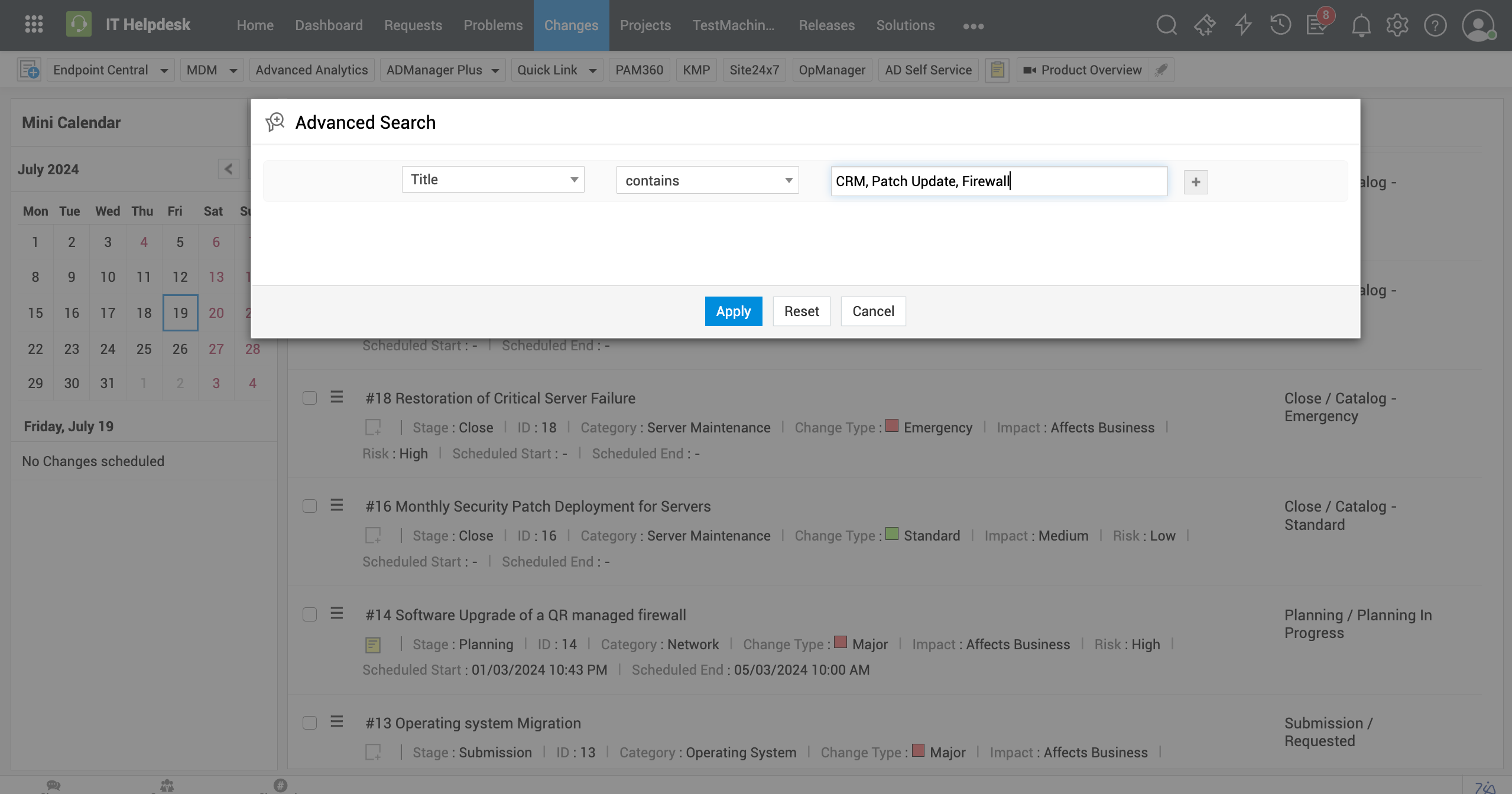
You can also perform comma-separated advanced searches in the change classic view.
Sort
You can sort the items in the classic view by ascending or descending order based on the column values. By default, the classic view is sorted by ascending order based on the Change ID.
To sort the items, select the preferred column from the Sort By dropdown and choose the preferred sort order.
Actions in Classic View
From the classic view, you can perform various actions such as adding notes, edit, assign, or pick up changes.
-
To add notes, click
 and relevant information in the popup that appears and click Save.
 -
To edit change click
 and select Edit. Make necessary changes in the edit form and click Save.
 -
To pick up a change, click
and select Pick up. -
To delete a change, click
and select Delete. Review the delete confirmation prompt and click OK to delete the change. -
To assign a change to a technician, click the checkbox against the preferred change and select the technician to whom you want the change to be assigned using the combo box that appears on the view header and click Assign.