
When you select a template, a form containing various fields will be displayed.
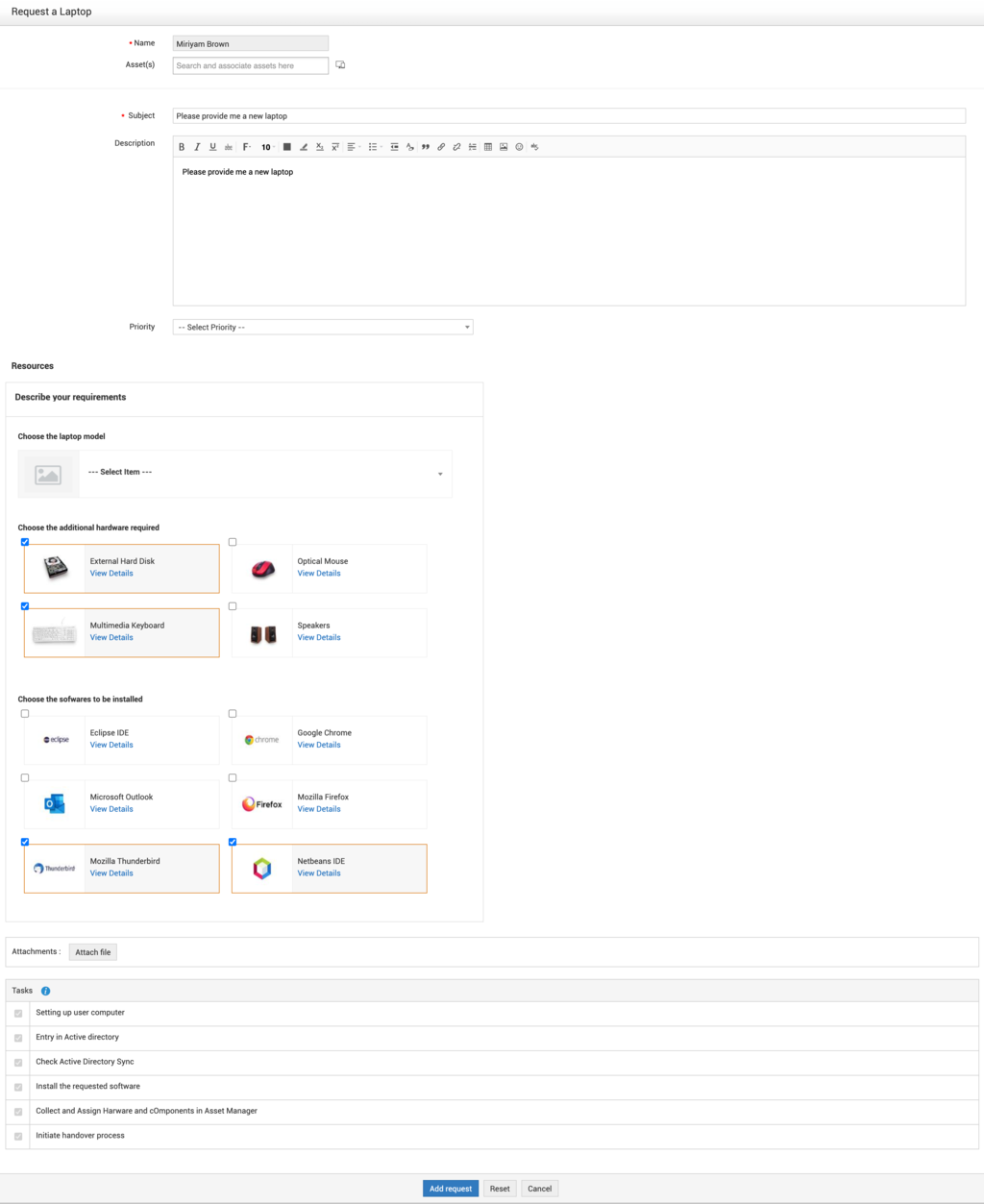
This form is called the Service Request form.
Select the required fields, add a subject, describe the service you require, and click Add Request.
|
Field |
Explanation |
| SLA | Refers to how soon the service request will be delivered. If the SLA option is available, select it. |
|
Name |
Your name will be populated here. |
|
Asset |
Select from the drop-down. These are assets that are associated with you. |
|
Template |
Select from one of the pre-configured templates to save time because most of the fields will be auto-populated in a template. This option will be available if you create a new service request, without using templates. |
|
Priority |
Refers to how urgent the issue is. |
|
Category |
Select from the drop-down. Choosing the accurate category ensures quicker resolution. |
|
Subcategory |
Select from the drop-down. Choosing the accurate subcategory ensures quicker resolution. |
|
Subject |
Provide short information about the issue. |
|
Description |
Describe the issue in detail. |
| Resource Info | Complete details of the service requested |
Make sure you answer all the resource questions, if any. This will help the IT team deliver your services efficiently.
What is a Resource Question?
When you request for resources, the help desk may need complete details about the requested asset, such as the version, in case of software, or color or make, in case of hardware resources.
So, the resource questions aim at collecting all the necessary details for the request to be fulfilled at the earliest possible.
You can also add attachments, that are not more than 10MB in size, to the request form.
If enabled by Admin, you can also view the tasks associated with the template.
Next >>
Service Request Catalog