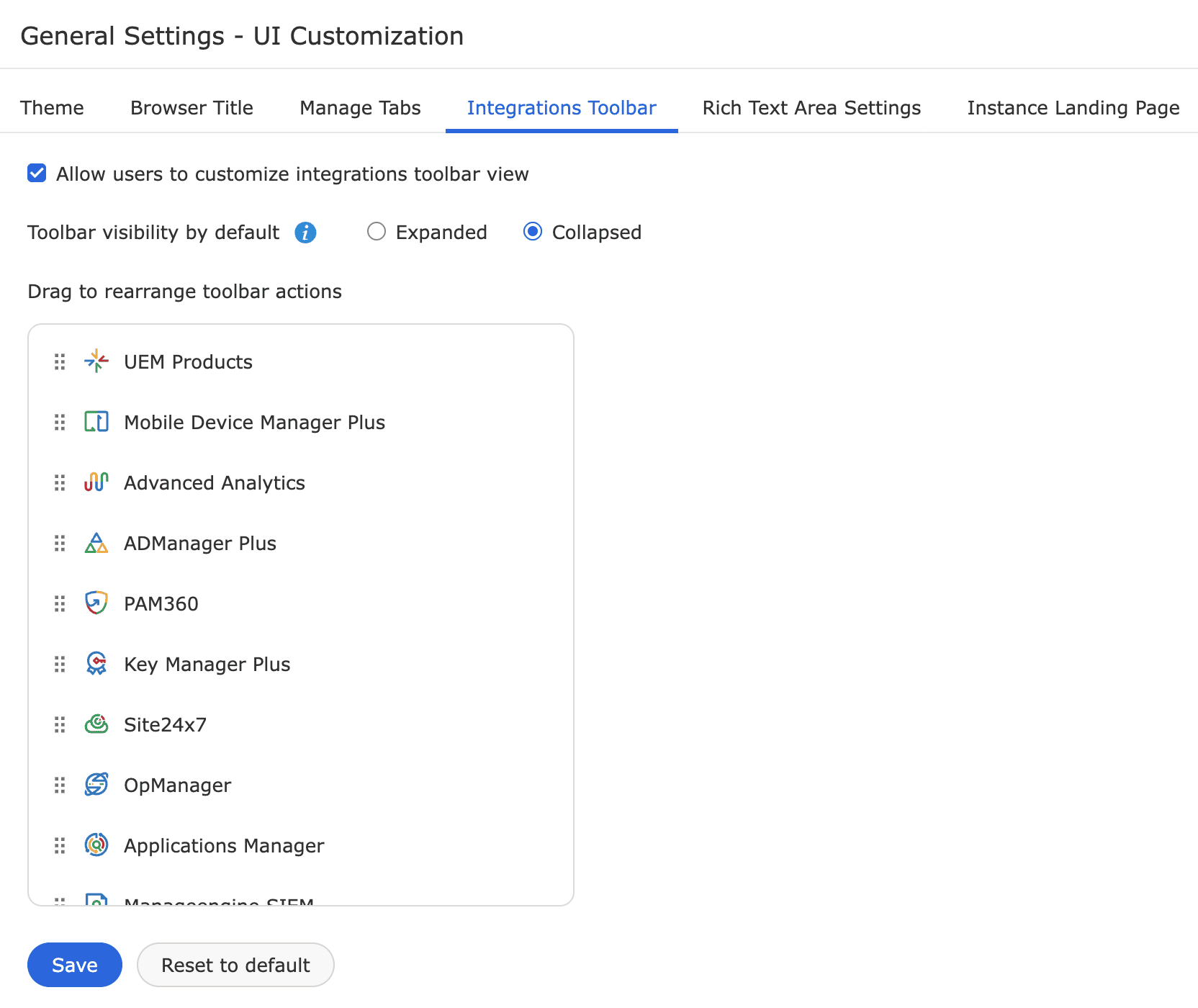
Reorder and manage the visibility of ManageEngine applications in the integrations toolbar (secondary header).
Configuration
-
Go to Admin > General Settings > UI Customization > Integrations Toolbar. Alternatively, click Customize Integrations Toolbar
 on the integrations toolbar.
-
Drag the applications to reorder them. This setting will apply to all technicians.
-
Use the Toolbar visibility by default option to set the default appearance of the integrations toolbar — expanded or collapsed.
-
Enable Allow users to customize integrations toolbar view to let technicians collapse or show the integrations toolbar for their profile, overriding the toolbar visibility defined under this tab.
-
Finally, click Save. Use the Reset to Default option to reset the customized order to default ones.